Master GA4: Google Analytics 4 tips & tutorials


14.2 million websites have already adopted Google Analytics 4 (GA4).
But why?
Because Google calls it their next-generation measurement solution, as it moves beyond page views and sessions to show how users actually interact with your website.
It gives you a complete picture of user behavior through its event-based model.
In this article, we’ll help you master GA4 with tips and search engine optimization (SEO)-specific workflows to get the most out of this tool.
Why GA4 matters for SEOs in 2025
Google replaced Universal Analytics (UA) with GA4 on July 1, 2023. Later in 2024, UA became completely obsolete, which means you can’t use any of its properties now.
This was a bummer for SEO experts who didn’t adapt to the new version in time. Why? Because UA stopped processing data. This means they lost access to year-over-year comparisons, historical traffic trends, and custom reports built over the years. That’s a lot of work to see go into the grinder.
But for the SEOs who took the time and put in the effort to learn GA4, it has redefined performance tracking. Instead of focusing on surface-level metrics like bounce rate, it allows them to track more meaningful engagement signals like scroll depth, engaged sessions, and event count.

GA4’s role in your modern SEO toolkit
An SEO toolkit is a set of tools that search teams use to measure how well their SEO strategies are working. But a modern toolkit goes beyond basic metrics—it includes tools like GA4 that track user behavior, engagement, and conversion paths.
Suppose you run an online store that sells soccer gear and you’ve published a post on “All the Kits Messi Has Worn.”
With GA4, you can track how many users visit that post from Google Search, how far they scroll, whether they click internal links (like to a related “Best Soccer Shoes” article), and if they return later to browse more gear reviews.
The SEO toolkit you know, plus the AI visibility data you need.

In short, GA4 captures real user behaviors. Instead of tracking only sessions and page views, it works on an event-based tracking model to collect data and analyze insights.
This model captures every interaction from page views, clicks, scrolls, and file downloads, to video plays as distinct events.
And when each interaction is recorded as a separate event, you have more data to understand how users engage with your content. Not just whether they landed on a page, but what they did next. Pretty cool, right?

This means that now you don’t have to rely only on surface-level metrics like bounce rate. Instead, you can focus on engagement signals that reflect user intent.
What does that mean?
Well, for example, you can track how many users scroll halfway through “All the Kits Messi has Worn” blog post, click an internal call to action (CTA) which redirects them to a jersey product page from there.
Most of this can be done using built-in features to your Analytics data. But for more advanced needs, you have to set up a custom configuration, which we’ll look at later in this guide.
Better together: GA4 + Google Search Console, Looker Studio, and BigQuery
You can even integrate GA4 with tools like Google Search Console (GSC), Looker Studio, and BigQuery.
- GSC: Shows you how people find your site in Google Search via impressions, clicks, and rankings
- Looker Studio: Allows you to create interactive dashboards and reports using data from multiple sources
- BigQuery: Lets you store and analyze large amounts of data using SQL (Structured Query Language), a language that you can use to extract or filter data from databases.
When used with GA4, these tools help you see the complete SEO performance from traffic acquisition to on-site behavior to advanced data analysis and reporting.

Now you notice your blog post “All the Kits Messi Has Worn” ranks in the top 5 on Google for a high-volume keyword like “Messi jersey history” (which is a metric you can find using GSC).

You check your GA4 data and realize that, even though this page gets a lot of traffic, most users leave without taking action.
But why is that?
To understand this, you can build a dashboard using Looker Studio to show keyword count, average position, and visibility in search engines. This way, your content team can see where you’re underperforming.
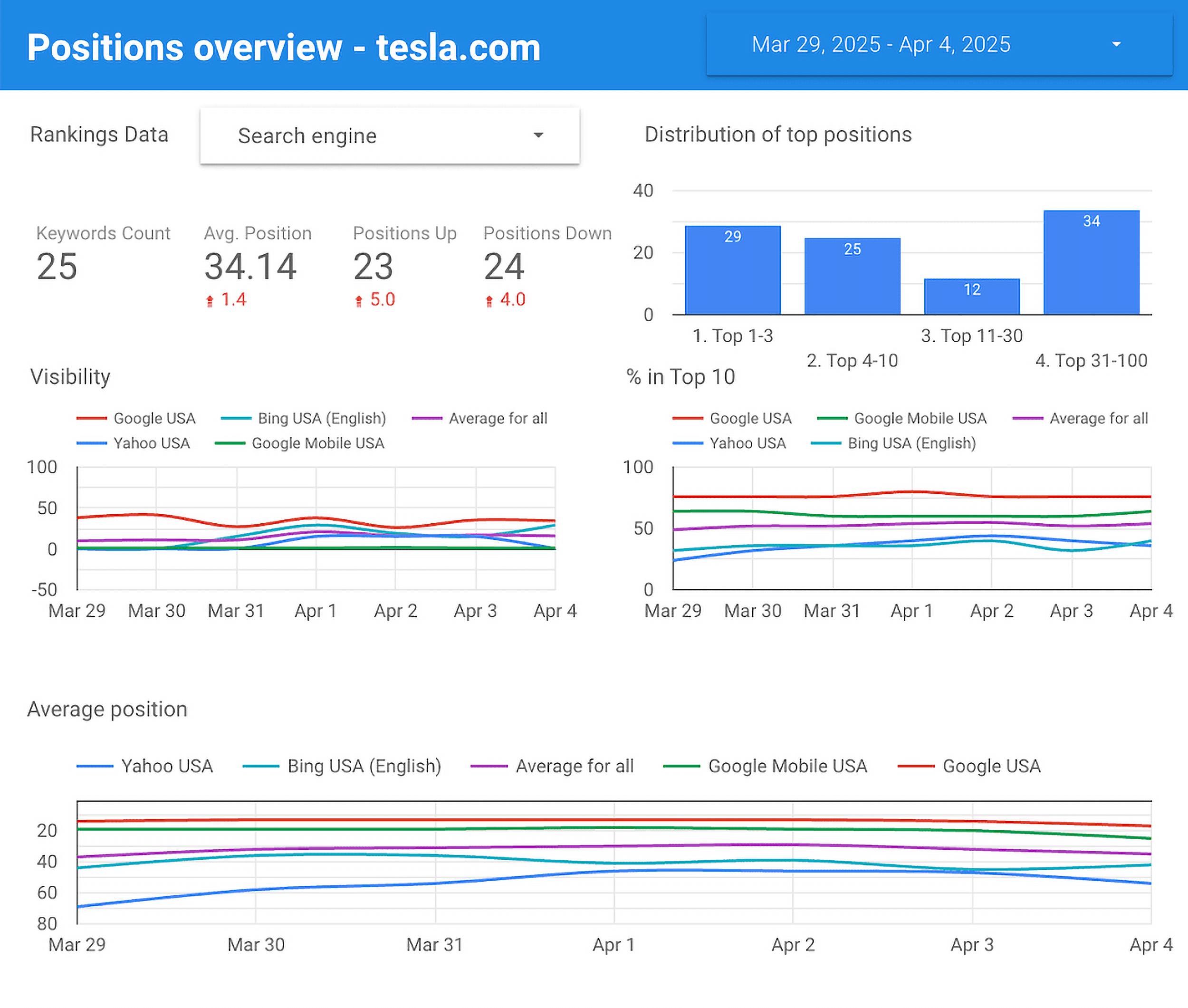
Then, your SEO or data team can run a query in BigQuery to compare behavior across similar blog posts and identify patterns. This can include poor internal linking or low time-on-page that might hurt engagement.
Based on these insights, you can know exactly how to go about revising your blog post for better conversions.
What SEOs need to know about GA4’s data model
What makes GA4 different is its data model functionality.
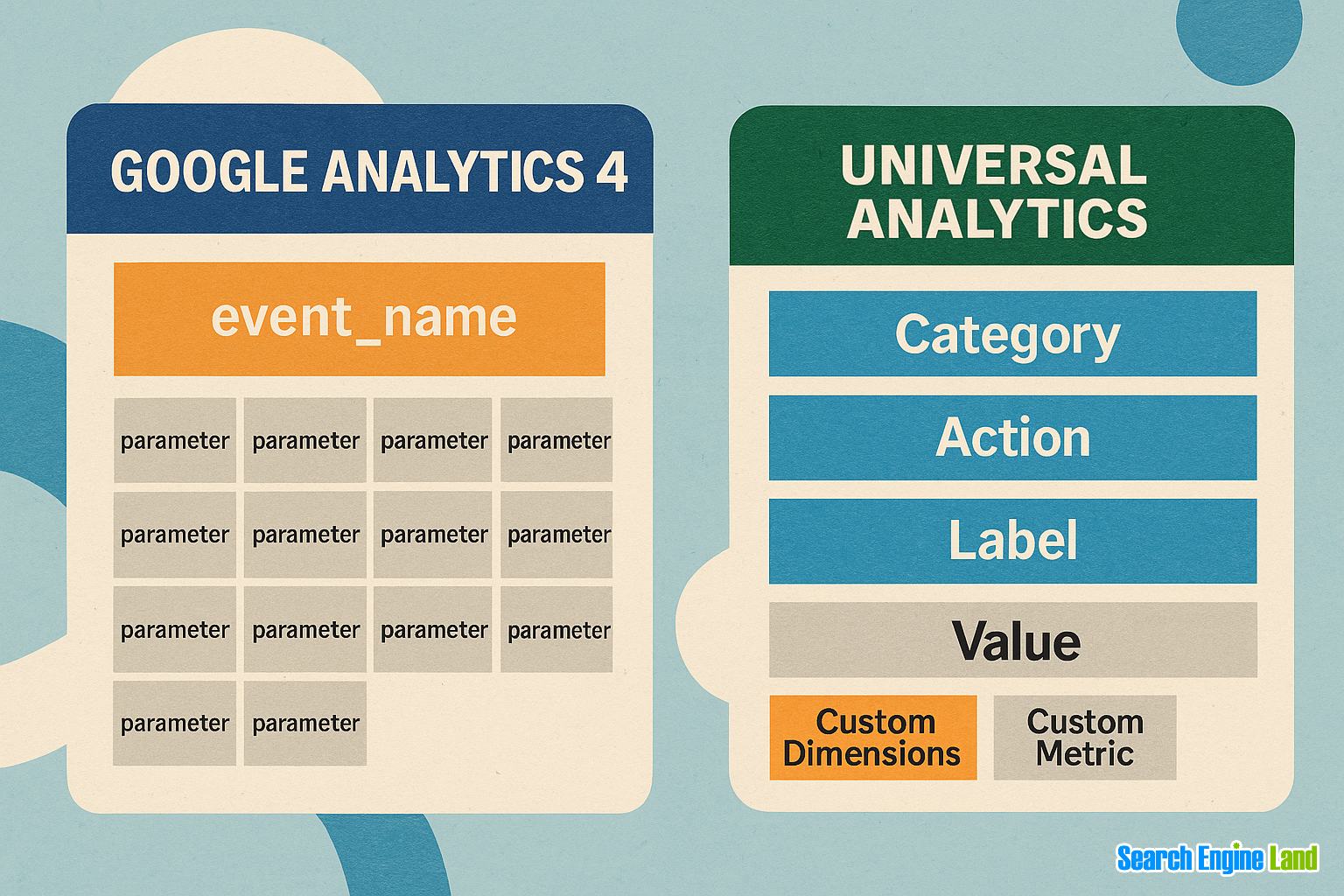
In UA, every kind of interaction—like when someone viewed a specific page—was recorded as a hit type. A hit type was the category of user interaction being tracked, such as a page view, event, transaction, or social interaction.
But in GA4, there are no separate hit types; everything is tracked as an event.
Here’s what that looks like:

But you can still get more information than just “event.” Each event includes extra details, called parameters, that tell you more about what exactly happened.
Let’s say a user reads your Messi kits blog post and watches an embedded video reviewing each jersey.
- In UA, this would have been tracked as an event hit, broken into separate fields like:
- Category: “Videos”
- Action: “Play”
- Label: “Messi kits review video”
- Category: “Videos”
- In GA4, it’s logged as a single event called
video_play, with extra details—parameters—such as:
video_title:“Messi Jersey Evolution”video_duration:“2 minutes 15 seconds”video_percent_watched:“85%”
Event-based tracking vs. sessions
In UA, session-based reporting grouped all user actions into a 30-minute window.
For example, if a user viewed three pages and submitted a form within 30 minutes, it counted as one session with multiple hits, even if the intent changed multiple times during their journey.
But it didn’t show actual engagement patterns like when users left and returned during that session.
GA4’s event-based tracking doesn’t group actions by session. And since every page view, click, scroll, or video play is logged as a separate event with its own timestamp and parameters, this allows you to have a clearer picture of what people are actually doing on your site.
Let’s say you publish a review of “Best Soccer Shoes.” A user reads the blog post on Monday but doesn’t buy anything. Then, on Thursday, they return directly to the product page and make a purchase.
You can track this journey by analyzing user_pseudo_id (an anonymous user ID) in BigQuery (once integrated with GA4) across events. It will show you that the same user viewed the blog post first and later triggered a purchase event—giving you a full picture of how SEO content contributed to the sale.
SEO-related dimensions to track
If you’re analyzing how a blog post performs in search, GA4 will track tons of data points (aka dimensions) about what users do and where they come from.
But not every dimension is helpful for SEO.
To get meaningful insights, you need to focus on specific SEO-related dimensions. They will help you understand which page the user landed on, what source brought them there, and how they engaged with your content.
So here are the most important ones to keep an eye on:
Page_path
Page_path tells you exactly which page a user visited on your website.
For example, if someone visits your blog post about “All the Kits Messi Has Worn” at soccerexamplestore.com/blog/all-the-kits-messi-has-worn, this URL path will show up in the page_path report. It helps you see which specific pages are getting traffic.
To find this, from the left panel on your Analytics Dashboard, go to “Reports” > “Business objectives” > “View user engagement and retention” > “Pages and screens.”

On the “Pages and screens” report, you can find this dimension under “Page path and screen class.”

Landing_page
The landing_page dimension tells GA4 users how site visitors interact with landing pages, specifically, the first page they see when they enter the site.
For example, if a user clicks a Google result and comes to soccerexamplestore.com/blog/all-the-kits-messi-has-worn, that URL is counted as the landing page.
To find this, go to “Reports” > “Business objectives” > “Generate leads” > “Landing page” from the left panel on your Analytics Dashboard.

On the “Landing page” report, you can find this dimension under “Landing page.”

Source/medium
The source/medium dimension shows all of the sources that drove traffic to your site.
For example, if someone finds your “All the Kits Messi Has Worn” article through a Google search, GA4 will show the source/medium as google / organic.
If another visitor clicks this link from a Facebook post, it might show up as facebook / referral.
This helps you compare how much traffic is coming from search engines, social, or other platforms.
To find this, go to “Reports” > “Business objectives” > “Generate leads” > “Traffic Acquisition” from the left panel on your Analytics Dashboard.

On the “Traffic Acquisition” report, you can find this dimension under “Session source/medium.”

What’s new with the engagement metrics in GA4
GA4 has changed a lot in terms of the metrics that can be tracked. Instead of focusing only on page views or time on websites like Universal Analytics did, GA4 looks at how users actually interact with your website.
Here’s a quick overview of what’s new:
Bounce rate
“Bounce rate” is the percentage of not-engaged sessions, which means the user spent less than 10 seconds on the website, didn’t view more than one page, and didn’t trigger any meaningful events.
This is different from Universal Analytics (UA), where bounce rate only measured single-page sessions, regardless of how long the user stayed or what they did.

If someone visits the “All the Kits Messi Has Worn” post, scrolls a little, and leaves within eight seconds without interacting, that would be a bounce.
But if they scroll further, watch a short embedded video about Messi’s kits, or click an internal link to the soccer jersey collection, that session is considered engaged.
This is quite helpful. Because when you know which pages keep visitors engaged, you start understanding what your audience finds valuable and what they don’t. And once you know this, you can focus on optimizing less engaging pages.
Average session duration
This metric from UA has been replaced with “Average engagement time per active user.”

Unlike before, “Average engagement time per active user” now only tracks the time when a user is actually active on the page. That means actively scrolling, clicking, or swiping. So if someone walks away from their computer or lets the screen sit idle, that time isn’t counted.
Suppose a potential customer visits the soccer gear store, reads a blog post about Messi’s kits, then leaves the tab open while they take a 10-minute phone call. GA4 will only count the time they were actively scrolling or interacting before stepping away.
This precision makes it a much more accurate way to understand how engaging a specific piece of content is.
Engaged sessions per active user
The “Engaged sessions per active user” metric counts sessions that last more than 10 seconds, had a conversion, or at least two page views or screen views.
It’s one of the best, high-level indicators of quality SEO traffic because it shows whether users are actively interacting with a website or quickly leaving right after visiting a single page.

Imagine someone visits the “All the Kits Messi Has Worn” blog post through Google Search. They spend 30 seconds reading it, then click a link to check out the Messi-themed jersey collection—that counts as an engaged session.
Or even if they don’t visit the jersey collection page but spend time reading that post and watching the embedded video about soccer kits, GA4 still considers it engaged because visitors showed genuine interest.
Engagement rate
Not to be confused with engaged sessions, engagement rate is the opposite of bounce rate. It shows how effective your content is at keeping users engaged and encouraging them to take action.

If 100 users visit the “All the Kits Messi Has Worn” post and 65 of them scroll past the images, spend more than 10 seconds reading, or click through to your Messi jersey collection page, your engagement rate is 65%.
But if only 20 interact in any of those ways, that’s just 20%—a signal that the post may not be engaging enough or isn’t effectively guiding users toward the product catalog.
How to configure GA4 for SEO insights
GA4 can give you helpful SEO insights, but it’s important to set it up correctly. Its default setup doesn’t show everything, so it isn’t enough to understand your entire SEO performance.
To fully harness its capabilities, you’ll need to configure a few settings.
Let’s look at what those settings are and how to properly configure them:
1. Set up key SEO events
You can find many SEO-relevant events like page_view or scroll. But to get more visibility into content performance, you’ll have to fine-tune them.
Let’s see how to do this:
1. Scroll tracking
GA4 automatically tracks scroll events when a user goes through 90% of the page. But SEOs need to know more than this, for example, what if the user scrolls through 25%, 50%, 75%, or even 100% of the page?
They want to know how far users engage with long-form content and landing pages.
You can get this type of granular information by using Google Tag Manager (GTM) with GA4.
Here’s how:
- Log in to “Google Tag Manager” and open your website’s workspace.

- Go to the “Variables” option in the left bar.
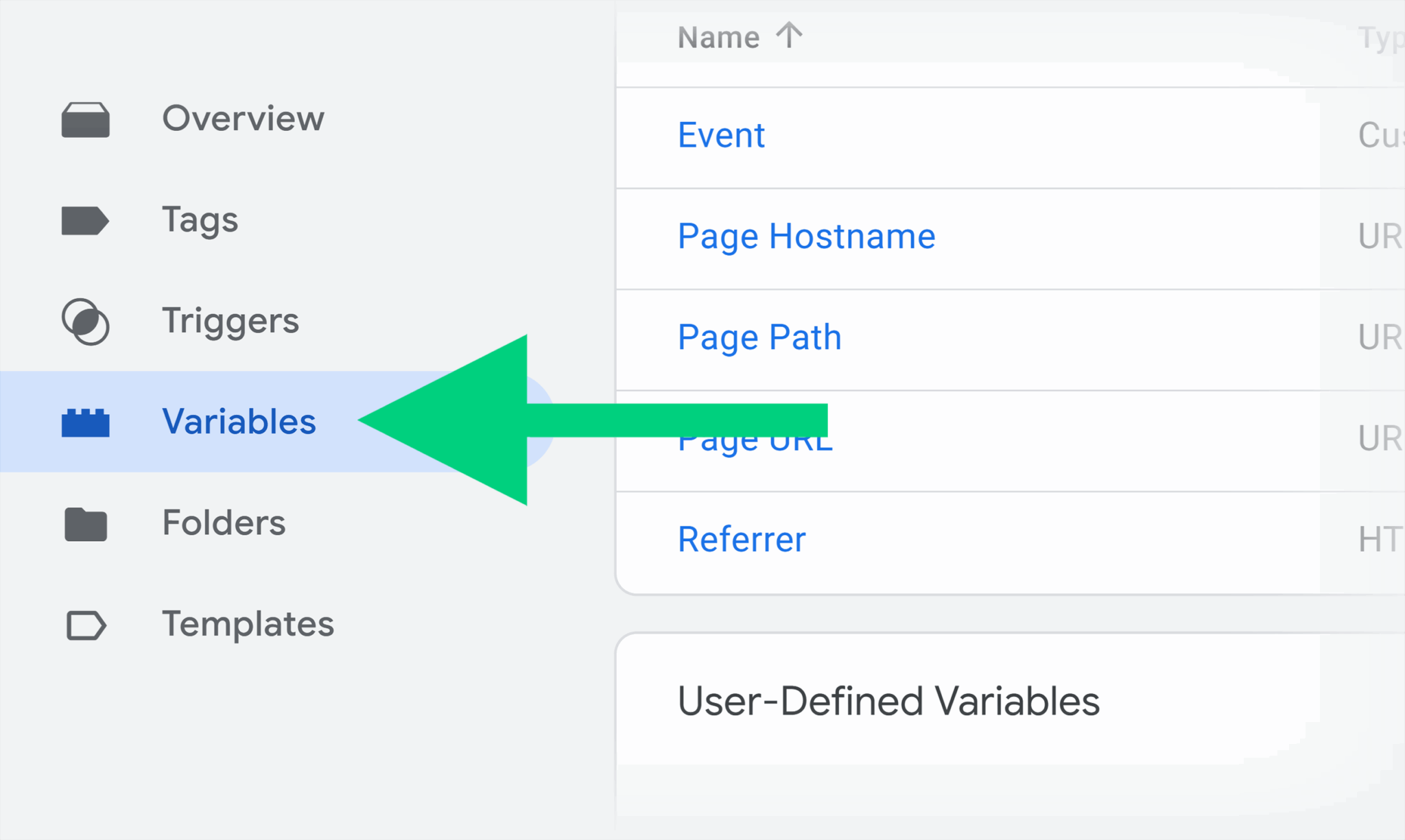
- Select the “Configure” option on the top right.

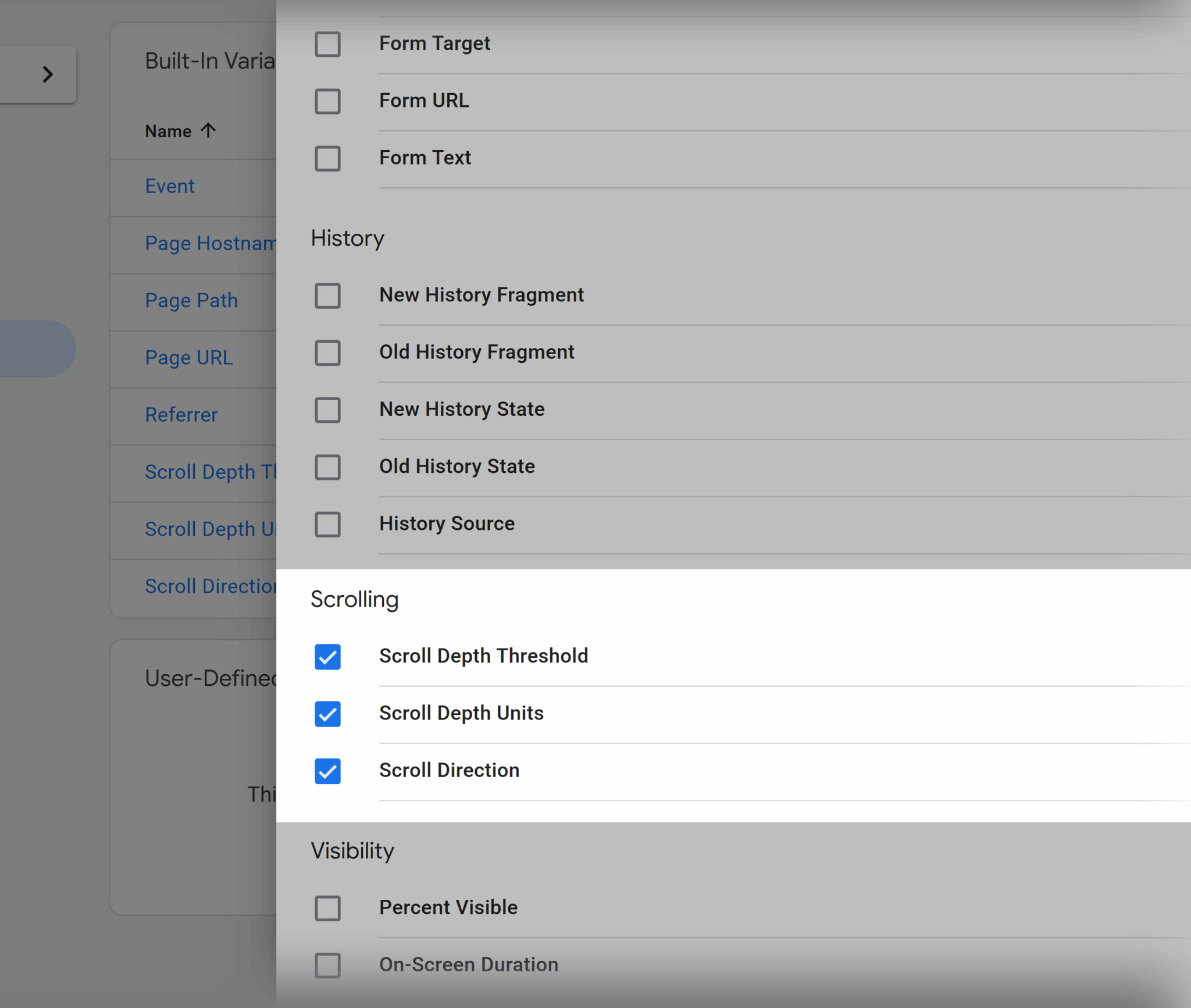
- Now you’ll see the “Configure Built-In Variables” list. Scroll down and check these options as they will help you dynamically capture how far a user scrolls:
- “Scroll Depth Threshold”: Shows how far down the page a user scrolled
- “Scroll Depth Units”: Indicates the measurement type, like percentage
- “Scroll Direction”: If the user scrolled vertically (up/down) or horizontally (left/right)
- Now go to “Triggers” from the left side menu, then click on “New.”

- Click on “Trigger configuration,” then choose “Scroll Depth” from the trigger type.

- Set scroll direction to “Vertical Scroll Depth” and type in the percentages that you want to track, like 10, 25, 50, 75, or 100.

- Select “All Pages” under “This trigger fires on” to track scroll depths of all pages. But you can also limit it to specific pages (like conversion or long-form pages) through the “Some Pages” option.

- Then, give your trigger a relevant name, like “Scroll Depth Trigger,” and click “Save.”

- Next, create a custom GA4 tag by going to “Tags” > “New” > “Tag Configuration.”

- Choose “Google Analytics: GA4 Event” as the tag type.

- Then, select your GA4 config tag and add your tag ID, which you can copy from your GA4 account through “Admin” > “Data streams.”

- In the “Event Name,”
type this: scroll_{{Scroll Depth Threshold}}

- Under “Event Parameters,” click “Add Parameter.” Now write
scroll_percentin the “Event Parameter” box, and{{Scroll Depth Threshold}}in the “Value” box.

- Next, scroll down to the “Triggering” section, and choose “Scroll Depth Trigger” as a firing condition.
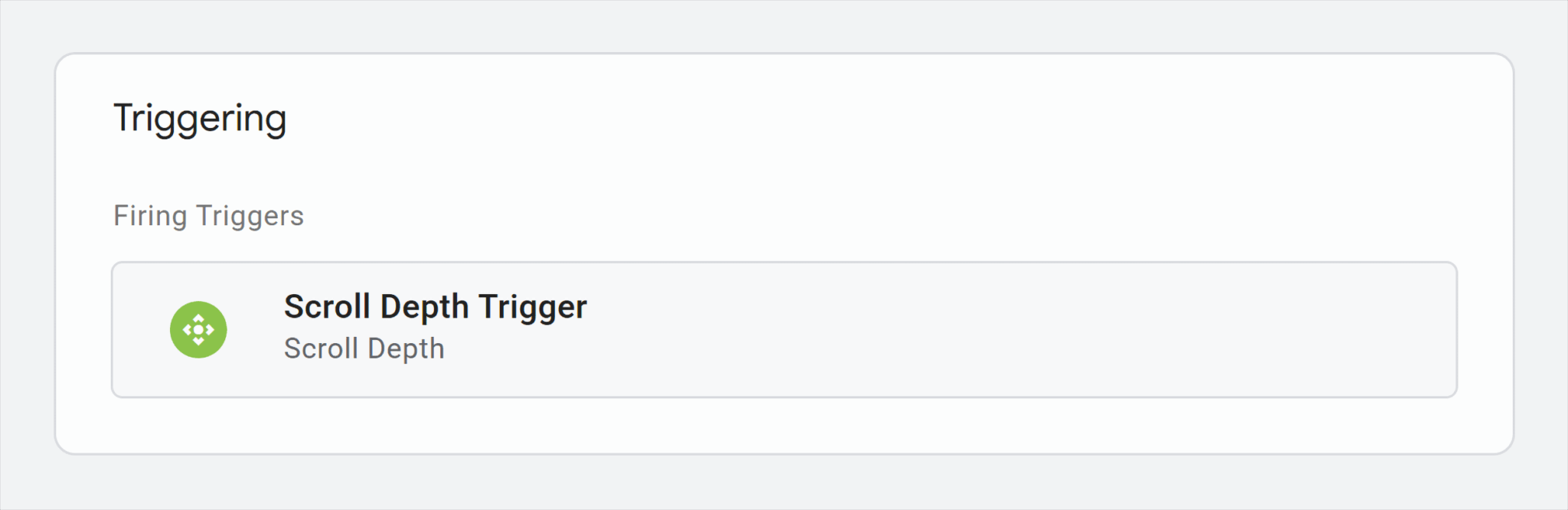
- Name your tag something specific like
GA4 Scroll Depth Eventand save.

Your setup is complete. Finally, you have to test to verify that it’s working. To do this:
- Go to “Preview” mode in GTM, which is in the top right corner.

- Add your website’s URL in the “Connect Tag Assistant to your site” pop-up and click the “Connect” button.

- Here, you should scroll through some pages for a test run. Once you’re done, just click “Finish.”

- This will take you to the debug panel of your website.

- Once you do so, you’ll see “Scroll Depth Trigger” in the “Tags Fired” under the “Tabs” section.

- Next, go back to your “GTM” > “Preview” > “Submit.” Click on it then click “Publish” to publish all the changes you made because only then your GTM will implement your tags.

You’ll have to wait a bit for this data to flow into your GA4 reports, which might take up to 24 hours.
2. Site search
The site search event shows what users are searching for on your website. Here’s how you can set it using GA4:
- Go to “Admin” > “Data collection and modifications” > “Data streams” > “Enhanced measurement.” Next, click on “+4 more.”

- Make sure “Site Search” is enabled.

- Go to “Site search” > “advanced settings.”

Here you can see two advanced settings:
- “Search Term Query Parameters”: This allows GA4 to identify the specific URL parameters that represent a user’s query (like
?q=analytics). If it’s not properly set, GA4 may miss these queries, most probably if your site uses non-standard parameter names. So, make sure to add common parameters to the Search Term Query Parameter field (e.g. q, s, search, query, keyword). - “Additional Query Parameters”: These ignore any extra query strings that shouldn’t be treated as search terms (pagination or filter parameters like page, sort).
Once you’ve enabled site search and configured the query parameters, GA4 will collect clean, query-level insights to show what users are typing into your site’s search bar.
For example, when someone types “Messi World Cup jersey” into the soccer gear store’s search bar, GA4 will record that as a search event. This helps you see exactly what your audience is interested in.
3. Clicks on internal links
As the name suggests, this event tracking shows the number of clicks your internal links get. Here’s how you can set this using GA4:
- Make sure these “Built-In Variables” are enabled:
- Click Element
- Click Classes
- Click ID
- Click Target
- Click URL
- Click Text

- Go to GTM and set up a trigger for “Click > Just Links.”

- Next, we will modify this trigger by adding conditions to only track clicks within your domain with the “Some Link Clicks” option. To do so, choose “
{{Click URL}}” in the “variable” and set the “condition” as “contains.” Then add the internal URL you want to track.

- Name your Trigger “Internal Link Click Trigger” and save.
- Now, create a new GA4 event tag in which you will set the “Event Name” to internal_link_click. Then, create these two event parameters:
- Enter
link_textin the “Event Parameter” box and{{Click Text}}in the “Value” box. - Enter
destination_urlin the “Event Parameter” box and{{Click URL}}in the “Value” box.
- Enter

- In “Triggering,” choose the “Internal Link Click Trigger” you just created.

- Name the tag (GA4 – Internal Link Click) and save.
- Now, go to the “Preview” button on the top left corner and open your website with it.
- Once you’ve previewed the links, click the “Finish” button on the “Tag Assistant” pop-up.
- Next, you will see the “Internal Link Click” tag fired.

- Go back to your “GTM” > “Preview” > “Submit.”
- Once you click “Submit,” you will be taken to a “Submit Changes” page.
- Click “Publish” to publish all the changes you made because only then will your GTM implement your tags and triggers for them to be tracked in GA4.
After a few hours, this tag will appear in your GA4 dashboard.
To find this, go to “Reports” > “Business objectives” > “View user engagement and retention” > “Events.”

2. Track organic traffic segments
GA4 will show where your web traffic is coming from. But you can also tailor it further using the default channel grouping.
Because as an SEO, you’re specifically interested in how well your content performs in search engines, not from ads, emails, or social media.
Default channel grouping is a system-defined dimension in GA4 that segments your website traffic into common marketing channels like Organic Search, Paid Search, Direct, Referral, Email, Social, etc.
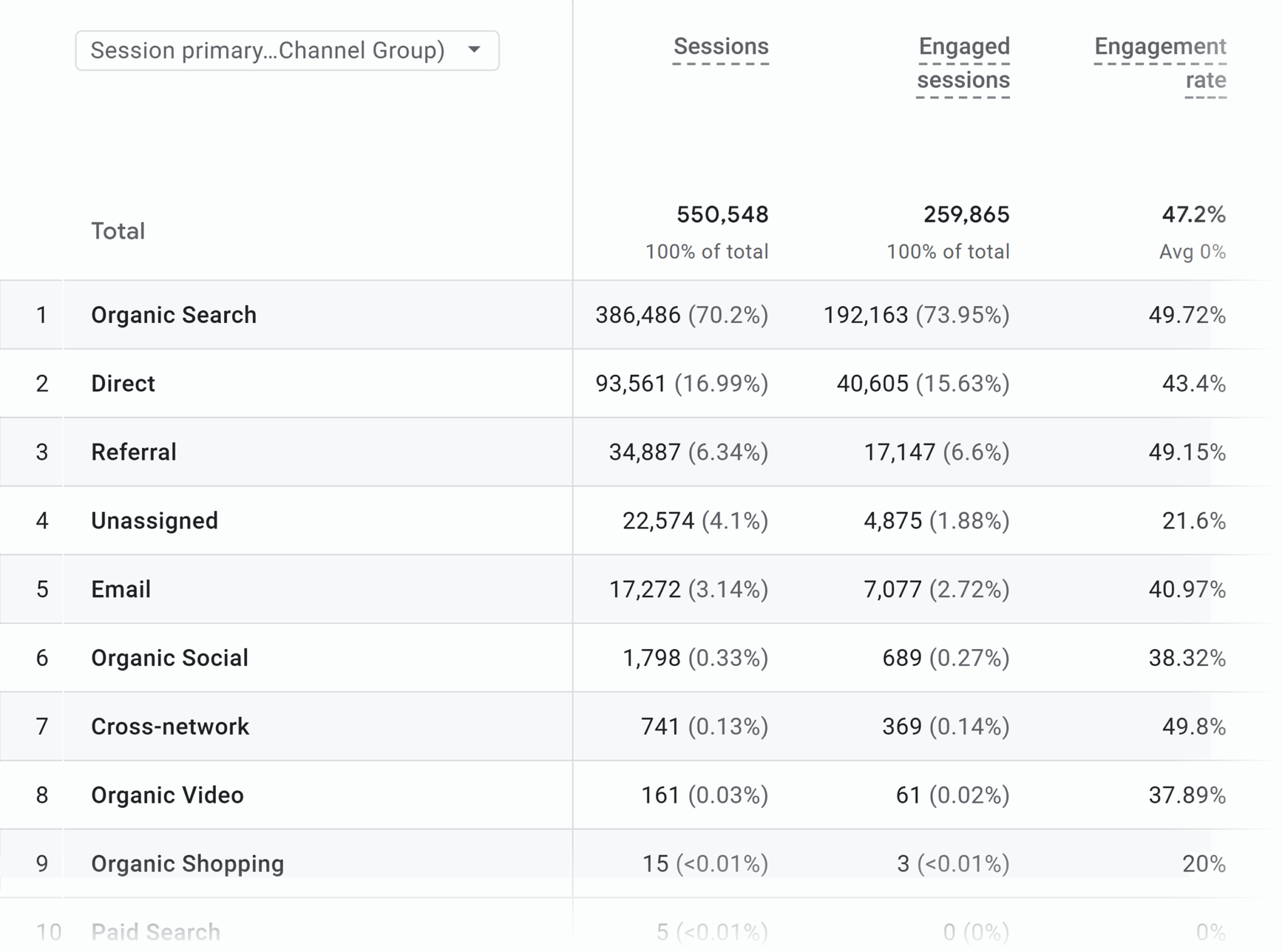
Suppose you want to analyze traffic only from organic search to monitor how your “Best Soccer Cleats of 2025” blog is performing. Here’s how to accomplish that:
- Go to “Reports” > “Life cycle” > “Acquisition” > “Traffic acquisition.”

- Click the “Customize report” pencil icon on the top right to customize reports.

- A “Customize report” panel will appear on the right side of the screen. From here, click “Add filter.”

- A new “Build filter” bar will appear. Under “Dimension,” search for “Session default channel group.”

- Set “Match Type” as “exactly matches” and “Value” as “Organic Search.” Then click “Apply.”

That’s it! You will now find that your report only shows traffic coming from “Organic Search.”

3. Tag and name conventions for clarity in reports
Whenever you’re working with GA4 reports, make sure your naming conventions are easily interpretable.
Use clear names in lowercase letters when you’re creating GA4 tags in GTM, as this will make them easy to understand in GA4 reports.
As you can see in the image, add_to_cart is simple and easy to understand.

Why is this important?
Because it will avoid confusion among team members.
If one team member names an event blog_click and another uses blog_url_click for the same action, GA4 will treat them as two separate events.
That means that if you’re trying to see how often users clicked a blog CTA, you’d have to manually find and combine data from both blog_click and blog_url_click. That’s an unnecessary waste of time.
Consistent naming conventions will keep your event data clean and reports readable.
Here are some best practices for GA4 naming conventions:
- Use snake_case (underscores between words like internal_link_click) or kebab-case (hyphens like scroll-75)
- Keep names short but descriptive like cta_click_footer, blog_to_product_click
- Record your naming conventions in a shared space such as Google Sheets
- When you’re publishing events from GTM to GA4, make sure the event name field in your GA4 tag matches your convention
SEO KPIs to track in GA4 (and how to calculate them)
SEO key performance indicators (KPIs) help you measure whether your SEO efforts are working. They show how well your website is performing in search engines and how that performance contributes to your business goals.
Let’s go back to our soccer gear store example.
Suppose you publish a “Top 10 Soccer Shoes for Speed” blog post to attract visitors from Google.
One of your SEO KPIs might be organic sessions, which are the number of people who visit your site from search engines.
If those numbers are going up, it means your SEO efforts, like optimizing blog posts and targeting keywords, are working.
If they’re not moving (or they’re dropping), your strategy probably needs some adjustment.
While there are several SEO KPIs you can track in GA4 with default and custom settings, let’s focus on the major ones that should be monitored daily. These are:
Organic sessions (aka organic search traffic)
This metric shows how many people visited your website by clicking a link in a search engine’s organic—that is—non-paid results.
Although organic sessions alone don’t tell you if traffic is qualified or converting, they’re a strong indicator of how well your site ranks.
Why is that?
If sessions are increasing, that means your content is ranking somewhere on the search engine results pages (SERPs).
To calculate this using GA4:
- Go to “Reports” > “Business objectives” > “Generate leads” > “Traffic acquisition” from the left panel on your Analytics Dashboard.
Here you’ll see all traffic coming in from all of your various sources, and you can compare “Organic Search” against the rest of them.

Engaged sessions
This metric shows how many user interactions lasted longer than 10 seconds. You can use this information to understand how long visitors are staying on your website pages when they come from organic sources.
If most visitors leave before that, it could signal your content isn’t matching their expectations, or that something on the page is pushing them away.
To find engaged sessions, go to “Reports” > “Traffic acquisition.”

Conversions
Conversions measure the number of times a user has triggered a defined conversion event (e.g., form fills, purchases, or sign-ups). The conversions metric is the perfect way to understand whether organic sessions are converting people into customers or not.
To track them in GA4:
- From the GA4 admin, go to “Property settings” > “Data display” > “Events.”

- Toggle on key actions (like
scrollorform_start) under “Mark as key event.” This tells GA4 which user interactions matter most to your goals so they’re treated as conversions and show up in your reports.

- Go to “Life cycle” > “ Engagement” > “Events.”

- Now, go to “Customize report” (that looks like a pencil) > “Add filter” > “Build filter.”
- Under “Dimension,” add “Session default channel group.”
- Set “Match Type” as “exactly matches” and “Value” as “Organic Search.”
- Then click “Apply.”
That’s it! Your report will now show metrics related to conversion tracking. This way, you can easily measure what actions drive value on your site, like form submissions or product purchases.

Scrolls
Scrolls show how often users scroll on your pages.
If a page gets a lot of scrolls, this means users are at least engaging enough to explore the content rather than leaving right away. But this doesn’t tell you how deep into the content they got.
To understand whether your content is keeping attention or getting skipped over, check scrolls alongside other metrics like engagement rate, average engagement time, or even video plays and internal link clicks.
To view scrolls:
- Go to “Reports” > “Business objectives” > “View user engagement and retention” > “Events.”
- Under “Event name”, you’ll find “scroll.” This shows how many times users scrolled on your pages.

Content engagement
Content engagement is the measurement of how actively users are interacting with your content.
Imagine your blog post “All the Kits Messi Has Worn” doesn’t lead to an immediate purchase. But users spend over two minutes reading it, then click through to your Messi jersey product page.
Even if they don’t buy on that visit, it’s still a valuable engagement because it shows the content is driving interest in your products and moving users closer to a jersey sale.
You can get an idea of whether your content is engaging through metrics like engaged sessions, engagement rate, and average engagement time per user.
To find these:
- Go to “Reports” > “Business objectives” > “Generate leads” > “Traffic acquisition.”

Create custom GA4 reports for SEO
Custom GA4 reports are reports you build yourself to focus on the most important SEO metrics for your specific needs. They allow you to filter, segment, and display only the data that’s relevant to your goals. They also offer flexibility as your goals develop and change.
Let’s see how to build these:
Build landing page reports with organic filters
If you want to track which specific pages drive more conversions or how organic traffic flows through your site, you can build a landing page report with organic filters.
To do so:
- Go to “Explore” > “Blank” to create a new Exploration.

- Go to “DIMENSIONS +.”

- A “Select dimensions” window will pop up. From here, select “Landing page + query string” and “Session default channel grouping” and click “Confirm.”

- Then go to “METRICS +.”
- A “Select metrics” window will pop up. From here, check “Engaged sessions,” “Active users,” and “Average engagement time per session,” or any other metrics you find relevant. Once done, click “Confirm.”

- Head over to “ROWS” and click the “+ Drop or select dimension.”
- Select “Landing page + query string.”

- Drag “Session default channel group” into “FILTERS.” Under “Conditions,” set “exactly matches” to “Organic Search.”


That’s it. You now have a report that shows which landing pages are driving SEO traffic and how well they’re performing. Now, you can identify which pages might need improvement to keep users engaged or drive more conversions.

Track performance by blog, product, or category
GA4 doesn’t have a built-in report that shows pages grouped by content type, like blog posts or product pages. But, luckily, it’s fairly easy to create your own reports using custom filters.
Here’s how:
- Go to “Reports” > “Life cycle” > “Engagement” > “Landing page.”
- Click the pencil icon > “Customize report” > “Add filter” > “Build filter.” Select the following:
- “Dimension box” as “Landing page + query string”
- “Match Type” as “contains”
- “Value” as “/blog” (You can do the same for /product, /category, and other paths)

Now you can see the report will show metrics only for your blog posts.

Set up custom funnels for SEO goal paths
Funnels show how users move through a specific sequence of steps on your website. You can use them to see how many people start at Step 1, how many continue to Step 2, and how many complete the final goal.
This is known as an SEO goal path, which is the ideal journey you want organic visitors (from Google Search or other search engines) to follow on your site.
For example:
- A user comes to your blog post, clicks on a product page, fills out a form, or makes a purchase
- A user checks your landing page and downloads a lead magnet—like a free size guide or templates
You can set up custom funnels to track these goal paths and understand how well your content guides users toward conversion.
Let’s say your team has created a landing page for the soccer gear store promoting a limited-edition Messi jersey collection. Now you want to see how well that page attracts and engages visitors. Here’s how to do this:
- Go to “Explore” > “Funnel exploration.”
- Click the “+” sign and select “Funnel exploration” from the drop-down list to start from scratch. Then go to “STEPS.”

- Now you can add steps with your details like this:
- Choose “Page path + query string” in the “Add a new condition” box.
- Next, enter the URL path (“contains/blogs”) as shown below.
Once done, click “Apply.”

- Next, click on “+” under the “Segments” on the left side.

- In the popup, click on “Create a new segment” then under “Create a custom segment” click on “User segment.”

- An “Untitled segment” window will pop up. From here, set the condition to “Session default channel group” and choose “Organic Search” from the “contains” filter.
- Press “Apply” to make the changes.

You’ll see a customized report that will show the performance of your selected landing pages.

Using GA4 with Google Search Console and Looker Studio
Suppose the “All the Kits Messi Has Worn” blog post ranks on Google and includes a link to your Messi jersey collection page. Now, you’re going to want to know:
- Which keywords brought visitors to the blog?
- How many of those visitors clicked through to your Messi jersey collection page?
- How many visitors ended up purchasing a jersey?
The best way to trace this complete user journey from search query to purchase is to integrate GA4 with Google Search Console (GSC) and Looker Studio.
Let’s see how you can achieve this.
How to merge GSC and GA4 data for keyword-to-conversion insights
With GA4, you can get insights into how users behave on your site, but you’re not able to see what they searched to get there.
This is where Search Console comes in. It gives you the context-rich keyword data in GA4 that you need to understand how users are finding your content.
Let’s look at how to connect GA4 with GSC:
- Go to “GA4” > “Admin” > “Product Links” > “Search Console links” to get started.

- Click the “Link” button.

- A new window will pop up with a three-step process.
- In the “Link to Search Console properties I manage” option, click “Choose Accounts.”

- It will show you all the properties that are connected to your GA4 Gmail account, so make sure that the same one is also connected to your GSC. Then, click “Confirm.”

- Now click “Next.”

- Under the “Select Web Stream,” choose your GA4 web stream (website data that you want to track in GA4) from the “Select” button.

- Click “Next” once you see your web stream in your GA4 property.

- Finally, click “Submit” to complete GSC integration.

To see this data in your GA4, you’ll have to publish reports. To do so:
- Go “GA4” > “Reports.”

- Next, go to the “Library” to access your currently available reports.

- Under “Collections,” you’ll see “Search Console.” Click the “⋮” on the upper-right side.

- Select “Publish” from the drop-down list to publish your report.

That’s it! You’ll now be able to view keyword and landing page data from GSC right inside your GA4 reports, so you can see how people find your website through search.
All you have to do is:
- Go to “Reports” > “Search Console.”
- Under “Search Console,” you’ll see reports for “Queries” and “Google organic search traffic.”

How to create Looker Studio dashboards for SEOs
SEO insights are helpful only if they’re valid customer insights you can actually understand and share them across your team.
That’s where Looker Studio comes in as a useful tool. It turns your GA4 data into clean, visual dashboards/reports that make it easier to understand for both you and your team members.
Let’s see how you can connect GA4 with Looker Studio:
- First, create an account on Looker Studio and make certain that it’s connected with the same Gmail account you’re using for GSC and GA4. Log in.

- Go to the “Template Gallery” > “Category” and select “Google Analytics” from the drop-down list.

- Choose a pre-built reporting template that best suits your goal. It’s often best to choose the default “GA4 Report” as it most likely already has all the visualizations for the insights you need.

- A sample report will open.
- On the top bar, click “Use My Own Data.”

- Now choose your “Account” > “Property” from the list.

And you’re done! You can now see multiple GA4 metrics related to SEO and organic traffic in this visually clear report. This makes it easier to see what pages are performing well and share insights with your team.
For example, if the “All the Kits Messi Has Worn” blog is pulling in strong organic traffic, this report will show you where that traffic is coming from (like Google Search or social) and what users do next like scrolling or clicking.m

How to avoid common pitfalls when blending GA4 with other SEO data sources
Even SEO experts can run into problems during integration.
So, let’s take a look at some common pain points and how to avoid them.
Mismatched dimensions
When you connect GA4 and GSC, you may notice that some of the data doesn’t line up even when it seems like it should.
That’s because both tools track and define things a bit differently.
For example, GA4 uses the full URL path—that is—page_path + query string (including any added filters or tracking tags, like ?ref=homepage) to identify a page.

But GSC shows the clean page URL (without the extra query part).

So even if both tools are showing data for the same page, the data may not match because the tools treat the page address differently.
To avoid mismatched data, use a common field like “Landing page” when connecting GA4 and GSC. It’s like matching a common field from two tables that come from different data sources—that common field is called a join key.
For example, if both GA4 and GSC list your page /blog/all-the-kits-messi-has-worn, using “Landing page” as the join key helps make sure both tools are talking about the exact same page, even if one source includes extra stuff like ?ref=homepage at the end of the URL.

Time zone inconsistencies
GA4 and GSC have different default time zones.
GA4 uses your property’s local time, while GSC uses Pacific Time (PST).
This can cause day-level metrics (like sessions vs. clicks) to appear misaligned by up to a day, especially in international or time-sensitive SEO reporting.
To solve this issue, you should align data ranges in both tools by setting the same timezone in GA4 as that in GSC.
Let’s take a look at how to do this:
In GA4
- Go to “Admin” at the bottom left corner of the main page.

- Next, click through “Property Settings” > “Property” > “Property details.”

- In the “Reporting time zone,” choose the time zone that is closest to your GSC account’s setting, PST.

- Click “Save” to apply your new changes.

In GSC
You can’t change the time zone in Google Search Console. GSC reports data in Pacific Time (PST) by default.
Tip: Add notes in your dashboard or reports about this disparity so other stakeholders aren’t confused about the time zone difference.
Sampling in GA4 reports
GA4 applies data sampling in Explorations or Looker Studio when you’re querying large datasets or using complex filters.
What does this mean?
Instead of analyzing all your data, GA4 looks at a subset (sample) of it and then estimates the results based on that sample.
For example, if you query 1 million sessions with multiple filters, GA4 may only analyze 100,000 and then project the results.
This can create issues for metrics like sessions or engagement, as you might be seeing estimates instead of exact values.
Suppose you try to evaluate how well the “All the Kits Messi Has Worn” article is performing. Because of sampling, you might think fewer users scrolled or engaged when, in fact, the full dataset could show stronger performance.
To overcome these issues, simply export raw data via BigQuery when you want to play with large datasets.
Confusing clicks vs. sessions
GA4 reports sessions, while GSC reports clicks, and they are not the same:
- GSC “clicks” metric reflects the number of times users clicked your site’s result in the SERPs.
- GA4 “sessions” metric reflects visits to your site, which may be lower than clicks due to bounces, redirects, or blocked tags.

You should never treat them as if they are the same because both clicks and sessions represent different parts of the user journey.
For example, a visitor might click on your “All the Kits Messi Has Worn” blog post from Google Search (that’s a click, counted in GSC), but if the page takes too long to load or the user bounces before the GA4 tag fires, it may not count as a session in GA4. So while GSC tells you how many people showed interest, GA4 shows who actually made it to your site and engaged.
GA4 filters, segments, and comparisons for SEO analysis
Suppose you’ve been getting decent traffic from Google on your soccer gear store. But soccer jersey sales aren’t growing.
In order to understand why this might be happening, you’re going to need insight into:
- Where your SEO traffic is coming from
- Which pages are satisfying user intent and which aren’t
To get these answers, you will need to review your search performance and identify problems + opportunities.
You can do this kind of analysis in GA4 using filters, segments, and comparisons.
- Filters let you narrow your view to specific traffic, like organic users only, or visitors from a certain country.
- Segments let you group users based on behavior or traits like “users who viewed 2+ pages” or “users who came from blog content.”
- Comparisons help you look at two (or more) groups side by side so you can see what’s performing better and why.
Let’s take a look at how to set these in GA4.
Compare organic vs. paid traffic on key landing pages
Let’s assume your product landing page gets 5,000 visitors from SEO and 5,000 from Google Ads.
The SEO traffic converts at 3%, while paid traffic converts at 1.5%.
Even if the ad campaign drives the same volume, it’s costing money and converting less so you want to compare both to assess which channel is more efficient.
To do this in GA4:
- You’d start by going to “Reports” > “Life cycle” > “Engagement” > “Pages and screens.”

- Click on the pencil icon.
- Remove the rest of the filters and set “PRIMARY DIMENSIONS” as “Landing page + query string” (or
page_path) and click “Apply.”

- Now, from “Customize report,” go to “Add filter” > “Build filter.” Then, select and set the following conditions:
- “Dimension box” as “Session default channel group”
- “Match Type” as “exactly matches”
- “Value” as “Organic Search; Paid Search”
- “Apply” the changes once done.

And you’re done! You’ve just built a report that compares how your SEO and paid traffic perform on the same landing pages. This way you’ll know which channel drives better results so you can invest your time and budget more effectively.
Segment branded vs. non-branded SEO traffic
Branded traffic comes from people who search for your company or product name directly, such as “Soccer gear store jerseys.”
These users are sometimes closer to converting because they already know about your brand.
Non-branded traffic, on the other hand, comes from broader, generic searches like “soccer jerseys.”
These users likely don’t know who you are yet and have discovered your content through competitive search results.

Segmenting both can help you understand how well your SEO is performing. Here’s how:
- Branded SEO shows how strong your brand awareness is in search
- Non-branded SEO shows how well your content competes in the open market
If you look at both of these metrics combined, it can be harder to measure how effective your content really is at capturing new demand.
That’s why it’s important to separate the two when analyzing SEO performance.
But that’s not directly possible in GA4 alone as it does not support keyword-level segmentation natively. The workaround is to blend GA4 data with Search Console data via Looker Studio.
So, let’s see how to segment branded and non-branded traffic in Looker Studio:
- First, you’ll need to connect GA4 and GSC with Looker Studio.

- In your report, head over to “Resource” > “Manage blends.”

- Now select “Add a Blend.”

- From here, go to “Join Another Table.”

- Choose “GA4” from data sources.

- Then click “Add dimension” and use the dropdown to select matching dimensions in both tables, like:
- Search Console (URL impression source): Landing Page, Query
- GA4: Landing page, Landing Page + Query String

- After you’ve set the dimensions, click on a “Configure Join” option.

- In “Configure join,” select “Inner” and choose the matching join keys. Then, click “Save” after giving a relevant name to your blend.

- When you’ve set everything up, click on “Save” button in the bottom right and close the blend options.
- Now, drag and drop the “Landing page” from your blended data source on the right side menu. Create the same table and name it “Non-Branded.”

- Click on the “Branded table” and under “Table properties” > “Setup” > “Filter” click “Add Filter” > “+ Create a filter.”

- Choose “Query” for the “Include” option and “brand name” for the “Contains” option.

- Now, click on the “Non-Branded” table and add another filter.
- Choose these conditions: “Exclude,” “Query,” “Contains,” and “brand name.”

Now, you can see which landing pages have branded traffic and which ones have non-branded traffic.
Filter by device, country, or channel to guide strategy
Imagine the traffic from mobile users in the US converts well on the soccer gear store, but traffic from India drops off before checkout.
Or maybe desktop visitors from Europe engage heavily with the main landing page that sells soccer jerseys, but barely anyone from Asia sees it.
To draw an accurate conclusion, you need to analyze SEO performance by device, country, or channel.
Let’s look more closely at how to do this.
To analyze by device:
- Go to “Explore” > “Free-form” report.
- Add:
- “Dimensions”: “Device category” and “Landing page + query string”
- “Metrics”: “Sessions,” “Active Users,” and “Engagement rate” (or any other you prefer)

- Head over to “ROWS” and select “landing page + query string.”
And voila! Your report should be ready.
Now you’ll be able to see, for example, that desktop users spend more time on your soccer jersey landing page, while tablet users leave before engaging. These patterns will help you understand where to double down on optimization.

To analyze by country:
- Click on the “+” sign with “DIMENSIONS.” Then, add “Country.”
- Click on the “+” sign with “METRICS.” Then, choose the preferred metrics like “Active users,” “Event count,” and “Transactions.”

- Head over to “SEGMENT COMPARISONS” and apply the “Organic Traffic” segment to keep it SEO-focused. You can apply other segments, like direct or referral, in the same way.

- Begin at “ROWS” and add “Country.”
With this report, you will be able to identify which markets have high visibility but low conversions.

To analyze by channel:
- Go to “DIMENSIONS +” and select the “Default channel group.”

- Then head over to “Add a new segment” and check “Organic traffic,” “Direct traffic,” and “Paid traffic” (or whatever options you want to segment).

- Click over to “METRICS +” and add metrics that you want to analyze in this report.

- Under “ROWS,” select “Default channel group.”
Now you can see your segmented report by channel.

Advanced workflows: GA4 + BigQuery for technical SEOs
Technical SEOs make sure search engines can easily find, load, and understand your website’s content.
Unlike content-focused SEOs, they work closely with developers and need data to diagnose how search engines and users interact with your site at a technical level.
For example, if a product page of your e-commerce store isn’t getting indexed by Google, a technical SEO may investigate if it’s blocked by a robots.txt file (a small file that tells search engines which pages or sections of your site they’re allowed to crawl).
GA4 is helpful, but its native reports are limited and fail to show this kind of data for large, complex websites with millions of pages.
Why?
Because its interface is built for high-level trends and marketing metrics, not deep, technical analysis.
That’s why you’ll need to integrate GA4 with BigQuery if you’re planning on any kind of technical analysis..
BigQuery is a serverless data warehouse from Google Cloud. When you connect it with GA4, you get access to raw, unsampled, event-level data. You can then query and shape that data any way you want using SQL.
Export data for large-scale analysis
Suppose your soccer gear store has hundreds of product pages—like jerseys, cleats, and training kits—and you want to analyze their overall performance.
GA4’s built-in reports can’t handle that level of depth. But you can export your data to BigQuery and analyze data at scale without sampling limits.
Let’s look at how to get this set up:
- In GA4, go to “Admin” > “BigQuery Links.”

- A new page will appear. From here, click “Link” as shown in the image.

- A “Create a link with BigQuery” window will pop up. From there, click “Choose a BigQuery project.”

- Select the project you want to add and click “Confirm.”

- Once you’ve added your project, choose a “Data location.”

- Next, configure settings depending on your needs:
- Under “Event Data”, select your GA4 “Data stream and events.”
- Confirm “Export type” like “Daily” or “Streaming” (continuous, near real-time).
Pro tip: If you want to run regular performance reports, “Daily” is usually enough. But if you’re monitoring fast-changing data like traffic spikes during a big product drop or campaign, choose “Streaming” for more real-time insights.

- Then, select the “Export type” for “User data” as well. Once done, click “Next.”

- This will take you to the third step: “Review and submit.” Once you’ve reviewed everything, click “Submit.”

- After successful submission, you’ll see a “Link Created” message.

That’s it! Now your GA4 events will start populating tables in BigQuery within 24 hours. And you’ll be able to run advanced SQL queries to find insights like which jersey product pages get the most engaged sessions.
Query crawl and indexation patterns
Tech SEOs analyze crawl and indexation patterns to make sure important content is being discovered and shown in search.
But what are these patterns?
- Query crawl refers to how search engines (like Googlebot) move through your website, what pages they find, how often they revisit them, and how deep they go.
- Indexation patterns show which of those pages actually make it into Google’s index (meaning they are eligible to appear in search results).
Suppose you launch 50 new jersey review pages on your soccer gear store, but traffic doesn’t increase. You would want to find out how many of the page URLs had fewer sessions.
To find this:
- Login to Google Cloud BigQuery Console and you’ll be automatically redirected to “studio.”
- Next, go to “Untitled query.”

- Write the following SQL query in the “Untitled query” query window:
SELECT
  event_params.value.string_value AS page_path,
  COUNT(DISTINCT user_pseudo_id) AS users,
  AVG(event_bundle_sequence_id) AS avg_scroll
FROM
  your_project.analytics_XXXX.events_*
WHERE
  event_name = page_view
  AND event_params.key = page_location
  AND event_params.value.string_value LIKE %/blog/%
GROUP BY
  page_path
HAVING
  users < 10
This will show you all the blog posts that barely get any traffic on the soccer gear store.
Real-world use cases of BigQuery + GA4
Let’s look at some real-world scenarios where you can use GA4 with BigQuery:
Calculating the values of new users
Suppose you’ve optimized “All the Kits Messi Has Worn” blog post targeting a high-volume keyword like “Messi uniform.” Traffic looks good in GA4, but you’re not sure if it’s pulling in new visitors or just bringing back past readers.
The good news is that you can actually use BigQuery to calculate new vs. returning users.
Here’s how:
1. For calculating new users
Count only the first event of the day for each user_pseudo_id and check if it matches their first-ever interaction (user_first_touch_timestamp). This avoids overcounting and gives you a much cleaner split between new and returning users.
2. For calculating returning users
To get a reliable count of returning users in BigQuery, look at each user’s first event of the day and check if it happens after their first-ever visit (user_first_touch_timestamp). Only count one event per user per day to avoid duplicates and get a true view of returning traffic.
Here’s a sample SQL query that calculates both new users and returning users in GA4 BigQuery export:
WITH user_first_event_per_day AS (
  SELECT
    user_pseudo_id,
    event_date,
    MIN(event_timestamp) AS first_event_timestamp,
    TIMESTAMP_MICROS(user_first_touch_timestamp) AS first_interaction_date
  FROM
    `your_project.your_dataset.your_table`
  WHERE
    _TABLE_SUFFIX BETWEEN '20230601' AND '20230630' -- specify your date range
  GROUP BY
    user_pseudo_id,
    event_date,
    first_interaction_date
),
first_event_of_the_day AS (
  SELECT
    user_pseudo_id,
    event_date,
    first_interaction_date
  FROM
    user_first_event_per_day
),
new_users AS (
  SELECT
    COUNT(DISTINCT user_pseudo_id) AS new_users
  FROM
    first_event_of_the_day
  WHERE
    PARSE_DATE('%Y%m%d', event_date) = DATE(first_interaction_date)
),
returning_users AS (
  SELECT
    COUNT(DISTINCT user_pseudo_id) AS returning_users
  FROM
    first_event_of_the_day
  WHERE
    PARSE_DATE('%Y%m%d', event_date) > DATE(first_interaction_date)
)
SELECT
  (SELECT new_users FROM new_users) AS new_users,
  (SELECT returning_users FROM returning_users) AS returning_users;
Note: Replace your_project.your_dataset.your_table with your actual BigQuery table. And update _TABLE_SUFFIX range (20230601 to 20230630) with your desired date range (this is for partitioned tables).
Once you’ve calculated these, you may discover that returning users engage more with your jersey collection than new users.
Calculating sessions and engaged sessions
Let’s say you want to compare engaged sessions between soccer cleats and jersey collection pages to see which one drives more meaningful interaction.
But here’s the problem:
GA4’s BigQuery export doesn’t include “session” or “engaged session” as default fields. This means you’ll need to calculate them manually.
To do so:
- Use a Common Table Expression (CTE)—a way to structure SQL queries to make them easier to read
- Count each unique combination of
user_pseudo_idandga_session_id. This combo uniquely identifies a session - Add a condition: only count sessions where the
session_engagedevent parameter equals 1
Here’s a sample SQL query using CTEs that calculates both sessions and engaged sessions from GA4 BigQuery export data:
WITH sessions_cte AS (
  SELECT
    user_pseudo_id,
    (
      SELECT value.string_value
      FROM UNNEST(event_params)
      WHERE key = 'ga_session_id'
    ) AS ga_session_id
  FROM
    `your_project.your_dataset.your_table`
  GROUP BY
    user_pseudo_id, ga_session_id
),
engaged_sessions_cte AS (
  SELECT
    user_pseudo_id,
    (
      SELECT value.string_value
      FROM UNNEST(event_params)
      WHERE key = 'ga_session_id'
    ) AS ga_session_id
  FROM
    `your_project.your_dataset.your_table`
  WHERE
    (
      SELECT value.int_value
      FROM UNNEST(event_params)
      WHERE key = 'session_engaged'
    ) = 1
  GROUP BY
    user_pseudo_id, ga_session_id
)
SELECT
  COUNT(DISTINCT CONCAT(user_pseudo_id, '-', ga_session_id)) AS total_sessions,
  (SELECT COUNT(DISTINCT CONCAT(user_pseudo_id, '-', ga_session_id)) FROM engaged_sessions_cte) AS
engaged_sessions
FROM
  sessions_cte;
Note: Replace your_project.your_dataset.your_table with your actual BigQuery project, dataset, and table name.
Common GA4 challenges for SEOs (and how to fix them)
By now, you’re sure to have realized that GA4 has better and more advanced tracking capabilities than Universal Analytics.
But is it always simple?
Unfortunately, no!
GA4 has introduced new tracking features, terminology, and reporting quirks that can easily confuse SEO teams.
Let’s see what some of the most common challenges are and how to remedy them.
Organic traffic not showing up or misattributed
Suppose you’ve spent weeks optimizing a “Best Soccer Kits” blog post.
It’s ranking on Google but when you check your GA4 report, your organic traffic looks off.
Either it’s missing entirely or most of it is showing up as Direct or Unassigned traffic. That means all of your SEO work is being underreported or, worse, not being tracked at all.

This is one of the most frustrating—and common—issues SEOs face in GA4.
As a result, your reports will show misleading performance which can make it hard to know which pages or keywords are working.
This can happen for a few different reasons, and most of them boil down to how GA4 is set up and how your site behaves. The most common reasons are:
- Your GA4 tag isn’t firing correctly on every page, or if it loads too late, GA4 might be missing the referral source and log the visit as Direct.
- You’re using UTM parameters on internal links which breaks the original session and confuses GA4 into thinking the user came from a new source.
- Your site is built with JavaScript or single-page applications (SPAs), which means the default GA4 setup might not track pageviews accurately at all unless additional tracking is configured.
- You forgot to exclude your own domain from referral traffic. This can lead GA4 to misclassify returning visitors as coming from an external site.
So if organic traffic is not showing up in your GA4 reports, you should exclude self-referrals (instances where your own domain is incorrectly recorded as a referral source) in GA4.
Here’s how to do it:
- Go to “Admin” in GA4.
- Head over to “Data collection and modification” and select “Data streams.”
- You’ll be directed to the “Data streams” window. From here, select your web data stream (e.g., “soccerexamplestore.com – Web”) and click “Add Stream.”

- Once done, scroll down to “Google tag” and click “Configure tag settings.”

- In the pop-up, choose “List unwanted referrals.” This is where you tell GA4 which domains should not count as referral sources.
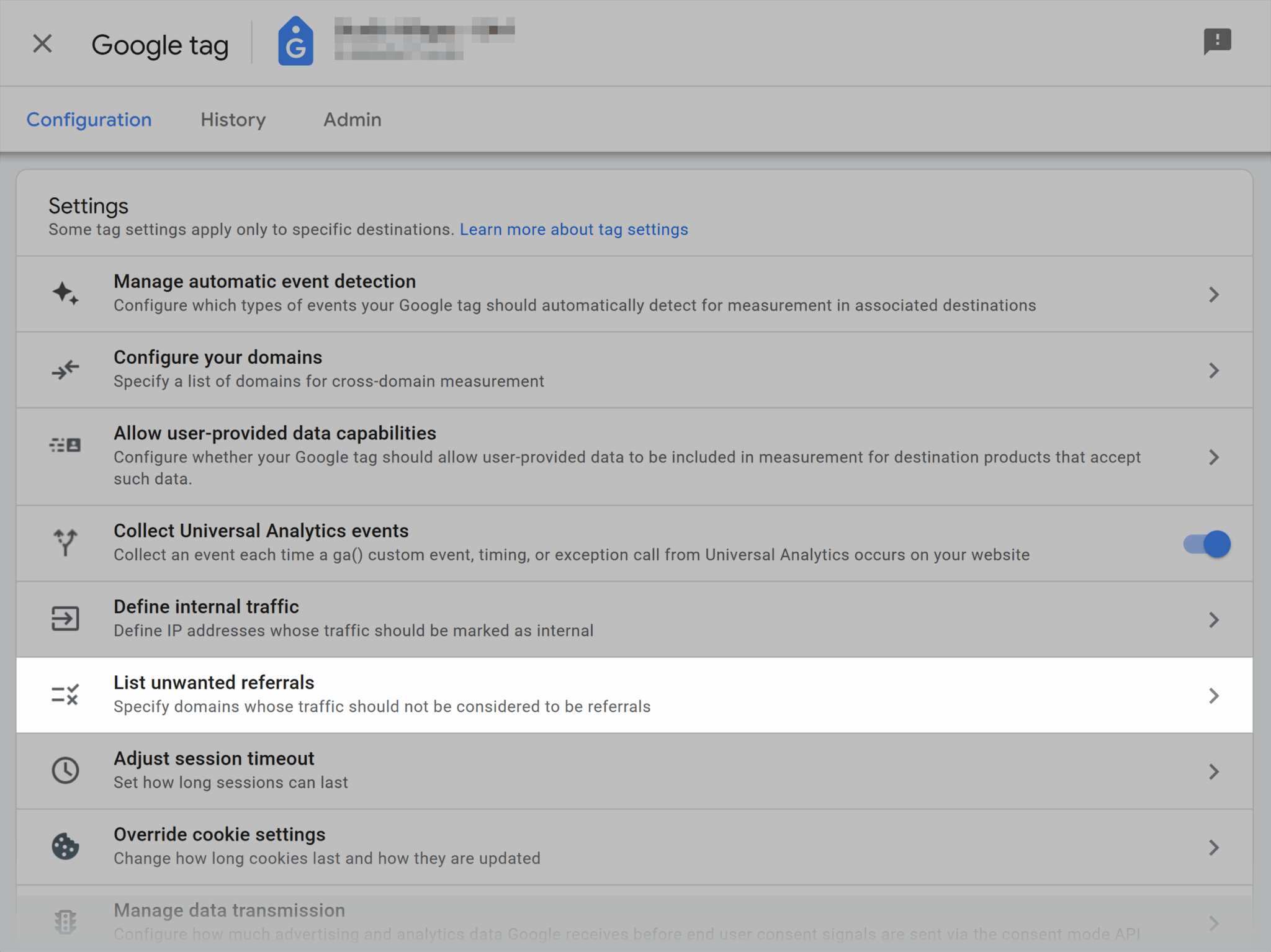
- Add the match type “Referral domain contains” and enter your domain (for example, soccerexamplestore.com).
- Make sure to include any variants (such as www.soccerexamplestore.com) so GA4 won’t count visits from your own site as external referrals. Then, click the “Add condition” button.

- Once your domain(s) are listed, click “Save.” Now, GA4 will ignore any session where the referrer is your own domain.

Conversions not firing on SEO landing pages
In GA4, conversions are tied to specific events so that if an event isn’t triggered or marked as a conversion, GA4 won’t count it. That means that even if your SEO efforts bring in qualified traffic, you won’t see results reflected in your reports unless those key actions are being tracked correctly.
Imagine someone comes to your blog post about “the best soccer jerseys,” clicks through to a jersey collection page, and fills out a form to get a discount. If that form submission isn’t tracked as an event or isn’t marked as a conversion in GA4, GA4 won’t count it.
So while SEO clearly worked, your data says otherwise.
To fix this:
- Go to “Admin” > “Events.”
- Confirm that the conversion events you created through GTM (e.g., form_start, contact_sales_click) are being collected. If not, enable them.
Sampling, thresholding, and data loss in reports
Imagine you open GA4 to analyze a soccer gear store’s organic traffic by country and jerseys landing page but something feels off.
Some traffic numbers look way too low.
A few rows just say other or not set.

What’s going on?
GA4 sometimes hides or limits data in reports using: thresholding and sampling.
Thresholding means that when the number of users in a segment is too small, GA4 may hide certain data like keyword queries, age, or gender. This way no one can identify individual users and their privacy remains protected.

But sampling means GA4 doesn’t always use 100% of your data when generating a report. This mostly happens when the dataset is large or includes complex filters. Instead, it analyzes a smaller sample and estimates the results.
While these two approaches are meant to speed up reports and protect user privacy, they can make your SEO analysis feel incomplete.
To fix this issue, the best way is to export your GA4 data into BigQuery and run your own unsampled queries (as explained above in the article).
The future of GA4 in an AI-first, privacy-forward world
We’re moving into a world where two major shifts are changing the way digital marketing data is collected and used. These are AI-first and Privacy-forward practices.
- AI-first means analytics tools are now relying more heavily on artificial intelligence to predict user behavior and surface automated insights.
- Privacy-forward means that as laws change globally regarding privacy and data, users are giving less tracking consent, and regulations like GDPR and CCPA are limiting what data can be collected in the first place.
GA4 can handle both challenges.
GA4’s AI-powered insights help SEOs identify meaningful trends and anomalies without manual analysis. It can now automatically surface unusual spikes or drops in organic traffic, flag pages with rapidly changing engagement patterns, and predict user behaviors.
For example, GA4 might alert you that a blog post targeting the “best soccer jerseys” keyword suddenly lost 40% of its organic sessions last week.
You investigate this issue and discover that a title change coincided with the drop, which tells you that you can revert to the old title or test a new headline immediately.
These insights let SEOs prioritize optimization opportunities and make data-driven decisions.
Let’s look deeper at how GA4 is handling both privacy concerns while staying up-to-date with the AI-first world.
First-party data strategy for SEO
First-party data is the information that’s collected directly from your audience through your website, forms, email sign-ups, or purchases along the entire customer journey.
In SEO, a first-party data strategy means using this direct data to better understand and target your organic visitors.
As privacy rules tighten and browser tracking becomes more limited, first-party data is becoming the most reliable and future-proof source for SEO insights. GA4 uses an event-based model to track user behavior directly on your site which makes it a reliable tool for collecting first-party data.
But beyond basic tracking, GA4 also offers privacy-safe ways that help you get even more value from your first-party data.
Customer match
Let’s say you collect email addresses from visitors to your soccer gear store who sign up for product updates like new jersey drops or exclusive discounts.
Customer Match in GA4 allows you to upload that consented, hashed data and match it with signed-in Google users. It’s especially useful for remarketing to people who’ve shown interest in soccer gear but haven’t converted yet.
Enhanced conversions
Now, imagine a user visits your jersey collection page, fills out a form, but their browser blocks tracking cookies. Normally, that conversion might get missed. But with Enhanced Conversions, GA4 uses first-party data (like the user’s hashed email from the form) to match the interaction with Google’s systems and still record it.
This gives you a more complete and privacy-safe view of how your SEO efforts are actually driving results.
Server-side tagging and consent-aware analytics
With more strict privacy regulations, traditional client-side tracking (where data is collected in the browser) is becoming less reliable.
Ad blockers, cookie restrictions, and consent banners can all disrupt tracking.
Why?
Because users may get frustrated and decline tracking. In addition, browsers may block cookies due to strict rules.
Let’s say you want to track how many visitors click “Add to Cart” on your soccer gear store’s jersey catalog page. If a visitor uses an ad blocker or declines tracking, your browser-based tag might not record that event at all.
So now, your GA4 report shows fewer interactions than what actually happened, which, in turn, makes it harder to measure user interest.
To overcome this issue, you can opt for server-side tagging.
Instead of firing tags in the user’s browser, server-side tagging routes those tracking requests through your server first. This gives you full control over how the data is processed and forwarded to GA4. In fact, it reduces data loss caused by browser-level interference.

Here’s how GA4 supports server-side tagging:
- User interaction on the website triggers a tag like pageview.
- Instead of sending data directly to GA4 from the browser, the request is sent to your server container first.
- The server container receives the data and processes it.
- Next, the data can be cleaned to remove any personally identifiable information (PII) to comply with privacy regulations like the General Data Protection Regulation (GDPR).
- Then, the processed data is forwarded to GA through the GA4 Server Tag, which sends requests from your server to GA4’s endpoints.
How to stay ahead as GA4 evolves with the Google ecosystem
GA4 is not a “set it and forget it” tool.
Google regularly rolls out new updates. The best way to keep up with these latest updates is to constantly review their support pages as they are updated with the latest information.
Want to go further?
You could connect GA4 with Semrush and use AI Narratives to generate smarter via automation and machine learning. This will make your SEO reporting even more actionable.

Here’s how to connect GA4 with Semrush:
- Open your Site Audit project in Semrush.
- In the top-right corner, click the “gear icon.”
- From the dropdown menu, select “Google Analytics.”

- Choose the Google account that has access to the GA property for the domain you’re auditing.
Note: The GA property’s URL must match your Semrush project domain exactly. For example: searchengineland.com = searchengineland.com but www.searchengineland.com ≠ searchengineland.com.
- Select the correct “Account” and “Property.”

If this is your first time connecting GA to Semrush, you’ll be prompted to log in to your Google account and authorize the connection.
If you’ve already connected GA in other Semrush tools, your account will appear in the dropdown without any log in requirement.
In about 15 minutes, your GA4’s data will appear under your crawled pages. This lets you see metrics like unique page views directly within your audit, so you can identify which pages get traffic but may still have technical issues.
And, once connected, your GA data will automatically refresh every time you re-run your Site Audit.
Track, optimize, and win in Google and AI search from one platform.
Want to get the most out of GA4 insights?
Run a quick SEO audit in GA4 to see if you’re actually meeting user intent.
Check if your scroll tracking, landing page filters, and organic segments are set up correctly. If they’re not, fix the gaps.
Because without clean, focused tracking, your content might be underperforming without you even realizing it.
Once you’ve pinpointed what’s working (and what needs fixing), check our guide on how to combine GA4 with Google Ads to target the right audience more effectively.
Explore more on
Editorial disclosure
Search Engine Land is owned by Semrush. We remain committed to providing high-quality coverage of marketing topics. Unless otherwise noted, this page’s content was written by either an employee or a paid contractor of Semrush Inc.
About the author