Performance Max (PMax) Google Ads campaigns explained


Performance Max has changed the PPC world by embracing an all-encompassing, start-to-finish AI process for Google Ads campaigns.
It’s important for advertisers to understand the strengths and weaknesses of PMax. But SEO professionals should also know how PMax can overshadow organic search results—and how it can boost them.
In this guide, learn what PMax does, find out why it’s important for both paid and organic search, and see what you can do to make sure it helps your efforts rather than hinders them.
Note: If you’re not familiar with Google Ad campaigns and the different campaign types available, you may want to read the Search Engine Land PPC marketing guide before continuing with this Performance Max guide.
What is Performance Max (PMax)?
Performance Max, or PMax for short, is a type of Google Ads campaign that uses AI-driven automation to deliver ads across Google’s two big advertising networks.

Those networks are:
- Google Search Network: Google Search (including Image and Shopping tabs), Google Maps, Google Groups, YouTube search, and third-party partner sites like parked domains and product pages
- Google Display Network: Gmail, YouTube videos (including Shorts), Blogger, and third-party partner sites and apps
PMax launched in 2021 as the next evolution of Smart Campaigns, which provided some automation but offered less control and scope over ads. In August 2024, Google started phasing out Smart Campaigns and merging its functionality into Performance Max.
The SEO toolkit you know, plus the AI visibility data you need.

In addition to Performance Max, Google Ads still offers the ability to create manual ad campaigns for specific channels and goals:
- Search
- Shopping
- Video (YouTube)
- Demand Gen (YouTube, Discover, and Gmail)
- Display (Google Display Network)
The attraction of PMax for some advertisers is that it allows them to create a single campaign that automates customization and bidding across all available campaign types.
Why SEOs should care about PMax
In short, SEO professionals should care about Performance Max because it can boost organic SEO efforts.
The best digital marketing strategies already incorporate both organic and paid tactics to increase visibility and drive converting traffic.
As the next evolution of Google Ads, PMax offers a tool with broader reach to funnel users toward your site.
Here are a few examples of how PMax campaigns can aid efforts to improve search rankings:
- SERP share: Automated targeting can drive PMax ads to appear in relevant search engine results pages (SERPs) where organic content is listed further down (or not at all)
- Brand visibility: Similarly, PMax can incrementally improve brand visibility by targeting ads to relevant searches that can drive more views to high-value content
- Data loss in AI-driven search: With Google AI Overviews (AIO) causing drastic decreases in search clicks, PMax can help make up for some of that lost traffic by showing ads where AIO has slashed click-through rate (CTR)
With these examples in mind, let’s dive into how Performance Max works together with organic and paid search strategies.
Why PMax matters: Organic + paid synergy
Organic search efforts and paid search marketing have always gone hand in hand.
Even limited to Google’s platforms, there are many benefits to tailoring a marketing strategy to include both SEO and PPC:
- Paid ads can boost content visibility for high-difficulty keywords until that content starts ranking organically
- Branded ads can position your brand as a better choice above competitors’ organic results
- Retargeting can remind people about content they’ve seen in prior organic searches
Unfortunately, it takes a lot of time and effort to manage the various ad types required to reap these benefits.
Performance Max uses AI automation to reduce the effort of traditional PPC campaigns. It applies across all of Google’s advertising outlets (or “surfaces,” as Google calls them in its concept video).
When done well, PMax campaigns can boost organic efforts across Google channels while cutting down on the amount of time it takes you to set up individual campaigns.
Read on to learn more about how PMax and organic search can work together synergistically.
Dig deeper: Organic search vs paid search: Which should you choose?
Blended SERP coverage
Performance Max campaigns can provide visibility across search results that might be difficult to target for organic or even paid search campaigns.
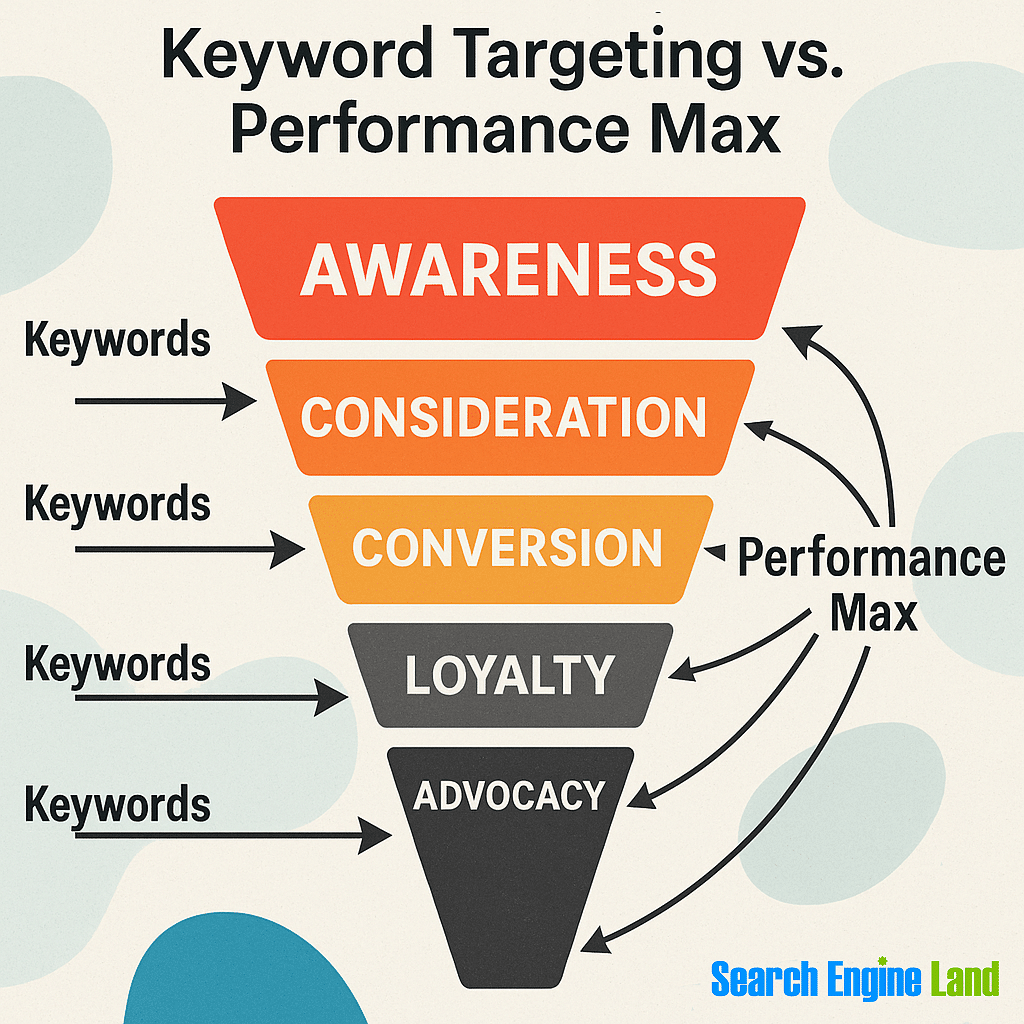
Creating content that targets different types of search intent is a well-known strategy for both SEO and PPC.
However, with each product and service you offer, it becomes exponentially more difficult to create content, and ads draw in customers across every stage of their journey.
This is where PMax can be helpful.
PMax campaigns can provide broader coverage by using “search themes.”
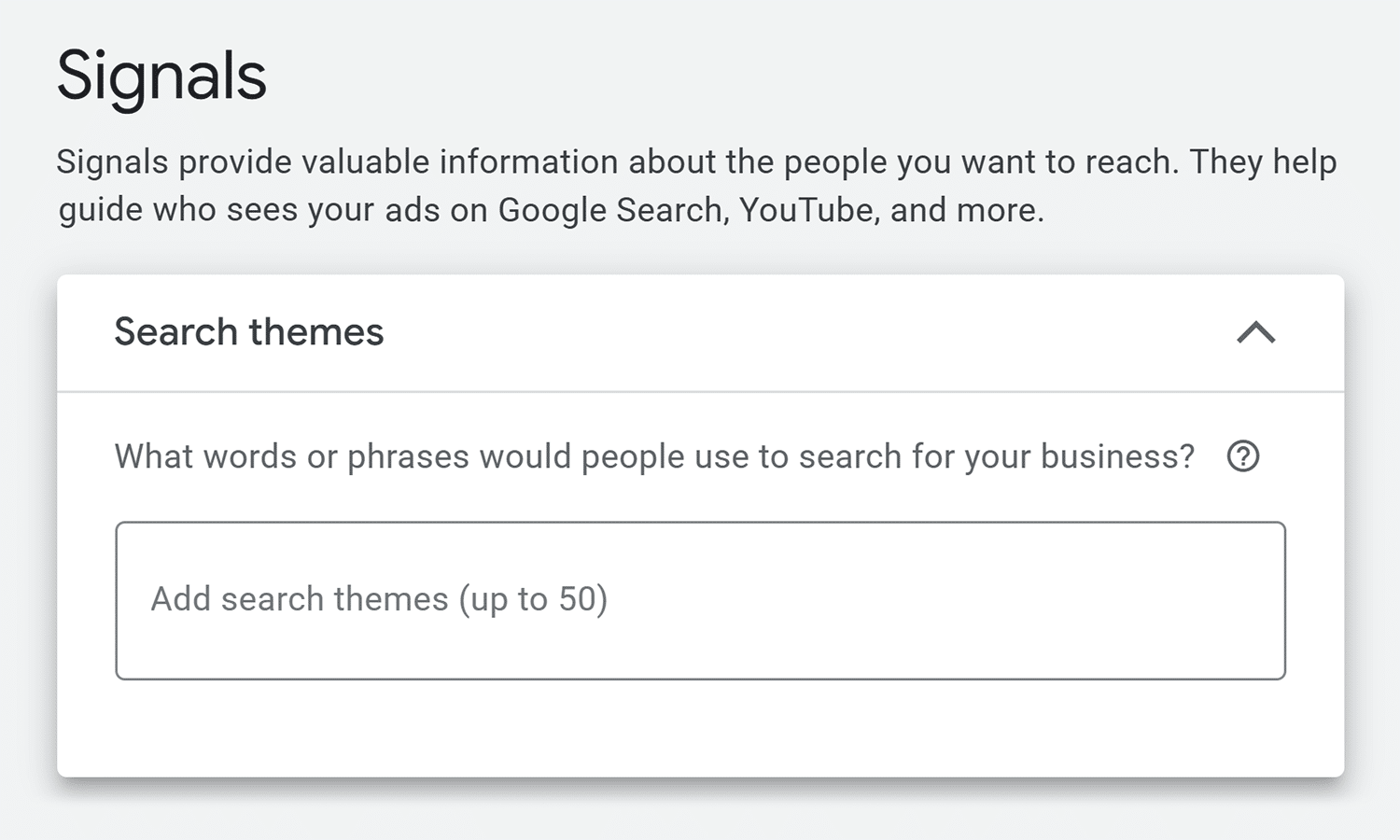
According to Google, search themes are essentially broad topic categories related to the campaign goals. They aren’t keywords, but rather audience signals that add to the demographic signals you provide along with PMax’s own AI learning.
PMax search themes can be especially helpful in situations like the following:
- Launches for products that don’t yet have organic ranking content
- Product updates that may appeal to a broader set of users
- Testing or establishing a foothold in new markets
- Special promotions to celebrate an event, milestone, season, observance, or holiday
- Discovery of potential new search topics that are relevant to your offerings
- Faster campaign ramp-up before you begin more targeted efforts
Search themes can be thought of as a way to provide Google with more information about the users—and user intents—you want to reach.
Pro tip: Search themes replaced the older “Custom Intent” audiences, which Google phased out in 2024. Learn more about audience targeting with Google Ads demographics and 7 ways to segment Performance Max and Shopping campaigns.
Search themes example: Aerial drones
Imagine you manufacture and sell aerial drones. Currently, you only produce models for general hobbyist use, but you’re developing a new model suitable for commercial or government uses.
While you don’t have much content about the new model on your website yet, you might still want to collect names and contact information of people who are interested in the new model as leads for when presales begin.
In that scenario, you could set up a PMax campaign that sends clicks to an informational page with a contact form.
When setting up the campaign, you could add search themes that describe uses of the new model, such as:
- Automated delivery
- Aerial surveying
- Search and rescue
Keep in mind that search themes aren’t keywords. They won’t target a specific audience or intent, but they will provide additional hints to Google about the relevant audiences and intents.
Brand visibility and incremental lift
Performance Max campaigns can improve the visibility of your brand and provide incremental lift over other campaign types.
In theory, at least.
Incrementality has been one of the more contentious claims of PMax. Some people argue that brand-focused PMax campaigns are pointless, while others have pulled clients out of PMax altogether.
The main problems that marketers cite are:
- Lack of data transparency (see “Data loss and attribution complexity” below)
- Insufficient data to measure results
- PMax is less effective with small budgets
When it comes to data transparency, Google has started to provide a little bit better PMax reporting. But it’s still hard to measure exactly what impact Performance Max campaigns have vs. other campaign types.
Measuring incrementality requires a statistically significant set of historical data against which to compare. This undercuts the value of PMax for some of the use cases mentioned above, like new product launches, product updates, and market expansion.
It also makes it hard for advertisers with small budgets to measure the incremental impact of PMax without also running Search campaigns, which they might not be able to afford.
Even with those problems, PMax may still provide a way to get your brand and products before more eyes.
In fact, Google has a built-in Performance Max experiments feature that allows A/B testing of certain scenarios. One such scenario is including an “uplift” experiment that specifically looks at the incremental benefit of PMax vs. Search, Video, and Display ads.
If you’re confident in your ability to measure and compare data across campaign types, incremental lift and brand visibility could be an added benefit of using Performance Max.
And if you don’t notice any benefits, you can always switch back to other campaign types.
Cannibalization vs. complementary performance
PMax campaigns can complement a strong organic SEO strategy.
However, without proper setup and maintenance, Performance Max can just as easily cause you to pay for clicks you might have gotten anyway.
PMax campaigns don’t target specific search terms. Rather, the AI-driven ads will test placements across a wide variety of terms it considers relevant.
Some of those tests are likely to overlap with keywords the advertiser’s content already ranks for. After all, those keywords will be the most relevant terms for the ads.
When that happens, searchers may be more likely to click on the ad rather than top-ranking organic results—even when the links go to the same page.
This cannibalization can happen with both branded and non-branded search terms:
- Branded terms use a brand name, trademark, product name, or other terms directly tied to a specific brand (like a slogan or jingle). Brands tend to rank very highly for such proprietary terms, and running ads on them may cause people to click on the ad rather than the top result, costing the brand money for a visit they would have gotten anyway.
- Non-branded terms can be more competitive, especially if they’re highly transactional terms. A brand that’s already ranking at the top of the SERPs for such terms might rather spend marketing dollars on ads for terms where they rank lower—or not at all.
The good news is that Google has ways to exclude branded and non-branded terms from PMax campaigns, which can reduce potential cannibalization. More on exclusions is provided in the “PMax strategies for advanced SEOs” section below.
Further reading: Why phrase match is losing ground to broad match in Google Ads
Potential negative SEO impacts of PMax
While there are a lot of potential synergies between organic search optimization and PMax, there are also some potential negatives.
Where PMax can harm SEO efforts most is with its intentionally broad reach.
In particular, PMax can:
- Undercut Search ad campaigns and organic SERPs with lower CTRs
- Increase brand visibility in undesirable ways, such as in searches where the brand already dominates organic results or in searches where the brand would rather not appear at all
- Hide valuable performance metrics and data due to reporting restrictions and anonymity thresholds
This isn’t to say that SEOs should avoid PMax. As shown above, there are definitely ways that PMax, Search ads, and SEO for organic search can work together.
More on these issues, along with specific ways SEOs and PPC ad managers can mitigate them when using PMax campaigns, is provided in the “PMax strategies for advanced SEOs” section later in this guide.
How PMax works
Performance Max is a type of Google Ads campaign. On the surface, it acts like other campaign types, but underneath there’s a little more going on.
That’s because PMax campaigns are driven by AI from start to finish. Other campaign types have some AI features, but they also require more manual setup.
Before getting into the specifics of how PMmax campaigns work, it’s important to know that the Performance Max option is available for only some campaign objectives.
To start a PMax campaigns, select one of the following goal-based objectives when creating a Google Ads campaign:
- Sales
- Leads
- Website traffic
- Local store visits and promotions
- Create a campaign without guidance (you’ll select one or more campaign goals later)
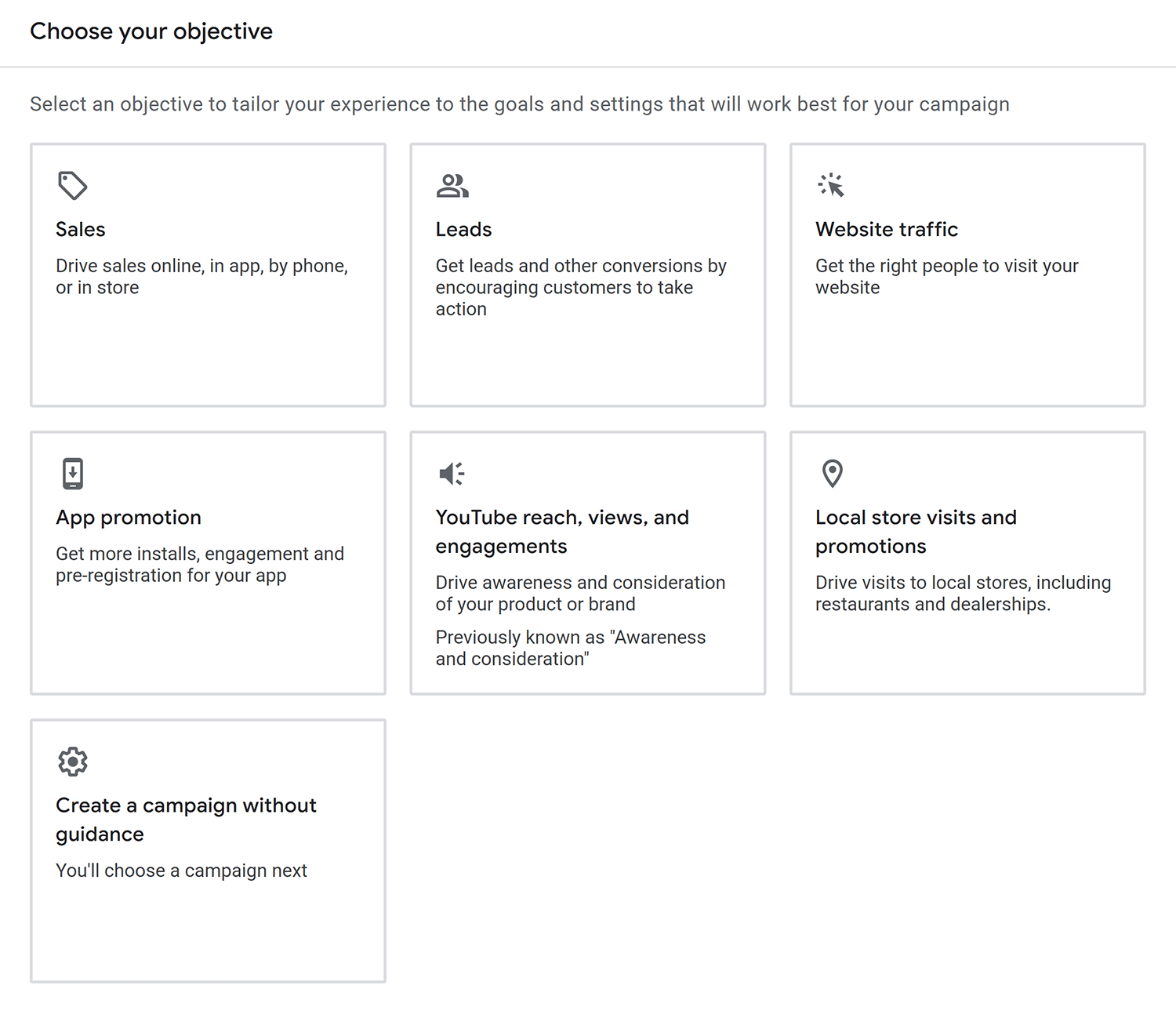
Then, choose “Performance Max” under “Select a campaign type” and click “Continue.”

Note: Performance Max will be the only campaign type available for the “Local store visits and promotions” goal.
Once you’ve selected a Performance Max campaign, you’ll get two additional options:
- Where should people go after clicking your ads? This should be the URL of the web page you want people to visit
- Campaign name: This is a unique name for this ad campaign that you can refer to later

After clicking “Continue” here, you’ll be taken into the Performance Max campaign setup.
That’s when the Performance Max process begins.
The Performance Max campaign process
There are two major stages to the PMax process:
- Setup: This is where you provide information about bidding strategy, campaign settings, assets, and budget
- Review: This is where you ensure that it’s running optimally and that you’re getting the desired results

These stages work hand in hand throughout the campaign. You’ll move back and forth between them as your campaign progresses.
Note: This guide does not cover campaign budgeting. See this guide to PPC budgeting to learn about financial planning for your campaign.
Bidding
Google Performance Max campaigns use an AI-powered bidding method known as “Smart Bidding.”
Smart Bidding goes beyond simple bidding automation, which only looks to increase website clicks or search visibility.
Rather, Smart Bidding considers additional context, including:
- The device, operating system, browser, and language being used by the ad viewer
- The viewer’s location
- Time of day the ad will appear
- Associated search queries
- Remarketing vs. new users
PMax campaigns offer two Smart Bidding options designed to maximize conversions:
- Maximizing conversions: Targets increasing overall conversions, regardless of their value. When set, you can add an optional cost per action (CPA) to help track the costs associated with these conversions.
- Maximizing conversion value: Targets getting more conversions that meet a value threshold. When set, you can add an optional return on ad spend (ROAS) to help track the overall value of your conversions.
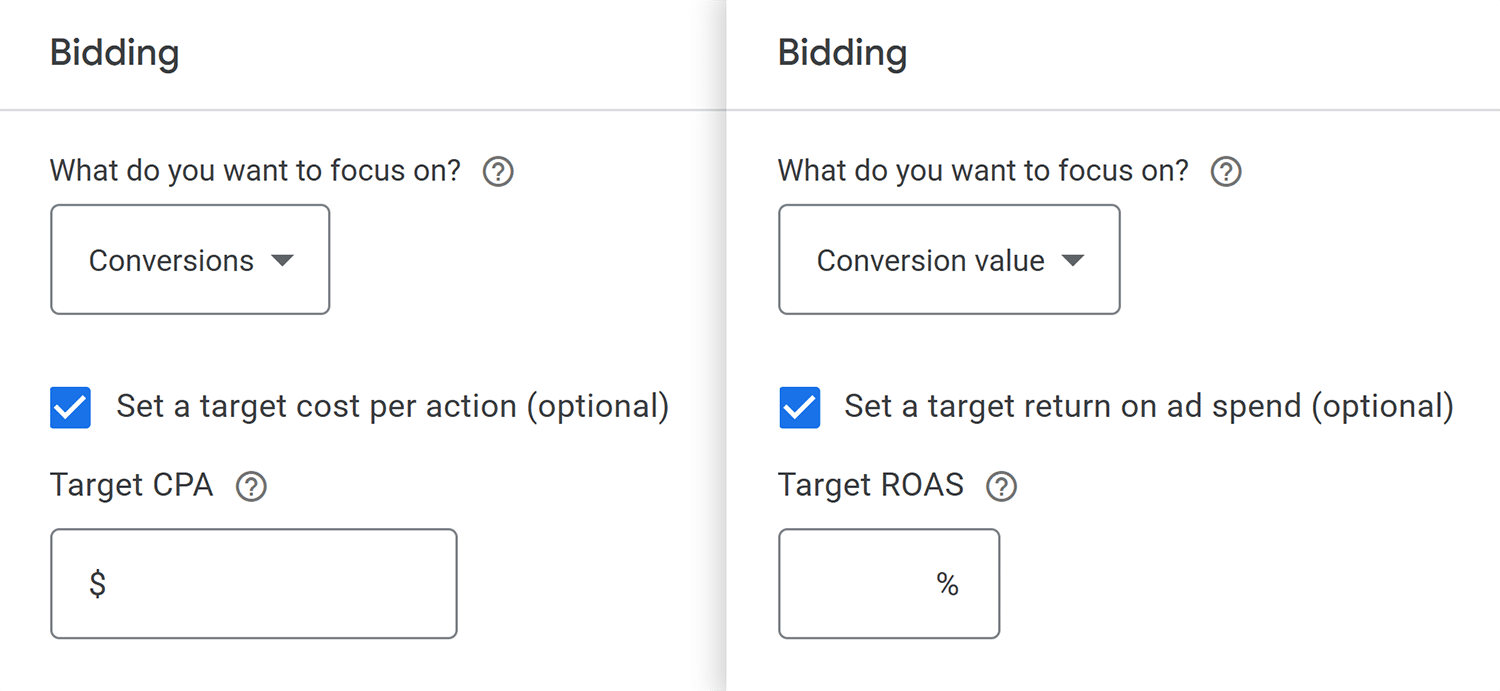
You can also set the option to bid for new customers here. This will prevent the Performance Max campaign from retargeting your existing users.
However, the “Bid for new customers only” option will work only if your audience segment has more than 1,000 people in it. (More on audience segments in the “Asset group” step below.)

Further reading: PPC campaign budgeting and bidding strategies
Campaign settings
PMax’s “Campaign settings” step is where you can enter information about the characteristics of your campaign.
The main settings include:
- Locations: The regions, countries, or other areas where you want your campaign to run
- Language: The languages your target customers speak
- EU political ads: A toggle about political advertising content for the European Union (EU)
Some additional settings allow further refinement of the campaign:
- Ad schedule: What days of the week and times of day to run your ads
- Start and end dates: The calendar period during which to run your campaign
- Campaign URL options: Templates and additional parameters for parallel tracking
- Page feeds: Pull in page feeds from your account to use as URLs when “Final URL expansion” is turned on (see “Landing page control” below)
- Devices: What screens to show your ads on (desktop, mobile, tablets, and/or televisions)
- Brand exclusions: Prevent your ads from being shown in searches related to specific brands (see “Brand and non-brand keyword segmentation” below for why you might want to exclude your own brand)
- Age exclusions: A list of age ranges to prevent from seeing your ads

There are a lot of options to work through in these first few steps. The more you work with PMax campaigns, the quicker you’ll be able to get through them.
Further reading: How to structure PPC campaigns
AI-driven optimization: Asset generation, asset groups, and signals
The AI nature of Performance Max kicks into high gear with the asset-related sections of the campaign setup.
There are two sections related to assets:
- Asset generation (optional): Use generative AI to create an initial set of assets based on some inputs. The generated assets can be modified in the “Asset group” step.
- Asset group (required): Build out and optimize the assets to use in your campaign, as well as provide search themes and audience signals to direct the campaign.
Almost all of the options in these two steps will use AI directly or influence how AI will be used later (such as in bidding on or targeting ads).
Asset generation using Google generative AI
The “Asset generation” step is a way for you to pull existing information and assets from your website or related pages (such as social media) quickly into your campaign.
This step is optional. If you don’t want to let Google generate your assets, simply click “Skip” at the bottom of the page.
However, you may want to try out asset generation if any of the following applies to you:
- Your landing page already has all (or most) of the text and images you want to use in your campaign
- You prefer to start with content and graphics that can be edited to fit your needs, rather than blank fields
- You’re curious to see how it works
Note: Asset generation is not available for all locations or ad types. See the eligibility requirements in Google Ads Help.
The easiest way to get started is to enter the destination URL for your ad in the “Final URL” field.

Google will fetch the URL and fill in the remaining fields with generated content.
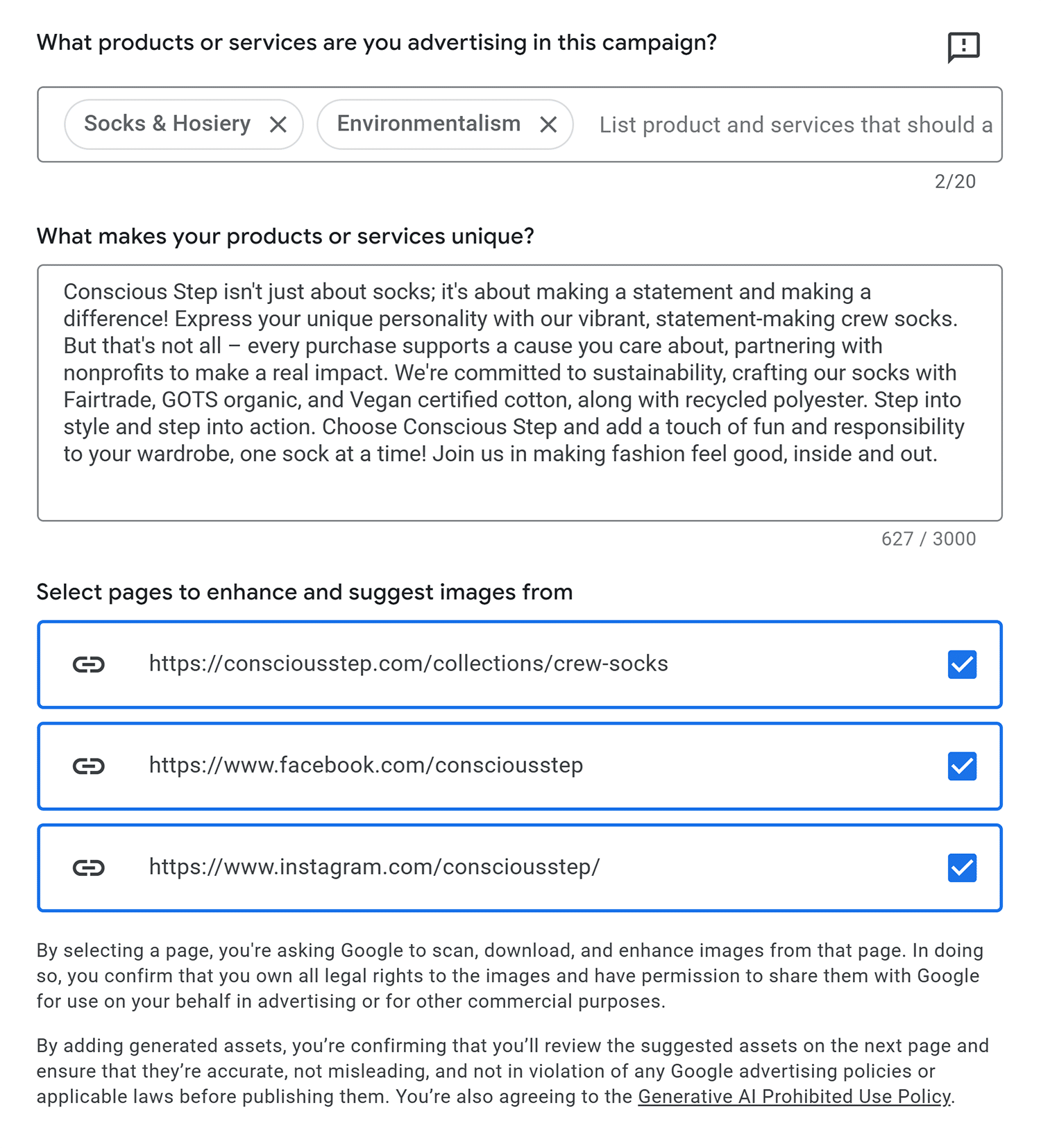
This step can save you some time from writing things from scratch. However, like any AI-assisted content process, it’s important to review the output.
Edit for:
- Factual errors
- Misrepresentations of your product
- Brand voice and style preferences
- Spelling, grammar, and tone
If you’d like to pull in images from your website, social media profiles, or another webpage that you own, keep the suggested boxes checked.
You can also change the URLs to source your assets from (e.g., if you want to pull from an Instagram profile instead of a Facebook profile), or uncheck the boxes to disable image gathering.
When you’re ready, click the “Generate assets” button to move to the next step.
If you already have text and images you want to use, or don’t like any of the AI-generated options, you can also skip this step altogether.
Asset group
The “Asset group” step is where you compile the assets, search themes, and audience signals for your Performance Max campaign.
If you completed the “Asset generation” step, you should see text and images pulled into many of the fields. Otherwise, you’ll need to add things manually.
For each section of the page, you’ll need to decide whether to keep the generated content, remove it, or add to it.
The asset-related sections include:
- Brand guidelines: Provide the name of your business, logos, and any custom colors or fonts you want used in your ads
- Assets: Detail the specific ad copy, images, videos, links, and other features of the assets to be displayed (more about asset types later in this section)
- Asset optimization: Control what Google AI is allowed to do with the assets you define
There are a lot of fields to fill out and review on this page, and the first time through can be a little intimidating. That said, most of the fields should be fairly straightforward.
Part of the tediousness comes from the fact that all Google Ad asset types are available with a Performance Max campaign. Other campaigns (such as Search or Video campaigns) limit the types of assets that are available.
The main asset types you’ll need to review in the “Assets” section are:
- Final URL: The address of the page you want users to visit when they click your ad
- Headlines: Up to 30 characters of prominently displayed text
- Long headlines: Up to 90 characters of prominently displayed text
- Images: Visual assets in horizontal, square, and portrait dimensions
- Videos: Short videos (limited availability)
- Sitelinks: Additional links to secondary pages that can appear below ads
- Call to action: Static actions like “Subscribe,” “Download, or “Shop now,” or let Google AI decide which one works best
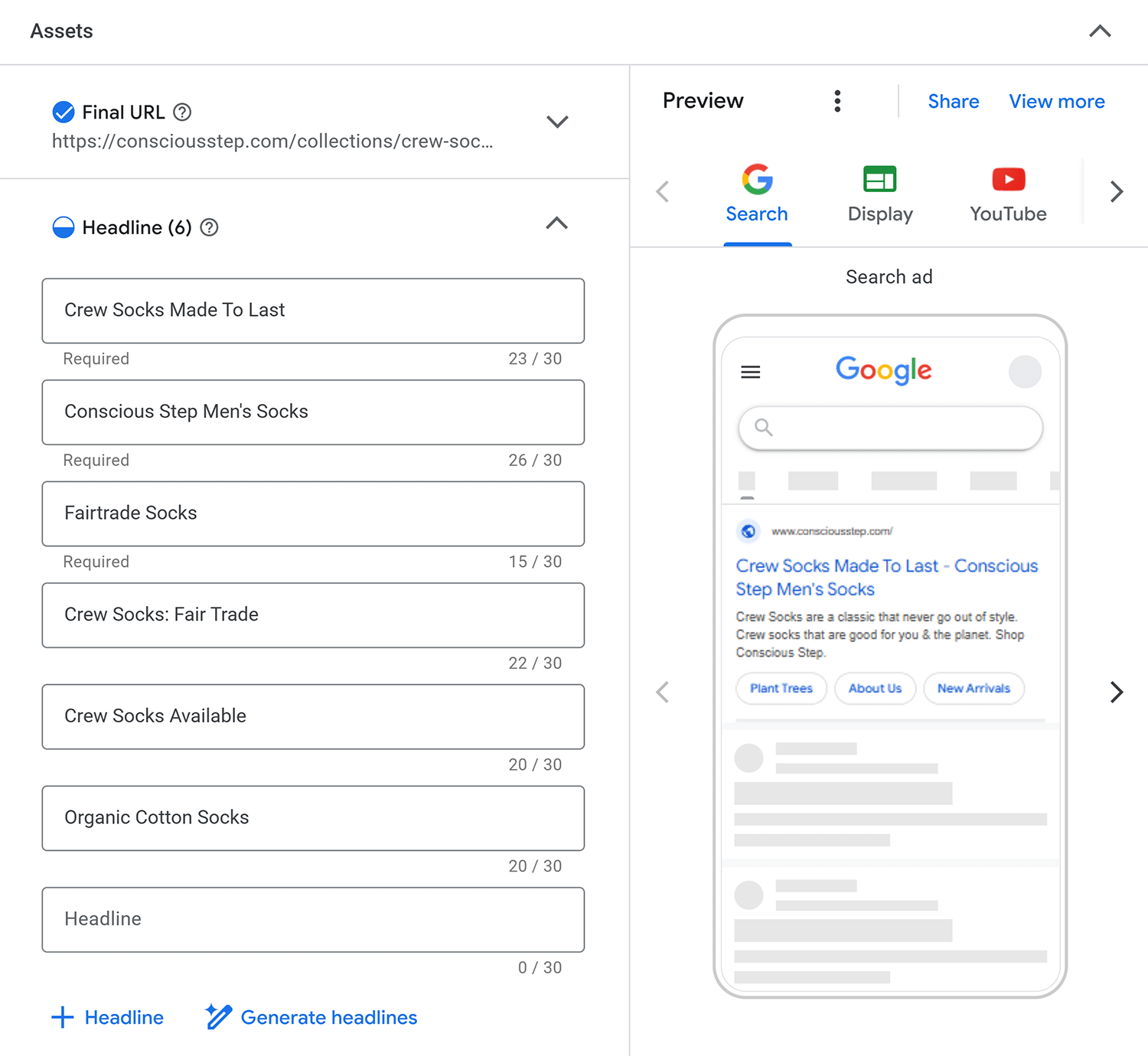
You may also want to consider the following additional asset types:
- Promotions: Special deals or discounts
- Prices: Everyday pricing
- Calls: Phone number for immediate contact
- Callouts and Structured Snippets: Add-on text that provides more details
- Lead forms: A form for gathering additional information
Further reading: When to trust Google Ads AI and when you shouldn’t
PMax signals: First-party data vs. Google’s “black-box” automation
To make sure your PMax campaign is as effective as possible, it’s important to provide as much data as you can about the audience you want to reach.
You do that in the “Signals” section of the “Asset group” step.
There are two key sets of signals to look at:
- Search themes let you provide hints to Google about the types of things your audience is interested in. See the “Blended SERP coverage” section above for more on search themes.
- Audience signal offers demographic options for further targeting of your audience, including interests, gender, age, parental status, and income ranges. (Not all audience signal options are available in all areas.)
One of the audience signal options available is to provide first-party data.
It’s highly recommended that you provide as much high-quality first-party data about your audience as possible.
Without first-party data, Google will rely on the search themes and demographic information you provide. Frankly speaking, those options are much too broad to trust that you’ll be able to run an efficient campaign.
To give Google a better idea of the specific types of users you want to target, you can create account-level custom segments audiences and import them into your campaign.
Custom segment audiences can be created from other Google data, such as Google Analytics 4 (GA4) or YouTube subscribers. You can also pull in data from connected products through the Google Ads data manager.
Once your audience signals are set, you can enter your budget for the campaign, review the summary, and publish your campaign.
Dig deeper: How to create and optimize Google Ads custom segment audiences
PMax campaign review and refinement
Once your Performance Max campaign is live, your next task is to keep it running smoothly.
Unfortunately, it can be a bit of a challenge to gather the data needed to get the best value from your PMax campaign. In fact, Performance Max has been called a “black box” due to how opaque its inner workings are.
Even the launch of updated reporting and insights didn’t dispel complaints about how few details advertisers can get compared to other campaign types.
And hidden query data can lead to a big waste of money.
Here are some ways you can make sure your PMax campaigns are working for the goals you’ve set:
- Use report filters to find irrelevant keywords and add them to your negative keywords list (see “Negative keywords + account structure” below)
- Review account-level channel reporting, not just campaign reports, to spot trends across multiple campaigns
- Use PMax to identify top-performing channels and then switch to another campaign type (e.g., Search or Video) to take advantage of finer targeting and reporting
- Diagnose and fix common low conversion problems to ensure you capture every opportunity
Once you’ve analyzed the data that’s available, go back into your PMax campaign and adjust the settings, assets, and signals to take advantage of the insights you’ve uncovered.
Dig deeper: Auditing the Performance Max black box: A strategic approach
Data loss and attribution complexity
Since its launch, Performance Max’s hiding of placement-level data has been a sore spot with advertisers and SEO teams who are used to more granular reporting.
One of the biggest contentions has to do with differences between GA4 data and Google Ads data. According to Digital Position, that data gap can be as high as 85% for websites that lean heavily into PMax ads.
Part of the problem may be that GA4 and PMax are using different marketing attribution models. Both GA4 and Google Ads use data-driven attribution (DDA), but it’s possible to change GA4 to last-click attribution. This can cause significant discrepancy in conversion goal reporting.
That said, even when both GA4 and Google Ads use DDA, attribution can still be tricky.
So what can be done to resolve attribution issues? Here are a few ideas to consider:
- Make sure GA4 and PMax are fully integrated, including conversion tracking
- Enable “Engaged-view” conversion key events in GA4 to capture video ad conversions
- Use multi-touch attribution (MTA) methods to understand the impact of specific PMax campaigns
- Use a marketing mix modeling (MMM) tool like Google’s Meridian or Meta’s Robyn to analyze return on investment (ROI) of your overall marketing efforts
- Compare PMax campaign results against data from other ecommerce advertising platforms
Unfortunately, there’s no way to get a perfect attribution picture with Performance Max campaigns. And that won’t change unless Google opens its “black box” of data to let more light in.
Further reading: Your guide to Google Analytics 4 attribution
PMax strategies for advanced SEOs
A good digital marketing strategy should integrate organic and paid search efforts in a way that synergizes results. Many SEO experts are familiar with Search ads and other campaign types that offer finer targeting to specific keywords.
However, when it comes to Performance Max campaigns, navigating the lack of data and the broad targeting of search themes can be challenging in several ways:
- Improper segmentation can result in higher ad spend, especially for branded terms
- Overlapping keyword targets can lead to cannibalization of organic results
- Less control over final URLs can cause mismatched user intent and dampen content impact
- Generated assets can require significant testing to ensure effectiveness
Read on to learn how to address these challenges and make sure your SEO and PPC strategies work together rather than against each other.
Brand and non-brand keyword segmentation
The best way to ensure you don’t overpay for PMax clicks you would have gotten anyway is to set up brand exclusions in your campaign.
The broad targeting of PMax campaigns can be one of its most useful attributes, especially if brand visibility is one of your goals. However, that same breadth can lead to higher-than-expected CPA (or lower-than-expected ROAS) if the campaign isn’t set up to exclude branded terms.
For a strong brand that dominates its own branded search results, there’s little need to spend ad dollars for paid placements on those same queries.
To set up brand exclusions:
- Go to the “Campaign settings” step of your PMax campaign
- Scroll to the bottom and click “More settings” > “Brand exclusions” to open the brand exclusion options
- Click within the field to see a dropdown list of brand lists in your account
- If the brand list(s) you want to use exist(s), check the appropriate boxes
- If you wish to create a new brand list, click “+ New brand list” to open the brand list creation panel
When creating a new brand list, you’ll be prompted to name the list and choose all the brands you want to include from a database of available brands.
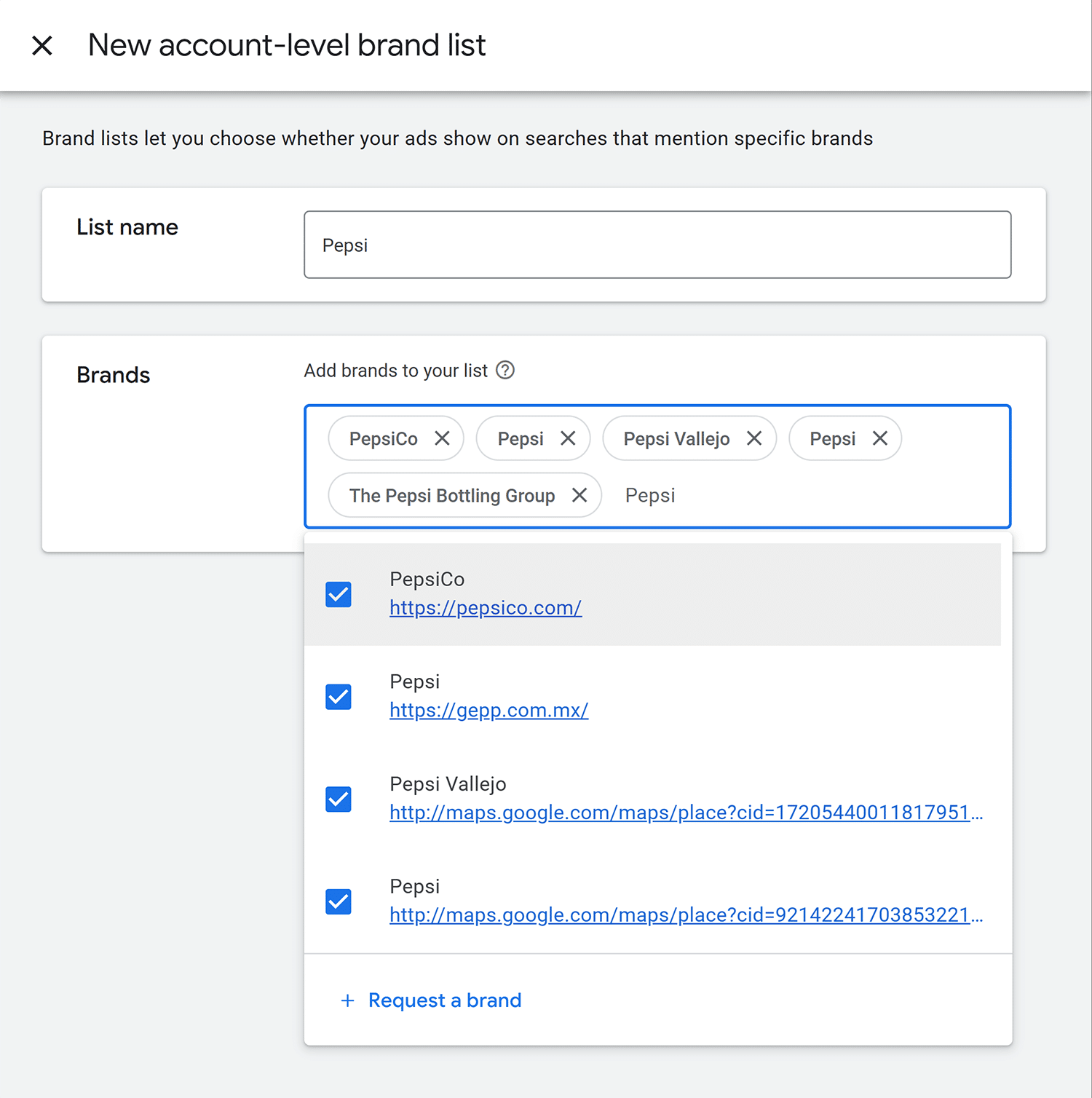
If your brand isn’t available in the list, you can request that it be added using the “+ Request a brand” button and then fill out the brand information in the form.
Keep in mind that it can take 4–6 weeks for a brand request to be reviewed, so plan accordingly.

Excluding your own brand from the campaign will ensure that there’s no cannibalization of your high-ranking organic branded results.
You may also want to consider excluding other brands besides your own from a campaign.
For example:
- Brands with similar names in different industries or areas
- Competitors’ branded terms which have a low likelihood of converting (this may require some testing to see what converts and what doesn’t)
- Brands, products, and trademarks that may have negative reputational impacts for your own brand
Finally, brand lists are managed at an account level. You can access them from the main menu on the left by selecting “Tools”> “Shared library” > “Brand lists” and then choosing the list you want to update.

Negative keywords + account structure: Getting more incremental queries
It’s advisable to exclude high-ranking non-branded terms from being cannibalized by PMax campaigns. To do so, you can create a “negative keyword list.”
As the name implies, a negative keyword list is a list of keywords you don’t want to target. Specifically, they’ll prevent your ads from appearing in searches for those keywords.
There are several types of keywords you may want to consider including with negative keyword lists:
- Terms that your site already ranks highly for
- Keywords used in other Google Ads campaigns (especially Search)
- Queries for which PMax has proven to drive low conversion rates
- Local queries (like “near me”) for broadly available products and services
To create a negative keyword list in Google Ads, go to “Tools” > “Shared library” > “Exclusion lists” and select the list you want to use, or click the “+” symbol to create a new list.
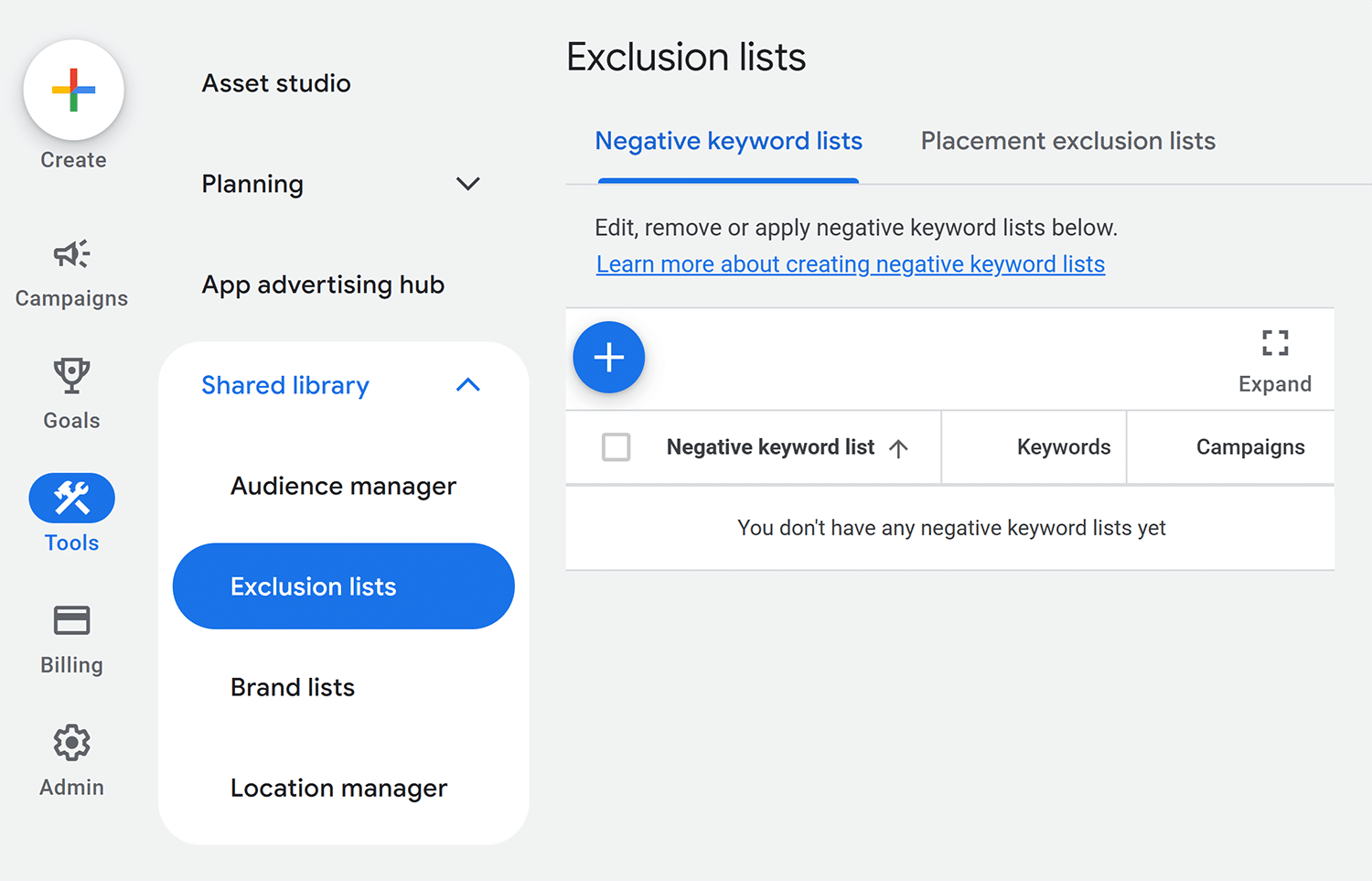
Add a name for the list in the top field, then enter the list of negative keywords into the field below and click “Save.”

Once your lists are created and populated, you can add the list to one or more campaigns listed at the bottom of the page.
To add multiple lists to one or more campaigns:
- On the “Exclusion lists” page, select the list(s) you want to add
- Select “Apply to campaigns” at the top of the negative keyword lists table
- Choose the campaign(s) to which you want to apply the list(s)
- Click “Apply”
A few additional points about negative keyword lists:
- You can have up to 20 negative keyword lists on your account
- Each list can contain up to 5,000 keywords
- You do not need to list misspellings or alternative spellings (e.g., if you have “color,” you don’t also need “colour”)
- You do need to list synonyms and keyword variations (e.g., list both “car” and “automobile”)
- When you update a negative keyword list, the change will be applied in real time to all campaigns using the list
Dig deeper: How to use negative keywords in PPC to maximize targeting and optimize ad spend
Landing page control
Aligning PMax landing pages with search-optimized content can help you improve audience signals and better understand user experience.
Insights from the additional paid traffic can help you improve content even more, which will help it perform even better in search results.
By default, Google will choose what pages to send people to when they click on your PMax ads. However, this can lead to unexpected results, such as a mismatch between search intent and the type of content they land on.
It’s better to gain firmer control over the pages that users can land on when they click. The best way to do that is with Final URL expansion.
“Final URL expansion” allows Google to send ad traffic to what it considers to be the most relevant URLs. If the option is turned off, it will only send traffic to the “Final URL” asset in the asset group.
To turn Final URL expansion on or off:
- In your campaign, go to Asset group > Asset optimization > Text (you may need to click on each of the last two items in that sequence to expand them)
- Click the checkbox next to “Final URL expansion” to toggle the option

If you want to prevent some (or many) URLs from being included in the expansion, click on “Exclude some URLs” to create an exclusion list.
Three types of exclusions can be applied:
- URLs: Individual web addresses (example: “https://searchengineland.com/webinars”)
- Custom labels: A group of URLs based on labels from page feeds (see below)
- Rules: Simple URL text matching (example: “/guide/”)
Page feeds allow even greater control over what URLs your ads send visitors to.
A page feed can be created using a simple spreadsheet or CSV with the following columns:
- Page URL: A single URL
- Custom label: One or more labels separated by a semicolon (;)
A page feed file might look something like the following table.
| Page URL | Custom label |
| https://searchengineland.com/guide/programmatic-seo | SEO;GUIDE |
| https://searchengineland.com/guide/seo-prompts-for-chatgpt | SEO;GUIDE;AI |
| https://searchengineland.com/guide/best-ppc-keyword-tools | PPC;LIST |
| https://searchengineland.com/when-to-trust-google-ads-ai-and-when-you-shouldnt-461668 | PPC;NEWS;AI |
Page feeds are created at the account level. To add a new page feed:
- Go to Tools > Business Data
- Click the “+” and choose “Page feed”
- Name your feed
- Select the file source (e.g., Google Sheets, file upload, or a URL)

Once the page feed is uploaded, you can go back to the “Asset optimization” section of your PMax campaign and select the label(s) for URLs you want to exclude.
The combination of final URL expansion with various types of exclusion rules allows for powerful control over which pages people will see from your ads.
Directing them to your top-converting, top-ranking pages can provide an additional signal in proving the quality of those pages for even better results.
Creative asset testing
You should be using insights from your organic ranking content to fuel PMax ad copy and creative designs.
SEOs do a lot of work to test content, meta elements, and user experience (UX) signals. That same work can generate Performance Max assets that offer better results.
If you use the “Asset generation” step to pull in text and images from your Final URL and related pages, some of that work may be done for you. Review the material as described in the “AI-driven optimization” section above.
In addition to drawing from your organic success insights, you can test out new assets using an experiment. Asset experiments test assets within a single campaign, rather than comparing two campaigns against each other.
To start an asset experiment:
- Go to Campaigns > Campaigns > Experiments
- Click on the “+” to start a new experiment
- Choose “Assets” from the list of experiment types
- Choose “Assets provided by you” as the variable to test
- Select “Performance Max” as the campaign type
- Click “Continue”
- Select “Assets for retail campaigns” as the experiment type
- Choose the campaign you want to test
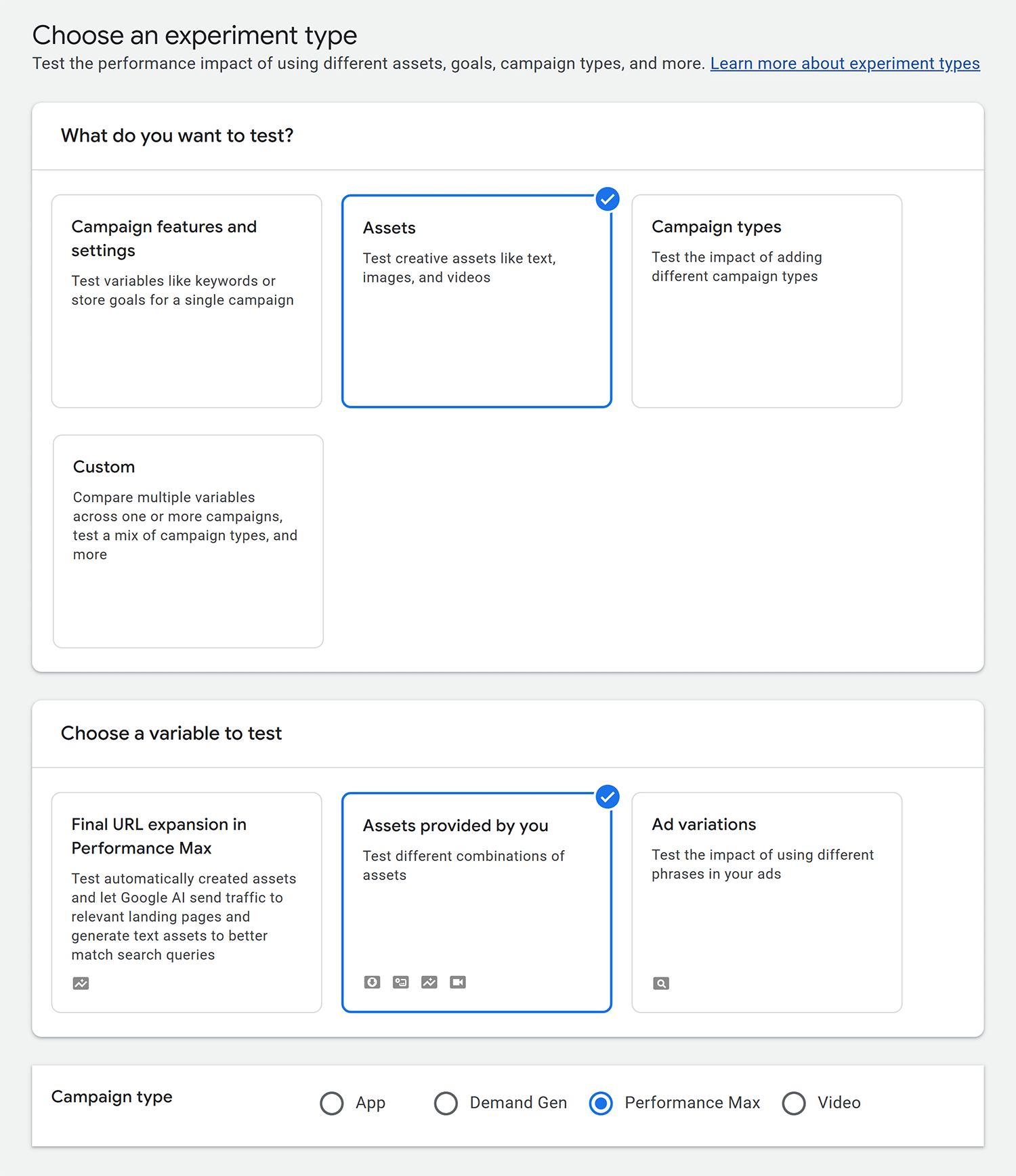
Once you choose the campaign, you’ll be able to:
- Adjust the percentage of traffic you want to send to the “Control” and “Treatment” groups
- Add the assets you want to test
- Choose the start and end dates of the experiment
Once you begin the experiment, you can monitor it to see how things are progressing.
AI, PMax, and the future of SERPs
AI has grown more visible in the last few years. But the reality is that Performance Max is just another step in Google’s long progression toward further AI integration of search and PPC technology, from RankBrain and BERT to more recent developments like AI Overviews and Gemini.
As the search landscape shifts from paginated results to in-depth AI-generated snippets, it’s likely that advertising across Google’s properties will change as well.
Track, optimize, and win in Google and AI search from one platform.
Using PMax campaigns to see how Google connects concepts, products, and interests across Search and other products, as well as how it interacts with core technologies like the Knowledge Graph, offers a powerful opportunity for brands to glean insights and take actions that will help them remain visible.
Now that you understand how PMax’s AI-driven campaigns have changed the PPC world, take the next step and learn how AI is changing SEO.
Explore more on
Editorial disclosure
Search Engine Land is owned by Semrush. We remain committed to providing high-quality coverage of marketing topics. Unless otherwise noted, this page’s content was written by either an employee or a paid contractor of Semrush Inc.
About the author