How to set up and optimize your Google Business Profile

Approximately 80% of US consumers search online for local businesses on a weekly basis, and 72% of consumers use Google to search for local business information.
Not showing up there?
That’s a problem.
If you own a local business, setting up a Google Business Profile is absolutely one of the most important things you can do to get the word out and market yourself online.
A Google Business Profile (formerly known as “Google My Business”) is a free tool that lets businesses manage how their local listing appears on Google Search and Maps. It includes details like business name, location, hours, reviews, and photos. This profile is critical to local SEO and makes local businesses easier to find online.
This profile is one of a local business’s most important marketing assets and customer service tools now that so much local discovery happens on Google Search and Google Maps.

Once you have a Google Business Profile, your business can appear in the local search results across Google’s ecosystem, which will drive traffic (both organic web traffic and foot traffic) to your business.
3 places your Google business listing can appear
Where exactly in the search results can your business appear? Let’s take a look.
Google’s local map packs
The local map pack is the main set of local results that displays near the top of the page on Google’s search engine results pages (SERPs). It usually includes three local listings, so it’s commonly referred to as the “Google 3-Pack.” Other nicknames you might see include “Local Pack” and “Snack Pack.”
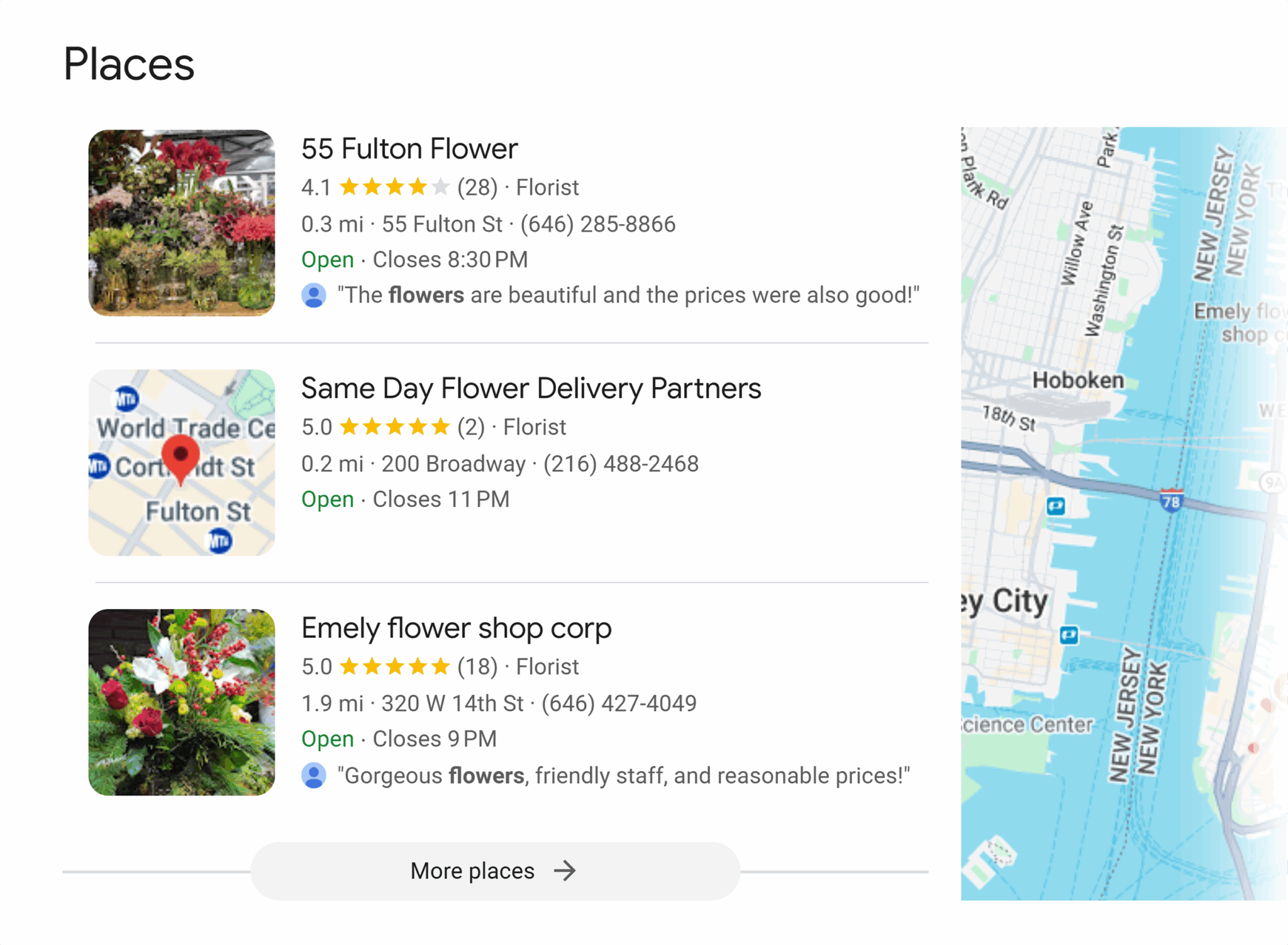
If you’re located in a larger city and your niche is competitive, be prepared—it takes time and can be difficult to rank here. Keep reading for tips on how to make it happen.
Google’s local results
When you click on the “More places” link at the bottom of a local pack, you’ll be taken to the local results view, which includes a map and an expanded set of listings and filter criteria. You’ll most likely see a few ads at the top (flagged as “Sponsored”), then the organic local listings below.

Want your business to show up here, on the first page of local results? Keep reading—we’ve got tips to help you rank your local business listing coming up.
The SEO toolkit you know, plus the AI visibility data you need.

Google Maps
In the local results, you’ll notice a button in the top right that says “Open in Maps.” If a user clicks that button or searches via the Google Maps app on their phone, they’ll see the Google Maps results.
These results look very similar to the local results, but it’s a different set of results that can show slightly or significantly different local business rankings and filters.

If you own (or market) a local business, securing visibility in these results should be a top priority for you.
But first, you need to create your Google Business Profile! Let’s get started.
How to create your Google Business Profile

Follow these five steps to set up your business listing and start getting found by your target audience.
1. Determine your eligibility
First, you need to be sure that your business is eligible for a business profile. Go to the guidelines for representing your business on Google. Bookmark this link—it’s the instruction manual for both creating and managing your Google Business Profile over time.
The guidelines begin with a basic description of eligibility. You should read all of the guidelines in full, but to summarize:
- Your business is eligible if you serve customers face to face, either at your place of business (like a cafe) or at customers’ locations (like a house-cleaning company)
- You must have an address of some kind, even if it’s only your home address
- You must have a phone number
- You must comply with the guidelines to avoid having your listing suspended or disabled
If you don’t serve customers in person, you’re not eligible for a Google Business Profile and will need to look into other forms of online marketing to promote your business.
Likewise, you’re ineligible if you lack an address. You must have at least a home address to create a listing. (Don’t worry, you can hide your address from public view—more on this later.)
Virtual offices and PO boxes aren’t acceptable as an address. If you operate in a co-working space, it must have street-level signage for your business and a direct phone number that’s staffed by someone during listed business hours.
2. Determine your business model, as Google defines it
Read through the guidelines to understand how Google defines different business models. Understanding these definitions is crucial to knowing what you’re allowed to do with your profile.
Your model is likely one of the following:
- A single-location, brick-and-mortar business (like a plant nursery)
- A multi-location, brick-and-mortar business (like a chain of hardware stores)
- A single- or multi-location brick-and-mortar business with multiple public-facing practitioners (like a legal firm with five lawyers who serve clients face to face)
- A single- or multi-location brick-and-mortar business with multiple public-facing departments (like a hospital with separate departments for emergency, X-ray, and obstetrics)
- A single-location local service-area business (like a plumber who serves customers at their homes and businesses rather than at the plumber’s own location)
- A multi-location service-area business (like a plumbing franchise with multiple service areas, each based around a different hub)
- A hybrid model (like a restaurant that offers both in-house dining and delivery)
- A home-based business (like a dog groomer who operates out of their home)
- A co-located brand (like a Pizza Hut and a KFC sharing a single location)
- Another model like an ATM, kiosk, seasonal business, or ghost kitchen
By reading the guidelines, you’ll discover how many Google Business Profiles you’re eligible to create and how Google wants you to fill out relevant fields on your listings. Failure to adhere to the guidelines can result in your listing getting suspended or disabled.
3. Create a Google account
If you don’t have a free Google account yet, you’ll need to set one up in order to create your Google Business Profile.
Go ahead and click on the “Create account” link, then fill in all of the necessary information.

4. Fill out your local business information
After signing into your Google account, you can create your first Google Business Profile.
Google will first ask you to enter your business name to ensure that a listing doesn’t already exist for your business. Then, you can start filling in your listing’s information.
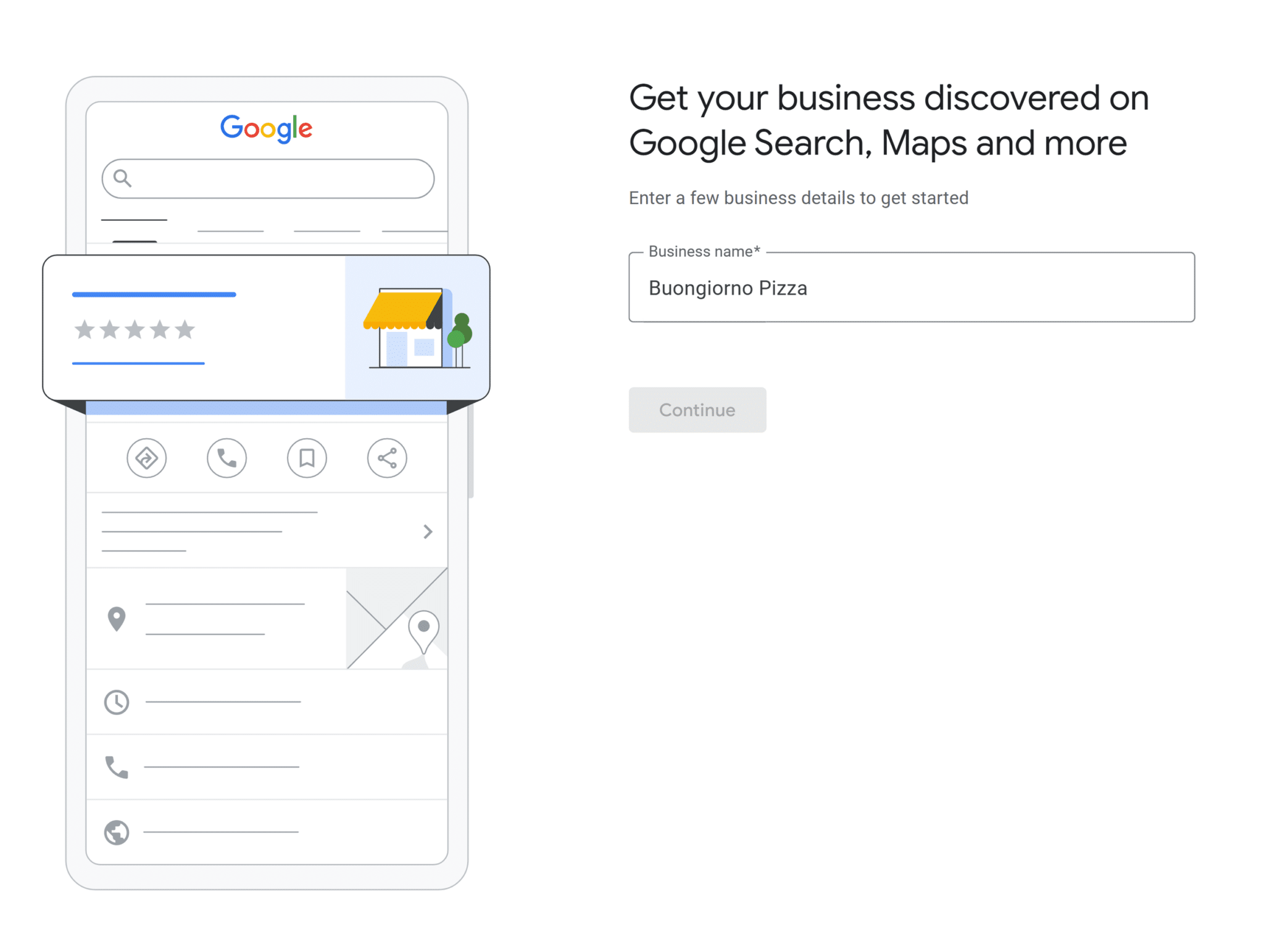
Hitting the “Continue” button will walk you through the listing creation wizard so that you can fill out all of your business information.
While it’s always possible to go back and edit your listing once it’s live and verified, it’s better to get your core details right from the start.
If you’re unsure how to best fill out a specific field in the wizard, refer back to the guidelines for representing your business on Google to ensure you comply with Google’s policies and avoid penalties.
Here are a few rules you should keep in mind as you’re creating your first Google Business Profile:
- Be sure your business name reflects your real-world street signage and the way you answer your phone. Don’t add extraneous keywords. Adhere to any guidelines that apply to your model.
- If you’re a service-area business (SAB), like a plumber or landscaping service, Google wants you to select the options that indicate you don’t serve customers at your place of business. This will hide your street address so that it isn’t publicly visible on your listing.
Unfortunately, multiple studies like this one have demonstrated that complying with Google’s hide-address rule frequently results in SABs ranking lower than competitors who have brick-and-mortar locations. Because of this, most SABs eventually rent at least one small staffed location so that they’re no longer disadvantaged in the local results. - Ensure your hours of operation are accurate. If your business has complex open hours, read Google’s documentation on how to properly reflect this in their system.
Fill out all fields as completely as possible and submit your listing.
Then, you’ll be prompted to proceed to the next verification step. Resist the urge to make any further edits to your listing until you’ve completed the verification process.
5. Verify your new Google Business Profile
Verifying your listing tells Google that you’re authorized to represent the business you’ve just created a listing for.
Start by reading through this Google document regarding the different types of verification they offer, but know that video verification tends to be Google’s preferred route. Via this method, you’ll upload a video to prove to Google that your business is legitimate.
Follow these crucial do’s and don’ts in your Google Business Profile verification video:
Don’t:
- Film other people’s faces, private information about yourself or others, or any sensitive information like your bank statements or tax ID
- Make your video shorter than 30 seconds or longer than five minutes; the best practice is to keep it under two minutes
- Make an edited video—it needs to be a continuous recording without breaks
- Try to film without practicing first
Do:
- Record your video and upload it with a mobile device, following these steps
- If you’re verifying a brick-and-mortar business, your video must feature:
- The location of your business
- Official street and number signs
- Neighboring businesses
- Nearby landmarks or the area around your business
- Your business storefront
- Showroom
- Permanent signage, such as on a signboard or window
- Proof that you’re an authorized representative of the business (this can be proven by recording yourself unlocking the store, opening a cash register, using a point-of-sale system, or unlocking other areas such as a staff room or storage area)
- If you’re verifying a service-area business, your video must include:
- Signs in your service area that advertise your business (like billboards) or street signs and landmarks near your business
- Footage that proves your business exists, such as branded vehicles, equipment, or apparel
- Footage of business documents such as invoices or bills that feature the name on your GBP
- Record at the lowest-quality settings to reduce the file size to prevent Google from rejecting it
It’s important to know that video verification is notoriously buggy. If you experience problems, watch this troubleshooting video from Darren Shaw of Whitespark.
If you don’t find an answer to your issue in that video, go to the Google Business Profile Help Community to document the problem in hopes that a volunteer Product Expert can help you troubleshoot.
Google’s review of your video can take at least five days, but once you’ve achieved verified and live status, you’re ready to start making the most of your GBP.
21 ways to optimize your Google Business Profile to rank higher

Once your Google Business Profile is live, you’ll be able to manage it and make changes by looking up the name or name/city of your business in Google search. You can also log in directly at www.google.com/business. (Click “Sign In” after the profile is created.)
This should bring up a management interface commonly known as the “New Merchant Experience” (NMX), which looks like this:

Remember, your Google Business Profile is not a set-and-forget listing. It’s a major marketing asset that requires ongoing optimization to deliver maximum traffic, clicks, conversions, and sales.
But how do you optimize it?
Here are 21 ways to optimize your listing to rank higher in local search.
1. Ensure name, address, and phone number (NAP) consistency
How your business is listed across the web matters.
Every single mention of your business name, address, and phone number should be the same. This is called Name, Address, and Phone number (NAP) consistency.
When you’re a local business, your name and address are listed in a lot of places online. Beyond your Google Business Profile, you might have listings on your website, Facebook, Yelp, local directory sites, other social media profiles, and more.
If your NAP is different across those locations, it can confuse Google, causing your listing to rank lower in the local search results.
Every word in your address should be the same. For example, decide if you’ll write out “street” or abbreviate it as “st.”
Pro tip: Maintain a presence on as many social media websites as you can. While many users will still find you via Google, the number of users using social media to search for local businesses continues to grow.
2. Use specific and relevant categories
When you create your profile, Google will allow you to select up to 10 categories to explain your business. These categories significantly impact whether your business will be shown to searchers looking for what you offer, so they’re very important.

The first category you select will be your “primary category.” This is the one category that’s publicly displayed on your listing, so make sure it’s as accurate as possible. It’ll also have the strongest ranking impact, but each of your categories will influence whether Google returns your listing as a result for different searches.
The primary category should be the one that best describes your overall business. For example, if you’re marketing a restaurant that specializes in Italian food, your best primary category will be “Italian restaurant” rather than just “restaurant.”
Be specific and use the additional categories to explain your business even further.
3. Write a clear, keyword-rich business description
Optimizing your business description is another Google Business Profile optimization tip you can use to rank higher in local listings.
Although you can’t change the short summary Google generates for your business, you can control what’s in the From (Your Business Name) section.

Clearly explain what you do, using as many of the available characters as you can to take full advantage of that space. Make sure to use your top keywords in your description.
4. Keep up-to-date business hours
Google prefers to show users businesses that are open at the time of search.
You could try to optimize your hours of operation by auditing when your local competitors are open to see if you should change your schedule so that you’re open when others are closed, giving you a ranking advantage.
Make sure to update your hours for holidays, as well.
Note: The hours listed should always accurately reflect the hours a customer can walk into your store (or call you directly). An after-hours answering service or chatbot does not mean you’re open 24/7.
5. Add images that accurately and fully depict your business
Google allows you to enhance your business profile with both photos and videos. They’ll play a major role in whether searchers find your business appealing.

Read Google’s technical specifications for GBP photos and videos so that you understand formatting requirements.
At the bare minimum, gather the following photos:
- If you’re marketing a brick-and-mortar business, show at least one clear exterior and interior shot of the business
- If you’re marketing a service-area business, photograph company vehicles, uniformed staff, or some other aspect of your business that proves its legitimacy as a real company
Over time, you should also add as many high-quality photos as possible of the following:
- Individual goods and services
- Shelfies (photos of inventory on shelves)
- Before-and-after photos of completed projects
- Amenity photos of features such as patio dining, parking, ADA access, and restrooms
- Staff photos
- Seasonal photos
You can further enhance your listing by creating and uploading guideline-compliant videos of your premises, projects, staff, events, and other features.
Google can change the photos they show on your listings based on search query.
For example, someone looking for “burritos near me” can be shown a different image than someone searching for “tacos near me” if your business takes the time to upload high-quality images of both dishes.
Make it a goal to photograph every possible aspect of your business over time so that an influential photo is always available to tell a potential customer that you have what they’re seeking.
6. Use the updates feature weekly to share promotions, events, and updates
To take full advantage of your Google Business Profile, add a new update at least every week.

Use the space to promote any current offers, new products, seasonal services, or whatever makes the most sense for your business. Always add a call to action to drive traffic to your website, if possible.
To add an update, click on the “Add update” option in your dashboard.

7. Encourage happy customers to leave detailed reviews and promptly respond to all reviews
The number of reviews you receive from the public and the overall average of your review star ratings will absolutely impact both your local rankings and conversions from your Google Business Profile.
Be wary of thinking of this as a numbers game, however. While the local SEO industry has long observed that listings appear to receive a local ranking boost once they receive their first 10 reviews, there’s no real indication that there are additional boosts at any subsequent benchmark.
Your goal should be to steadily earn and then surpass the number of reviews that your top competitors have. How quickly you receive new reviews may also impact rank, as may the date on which you last received a fresh review.
Reviews are one of the most influential aspects of your business listing. They’re like a free salesforce for your business.
In fact, according to BrightLocal, 83% of consumers use Google to find local business reviews. Imagine how much more business you’d get if your profile was stacked with great reviews!
Remember, though:
Collecting reviews is a marathon, not a sprint.
By offering excellent customer experiences, responding to all the reviews you receive (whether positive or negative), and setting up a formal review acquisition process, your goal can be to steadily earn a slow drip of high-star reviews week after week, month after month, for the life of your business.

Read Google’s prohibited and restricted content policy to be certain you’re strictly adhering to their review guidelines.
Pro tip: Create an automated outreach system via text or email that encourages customers to leave a review for you on Google.
8. Add attributes like “Wheelchair Accessible” or “Women-Led” if applicable to your business
The “More” tab in your business information settings includes fields for you to select attributes such as “identifies as Latino-owned” or “small business” if they’re relevant to your business. These attributes can help you show up for searchers who include these qualifiers in their search query.

Pro tip: There are two options you should avoid selecting: “offers online appointments/estimates” and “onsite services.” Why? Because you can’t remove them once activated, and because they seem to override any of the other text snippets known as local justifications that can enrich your local pack listings.
9. Upload videos to showcase your business, team, or behind-the-scenes processes
Videos are an awesome way to further engage with your audience and show them what your business is all about.
However, make sure to focus on your physical location.
For example, a video tour of the inside of your restaurant is much more likely to be approved than a video of your chefs cooking a meal.
For more guidelines, check out Google’s tips for posting media to Maps.
10. Use UTM parameters on your website link to track traffic from your Google Business Profile
Any time you link to your website from your Google Business Profile, use UTM parameters to track that traffic.
UTM parameters are extra bits of code you can add to the end of your regular URL to track clicks in Google Analytics.
For example, on the main link to your website, you might add something like this:
https://www.example.com/utm_source=google&utm_medium=organic&utm_campaign=gbp
If you publish updates on your profile, use UTM links there, as well.
11. List all your services or products with detailed descriptions and pricing, if available
Adding products and services to your listing is another way to potentially increase your local rankings.
If you have a lot of products, you can use Google’s Merchant Center to display a searchable “See what’s in store” section right in your Google Business Profile.

If you have fewer products, consider taking great photos of them and listing them right in your Google Business Profile. Use CTA-rich descriptions to drive traffic that’s more likely to convert to your website.
This can help you rank for relevant product searches.
Adding products and services to your listing can help you rank higher for service-related queries, product-related queries, and local searches in general.
12. Set up messaging so customers can contact you directly from your profile
If it makes sense for your business, set up the messaging feature so that users can message you directly, right from your Google Business Profile.
Being reachable in the right place at the right time can help you get more business through organic and local search.
13. Answer frequently asked questions (FAQs) in the “Questions & answers” section and upvote helpful answers
The Q&A tab in your settings is one that you’re allowed to populate with the FAQs you know your business receives.

For example, you might frequently get asked if you’re open on a particular holiday or stock a certain product. As the business owner, you can both ask and answer these questions.
Additionally, the public can use this functionality to ask you questions. Respond quickly to any queries you receive. If you don’t answer questions, your potential customer may receive incorrect replies from members of the public, who are also allowed to respond to any questions.
14. Monitor and update your profile weekly to maintain freshness and accuracy
If getting local traffic from your Google Business listing is really important to you, we suggest checking it weekly!
Every time you check it, make sure you respond to any new comments, add a new update or image, and check to see if there are any unused features you can add to your listing.
15. Link your GBP to Google Ads to align your entire marketing strategy
Google likes to link their products to each other to make your user experience seamless. To use that to your advantage, go ahead and link your Google Ads account to your Google Business Profile.
Why?
With the two products linked, you can add location assets to your ads. These assets make it super easy for local searchers to be directed right to you by adding a clickable “Call” button, showing the distance to your location, and more.
For help linking the two products, check out Google’s instructions.
16. Add schema markup to your website that aligns with your GBP categories to strengthen local SEO signals

Schema markup is a type of structured data (code) added to a website’s HTML to help search engines better understand the content on the page. It uses code from Schema.org and enhances how pages appear in search results, often enabling rich snippets and SERP features like star ratings, FAQs, or event details.
You can also use local business (LocalBusiness) schema to tell Google more about your business, including what type of business it is, where it’s located, when it’s open, and what services it offers.
If your website’s schema information exactly matches what your Google Business Profile says, it makes your business more credible to search engines and can help you rank higher.
Dive deeper: How schema markup establishes trust and boosts information gain
17. Create location-specific landing pages that mirror the information in your GBP and interlink them strategically
Have multiple locations?
Creating location-specific landing pages can be a huge win for your business by boosting your local visibility. Not only can they rank in search, but you can also tie them to Google Business Profile listings to add credibility.
Each location-specific landing page should:
- Use LocalBusiness schema
- Be linked to by a Google Business Profile
- Have original, location-specific content
- Include your address (written the exact same way as your GBP)
Remember to use different photos for each page and business profile, too.
Beyond landing pages, think about creating SAB-optimized content that targets zip codes and neighborhoods within your Google Business Profile radius.
18. Integrate Google’s “Questions & answers” into your site’s FAQ page
Do you have a FAQ page on your website?
If you don’t, we suggest adding one, as it’s good content to have.
If you do, try adding many of the questions and answers from your Google Business Profile to the page. Having those in both places helps establish consistency and authority.
19. Monitor competitor profiles
What are your competitors doing on their Google Business Profiles? What’s working for them?
There are a few Chrome extensions (try GMB Everywhere or GMBSpy) that were made solely for the purpose of auditing Google Business Profiles. They can show you which categories the business is using, what they’re posting updates about, where the business ranks for different locations, and more.
Also, keep an eye on any review strategies your competitors are using to get more reviews on Google.
20. Optimize your cover photo to align with your branding
Take a few minutes to look at the cover photos of different businesses in your area. They don’t have to only be in your niche—take a look at different business categories.

Which ones stand out? Why? How do other companies work their brand into the cover photo? What makes you more likely to click?
Take what you learn and apply it to your own cover photo.
21. Track queries from GBP insights to refine keyword targeting across platforms
You’ve identified keywords you’re targeting, but what keywords are actually surfacing your listing and getting people to click through to your website?
To find out, click on “Performance” in your dashboard:

Then, scroll down to see what keywords have been used to find your business:

Notice what keywords are surfacing your business. Are you using those keywords on your website? In your ads? How about in local offers?
Think about where it might be valuable to include them.
How to track Google Business Profile performance
By clicking on the “Performance” link in your dashboard, you’ll be able to access the analytics data Google provides about your listing. This includes:
- How many people view your listing
- A sampling of search terms that cause your listing to be shown
- The devices and platforms people use to find your listing
- The number of people who click to call you from your listing
- The number of people who booked through your listing
- The number of people who click on your website from your listing
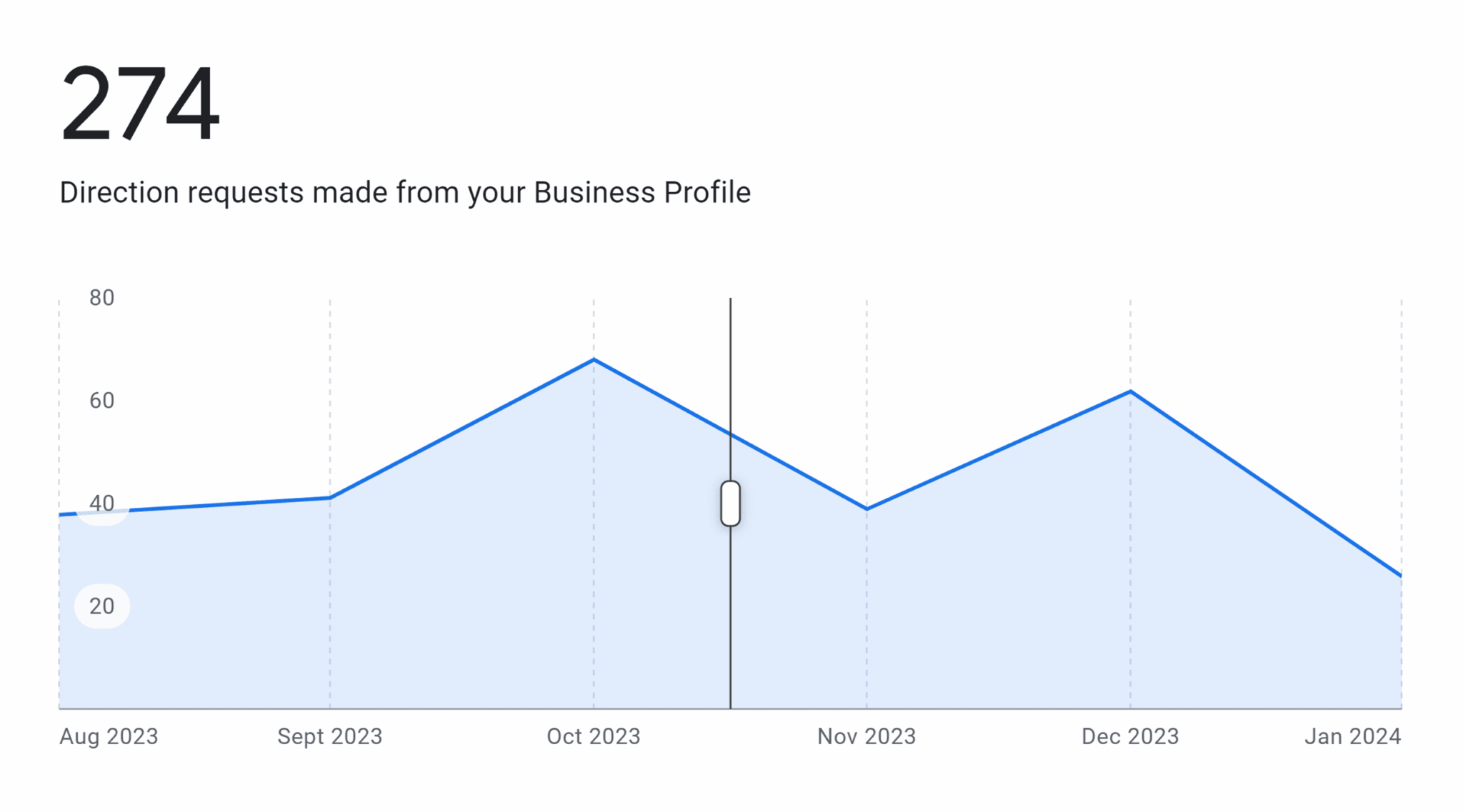
You can think of these insights as both a free health check on your listing and a basic way to test whether something new you’ve added or changed caused upward or downward movement in the results.
For professional analytics, you may want to invest in a tool like Semrush, which helps you track both local and organic rankings.
Dig deeper: 11 local SEO tools you should be using
Understanding common GBP problems
Here are the top four issues you might run into when creating your first listing.
Mistaken perceptions about GBP
Even after you’ve verified your listing, it’s important to understand that it doesn’t legally belong to your business.
All GBPs belong to Google. They can edit them at any time and accept editing suggestions from the public.
Business owners frequently feel frustrated when they realize that Google considers these impactful listings to be open-source documents that anyone can contribute to and even steal.
It’s completely understandable to want total control over your online presence. Your livelihood depends on your business, after all. But it’s vital to understand that you’re on Google’s property while managing your GBP.
You’re a renter rather than an owner, and there will be times when you may feel exasperated by a policy or a lack of response to a problem on their part. Accepting the reality of how Google’s local system works will set correct expectations for your brand.
Ranking problems
Every local business wants to rank well in Google’s local results.
However, since Google tailors their results around the location of each searcher, you’ll be investing a lot of time in figuring out how to increase your visibility for a variety of search phrases.
In some cases, you’ll run up against a keyword and your ranking just seems to get stuck near the bottom. This is the point at which you’ll need to learn how to do a formal audit of your competitors to understand why you’re being outranked.
Here are a few questions to troubleshoot:
- When you look up your target city on Google Maps, is your location inside or outside the red border that defines the city boundaries? If outside, this may be a significant barrier to ranking.
- Have you chosen the right categories to let Google know your business is relevant to a particular search phrase? If not, can adding a new category help?
- Are you located within the same building or even within a few blocks of a competitor who shares your categories, causing Google to filter out your business in favor of theirs? If so, you’ll need to strengthen every aspect of your listing and website to prove to Google that you’re the business that should be shown instead of filtered out.
- Are you adhering to the guidelines? If not, you might be penalized (or even get your listing suspended).
- Are the businesses who outrank you for a valuable search term doing so because they’re spamming their listing (i.e., they’ve stuffed extraneous keywords in their business names)? If so, you can report them to Google.
Each time you encounter a new ranking mystery, look it up via Google Search and see what others say about similar scenarios. If you can’t find a good answer, you may need to hire a local SEO consultant or agency for professional troubleshooting.
Spam problems
Unfortunately, weaknesses in Google’s local system can sometimes enable spammers and scammers to take advantage of Google Business Profiles in various ways.
For example, spammers can:
- Keyword stuff business names
- Move your map pin
- Hijack your listing, redirecting its phone number or website links to their own
- Write fake reviews of your business and leave you low-star ratings
- Leave ratings that are slightly lower than your average to erode your overall rating
- Report your business as closed
- Create listings for fake businesses
If you notice that a listing outranking yours looks suspicious (for example, it has a keyword-stuffed name, or its address is actually a vacant lot), or you become the subject of a review spam attack, Google has methods for reporting these issues.
These methodologies change frequently, so it’s best practice to look them up when you experience them to see what recent documentation and sources say.
It’s important to have realistic expectations about GBP spam: It’s everywhere, and Google can’t catch it all. Resolve to deal with each problem as it arises.
Penalties
Your listings can become suspended or disabled if:
- You accidentally violate the guidelines and get caught
- You get mistakenly swept up in a cleanup Google has undertaken in a particular industry or market
- A member of the public reports you to Google for an apparent problem
These penalties can sometimes occur through no fault of your own, and the notice from Google that your GBP is suspended or disabled can come as an unwelcome surprise.
It’s important to know these terms:
- A disabled listing is still visible to the public but has become unverified. You can’t respond to reviews or write Google posts while your listing is in this state. This status is sometimes referred to as a “soft suspension.”
- A suspended listing is not visible to the public. It’s been removed from Google Search and Maps entirely. This status is sometimes referred to as a “hard suspension.”
In both scenarios, you’ll need to go through the appeals process in hopes of getting back into Google’s good graces, recovering your verified status, and hopefully regaining access to the management of your listings.
Google Business Profile FAQ
What is a Google Business Profile, and why do I need one?
A Google Business Profile is a free tool that lets businesses manage how their local listing appears on Google Search and Google Maps. It includes details like your business name, location, hours, reviews, and photos.
Your business needs one because it’s one of your most important marketing assets and customer service tools in today’s digital landscape. With a Google Business Profile, your business can start appearing in local search results across Google’s ecosystem (Search, Maps, etc.) and drive both web traffic and foot traffic to your business. For local businesses, it’s often the first point of contact potential customers have with your brand, making it essential for visibility and credibility in your local market.
Is a Google Business Profile free to create and use?
Yes, Google Business Profile is completely free to create and use. There are no fees to set up your profile, verify your business, add photos, respond to reviews, or use any of the features available within the platform. Google offers this as a free service because accurate business information improves their search results, benefiting both businesses and users searching for local services or products.
Can I create a Google Business Profile if I don’t have a physical storefront?
Yes, you can create a Google Business Profile even if you don’t have a traditional storefront. If you’re a service-area business like a plumber, landscaper, or home cleaning service that serves customers at their locations rather than your own, you can still create a profile.
However, you must have some form of physical address (even if it’s your home address) to establish your listing initially. Once verified, you can choose to hide your address and instead display the service areas where you operate. Virtual offices and PO boxes aren’t acceptable as an address per Google’s guidelines.
How does Google verify my business, and how long does it take?
Google offers several verification methods, with video verification being the most common approach today. With video verification, you’ll need to upload a video following specific guidelines to prove your business is legitimate. This typically involves showing your business location, signage, neighboring businesses, and proof that you’re an authorized representative.
For service area businesses without a storefront, you’ll need to show footage of branded vehicles, equipment, business documents, or other proof that your business exists. The verification process usually takes at least five days for Google to review your video, but it can sometimes take longer depending on their review queue.
Other verification methods exist (like postcard verification), but these are less common now and can take one to two weeks or longer.
What should I do if my business is already listed or claimed by someone else?
If you find that your business is already listed or claimed by someone else, follow these steps:
- Search for your business on Google Maps and select it
- Click on “Claim this business” or “Manage this business“
- Select “Request access” and complete the form with your information
- The current profile owner will receive a notification about your request
If they don’t respond within seven days, you may be able to verify your ownership.
If you believe your business was claimed fraudulently, you can contact Google Business Profile support directly by selecting “Need more help?” during the request access process. Be prepared to provide documentation proving you’re the legitimate business owner.
How do I add multiple locations to one Google account?
To manage multiple business locations under one Google account:
- First, ensure each location truly qualifies as a separate physical location according to Google’s guidelines
- Sign in to your existing Google account where you manage your first location
- In Google Search, look up your business name + the city of your additional location
- Click “Add your business to Google“
- Follow the steps to create a new profile for this location
- Complete the verification process for the new location
For businesses with 10+ locations, consider using Google’s Business Profile API or bulk verification options, which make managing multiple locations more efficient.
Can I manage my Google Business Profile from my phone?
Yes, you can manage your Google Business Profile from your phone. Google has designed the system to be mobile-friendly through two main methods:
- Using the Google Maps app: Open the app, tap your profile picture, select “Your Business Profile,” and manage your listing
- Through Google Search: Search for your business name on your phone’s browser, and when your business appears, you’ll see the management options
The mobile interface gives you access to all the same features as desktop, including responding to reviews, adding photos, creating updates, updating your information, and viewing insights about how customers are interacting with your profile.
How long does it take for my profile to appear in search results?
After successful verification, a Google Business Profile typically appears in Google Search and Maps within one to two weeks. However, several factors affect when and how prominently your listing appears:
- The initial verification process takes at least five days (often longer)
- Your profile will likely be visible before it starts ranking well in competitive searches
- Profile completeness affects visibility (more complete profiles tend to appear sooner)
While your basic listing may appear relatively quickly, building authority and improving rankings in local search results is an ongoing process that takes consistent optimization over time.
What if I work from home—can I hide my address?
Yes, if you work from home and don’t want your residential address visible, Google allows you to hide your address. This option is specifically designed for service-area businesses that don’t serve customers at their place of business.
When setting up your profile, you’ll be asked if you serve customers at your business address. Select “No” to indicate you’re a service-area business, and Google will hide your address from public view. You’ll then be prompted to specify which areas you serve (by cities, zip codes, or radius).
This way, your business can still appear in local search results without revealing your home address. Keep in mind that you’ll still need to provide a valid address during verification, but it won’t be displayed publicly once your profile is active.
Track, optimize, and win in Google and AI search from one platform.
What should I do if my Google Business Profile gets suspended?
If your Google Business Profile gets suspended, first determine the type of suspension. A disabled listing (soft suspension) is still visible to the public but has become unverified. A suspended listing (hard suspension) is not visible to the public.
In either case, you’ll need to:
- Identify the reason for suspension by reviewing Google’s guidelines
- Fix any guideline violations (if applicable)
- Submit an appeal through Google’s Business Profile support
- Provide any requested documentation to verify your business’s legitimacy
- Be patient as the review process can take several weeks
Avoid creating a new listing while your appeal is in process, as this can further complicate your situation.
What’s the best way to handle negative reviews on my Google Business Profile?
When dealing with negative reviews on your Google Business Profile, follow these best practices:
- Respond promptly and professionally (within 24-48 hours)
- Thank the reviewer for their feedback
- Apologize for their negative experience without admitting fault
- Take the conversation offline by providing contact information
- Explain steps you’re taking to address their concerns
- If the review violates Google’s policies (contains hate speech, is spam, etc.), flag it for removal
Remember that responding well to negative reviews shows potential customers that you care about customer service and are committed to resolving issues.
The future of Google Business Profiles
Google has invested heavily in its local index over the years and will likely continue encouraging businesses to list on their platform.
Currently, a hot topic is the extent to which Google may integrate AI into its local search results, and the company is continuously experimenting with new features.
Keeping up with the news of Google developments must be core to your local search marketing strategy so that you can recognize emerging opportunities.
You can bookmark this article and follow local SEOs on social media to stay informed. Your curiosity and willingness to try new things will serve you well in the GBP environment.
By completing your listing correctly from the start and committing to responding to reviews and questions, your Google Business Profile will become an always-on testament to your devotion to serving your local community.Keep reading for some of the most common questions about Google Business Profiles, or stay up to date with the latest GBP news.
Explore more on
Editorial disclosure
Search Engine Land is owned by Semrush. We remain committed to providing high-quality coverage of marketing topics. Unless otherwise noted, this page’s content was written by either an employee or a paid contractor of Semrush Inc.
About the author