Are your pop-ups tanking your rankings? A guide to interstitials and dialogs

Interstitials are overlays that appear on top of a page and block someone’s path to the content they expected. Not every overlay harms your rankings, and Google generally only reacts to the ones that make the page hard to reach or cause frustration to users.
In this guide, we’ll walk you through what interstitials and dialogs are, how they shape your SEO, and how to spot and fix anything that needs attention.
What are interstitials, pop-ups, and dialogs?
If you’ve ever clicked through to a webpage and found your screen completely taken over before you could even breathe, that’s an interstitial — a full-screen overlay that blocks the content until you take action.
Pop-ups have shifted in meaning over time, which is where much of the confusion comes from. Traditionally, a pop-up opened in a completely separate browser window or tab and lived outside the page you were viewing. Most modern browsers now block these by default. As a result, many things people casually call “pop-ups” today are technically dialogs or interstitial overlays running inside the page itself.

A dialog or dialog box is lighter and sits over the page without replacing it, so you can still see the content behind it. These usually show up as age-gates, cookie notices, email capture moments, or small alerts tucked into the side of the screen.

Google pays close attention to the difference, because anything that blocks the whole page interrupts the person’s path in a way smaller overlays don’t.

How do interstitials differ from pop-ups and dialogs?
Ever wonder why some overlays feel like a gentle nudge while others make you want to slam your laptop shut?
That’s the difference between interstitials, dialogs, and pop-ups. Interstitials are the big ones — they cover the whole screen and pause everything until someone taps, closes, or signs up.
Dialogs are less intrusive, sitting above the page while the content stays visible behind them.
Modern “pop-ups” running inside a page generally behave like interstitials or dialogs: if they cover most of the screen, they’re treated like interstitials; if they’re partial and unobtrusive, they act like dialogs.
The SEO toolkit you know, plus the AI visibility data you need.

You’ve bumped into all of these before:
- Medium’s full-page login wall? Interstitial.
- That tiny email box in the corner while you scroll a recipe? Dialog.
- A small promotional overlay that appears mid-scroll on a retail site? Pop-up.
Once you start spotting them, the differences become obvious — and you start to see why Google treats them differently.
Why does this matter?
Why does Google care so much about overlays?
It comes down to space and friction. Full-screen interstitials sit in the highest-risk lane because they block the path to the content your visitors actually came for leading to a poor user experience. Dialogs usually play it safe — they’re small, easy to close, and show up at a calm moment rather than jumping out the second the page loads.
Modern pop-ups that act as overlays generally follow the same rules: their impact depends on how much they block and when they reappear.
Not sure which pattern you have on your own site?
Step back and observe: How much of the screen does it cover, and can someone still see the content they came for?
Once you can put a name to it, you’ll tackle it with far more confidence.
Quick overlay identification and risk guide
If you’ve found yourself staring at your site at midnight trying to work out whether that thing on the screen counts as an interstitial, a dialog, or something else entirely, this little guide can help you untangle it step by step. First, let’s identify what you’re looking at.
Step 1: What type of overlay is it?
Does it open a new window or tab? → Traditional pop-up
If interacting with your page actually launches a separate window or tab, that’s a traditional pop-up. These are rare today, as most browsers block them by default, but they can still exist in older scripts or promotional campaigns.
Example: A legacy site that launches a promotional offer in a separate browser window.
Does it cover the entire screen? → Interstitial
If the overlay takes over the whole viewport and nothing underneath is accessible until you take action, that’s an interstitial.
Example: A full-screen email capture wall that hides content until you subscribe or close it.

Is the main content still visible behind it? → Dialog or full-screen transparent overlay
If the overlay sits on top of the page but lets you see the content underneath, it could be a dialog — especially if it’s a small card or box you can dismiss easily. However, if the overlay stretches across the entire viewport — even if it’s transparent — and requires interaction before users can fully engage with the content, it’s technically closer to a full-screen interstitial.
Example (Dialog): A centered “10% off your first order” box that can be closed while the product page remains in view.
Example (Full-screen transparent overlay): A transparent overlay that dims the entire page for a sign-up prompt, requiring the user to click or close before interacting with the content beneath.
Step 2: How Google might view it (SEO risk)
Appears immediately on page load → Higher scrutiny
Elements that fire instantly — especially on mobile — are far more likely to fall into the “intrusive” category. Google pays attention to anything that blocks content right after a user clicks from search.
Example: An app-install interstitial that appears before someone even sees the landing page.
Appears after interaction (scroll, click, time on page) → Often safer
Overlays that show after interaction — such as scrolling, clicking, or spending time on the page — tend to be seen as more respectful. They give visitors a chance to access content first.
Example: A small corner dialog that appears only after someone scrolls halfway through a blog post.
Why does Google penalize intrusive interstitials?
Google’s 2017 mobile interstitials update focuses on one thing: full-screen overlays that block the main content the moment someone clicks through from mobile search. When an element takes over the entire mobile screen before the page can breathe, it disrupts the reading flow, slows the user down, and sends clear frustration signals — something Google tries to avoid surfacing in its results.
When the penalty applies
The rule only comes into play at a very specific moment: right after someone taps your result on the search page. If the first thing they meet is an overlay that blocks or replaces the content, the page can be considered intrusive.
This moment matters because mobile screens have limited room, mobile-first indexing sets mobile as the default view, and Google wants the content someone searched for to be available without hurdles.
What triggers it
Several behaviors raise a red flag.
A full-screen wall that appears before the content is visible, an overlay that forces someone to close it before accessing the page, or anything that pushes the main content out of sight can be treated as intrusive. These patterns slow down the path to information, and when they appear at scale across the web, they create an experience Google aims to reduce.
What Google actually said
Google explained that overlays covering the main content on mobile, especially at the moment of entry, can affect ranking. They framed it around accessibility and usability — two areas where mobile screens are particularly sensitive.
A small dialog that’s easy to close is fine. Legal notices such as cookie banners, age checks, and regulatory messages are allowed. The issue is with non-essential full-screen interruptions placed before the reader reaches the page.
When penalties apply
These are the key signs that Google may consider an interstitial intrusive. Each one is worth pausing on — think of it as a practical way to audit your pages.

1. Appears immediately after a click from search
If a visitor lands on your page from Google and is greeted by a full-screen overlay before they see any content, that’s a red flag. For example, an email wall that pops up the second someone arrives falls into this category. Google interprets this as a barrier to the content a user expects to see when they click through from the SERPs.
2. Obstructs the main content
Anything that covers or hides the primary information counts here. This isn’t about sidebars or small banners; it’s about overlays that demand attention before the user can read, watch, or interact with the page. Think oversized app prompts or takeover promotions that completely block text and images.
3. Requires interaction before content becomes available
If the user must click “close,” enter information, or swipe something away just to see the page, Google flags this as intrusive. For example, an age gate that isn’t legally required but asks for a date of birth before showing content falls into this category.
4. Affects the mobile viewport
Mobile screens are small, so even a moderately sized overlay can feel full-screen. Google’s mobile-first indexing means it’s paying special attention to overlays on small devices. That’s why a pop-up that’s fine on desktop may trigger penalties when it adapts to mobile.
5. Lacks a legitimate or legal requirement
Some overlays are necessary for compliance, like cookie notices, age verification for regulated content, or legally mandated disclaimers. Google doesn’t penalize these. But if your pop-up is purely promotional or for lead capture, it counts as unnecessary interference.
Do mobile and desktop interstitials follow different rules?
Yes. The rules are far stricter on mobile, while desktop interstitials sit in a much safer space from a penalty perspective.
Mobile matters because the interface has less room, touch behavior makes dismissing elements trickier, and mobile-first indexing treats mobile as the primary version of your site. A full-screen overlay on a small device can block almost everything, which is where the risk comes in.
Desktop interstitials rarely trigger penalties, though they can still affect user engagement — longer time to content, higher bounce rates, and a general sense of friction. A common oversight with responsive layouts is that an interstitial that looks modest on desktop can accidentally turn into a full-screen blocker once shrunk to mobile. That’s where many sites get caught up.

This split helps you understand the real risk: Most penalties stem from mobile experiences, and most problems come from patterns that seem harmless on desktop but turn restrictive once they scale down.
What do intrusive vs. unintrusive interstitials look like?
When people talk about “intrusive interstitials,” they often mean anything that blocks the page before you’ve had a chance to settle into the content. Google has been clear in its guidelines that these patterns can weaken the overall page experience on mobile and may affect how your pages perform in search. It’s why getting visual clarity here matters so much. Once you see the difference, the decisions around design feel cleaner and far more intentional.
Intrusive examples to avoid
These patterns tend to overwhelm the page and leave people feeling as if they need to push obstacles aside before they can read anything. Google calls these out directly in its documentation because they interfere with access to the main content.

Full-screen email walls
A person lands on your page, and before they can take in a single line, the whole screen is covered by a subscription gate or paywall. It often interrupts the moment when curiosity is at its highest. Google’s guidance notes that takeovers like these block key content. Large, instant walls often cause people to leave entirely instead of sharing their email address.
App-install prompts
When a large banner asks someone to install an app before they’ve even had a chance to understand what a site offers, it can feel abrupt. Google’s own examples show that oversized app install prompts — which can jump in before text or images load — tend to create an unsteady start, especially on mobile, where every pixel matters.
Non-essential age gates
Some age verification is required by law (e.g., alcohol, gambling, or adult content). Outside of that, any form that forces a visitor to enter details before they can proceed is seen as intrusive. Google’s policies reflect this point clearly. If the gate is there for segmentation or marketing, it creates an unnecessary barrier and often increases bounce rates.

All these patterns interrupt the reading journey. They put something between the person and the information they sought, and you often see the impact in analytics: quicker exits, shorter sessions, and weaker mobile engagement. These are signals that people aren’t enjoying your page experience.
Unintrusive examples to use
These patterns stay present without competing with the main content. Google identifies them as acceptable because they support the reading flow rather than blocking it.

Sticky banners
Small, steady banners that sit at the top or bottom of the screen. They remain visible but avoid overlapping the core content area. Nielsen Norman Group’s UX findings show that these work well when they stay compact and include a simple dismiss option.
Delayed dialogs
A light overlay that appears only after someone has scrolled or spent meaningful time on the page. This timing shows consideration for the users’ attention and often leads to better response rates. Adding a delay to your pop-ups shows that you respect your readers’ desire to read the content first.
Exit-intent prompts
A prompt that only appears when someone moves to leave. These don’t interfere with the main visit and tend to feel more respectful. They also perform more steadily across email and lead-gen campaigns, because the person has already taken in some content and context before seeing the offer.
Cookie bars with an easy dismiss
Small, regulatory notices that remain tucked at the edge of the page. They allow immediate access to content and meet legal requirements without taking over the screen.
A gentler approach keeps people on the page longer. Non-intrusive pop-ups blend into the experience and allow the content to come first, which is exactly the priority Google continues to reinforce in its guidance.
How intrusive interstitials affect user behavior
Intrusive interstitials don’t just risk SEO penalties — they also directly impact how people interact with your pages. When an overlay blocks the content someone came for, it creates friction, and users often respond in predictable ways:
1. Bounce rate spikes: If a visitor lands on a page and immediately sees a full-screen overlay, many will hit back or close the tab. Even a small percentage of people doing this across your site can noticeably increase bounce rates, which signals that the page isn’t delivering a smooth experience.
2. Time on page drops: People don’t stick around when content is hidden behind a barrier they didn’t expect. Even if they eventually dismiss the interstitial, the interruption fragments their reading flow. Lower session duration and shorter engagement times tell both users and search engines that the page experience is less satisfying.
3. Conversion impact: It might feel counterintuitive, but aggressive overlays can actually reduce conversion rates. For example, full-screen email walls may collect a few sign-ups, but they can also scare away visitors who would have purchased, read, or engaged further. Using a lighter-touch with sticky banners, exit-intent prompts, or delayed dialogs lets you still capture leads without sacrificing engagement.
Example in practice:
- A recipe blog added a full-screen newsletter pop-up. The bounce rate on mobile jumped 18% in the first week.
- Switching to a small banner at the bottom reduced immediate bounces and still collected almost the same number of emails over the month.
The takeaway: Intrusive interstitials create a double loss — visitors leave faster, interact less, and your SEO signals take a hit. Designing overlays that respect the reader’s flow keeps both engagement and search rankings healthier.
A quick self-audit to guide your decisions
This checklist comes straight from the principles Google outlines for good page experience. If you can answer “yes” to any of these, the pattern may be considered intrusive:
- Does the element cover more than 30% of the screen?
- Does it appear within the first two seconds of landing?
- Does it block access to the primary content in any way?
- Does it require interaction before someone can continue?
- Does it appear on mobile landing pages where screen space is limited?
If your answer is “yes” more than once, it’s worth refining the design. Small changes can make the experience far smoother without weakening conversion rates.
How to audit your site for problematic interstitials
Auditing your site doesn’t have to feel overwhelming. The goal is simple: spot overlays that could be harming your SEO and understand exactly how they behave on both mobile and desktop. By combining automated checks with hands-on testing, you get the clearest picture of what’s working and what needs attention.
1. Check for interstitial notices in your email inbox and Google Search Console
Sometimes Google tells you directly when something on your site is getting in the way of people reaching your content. Intrusive interstitials fall into that category.
Google does not apply a formal Manual Action for interstitials or overlays. Instead, Google may send an email directly to you, possibly with the subject line reading “Improve your page experience by removing intrusive interstitials from your-domain.com.”
Here’s an example of what that email notification may look like.

Google could also send you messages in Google Search Console.
To check for notifications in Google Search Console, look for the bell icon in the top right.

This is where Google sends notices.
If Google lists specific URLs, save or export them. These pages should be your top priority, as they reflect Google’s own perspective.
Once the issues are fixed, you can’t notify Google through a reconsideration request, since this wasn’t a manual action. Instead, you’ll need to wait for Google to recrawl the content and reprocess it algorithmically. As a result, recovery for the affected pages may take some time.
This step gives you a simple answer to one question: Has Google already noticed a problem here?
2. Core Web Vitals in Google Search Console
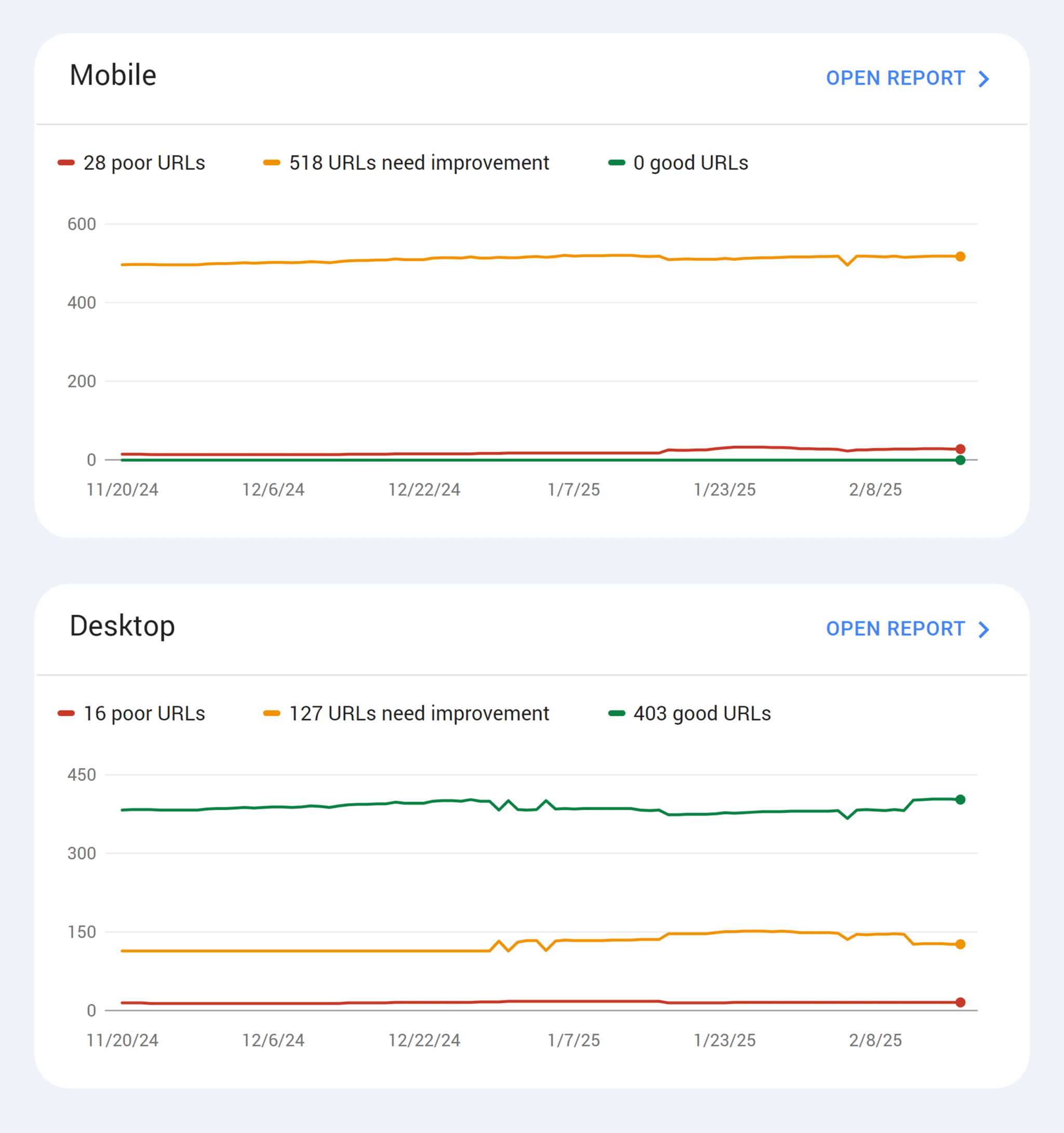
Even without the old Mobile Usability report, Google Search Console (GSC) still gives you signals that help you understand how Google reads your pages. It won’t flag interstitials directly anymore, yet it offers clues that point to friction in the mobile journey.
Look at your Core Web Vitals report
Open the “Experience” section and head into “Core Web Vitals.”

This tells you whether your pages load smoothly, remain stable, and feel responsive on mobile devices. If you’re seeing poor LCP, INP, or CLS scores, it often hints at elements that shift, delay, or crowd the page — patterns that commonly appear alongside intrusive overlays.
Review any Page Experience insights
Google still surfaces warnings and patterns when something meaningfully disrupts the person trying to reach your content. These won’t mention interstitials by name, yet they help you spot pages where the experience is weaker than it should be.
Cross-reference with your own findings
If your crawl or manual tests show overlays that feel heavy or poorly timed, match those URLs with your Core Web Vitals report. When the same page appears in both places, you’re looking at a clear priority.
This creates a simple hierarchy: When Google signals friction and you’ve seen the same thing in your audit, it deserves attention sooner rather than later.
3. Manual mobile testing
Automation and Google’s feedback are important, but nothing replaces seeing your site through a real visitor’s eyes. Manual testing ensures you catch smaller or delayed overlays that tools might miss.
- Test from Google search results: Click through as a user would and observe how overlays behave.
- Use multiple devices: Phones, tablets, and different screen sizes may render dialogs differently.
- Measure time-to-content-access: How long does it take for the primary content to appear? If users have to wait or close multiple overlays, this could trigger ranking issues or harm engagement.
- Compare against flagged pages: Sometimes pages that weren’t flagged in automated tools still have subtle barriers, like exit-intent dialogs or delayed sign-ups, that impact UX.
Manual testing gives context to what the tools tell you. You can see how intrusive it feels, not just whether it triggers a warning.
How do you monitor ranking impact after removing interstitials?
When you’ve taken the time to clean up intrusive overlays, it’s natural to wonder whether the effort made any real difference. Page experience issues tend to influence performance gradually rather than dramatically, so having a calm and structured way to track impact brings a bit of reassurance.
Mobile visibility is the clearest place to look, because this is where intrusive interstitials cause the most friction and where Google’s guidelines place their strongest emphasis.
A simple workflow to follow
This approach helps you move through the process calmly, one step at a time. Each stage links back to how search engines read your pages, so you always know what and why you’re optimizing instead of guessing.
1. Open your position-tracking tool
Start by opening the platform you prefer — Semrush, Ahrefs, or SEOmonitor — and set up a mobile-focused campaign. Add the keywords that matter, whether they’re branded phrases, product names, or broader topics. Set the device type to mobile, because this is where intrusive interstitial signals matter most, and you want your tracking conditions to reflect real user experience.
- If working in Semrush, open Position Tracking and enter your domain to start tracking.

- When the Targeting page opens, select the search engine, device, location, and language.
- Choose “mobile” because Google assesses interstitials mainly on mobile, and mobile-first indexing means the impact is greater on small screens.

- Select “Continue To Keywords” and enter the keywords you want to track (branded, product, or topic keywords).
- Once everything’s configured, click “Start Tracking.” This will monitor your position, visibility, and estimated traffic over time.
2. Capture your baseline before making any changes
Your baseline gives you a clean starting point. Note down the metrics your tool provides for mobile visibility, average position, and estimated or forecasted traffic. Many people skip this step, though it becomes the only reliable way to see whether your updates made a difference. A screenshot and a short export give you a clear before-photo you can compare against later.
- If you’re in Semrush, the baseline sits in the Visibility % widget.

3. Review your site and remove intrusive elements
Now open your key pages on a mobile device and walk through the experience from the visitor’s point of view. Anything that covers the main content on arrival, forces interaction, pushes content below the fold, or disrupts the viewport counts is intrusive.
Replace these patterns with lower impact options such as small sticky banners, delayed prompts, or scroll-based triggers. Make a simple note of what you changed and when you changed it so the data makes sense when you review it later.
4. Let search settle and review your visibility over time
Once your updates are live, give search time to process them. Light movement can appear within a few days, though the first meaningful checkpoint usually comes at around thirty days. At 60 days, rankings tend to settle enough for you to see genuine patterns. Open your tracking tool again and compare the latest visibility, position, and traffic numbers with your baseline.
Semrush users can compare their date ranges inside Position Tracking.
5. Check whether the wider landscape is moving
Before you interpret any rise or dip, look at a market-level volatility tool such as Sensor or similar trackers. They show whether search results across your industry are unusually turbulent. If volatility is high, the movement on your own site may simply reflect the wider environment. If volatility is low, your changes are more likely to be the reason behind the shift.
6. Document what you see and share it with your team
Write down the changes you made, the dates you made them, and the results you noticed in your tracking tool. When you keep simple notes, it becomes easier to understand patterns and explain them to others. It also gives you more confidence in your process the next time you improve a page.
This workflow gives beginners a safe, predictable rhythm to follow. You see what your site looked like before, make thoughtful improvements, and then watch the numbers reveal how your visitors responded.
A clear measurement timeline
It helps to give this work a rhythm so you aren’t refreshing dashboards every hour wondering whether anything has changed. Rankings settle slowly, and a timeline creates a sense of order while everything recalibrates behind the scenes.
Week 0 → Capture your baseline
Take a clear snapshot of where you are before changing anything. Track mobile visibility, average position, traffic estimates, and any key landing pages affected by intrusive elements. This becomes your anchor point when you look back later.
Example: Mobile visibility at 12%, five core pages sitting between positions 8 and 15.
Week 1 → Remove or redesign intrusive elements
Make your updates and keep notes on what you changed, when, and on which templates. This helps you link any later improvements to specific actions.
Example: You replace a full-screen newsletter wall on mobile with a lightweight bottom banner.
Week 4 → Look for early movement and stabilization
By now Google has usually crawled the updated pages, and small shifts begin to surface. You might see a modest lift in mobile rankings or a dip in bounce rate on the pages you updated. Nothing dramatic — more like the first signs of the needle moving in a healthier direction.
Example: Three keywords climb by one to two positions; mobile engagement improves on your main landing page.
Track, optimize, and win in Google and AI search from one platform.
Week 8 → Review the full picture and document gains
At this point, things have settled enough to compare before-and-after data with confidence. You’ll have a clearer view of how the removal or redesign of interstitials shaped visibility and user behavior.
Example: Mobile visibility rises from 12% to 18%, and previously stagnant keywords begin progressing again.
This schedule leaves enough space for crawling, indexing, and natural ranking shifts. Teams may notice small but reassuring improvements first — slightly better mobile visibility, a handful of keywords moving upwards, and lower bounce rates from mobile landing pages.
Those small signals add up and tell a clear story about the value of improving page experience.
Where to focus next for stronger mobile performance
Once intrusive interstitials are out of the way, the next lift often comes from tightening your mobile experience as a whole. Google’s guidance highlights how Core Web Vitals, mobile page speed, and layout stability shape the way people move through a page. These signals work alongside your interstitial fixes, and improving them can help search engines understand your pages as smooth, accessible, and welcoming.
It’s worth checking how your site performs on metrics like Largest Contentful Paint, Interaction to Next Paint, and Cumulative Layout Shift. A mobile-first review brings everything together — faster loading, steadier layouts, clearer interactions — and gives your visitors a calmer path to the information they came for.
If you’d like a comprehensive walkthrough, you can explore mobile SEO or Core Web Vitals guides that break down each metric with examples and practical fixes.
Explore more on
Editorial disclosure
Search Engine Land is owned by Semrush. We remain committed to providing high-quality coverage of marketing topics. Unless otherwise noted, this page’s content was written by either an employee or a paid contractor of Semrush Inc.
About the author