11 awesome ChatGPT alternatives to try + 17 runner ups

ChatGPT is powerful, but it’s not the only AI tool making waves.
The world of large language models (LLMs) is packed with innovative options, each with its own unique strengths.
Maybe you’re looking for an affordable alternative that doesn’t skimp on quality.
Or perhaps you need specific features to tackle your unique challenges.
Like optimizing content.
Or debugging code.
Whatever your goals, there’s an LLM out there that’s perfect for you.
We’ve tested dozens of ChatGPT alternatives to bring you the very best of the best. These are the tools that truly stand out from the crowd.
Here’s a sneak peek at what makes these alternatives to ChatGPT exceptional:
- Claude: Best for engaging in natural and extended conversations
- Google Gemini (formerly Bard): Best for problem-solving and multimodal capabilities
- Microsoft Copilot: Best for Microsoft content interaction
- Perplexity: Best for in-depth internet research and exploration
- Semrush ContentShake AI: Best for creating high-ranking content faster
- OpenAI Playground: Best for user-friendly customization of LLMs
- GitHub Copilot: Best for software coding assistance
- WriteSonic: Best for developing a distinctive brand voice
- Grok: Best for obtaining current information
- Character.AI: Best for fun brand interactions with virtual characters
- AnonChatGPT: Best for anonymous use of GPT technologies
Whether you’re a marketer, writer, developer, or business owner, these tools can take your productivity to new heights.
So, let’s dive in and explore the top ChatGPT alternatives.
By the end of this list, you’ll have a clear idea of which LLM is the perfect fit for your needs.
What to look for in an AI tool
With so many ChatGPT alternatives available, choosing the right one can be tricky.
Here’s a quick guide to help you make an informed decision:
Identify your needs
Determine whether you need a general-purpose AI (like Gemini) for broad applications or a specialized AI (like Semrush ContentShake AI) for specific tasks like writing, coding, or design.
Open-source vs. Closed-source
Open-source AI (like PyTorch) offers customization but requires technical skills. Closed-source AI (like Claude) is user-friendly but less flexible.
Cost and value
Look for transparent pricing and a good balance of features and cost. Take advantage of free trials to test the tool before committing.
Computational requirements
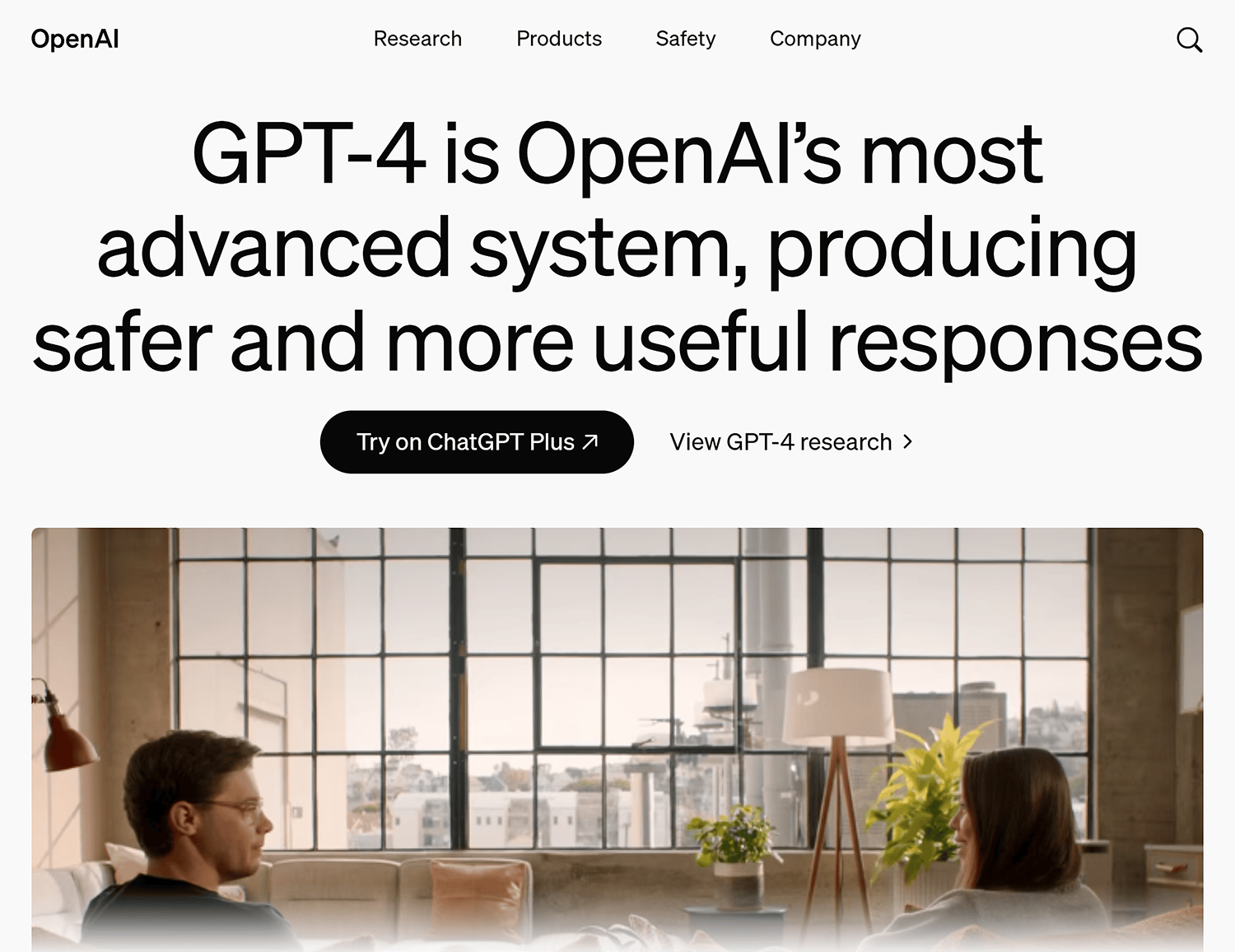
Larger models (like GPT-4) are more powerful but resource-intensive.
Smaller models (like BERT Mini) are budget-friendly and efficient for basic tasks.
Additional factors
Consider AI tools that offer personalization (like PaLM 2 LLM), strong privacy protection (like Vicuna), and options to fit your budget (free, freemium, or paid).
You’ll also want to think about how to track your brand’s visibility inside LLMs.
By focusing on these key factors, you’ll be well-equipped to choose the AI tool that best aligns with your specific needs and goals.
The best ChatGPT alternatives at a glance
| Alternative | Best for | Standout feature | Pricing | Model |
|---|---|---|---|---|
| Claude | For natural, realistic copy and conversations | 200,000 token context length | Free or $20+/mo for Claude Pro | Claude 3 family |
| Google Gemini (Formerly Bard) | For problem-solving and multimodal capabilities | Integrates with Google products | Free or $19.99+/month | Gemini 1.5 Flash/Pro 1.5 |
| Microsoft Copilot | For interacting with your Microsoft content | Microsoft 365 integration | Free or $20+/month | Microsoft Prometheus model (A GPT-4 version) |
| Perplexity | For internet deep dives | You’ll see a list of all the sources | Free with $20/mo pro option | Perplexity Model (A GPT-3.5 version) |
| Semrush ContentShake AI | For creating high-ranking content faster | One-click WordPress publishing | $60/mo | Proprietary |
| OpenAI Playground | Tweaking an LLM in a user-friendly environment | The ability to experiment with different models | Free or $0.0025/1k input tokens | OpenAI’s GPT 4 |
| GitHub Copilot | For coding and autocomplete | Integrates with GitHub | $10+/mo | OpenAI Codex (A GPT 4 version) |
| Writesonic | Its ability to establish a unique brand voice and reuse data with an infobase | Ability to personalize communication at scale | Free or $20+/mo | GPT-4 |
| Grok | Down-to-earth answers | Access to real-time data | Free or $7+/month | Grok |
| Character.AI | Chatting with characters and having fun | Entertainment and fun branded AI conversations | Free or $9.99/month | Character AI C1.2 |
| AnonChatGPT | Staying anonymous while using a GPT | Anonymity and a more open feel compared to OpenAI’s official site | Free | GPT 3.5 |
1. Claude
Best for engaging in natural and extended conversations
Tool Category: Large language model

Pros:
- Fantastic for writing content that looks like a human wrote it
- Seems to now outcompete ChatGPT in various benchmarks
- Huge context length (great for remembering long convos)
Cons:
- The number of conversations (chats you can open) in the free version runs out pretty quickly
- Sometimes isn’t as good at problem solving compared with ChatGPT
- Not as good as ChatGPT for data analysis
Claude, developed by Anthropic AI, is both an AI chatbot and the name for the underlying LLMs that run it.
Claude is trained to have natural, text-based conversations, and excels in tasks like summarization, editing, Q&A, decision-making, and more.
We’ve found that it’s great for its creativity, and the tone it adopts for writing content is very similar to a human’s.
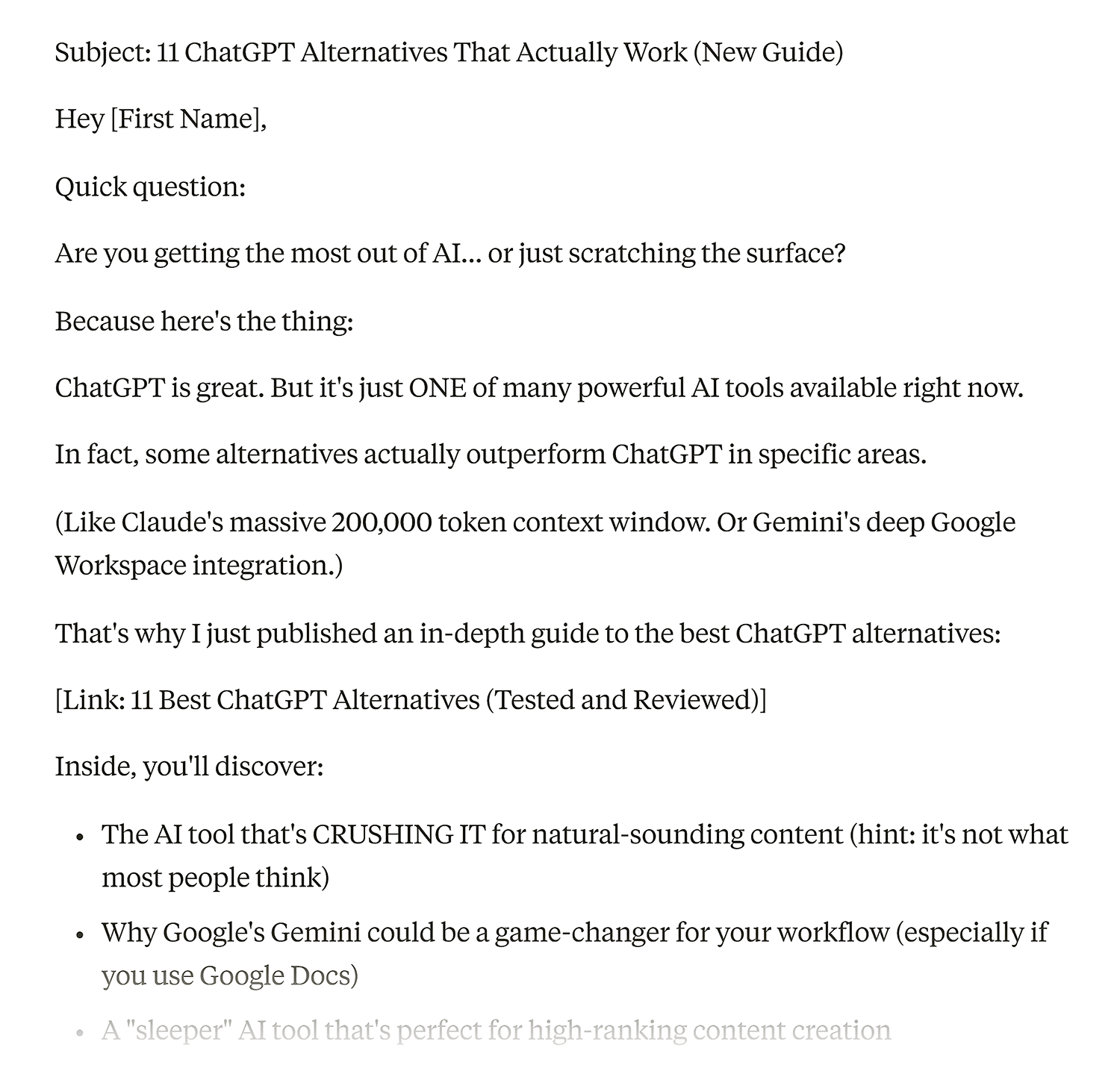
Currently, Anthropic offers a selection of models on their free and paid plans—Claude 3.7 Sonnet (the most intelligent model), Claude 3 Opus (great for writing and complex tasks), and Claude 3 Haiku (the fastest model for daily tasks).
As of March 2025, free users now have access to Claude 3.75 Sonnet, while the extended thinking mode is exclusive to paid users.
This means free users can now use a more advanced Claude model instead of being restricted to Haiku.
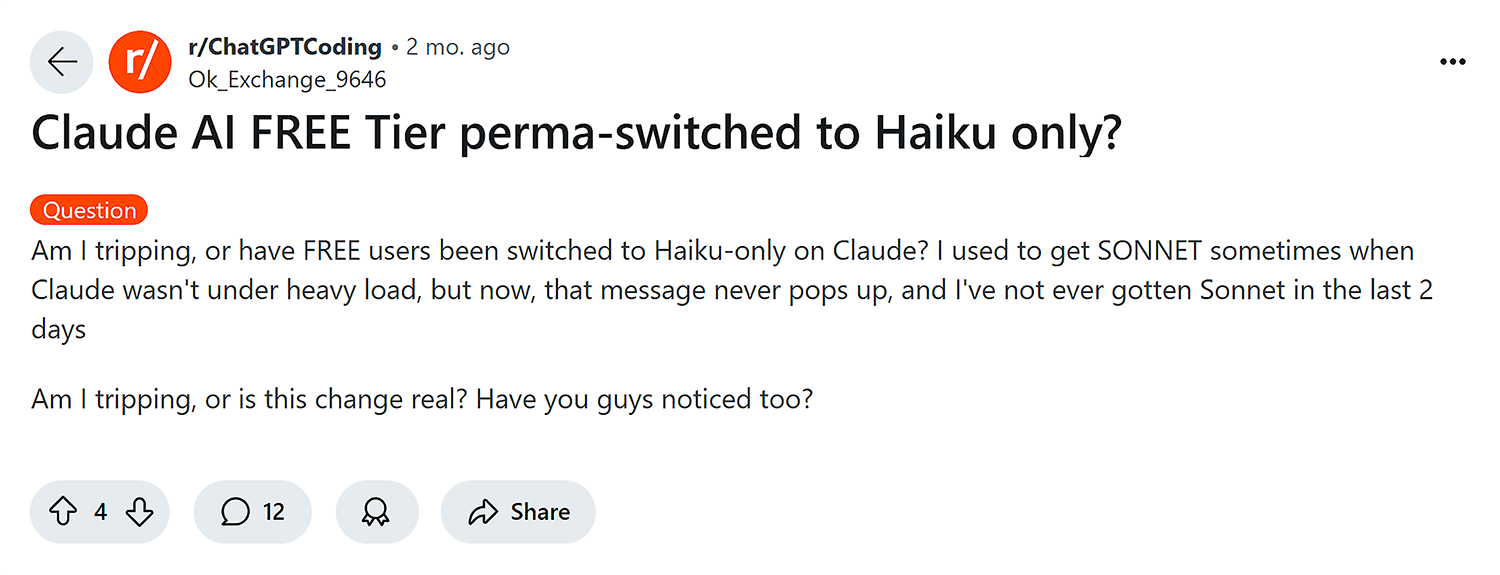
While Anthropic used to allow free users to use Sonnet, it looks like they’ve downgraded this to Haiku only, based on what we see on the site and online chatter.
Regardless, both Claude’s free and paid plans offer numerous benefits for users.
And each iteration builds on the capabilities of the last, edging closer to human-level comprehension.
The maximum length for Claude is a staggering 200,000 tokens, which is approximately equivalent to 150,000 words.
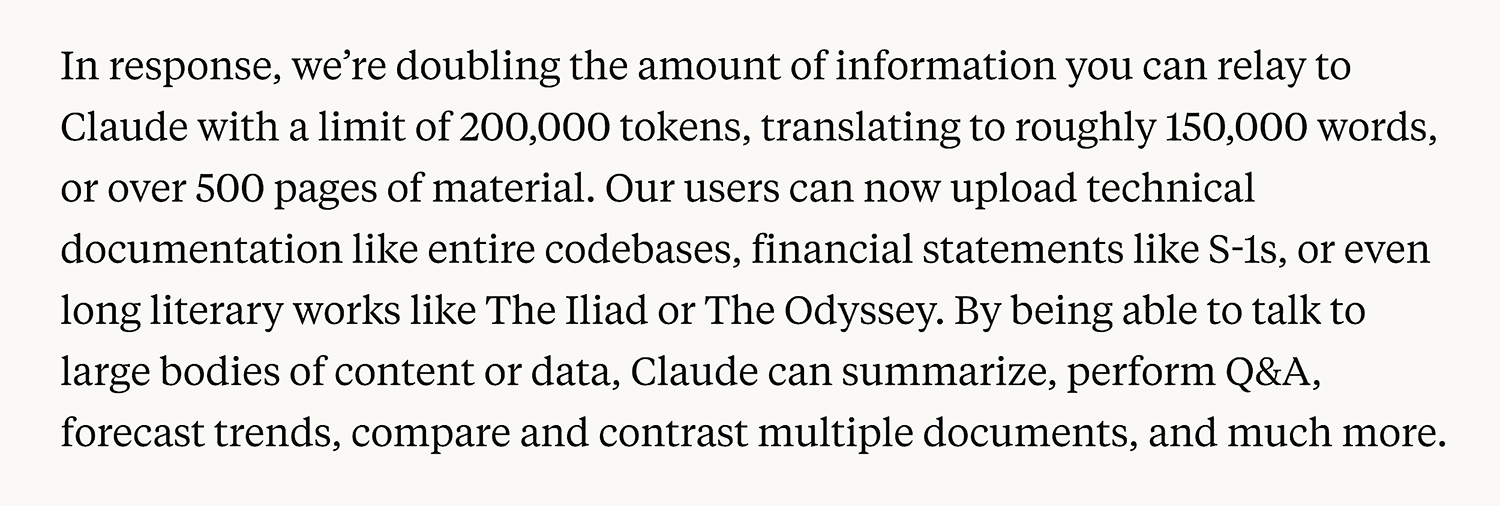
The average book is around 75,000 words long, so this means you could theoretically paste in a whole book and prompt to your heart’s content.
It’s not just books, though.
Claude allows you to analyze and perform tasks on lengthy excerpts of code, documents, and more.
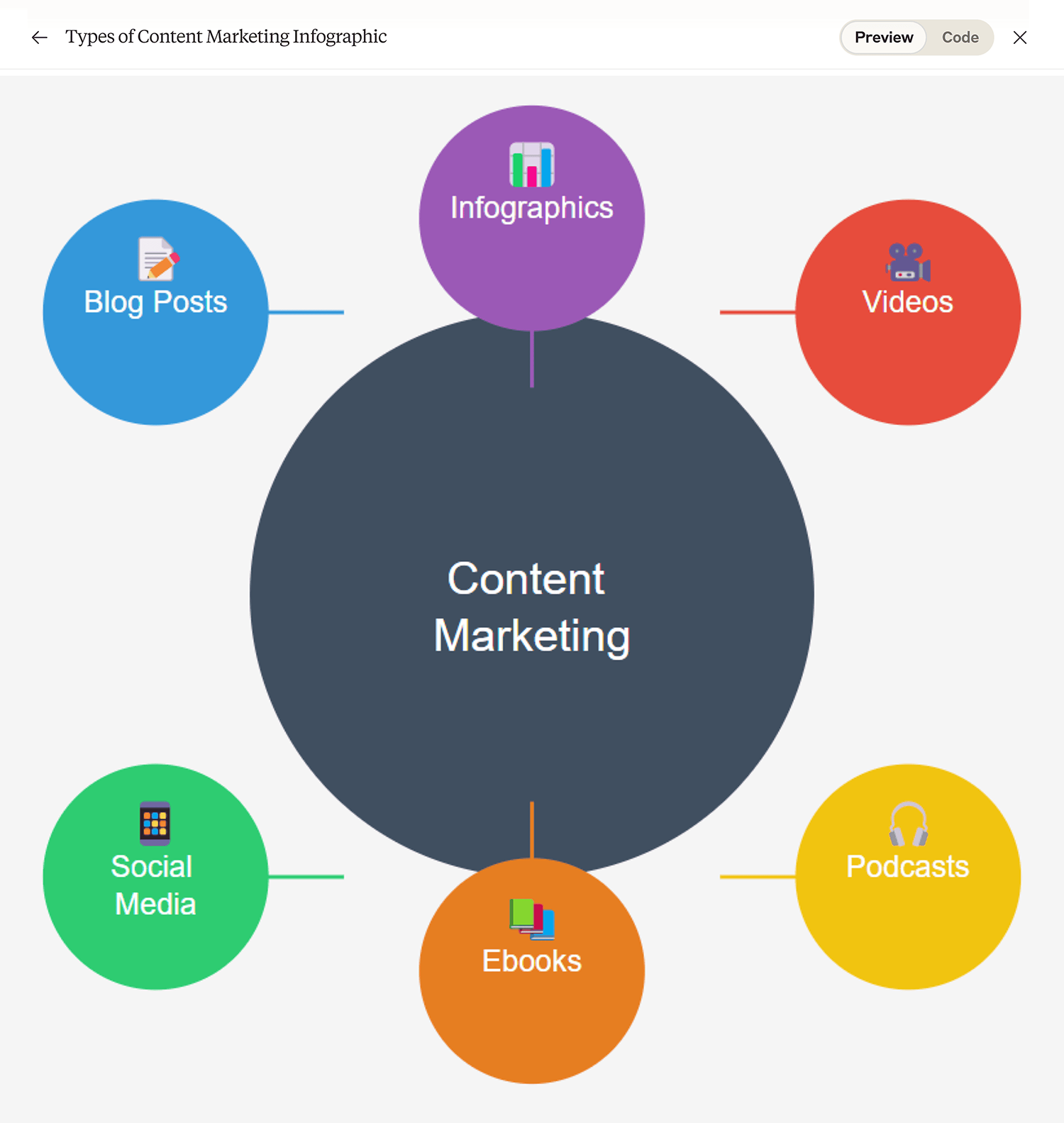
It’s also a really handy way to mock up images for use in blog and social media content.
You’ll still want a designer to recreate them—but it’s a helpful way for content strategists, writers, and editors to provide image direction.
Pricing:
- Free plan with usage limits
- Pro: $20/month
- Team: $30 user/month; five minimum
2. Google Gemini (formerly Bard)
Best for problem-solving and multimodal capabilities
Tool Category: Multimodal AI model
Pros:
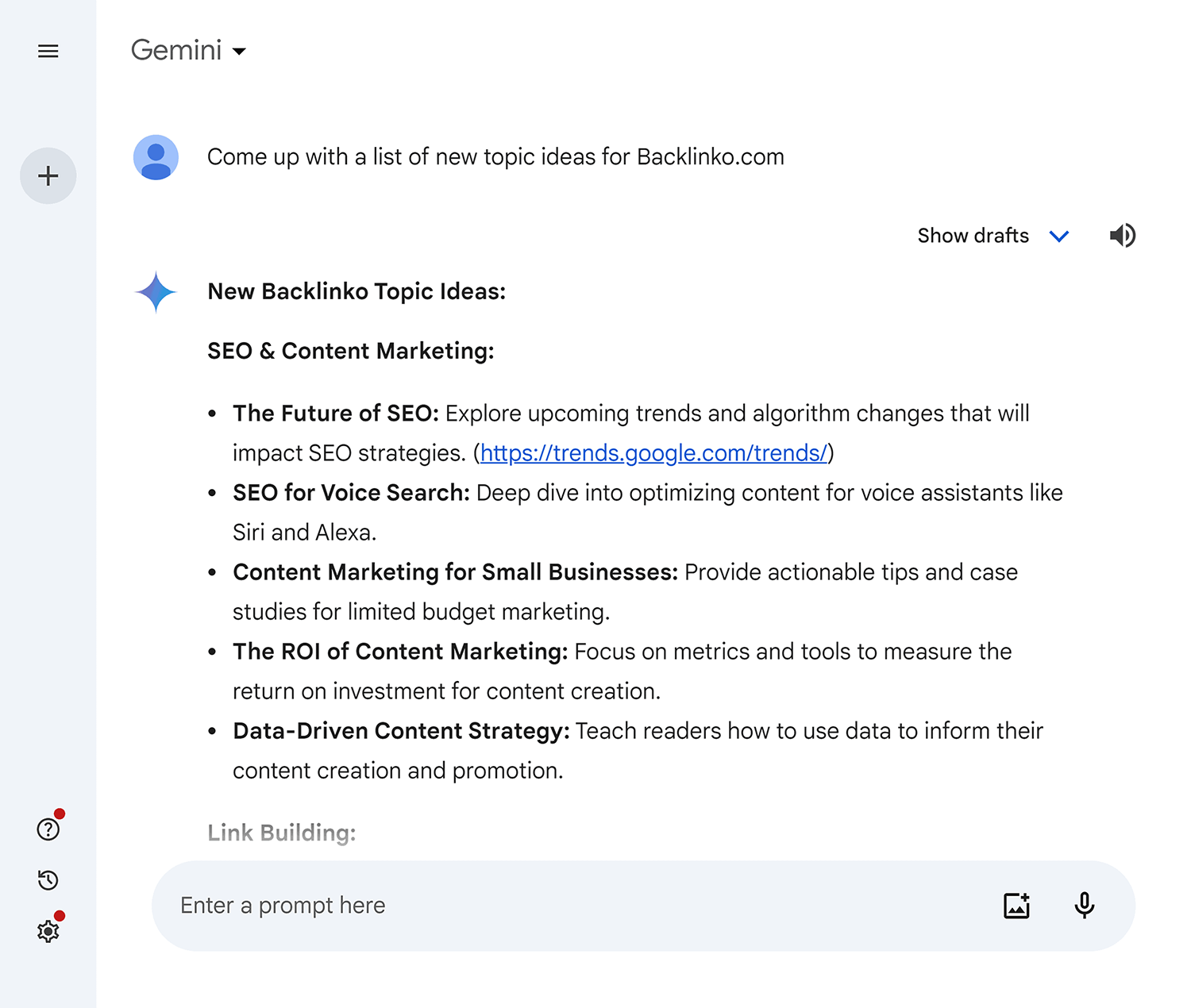
- Advanced multimodal capabilities (handles text, images, audio, and code)
- Seamless integration with Google services (Docs, Sheets, you name it)
- Large model size, which means it’s great for complex problem-solving
Cons:
- Google’s Gemini isn’t yet as effective as GPT-4
- Lack of transparency of source data
- Premium pricing for advanced features (this is optional)
Gemini (renamed from Bard in February 2024) is a family of LLMs by Google.
Unlike models such as ChatGPT, which are designed for broad conversational abilities, Gemini is purpose-built to help you be more productive.
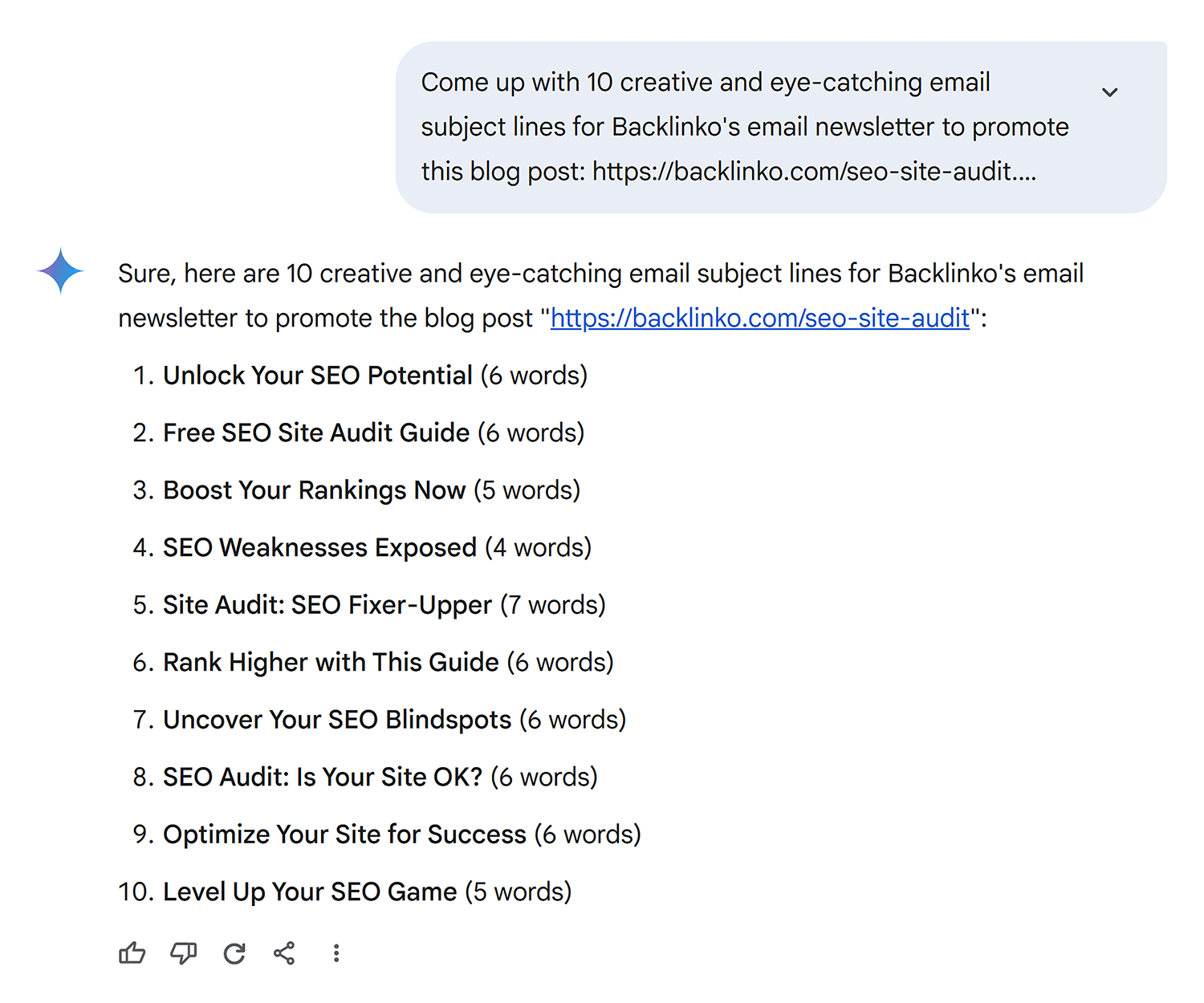
For example, Gemini’s free model—1.5 Flash—works well for quick responses.
Like when you need help with writing, brainstorming, planning, and basic coding.
It also integrates with Google Maps and Flights, allowing you to plan routes and complete tasks within its chat feature.
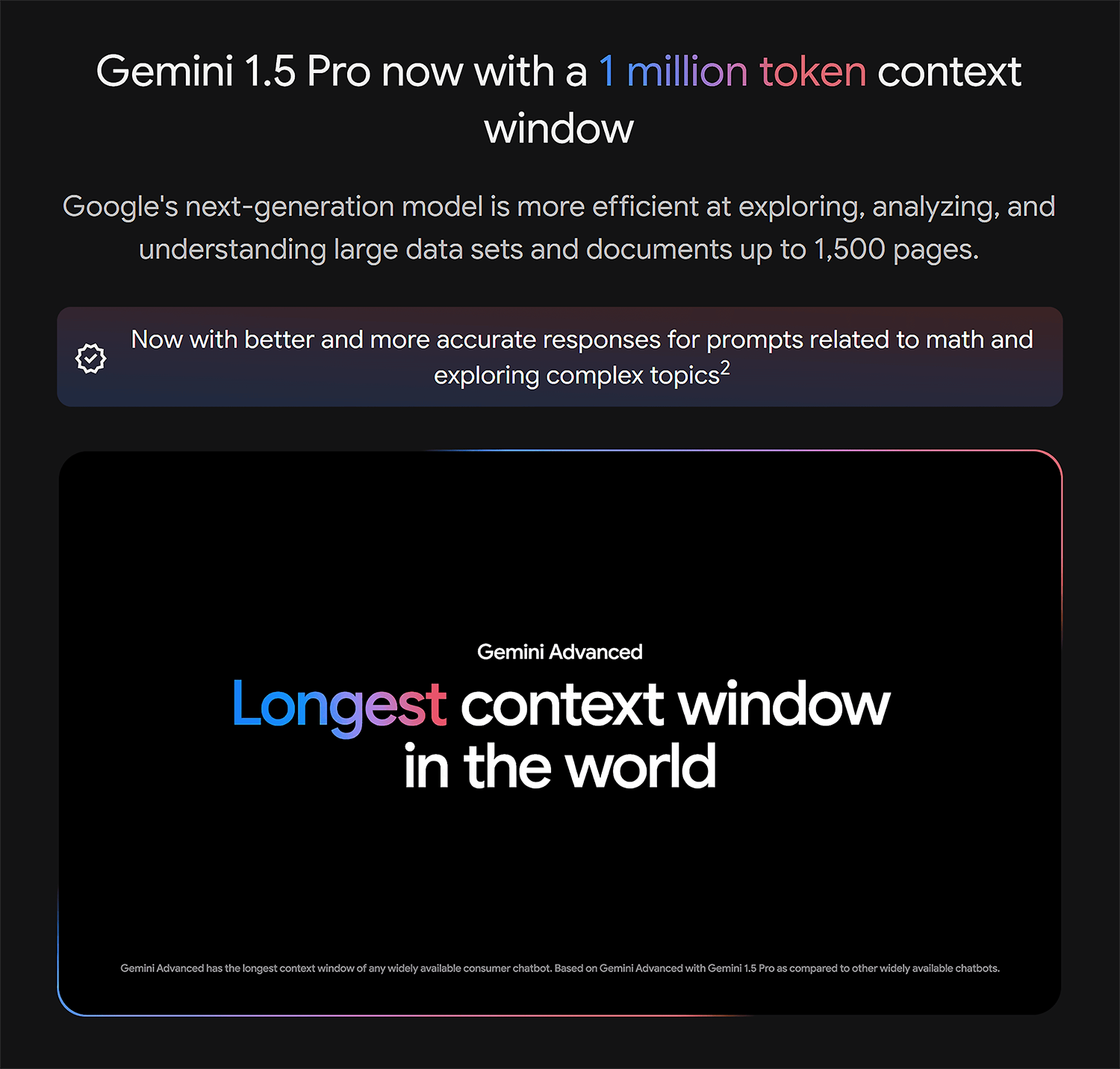
But where Gemini really shines is with its Advanced (1.5 Pro) model.
Gemini Advanced lets you analyze up to 1,500 words of text and run and edit many coding languages like Python.
This is thanks to its staggering 1,000,000 token context length.
So far, this dwarfs any other LLM.
It also integrates directly with many Google Workspace tools, including Gmail, Docs, Sheets, and Slides.
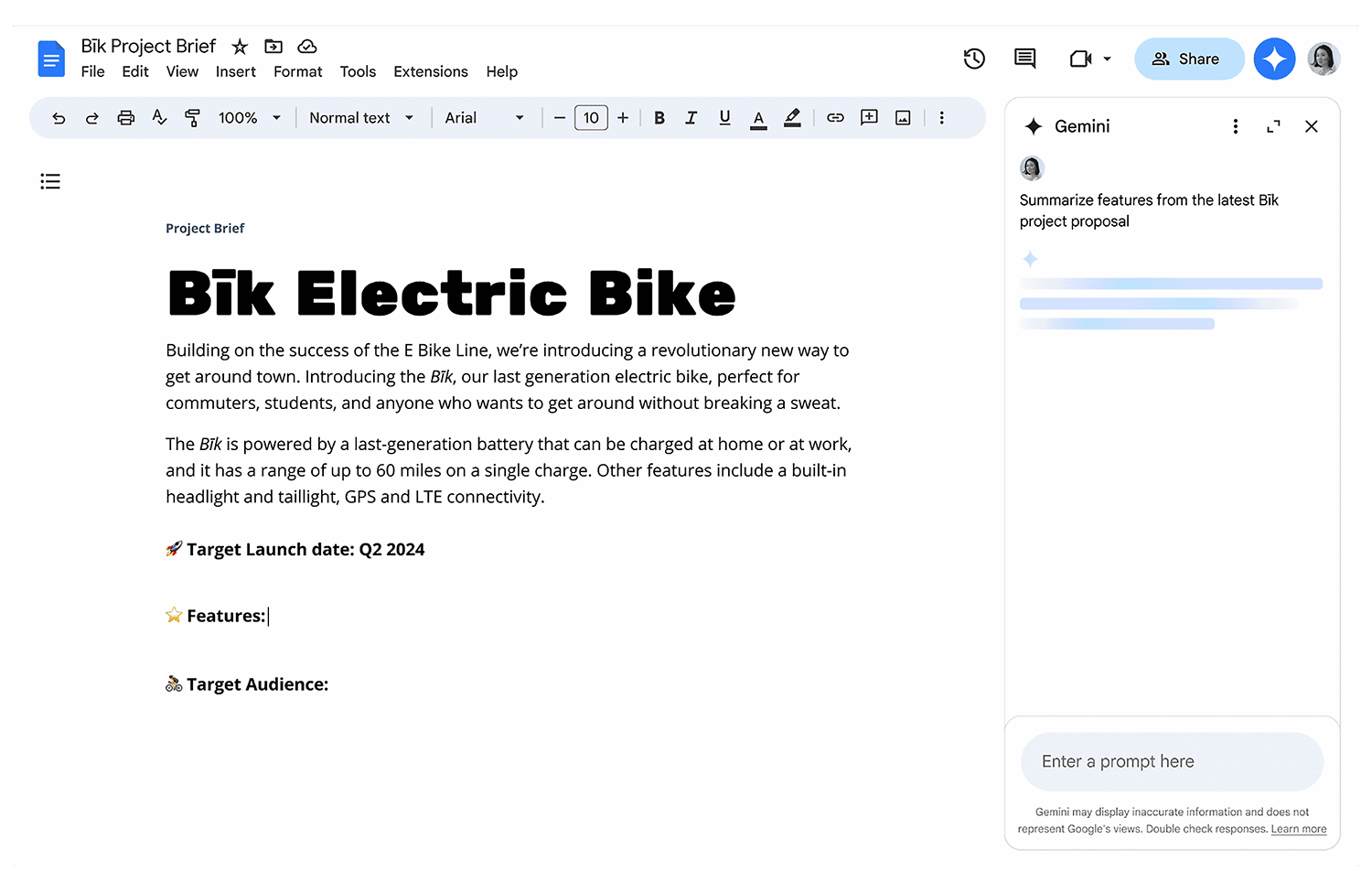
This means you can call on Gemini’s AI capabilities to help draft documents, analyze data, create presentations, and more.
No need to copy and paste content across apps.
This alone makes it a standout option for business owners, students, marketers, and more.
While both the free and paid models allow you to create images, only Advanced lets you generate images of people.
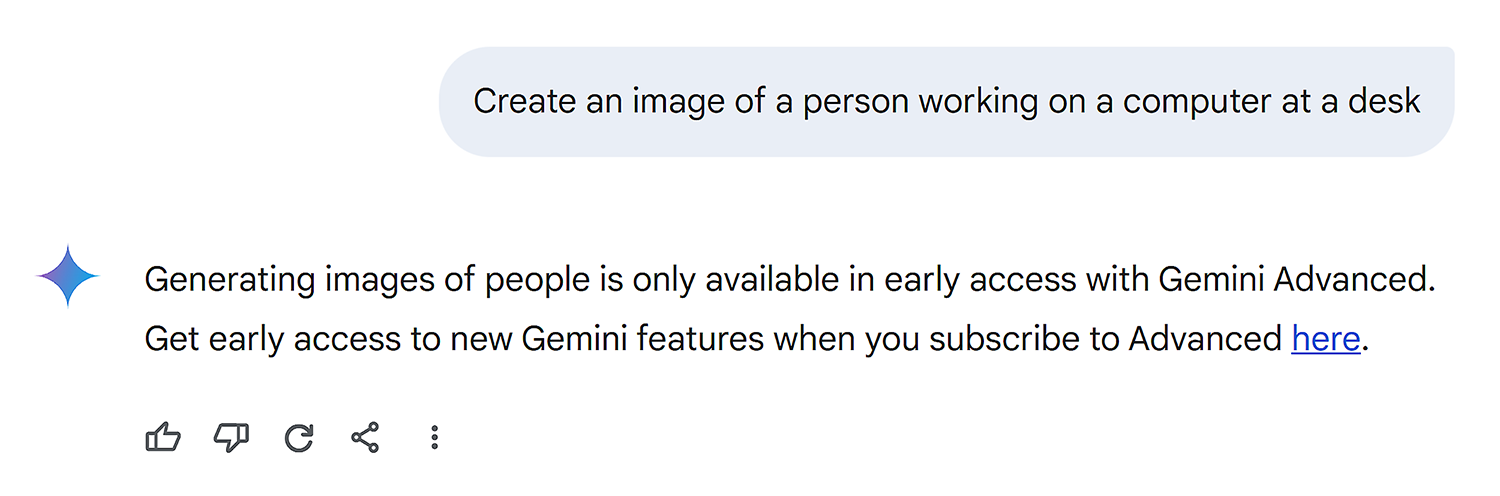
Access to Gemini Advanced requires a Google One or Google Workspace subscription.
While Gemini Advanced offers impressive capabilities, its performance can still vary compared to GPT-4, particularly in complex reasoning tasks.
However, the deep integration with Google services makes it a super appealing option for busy entrepreneurs and remote workers looking to save time, optimize workflows, and stay productive.
Pricing:
- Free, limited plan
- Gemini Advanced (requires a Google AI One Premium Plan): $19.99/month
- Gemini Business (Google Workspace add-on): $20 per user/per month with a one-year commitment
Note: Interested in Gemini? Read our deep dive into Google Gemini vs. ChatGPT to decide which one is right for you.
3. Microsoft Copilot
Best for Microsoft content interaction
Tool Category: Multimodal AI model
Pros:
- It’s integrated into Microsoft 365 apps, saving you time across products
- Great for research as it’s connected directly to Bing and provides references
- Powered by GPT-4, Prometheus, and DALL·E 3
Cons:
- Can be difficult to install into your Microsoft hub
- Full features require a Microsoft 365 subscription
- Performance can vary with complex tasks
Microsoft Copilot is a great alternative to ChatGPT.
In short, it operates on the GPT-4 architecture and offers free access with a daily limit on requests (beware!).
This feature makes it an excellent resource for the same types of problem-solving tasks you’d typically use ChatGPT for, delivering outputs that closely match what you would anticipate from the platform.
This includes writing social media captions, blog content, and marketing emails.
Copilot also lets you create images on the free plan—just don’t expect them to be of stock image quality.
Still, we were pleasantly surprised to see that Copilot can generate a decent image (including human fingers that look, well, human).

When we used this same prompt in ChatGPT (“create an image of a person working at a computer with a plant on their desk”), we got a slightly lesser-quality image.
The man’s fingers and leg seem to need some corrections, and he forgot to turn his computer on. (Microsoft Copilot wins this round!)

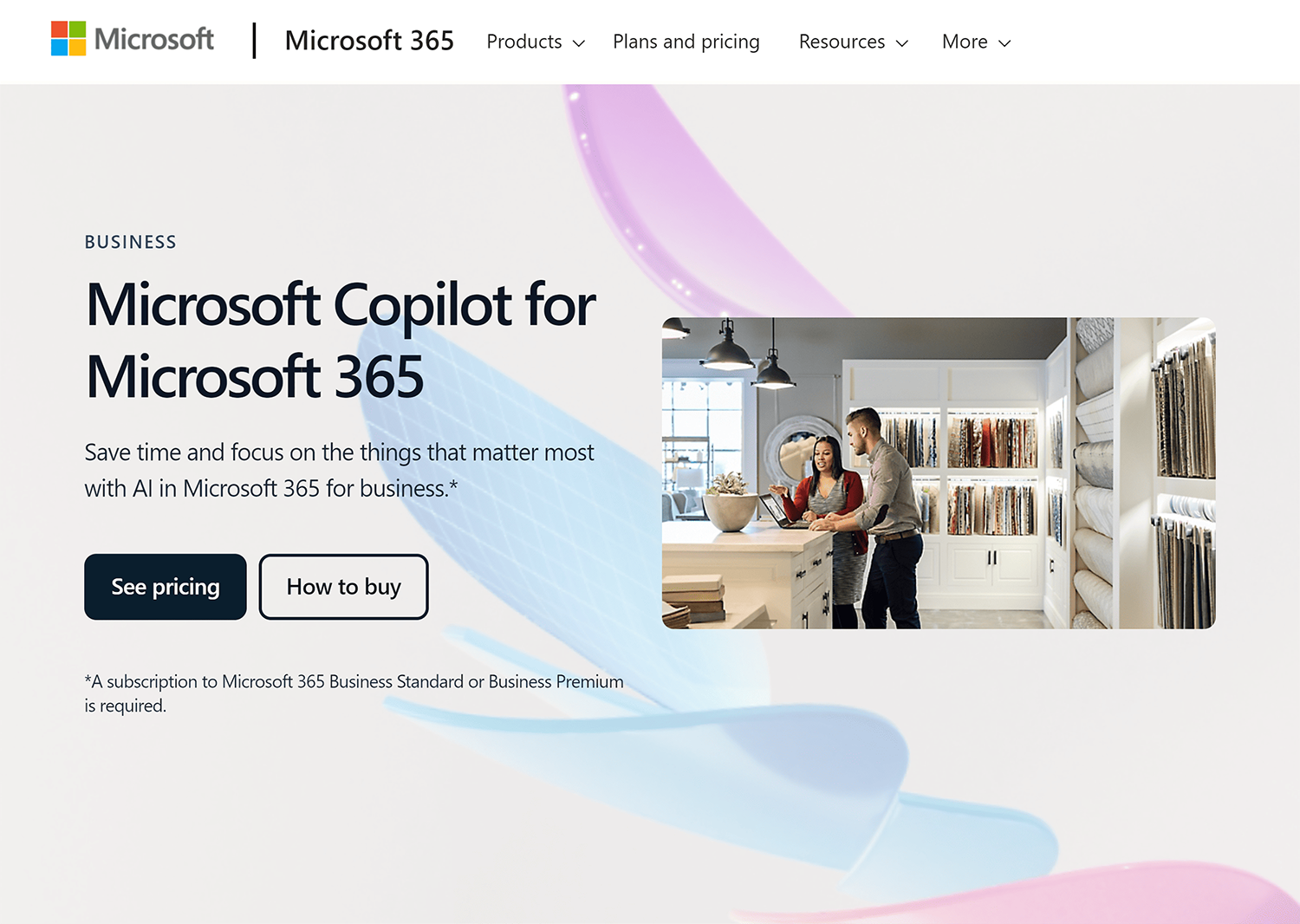
The paid versions of Copilot also offer a big perk: they integrate with Microsoft 365 to boost your productivity.
This includes everyday products like Word, Excel, Microsoft Teams, Outlook, and PowerPoint.
So you can draft documents, analyze data, schedule meetings, and create presentations faster than ever before.
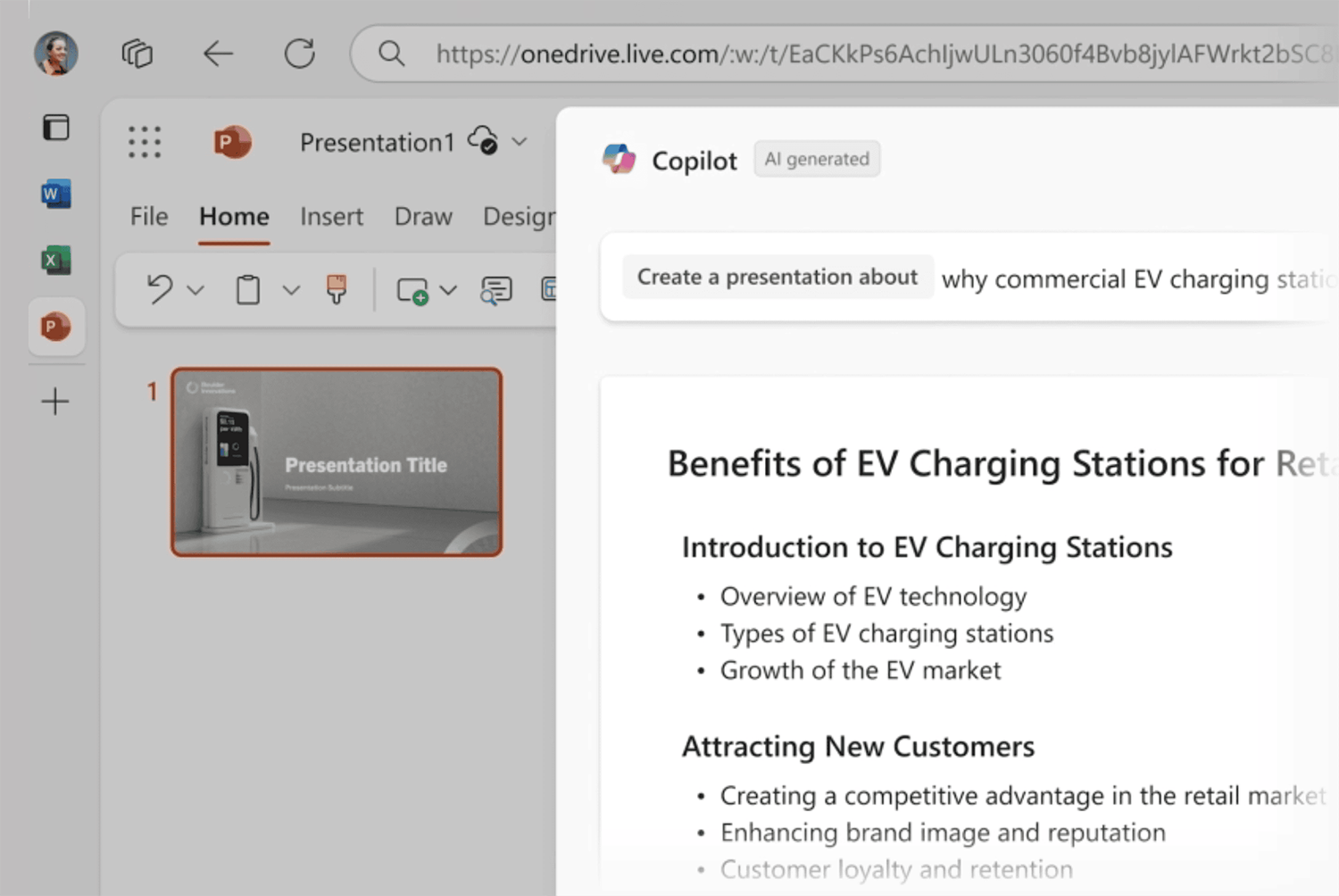
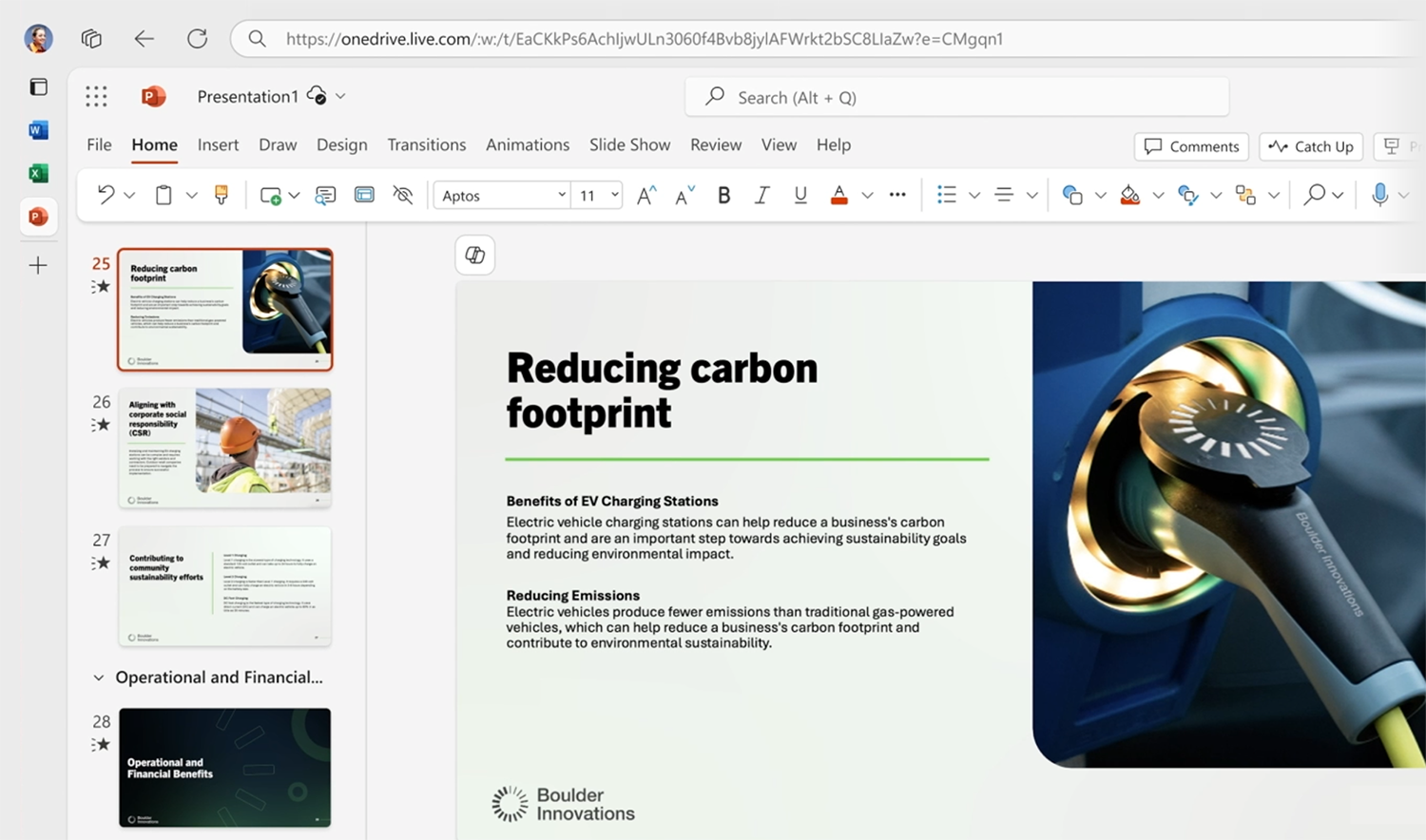
For example, give it a prompt, and Copilot will create content and professionally designed PowerPoint slides in seconds.
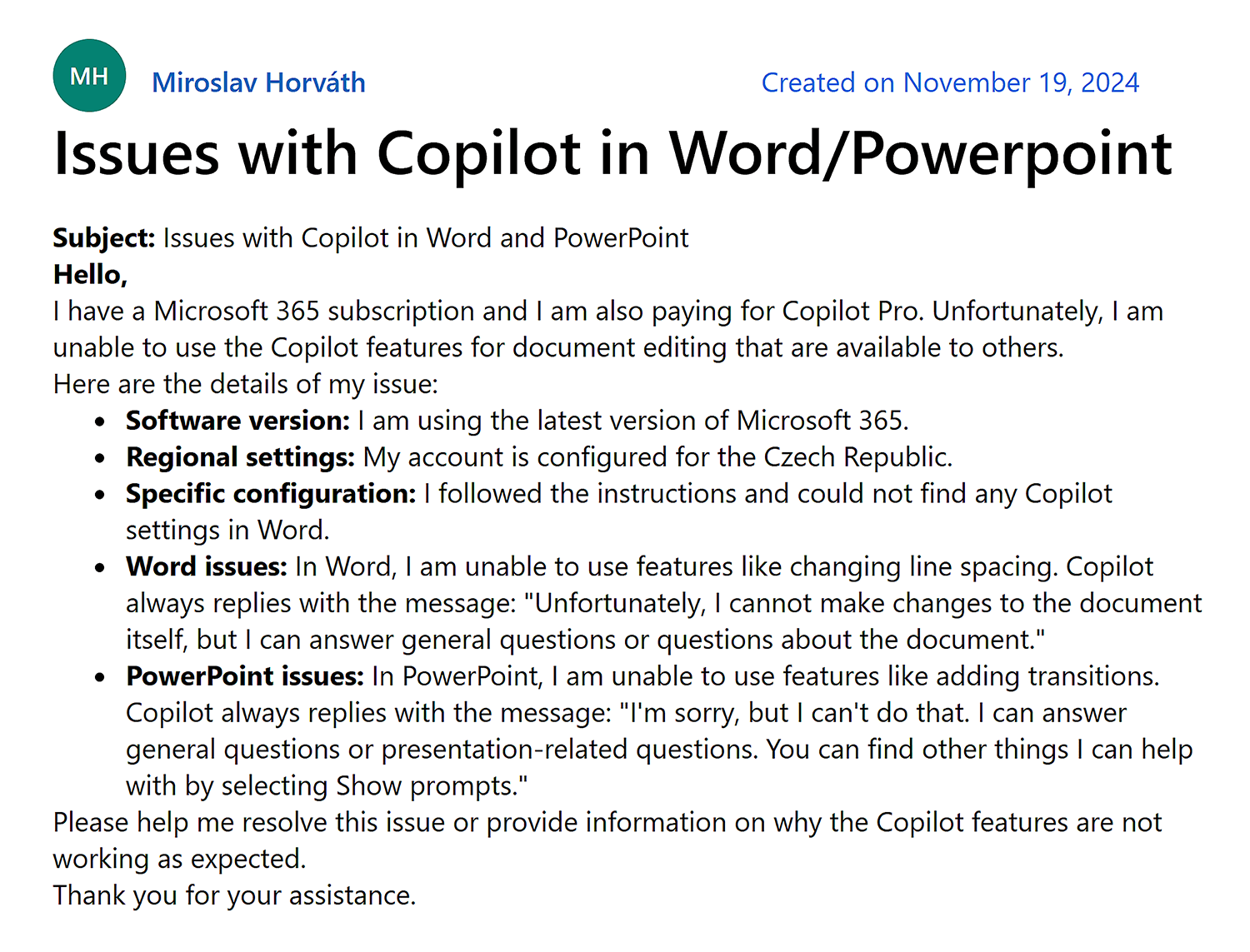
However, there have been claims online that Copilot’s integration with Microsoft services can be buggy.
Overall, if you use Microsoft’s products and are comfortable paying for a Copilot subscription, it could be a worthwhile ChatGPT alternative for you.
Pricing:
- Free limited plan: No Microsoft 365 integration
- Copilot Pro (for individuals): $20 user/month; integrates with select Microsoft 365 products
- Microsoft 365 Copilot (for business): $30 user/month; integrates with all Microsoft products
Further reading: Content marketing strategy: A practical guide
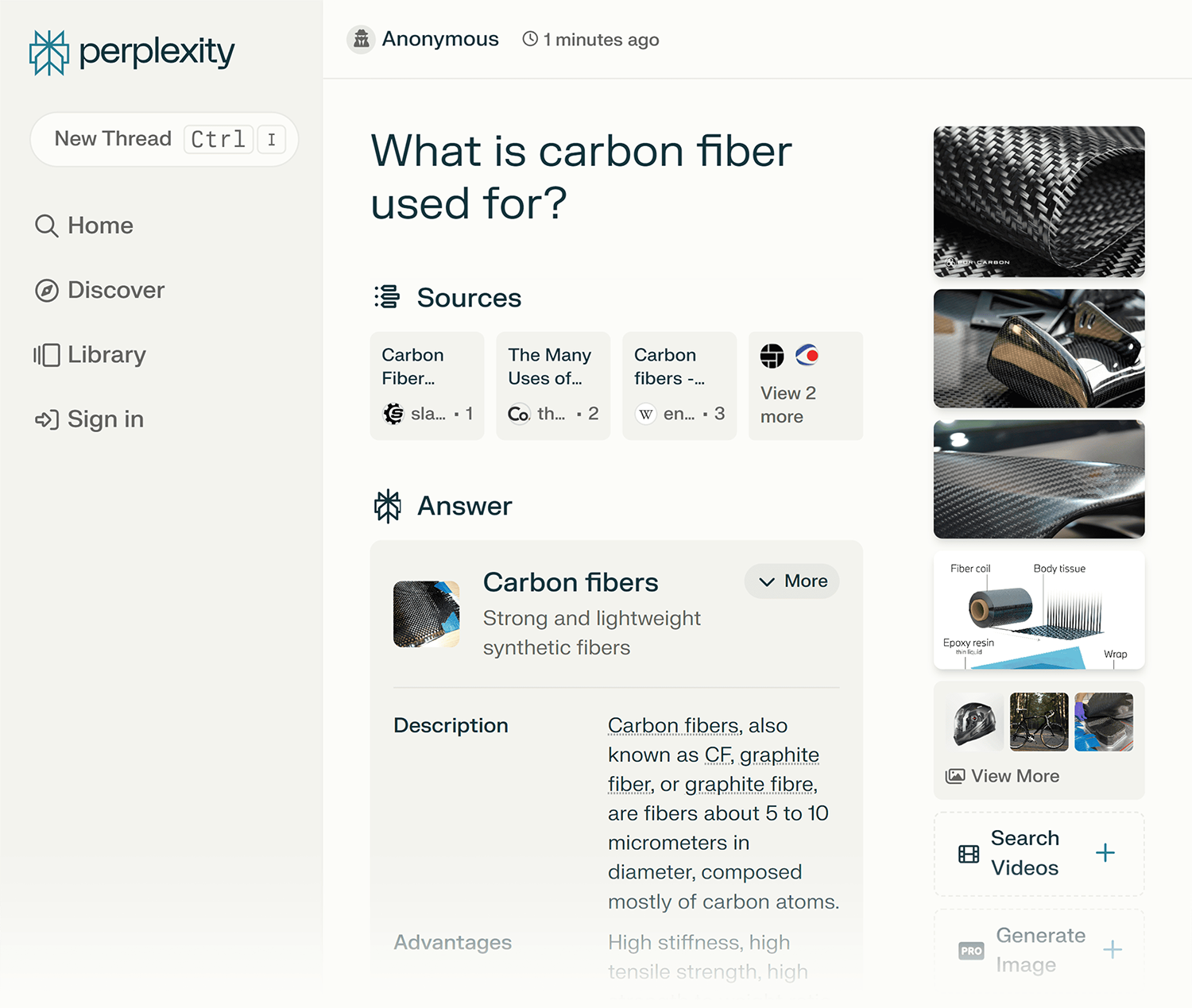
4. Perplexity AI
Best for in-depth internet research and exploration
Tool Category: AI Search Engine
Pros:
- Accurate and exhaustive search responses when compared to typical search engines like Google
- You’ll see a list of all the sources
- Limited free plan available
Cons:
- As a predictive search model, it can still hallucinate
- Not great for content generation or problem-solving
- Image generation only available with a paid subscription
Perplexity AI was created by Aravind Srinivas, Denis Yarats, Johnny Ho, and Andy Konwinski—scientists known for their work on large language models like GPT-3 (OpenAI).
They designed Perplexity as a search and answer engine that relies on AI to provide reliable responses to user queries.
It uses natural language processing to understand questions posed in everyday language.
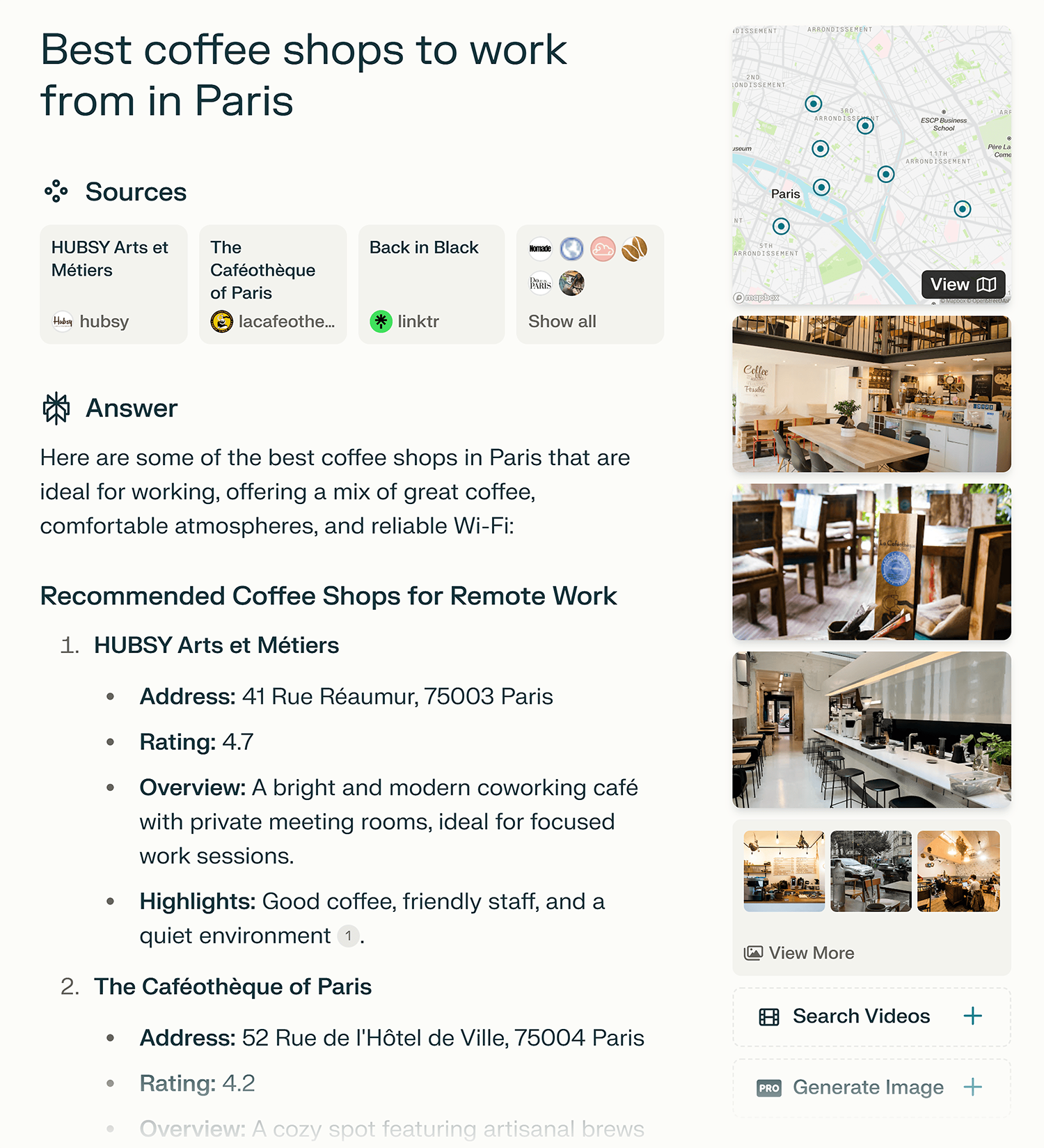
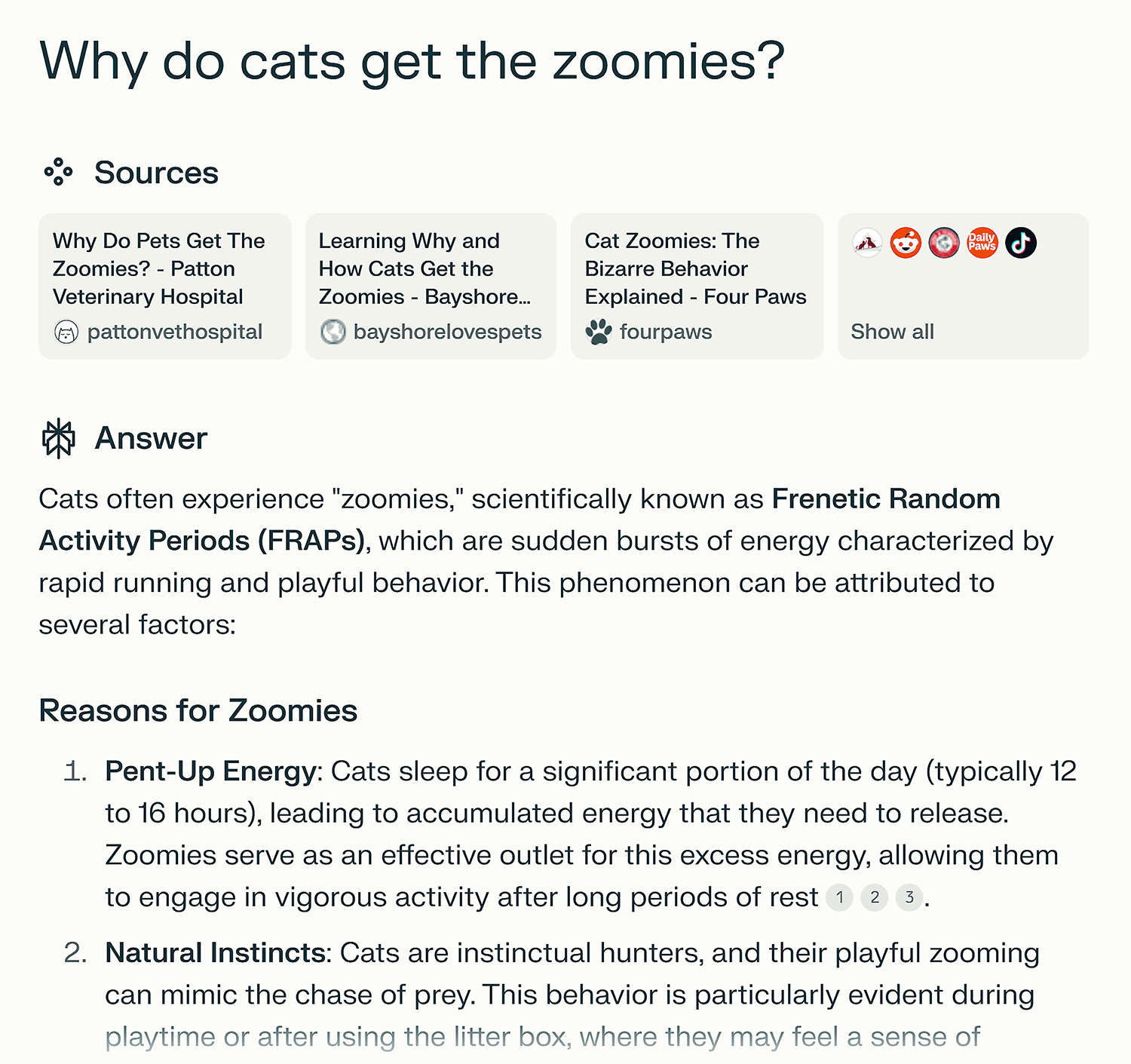
Then, it searches the internet and draws from its own knowledge base to provide conversational answers that are typically very accurate.
One of the key advantages of Perplexity AI over other LLM’s is its accuracy.
For example, if you’re writing an essay or article, it’s the perfect assistant for you to fact-check sources and validate any hypotheses you might have.
Ask it a question, and it’ll provide a detailed answer complete with sources.
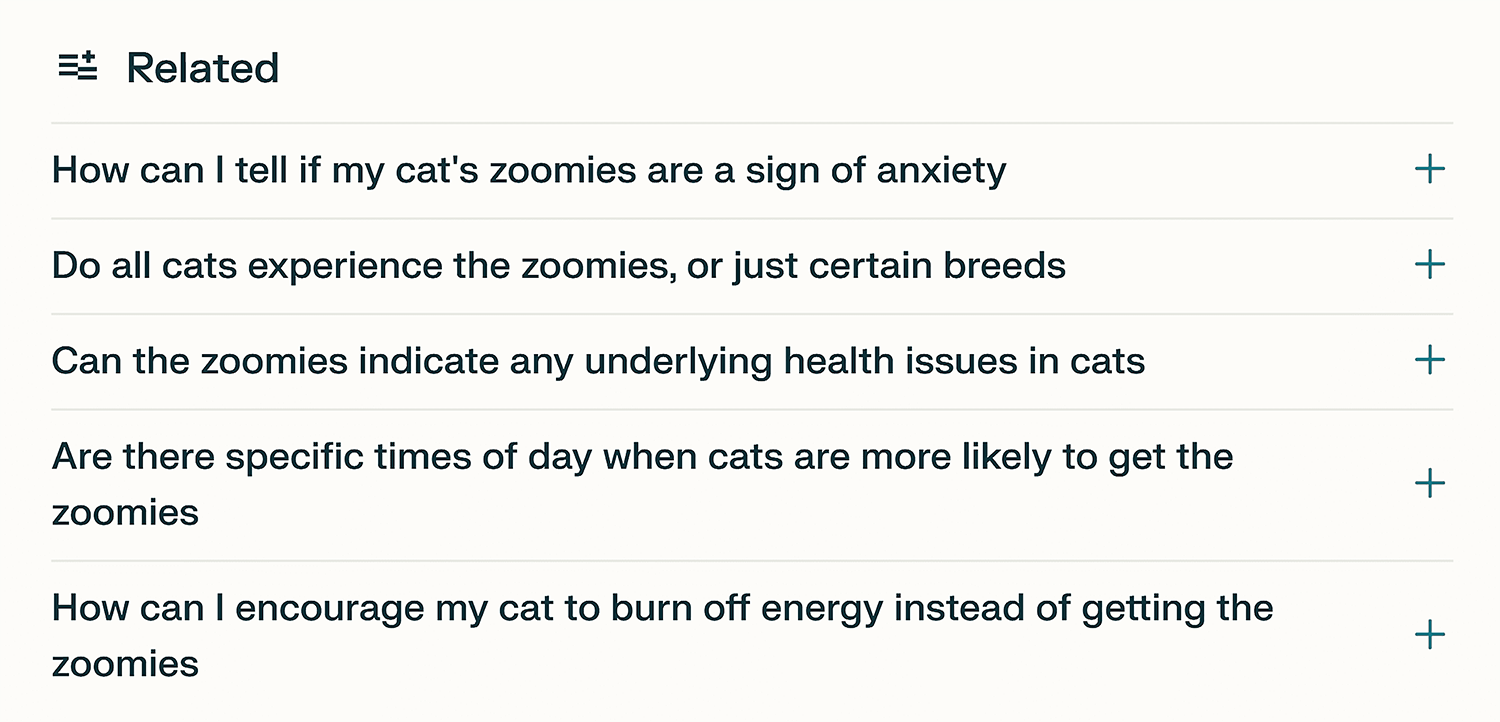
It also provides related queries to deepen your research and understanding of a topic.
What makes it different from multimodal models like ChatGPT is that it’s pretty damn good at search but not great at complex problem-solving or content generation.
So choose wisely.
There’s no question that it will improve over time, particularly with the investment of $74 million from Nvidia.
This significant boost is setting the company on a trajectory to compete with search engines at large. One to watch!
Pricing:
- Free plan with usage limits
- Professional: $20/month
5. Semrush ContentShake AI
Best tool for creating high-ranking content faster
Tool Category: Content writing
Pros:
- Integrates Semrush’s SEO data directly into content creation
- Real-time content optimization suggestions
- Built-in competitor analysis
- One-click WordPress publishing
- Custom templates for different content types
Cons:
- No option to exclude domains in competitor analysis
- Lack of integration with tools like Grammarly
- Inability to fine-tune the initial prompt
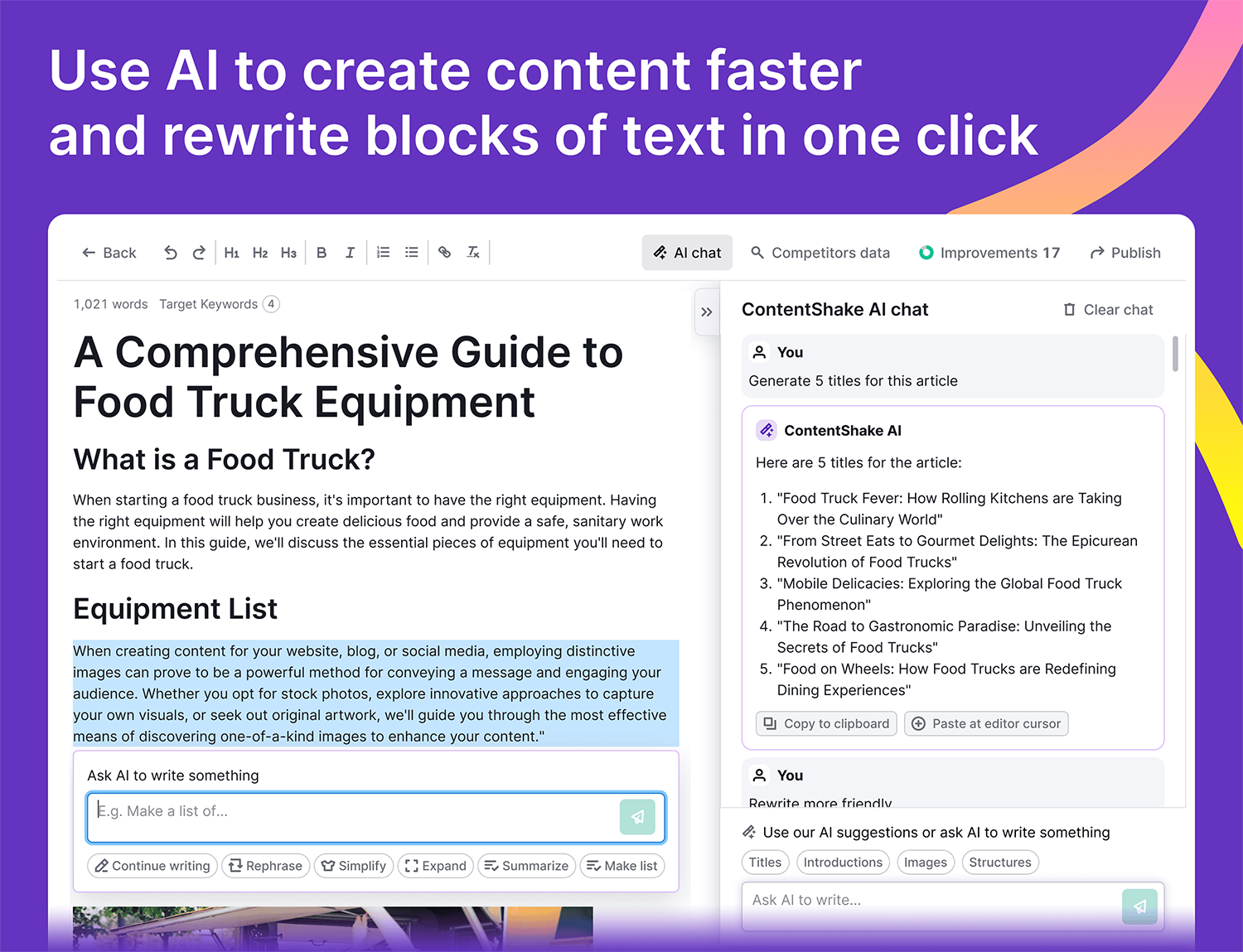
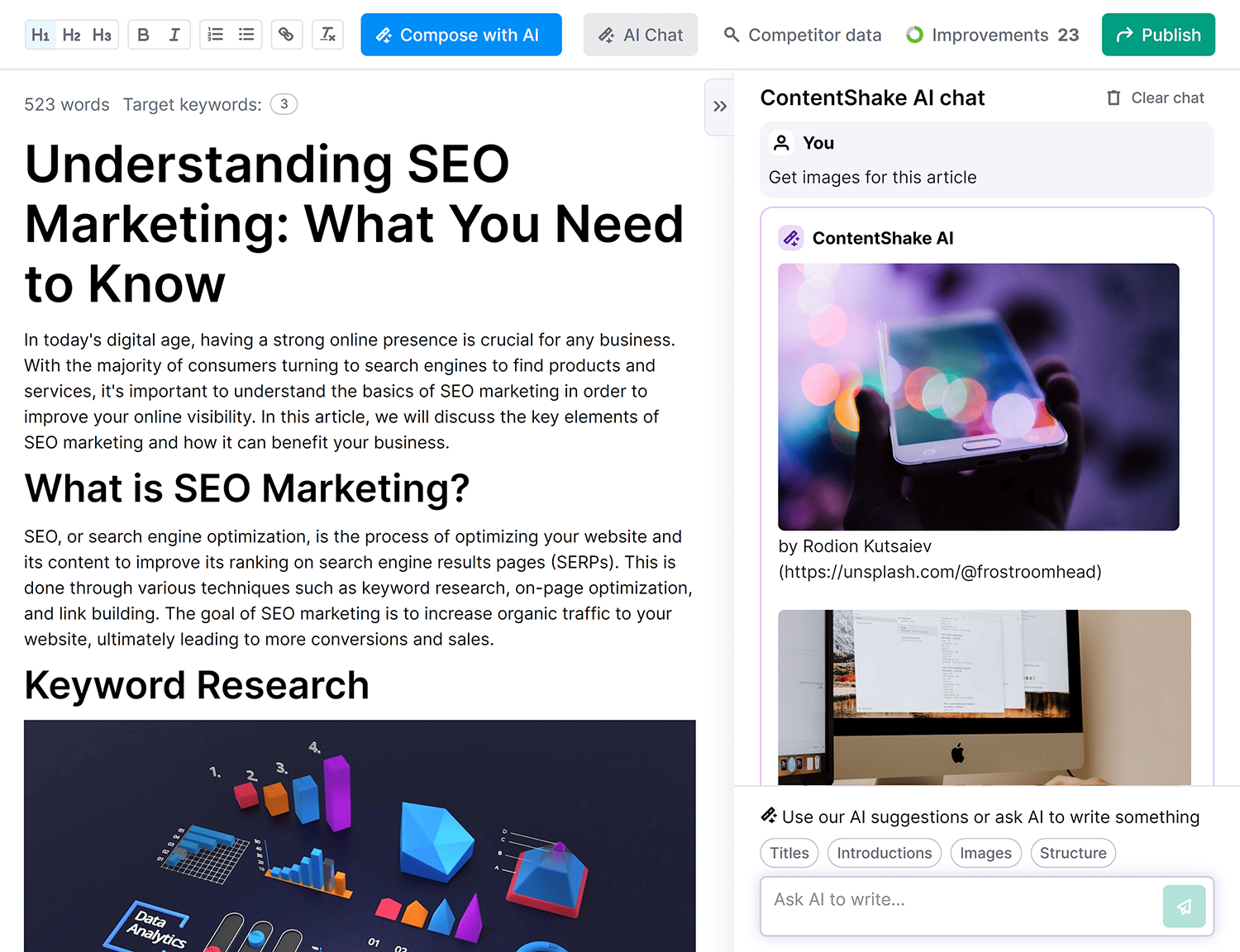
ContentShake AI impresses with its user-friendliness and fast content generation, making it a handy tool for those in need of quick, quality content.
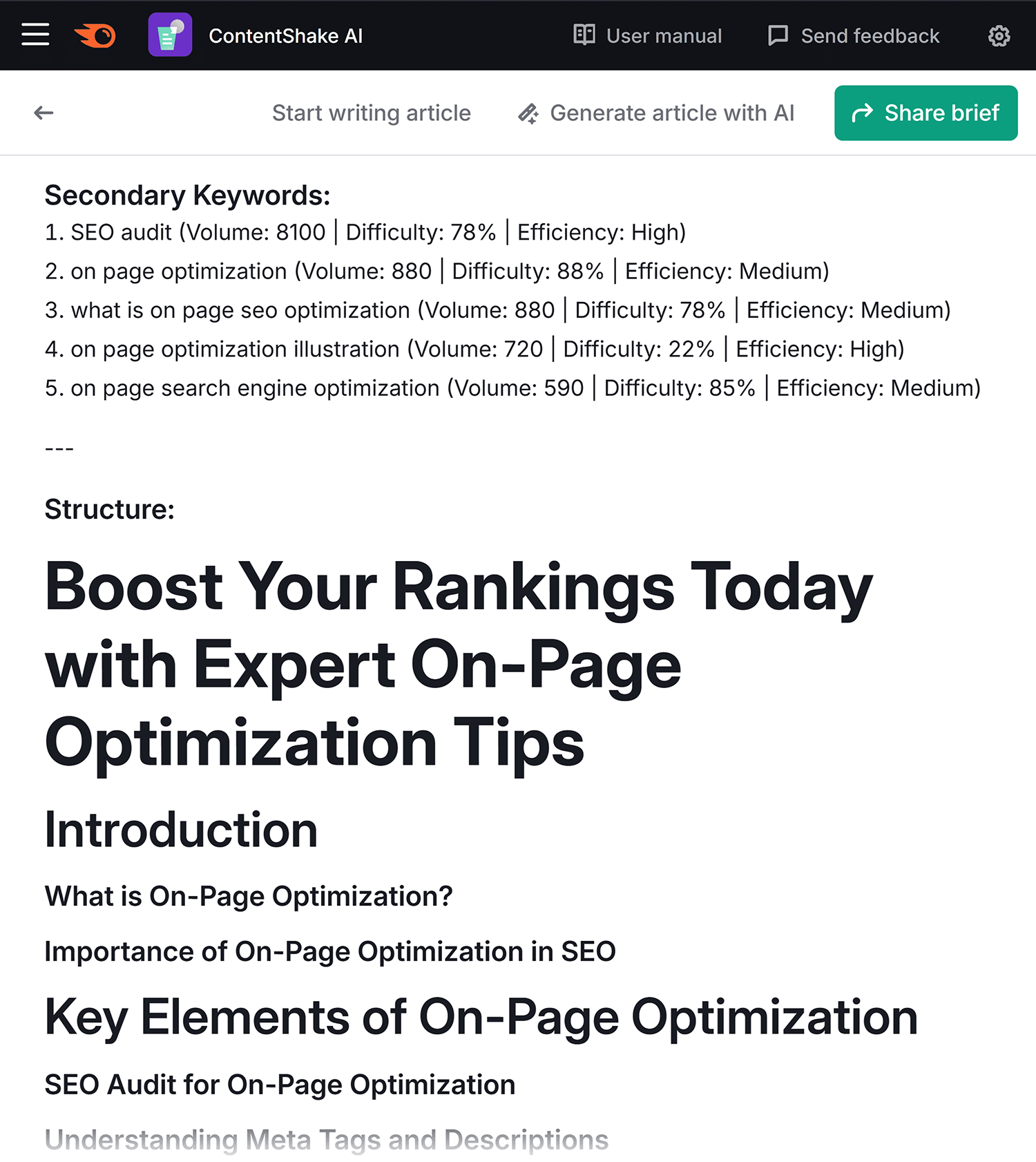
For example, you can create helpful SEO content briefs to share with writers.
All you have to do is provide the target keyword, and the tool will generate an outline and secondary keywords based on top-ranking articles for the topic.
You can also generate full blog posts in seconds.
Enter your target keyword or topic and the tool will whip up an article on your desired topic.
Complete with subheads, secondary keywords, and a score based on how well it’s optimized.
While all AI content requires editing, this gives you a solid starting point based on actual search performance data.
Allowing for faster, easier article creation.
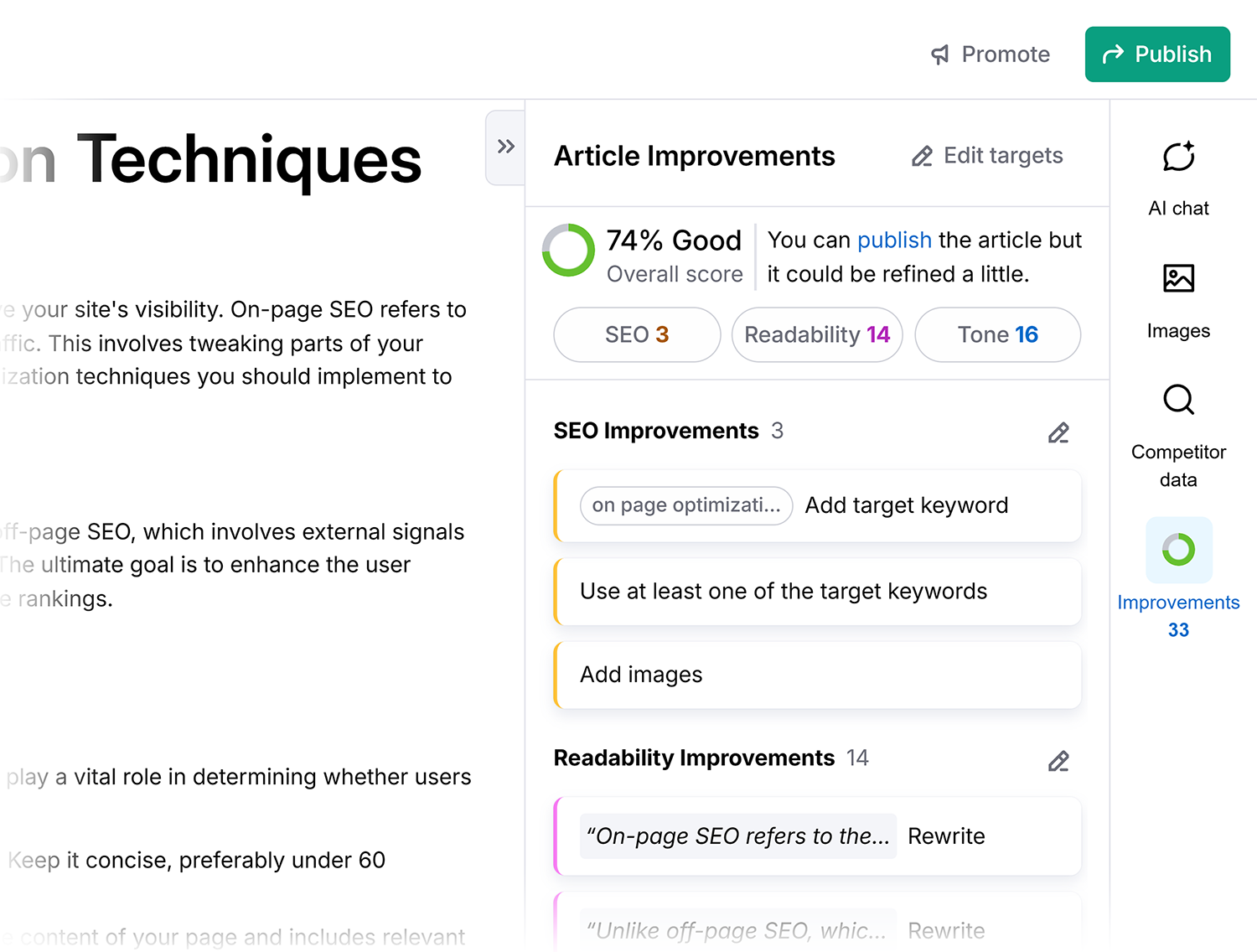
The tool also has a standout competitor analysis feature.
You’ll get valuable insights into your competitors’ images, headings, and introductions.
So you don’t have to manually search the SERPs to create content that outranks your rivals.

However, it’s not perfect.
The lack of integration with popular tools like Grammarly and content-generation issues (like being overly reliant on bullet points like all AI writing tools) can be a bit frustrating.
Overall, it’s a solid choice if you need a quick draft based on keyword research, albeit with a few areas that could use some tweaking.
Pricing:
- $60/mo for unlimited articles and 25 new content ideas per week
6. OpenAI Playground
Best for user-friendly customization of LLMs
Tool Category: Multimodal AI model
Pros:
- Sandbox environment is great for experimenting
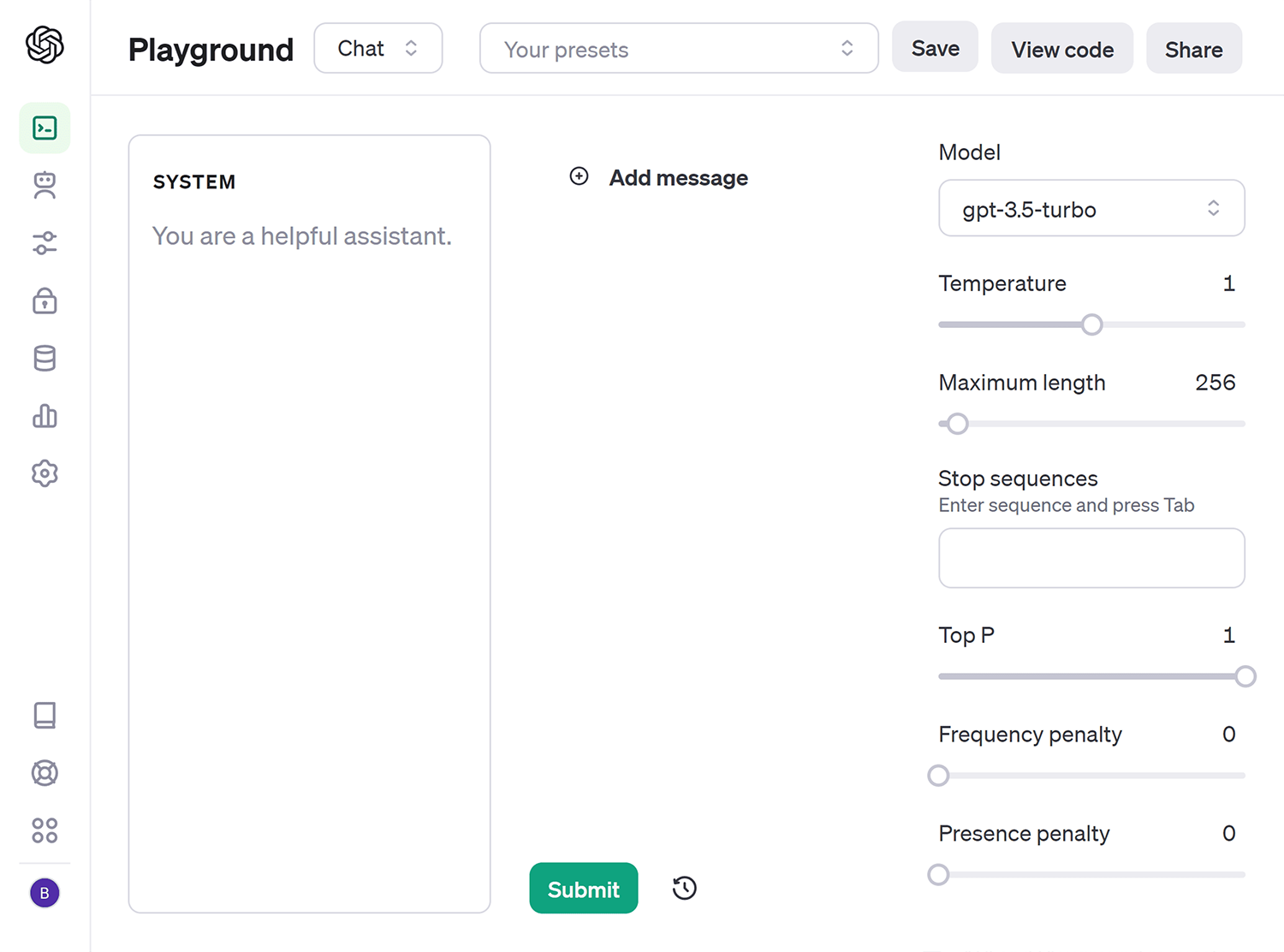
- Very customizable, with options to adjust variables like randomness and length
- View code option to easily copy the parameters for a prompt
Cons:
- No free option is available for continued use
- A little more technical than ChatGPT
- Requires some knowledge of coding to fully use the tool
OpenAI has pulled another sneaky one on us. They released their own alternative to ChatGPT: OpenAI Playground.
OpenAI Playground is a website that lets you easily test and experiment with OpenAI’s latest AI models.
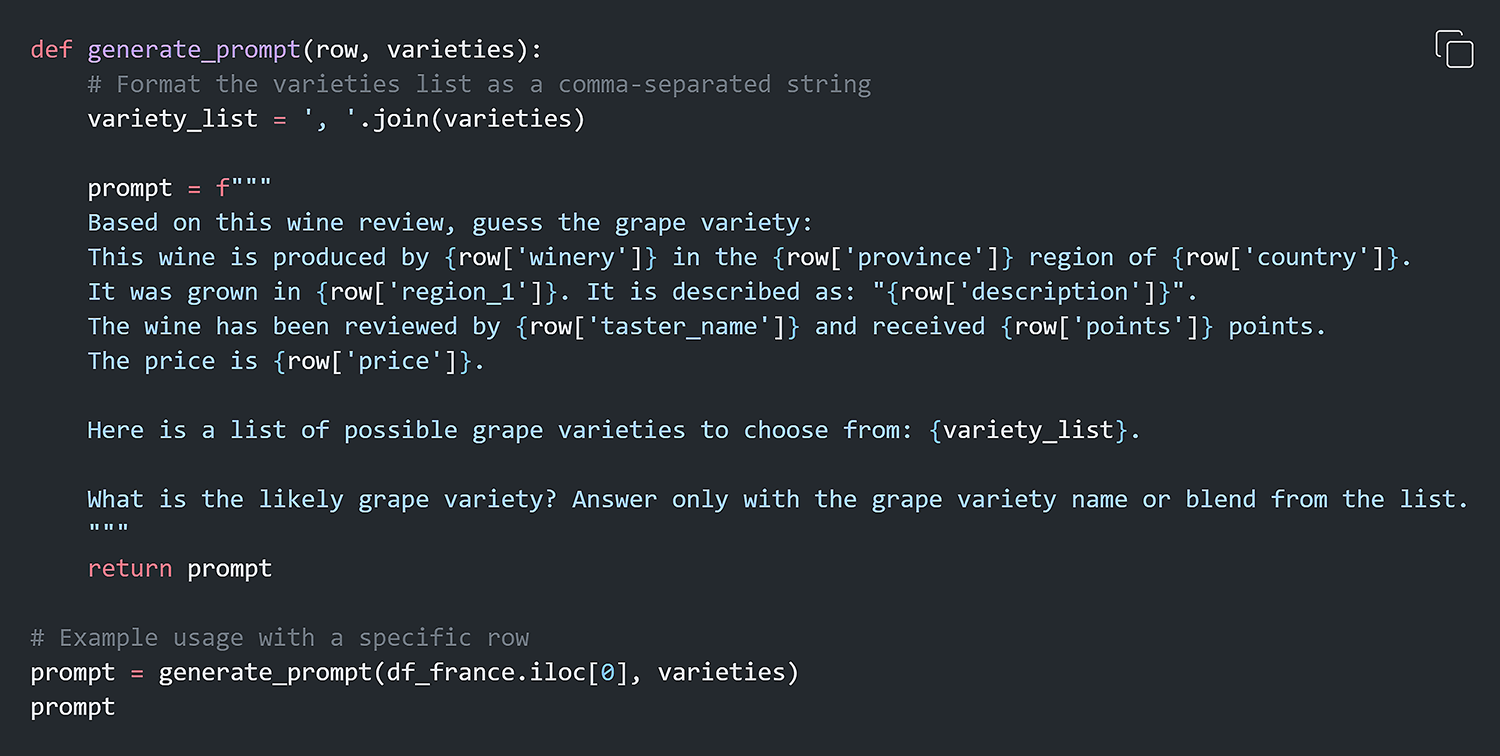
It’s similar to ChatGPT but more customizable—you can tweak parameters and compare different models.
So, if you want to see how GPT-4o responds to a prompt versus GPT-4o mini, OpenAI Playground makes it easy.
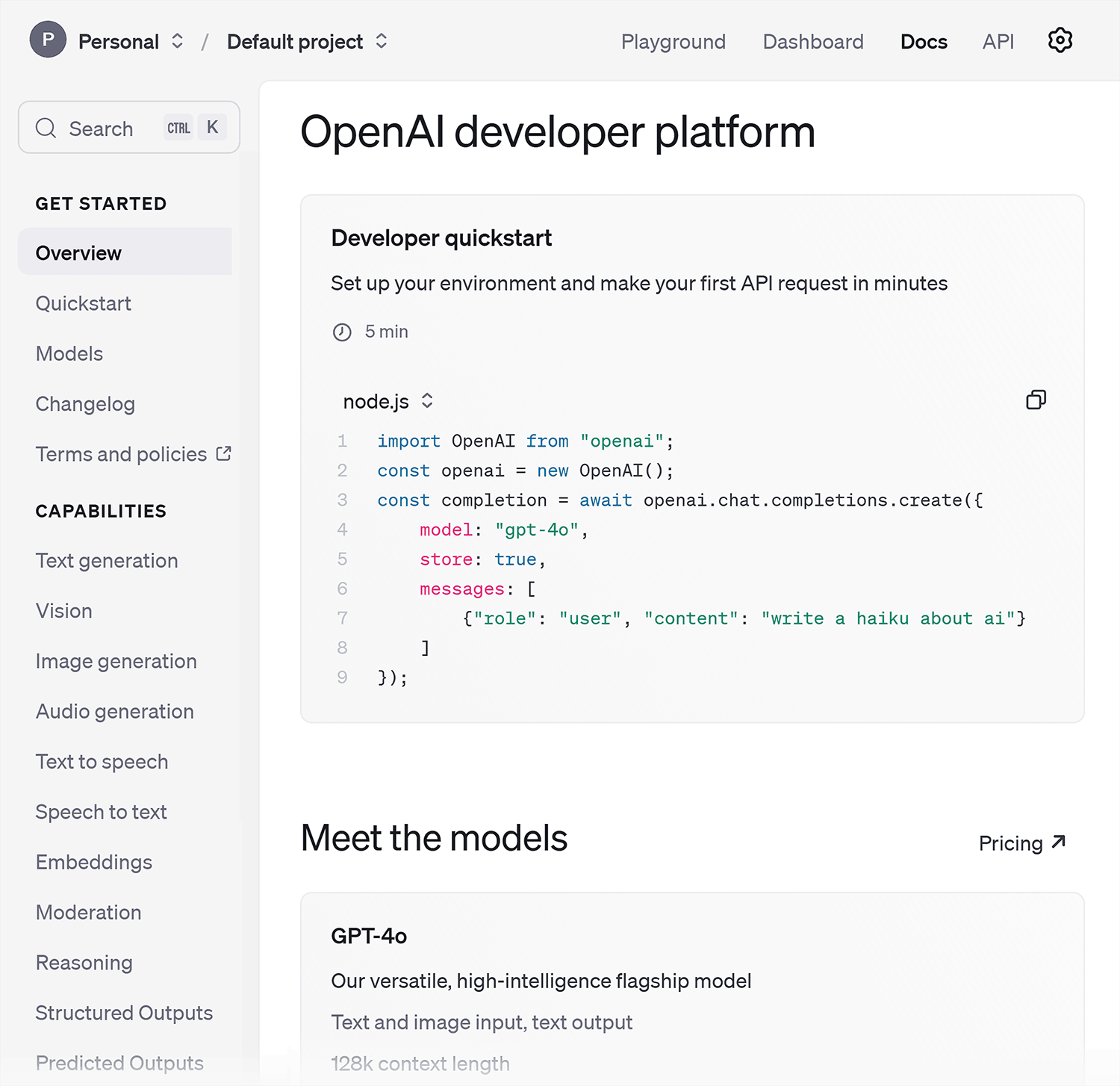
It’s a great tool for playing around with generative AI, even though it relies on the same models that power ChatGPT.
The main difference is the interface and level of control you have over testing.
Overall, OpenAI Playground and ChatGPT share the same DNA.
However, the Playground is definitely geared more toward developers who want fine-tuned control to test OpenAI’s tech.
Pricing:
- $5 in free credits to use before you need to upgrade (limits access to newer models)
- After that, you’ll need to pay for Playground tokens. For GPT-4o, the prompt price is $0.0025/1k input tokens.
7. GitHub Copilot
Best for software coding assistance
Tool Category: LLM for coding
Pros:
- It’s multilingual
- Great learning tool for beginner coders
- Reduces the number of coding errors you make
Cons:
- There’s a risk coders become too reliant on it and don’t create their own code bases
- Sometimes, it hallucinates and gives you the wrong code
- There are privacy and data concerns with sharing your code
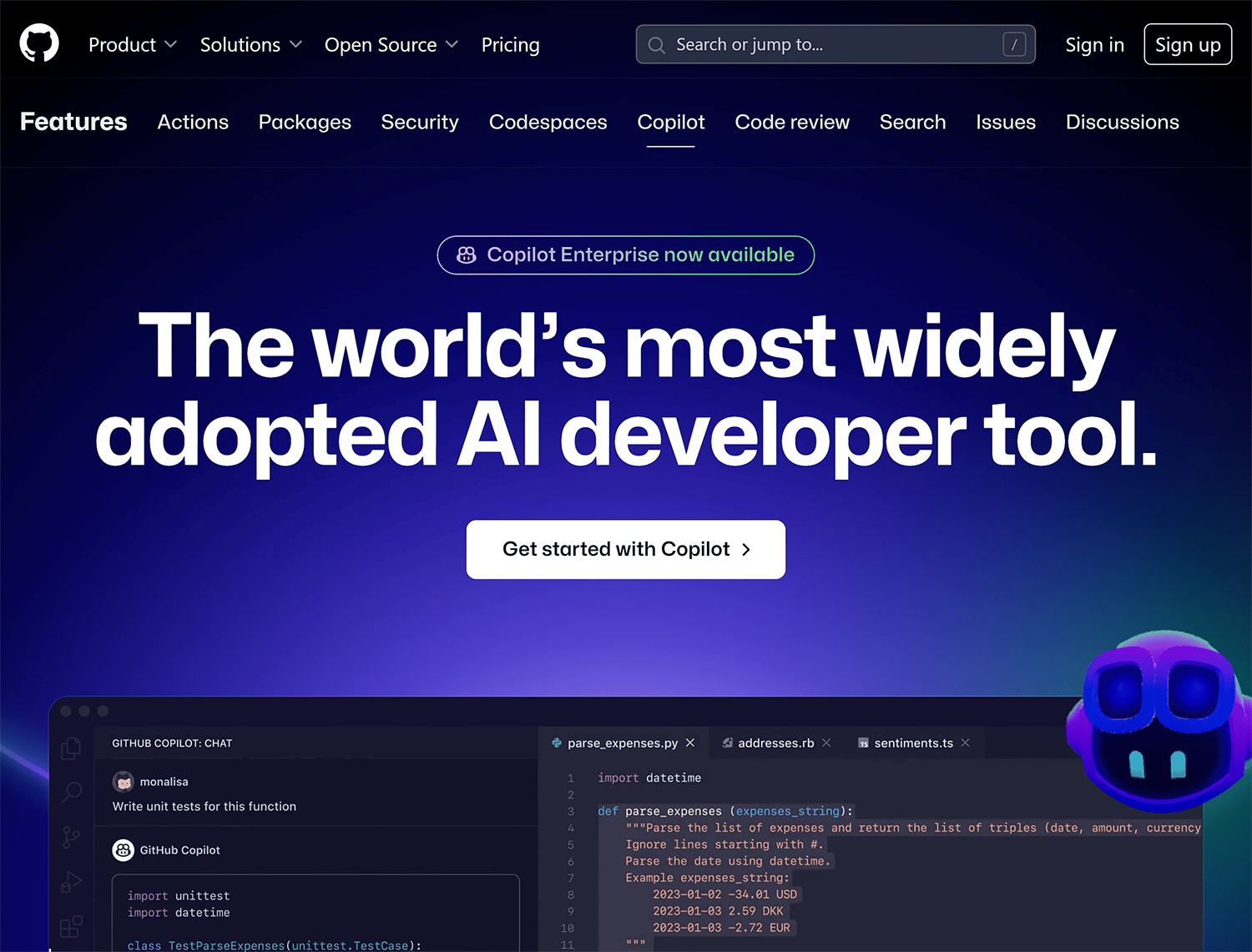
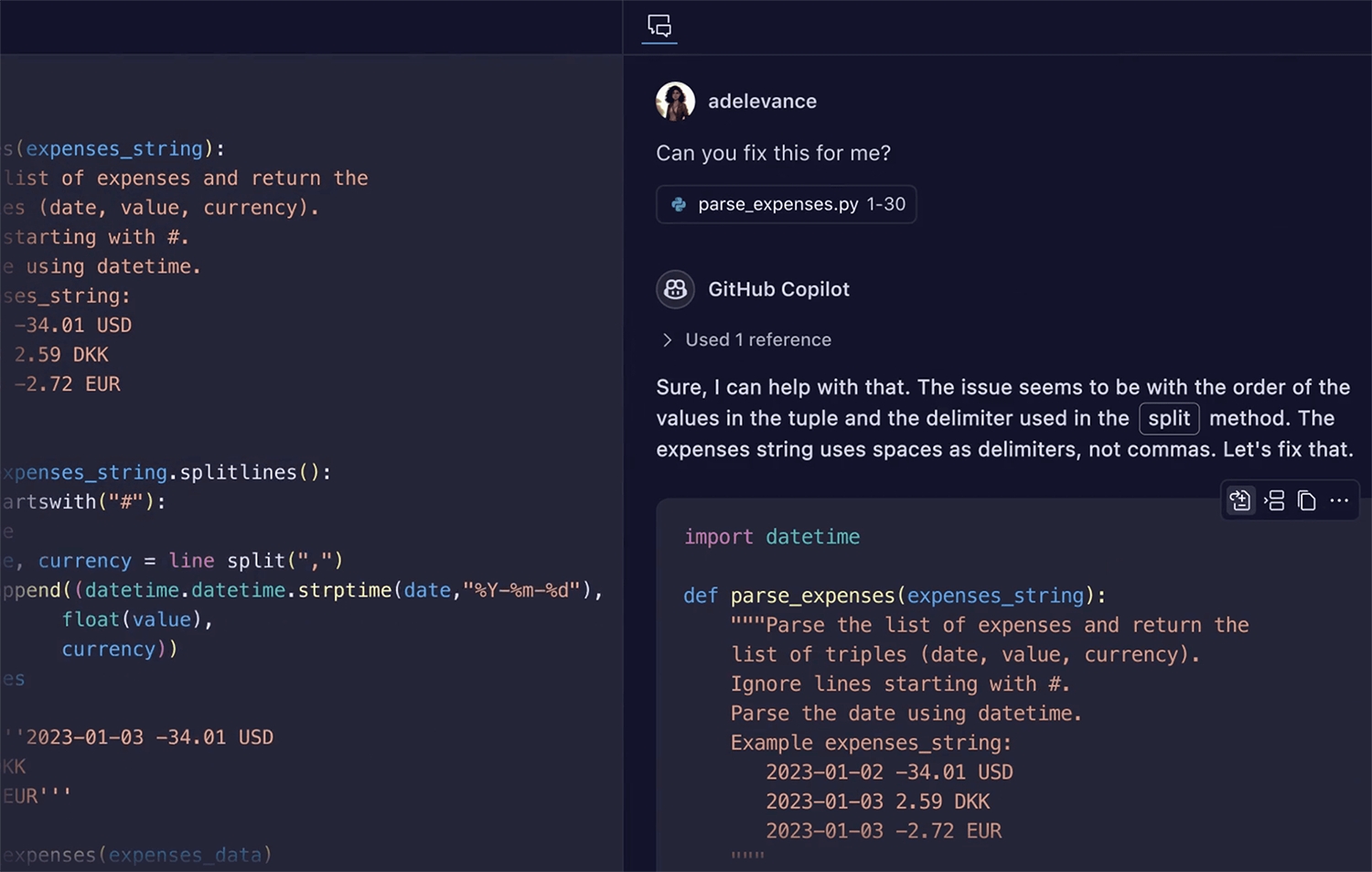
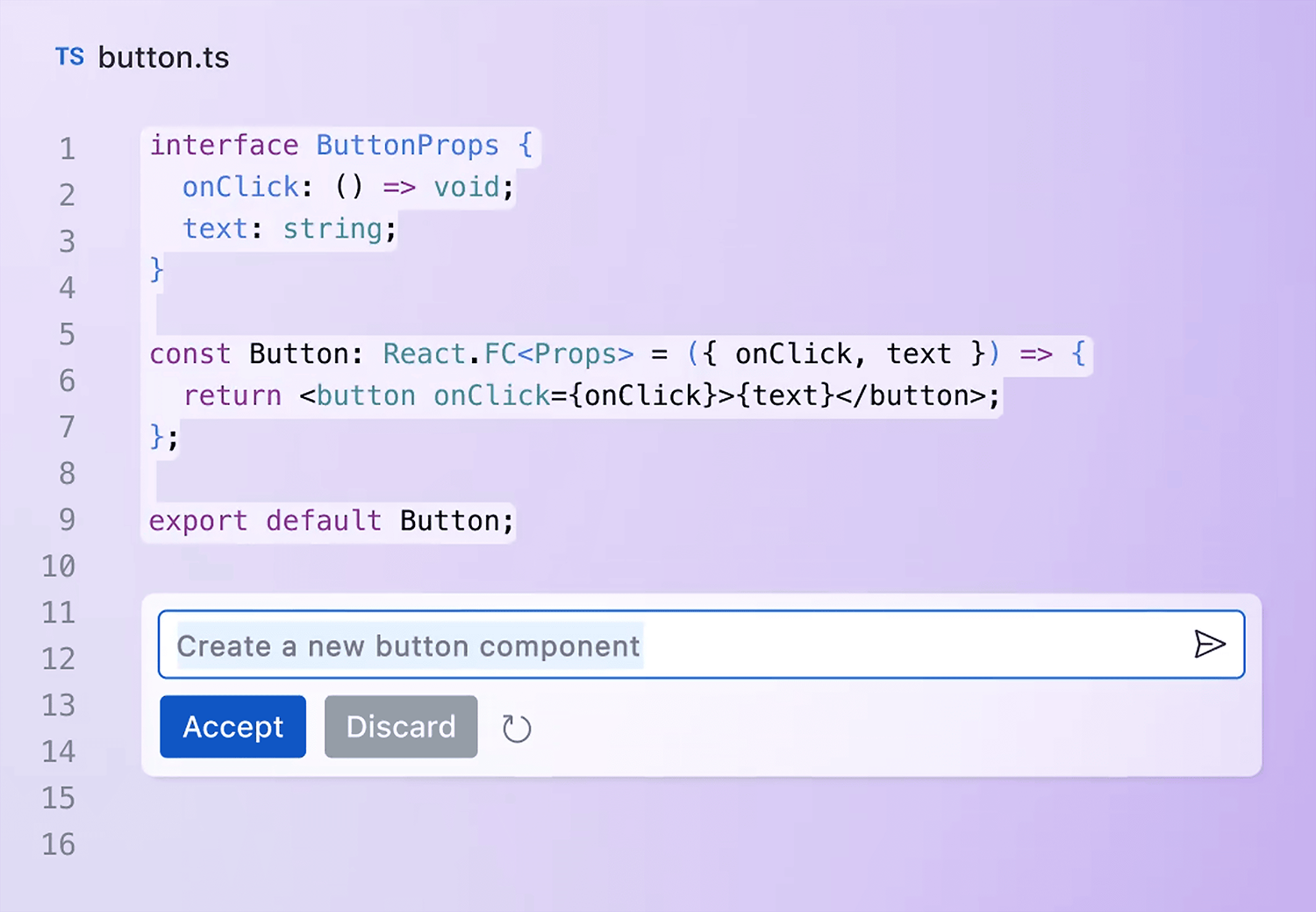
GitHub Copilot, developed by GitHub in collaboration with OpenAI, is an AI-powered code completion tool that assists developers in writing code.
The idea is that as you’re coding, Copilot will suggest relevant code snippets in context based on things like your comments, variable names, and overall code structure.
It aims to save developers time and reduce bugs by handling rote coding tasks.
Built on OpenAI’s powerful GPT-4o language model, Copilot has an impressive comprehension of code structure and patterns across dozens of programming languages.
It’s capable of suggesting completions for whole functions or classes after just a few lines.
Of course, being AI-generated means it’s not perfect—occasionally suggesting overly long or outdated snippets.
But the GitHub team is confident Copilot can continue training and improving. It’s certainly taken the developer market by storm.
While GitHub Copilot used to be a less conversational AI, which was a clear disadvantage to ChatGPT, it’s making strides in this area.
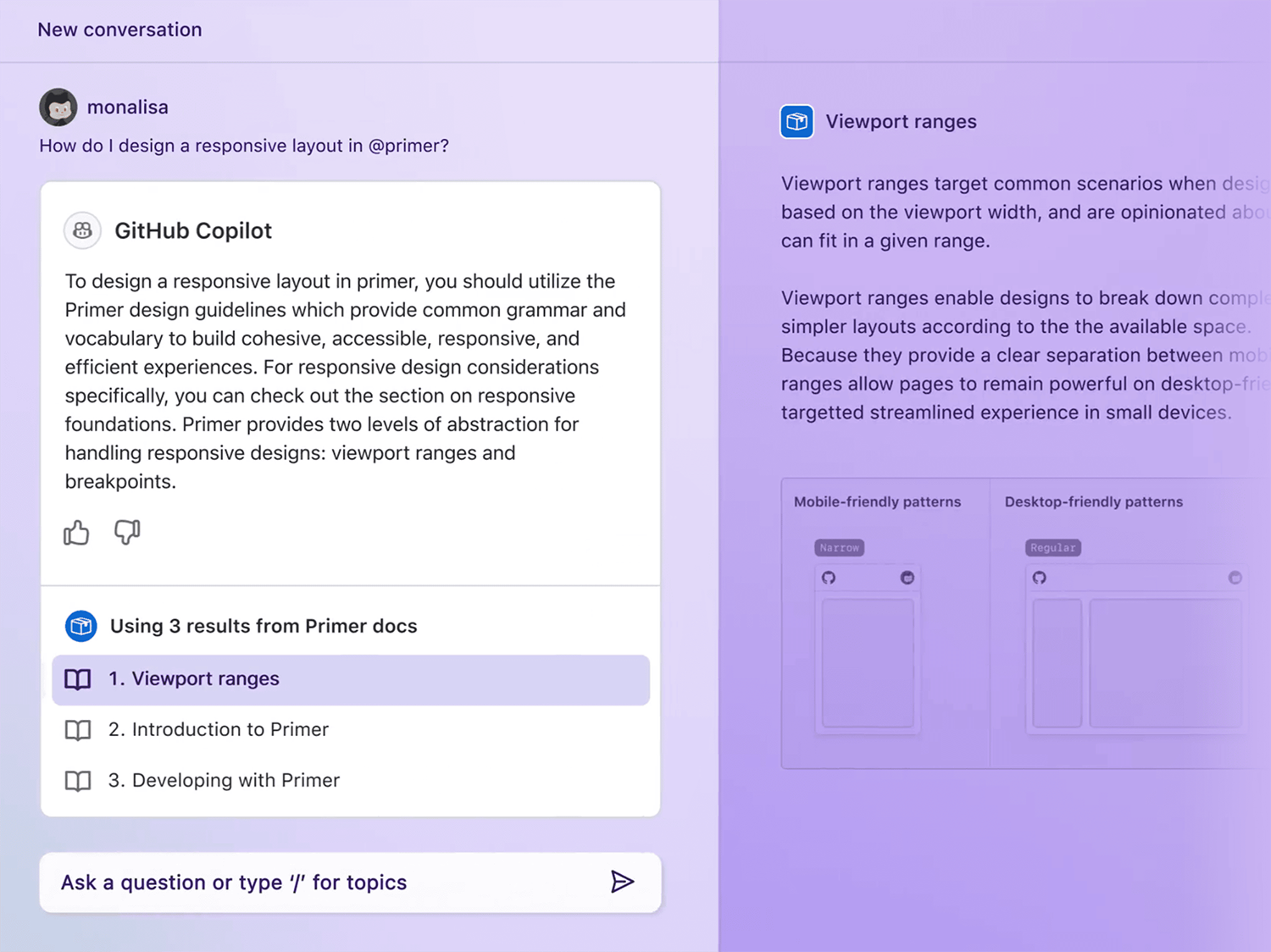
You can now ask it questions like “How do I design a responsive layout in Primer?” and you’ll get a detailed response.
It’ll even ask you follow-up questions to ensure it understands your prompt and generates the most appropriate and accurate response.
Pricing:
- Copilot Individual: $10/month
- Copilot Business: $19 user/month
8. WriteSonic
Best for developing a distinctive brand voice
Tool Category: Marketing and copywriting chatbot
Pros:
- It holds your brand data, so you don’t have to repeat prompts
- You can use writing templates
- Great for high-quality, long-form content up to 5,000 words
Cons:
- Your pricing plan is based on credits (each article costs 20 credits)
- Limited content templates mean you might not find ones relevant to your use cases
- It’s AI-written content and won’t pass all plagiarism tests
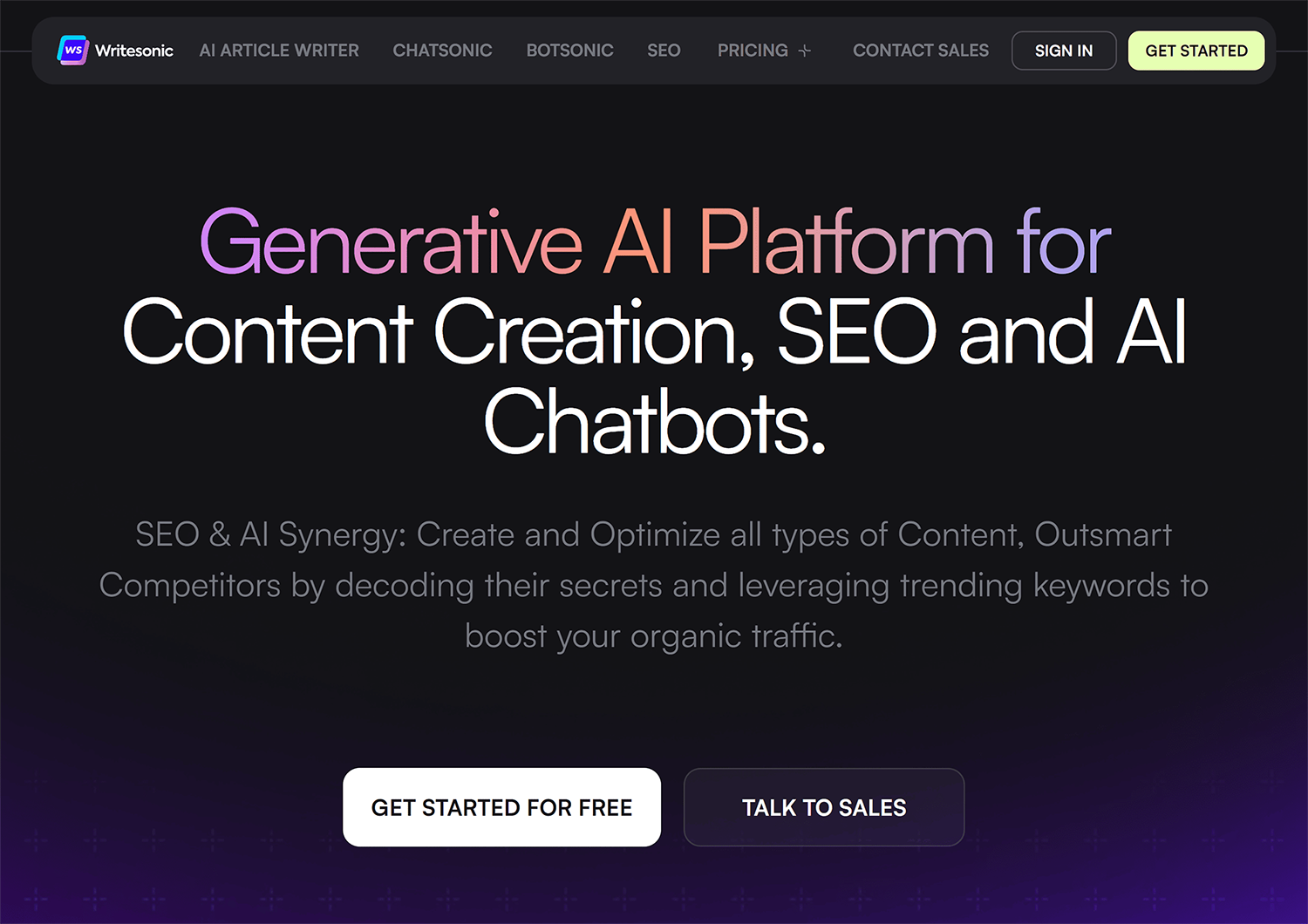
Writesonic is an AI writing tool specializing in marketing and business content.
It has templates and features to easily create ad copy, product descriptions, emails, blog posts, and more.
Writesonic also has some handy SEO features, like topic clustering:

With a paid plan, you can upload your existing content, and Writesonic will learn and emulate your brand voice.
It’s not as advanced as ChatGPT for complex problem-solving, but it’s great for rapidly generating all kinds of written content.
The Chatsonic feature works just like ChatGPT—users provide prompts to generate everything from meta descriptions to social media posts.

The catch is that each article costs 20 credits, and the lowest-priced plan only comes with 100 credits.
This means you’ll eat up your credits quickly if you produce a lot of content (and will need to pay considerably more per month).
Pricing:
- Free limited plan: Includes 25 total credits
- Individual: $20/month for 100 credits
- Standard: $99/month for 1,000 credits
- Professional: $249/month for three users and 3,000 credits
- Advanced: $499/month for five users and 6,500 credits
Further reading: How to QA AI-generated content: A complete workflow
9. Grok
Best for obtaining current information
Tool Category: Conversational Chatbot

Pros:
- Real-time data access from X (formerly Twitter)
- Strong creative writing ability
Cons:
- Access to all Grok features requires an X Premium membership
- Since it’s trained on data from X, it’s questionable how factually correct it is
- Has the potential to be offensive
Initially called “TruthGPT,” Elon Musk’s Grok AI, a product of his xAI startup, is an AI chatbot that’s growing in interest due to its unique take on the typical LLM.
Critics argue that Grok’s reliability is questionable at best, given that its training data comes from X (previously known as Twitter), which includes tweets and thread data that are not verified for accuracy.

The key benefit of Grok comes from its access to X’s latest data, making it a useful—but not completely reliable—chatbot for inquiries about current events.
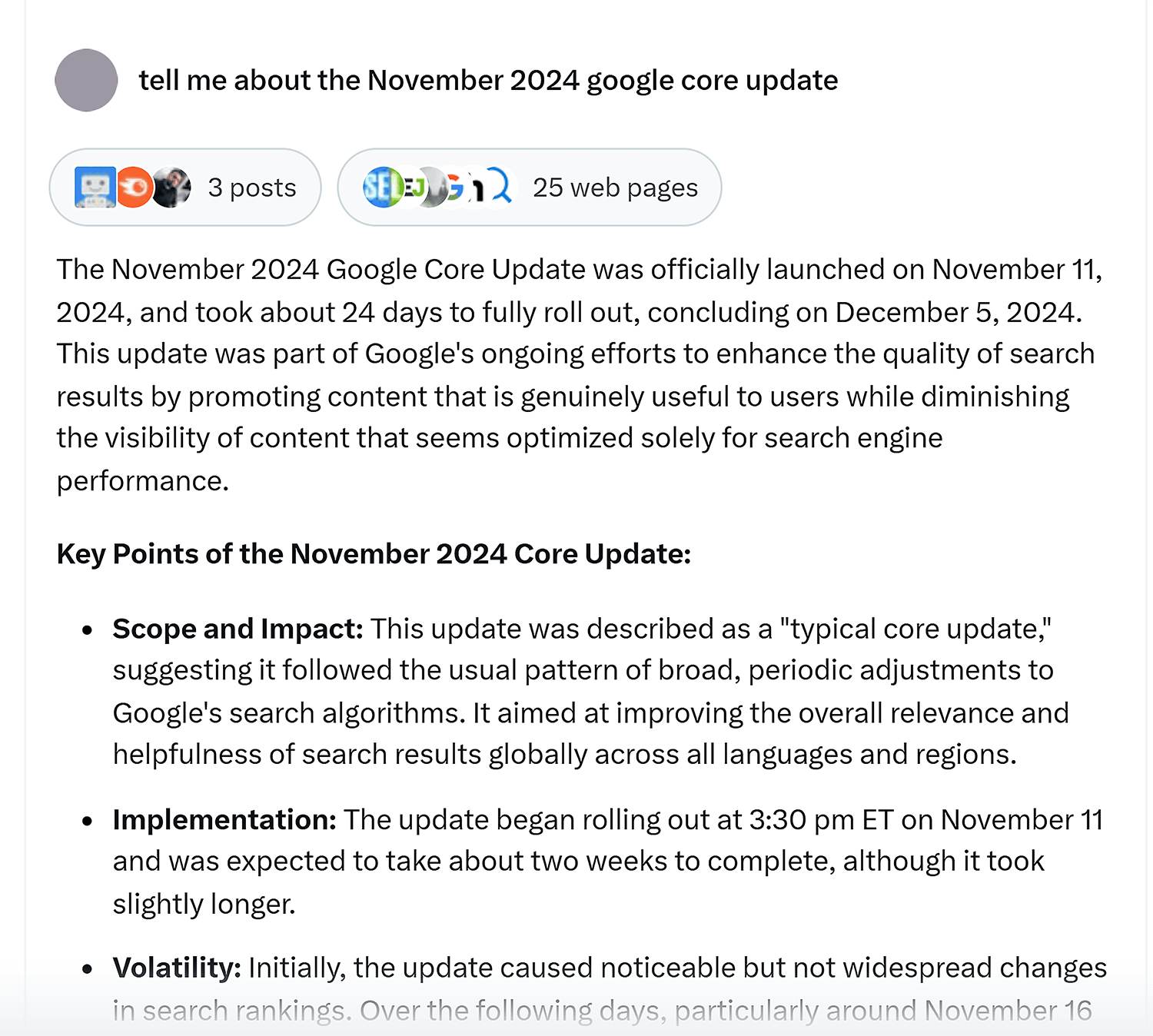
While Grok can also generate images, they’re not quite publish-worthy just yet.
When given the same prompt we used with Microsoft’s Copilot and ChatGPT, the result featured hilariously large desk plant and there were no computer.

While it can be helpful for quick questions, news summaries, and writing tasks, you’ll have more luck using other ChatGPT alternatives like Claude and Microsoft Copilot for complex tasks.
Grok 3 is currently available via X (Twitter) subscription.
Pricing:
- Free with usage limits
- X Premium: $7/month
- Premium Plus: $14/month
10. Character.AI
Best for fun brand interactions with virtual characters
Tool Category: LLM Entertainment
Pros:
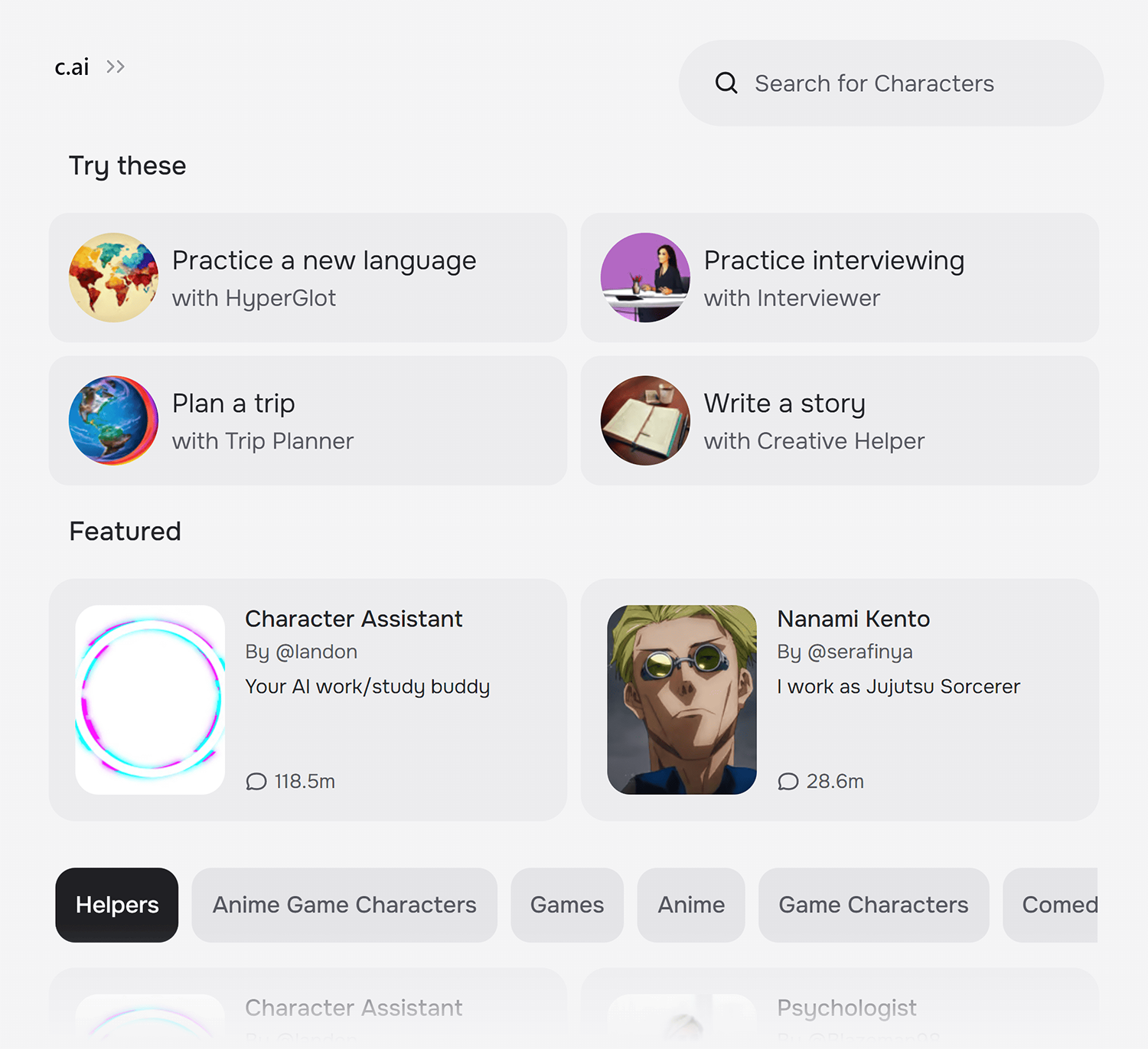
- Chat with thousands of different real-life characters or create your own
- Great for creating brand persona or mascot replies for social media
- No ads or card payment process needed
Cons:
- Conversations can get repetitive
- Limited real-world practicality
- It’s not a productivity tool or problem solver
Character.AI is a chatbot service that creates AI companions to have natural conversations with.
Practice interviewing for a job, brainstorming ideas, or chatting in a new language to level up your skills.
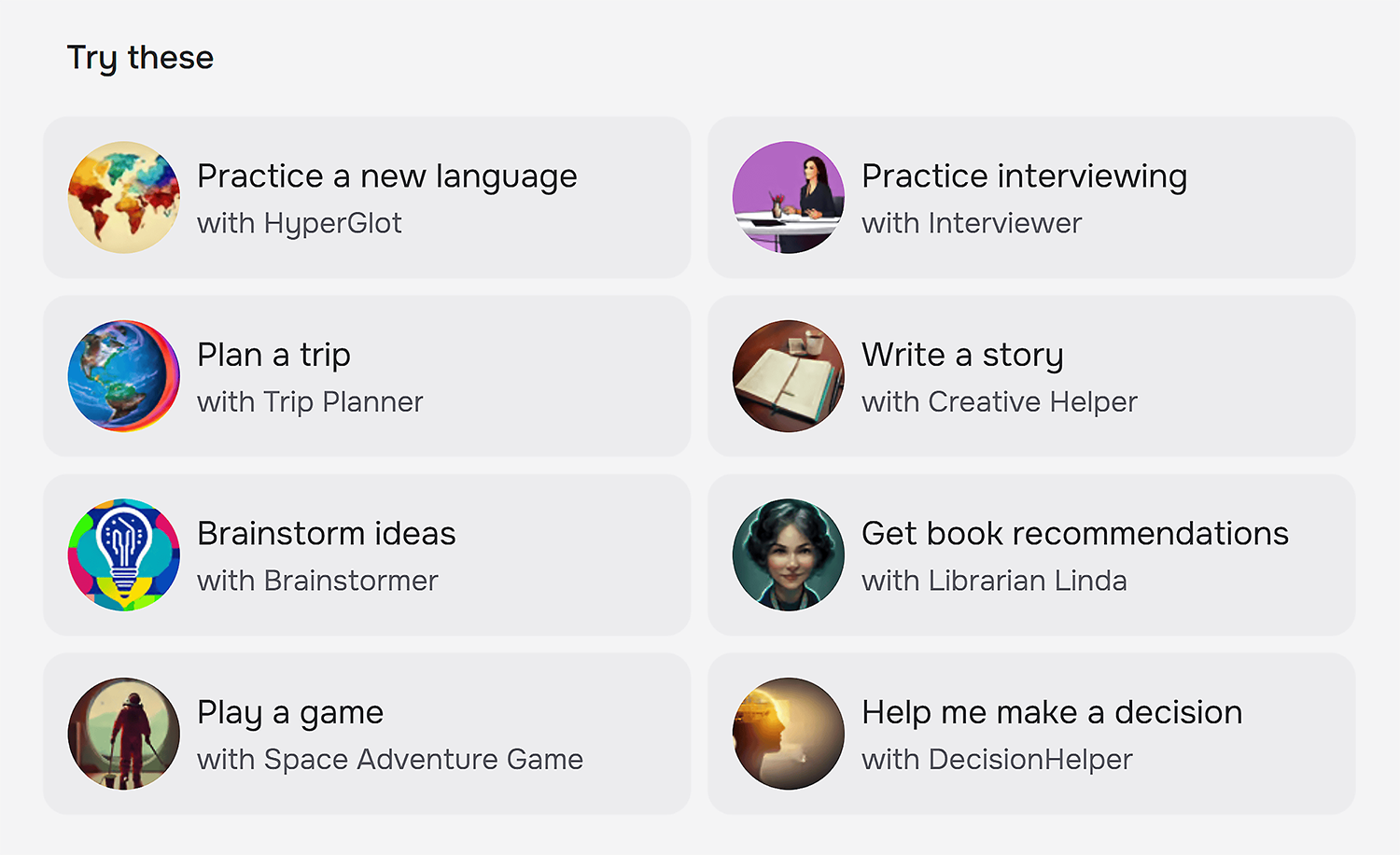
It offers “characters” with their own personalities that can talk to you just like a real person.
For example, you can chat with a simulated celebrity like Elon Musk or a fictional character like Harry Potter.
The characters are customized to speak in their own voices and remember details about you.
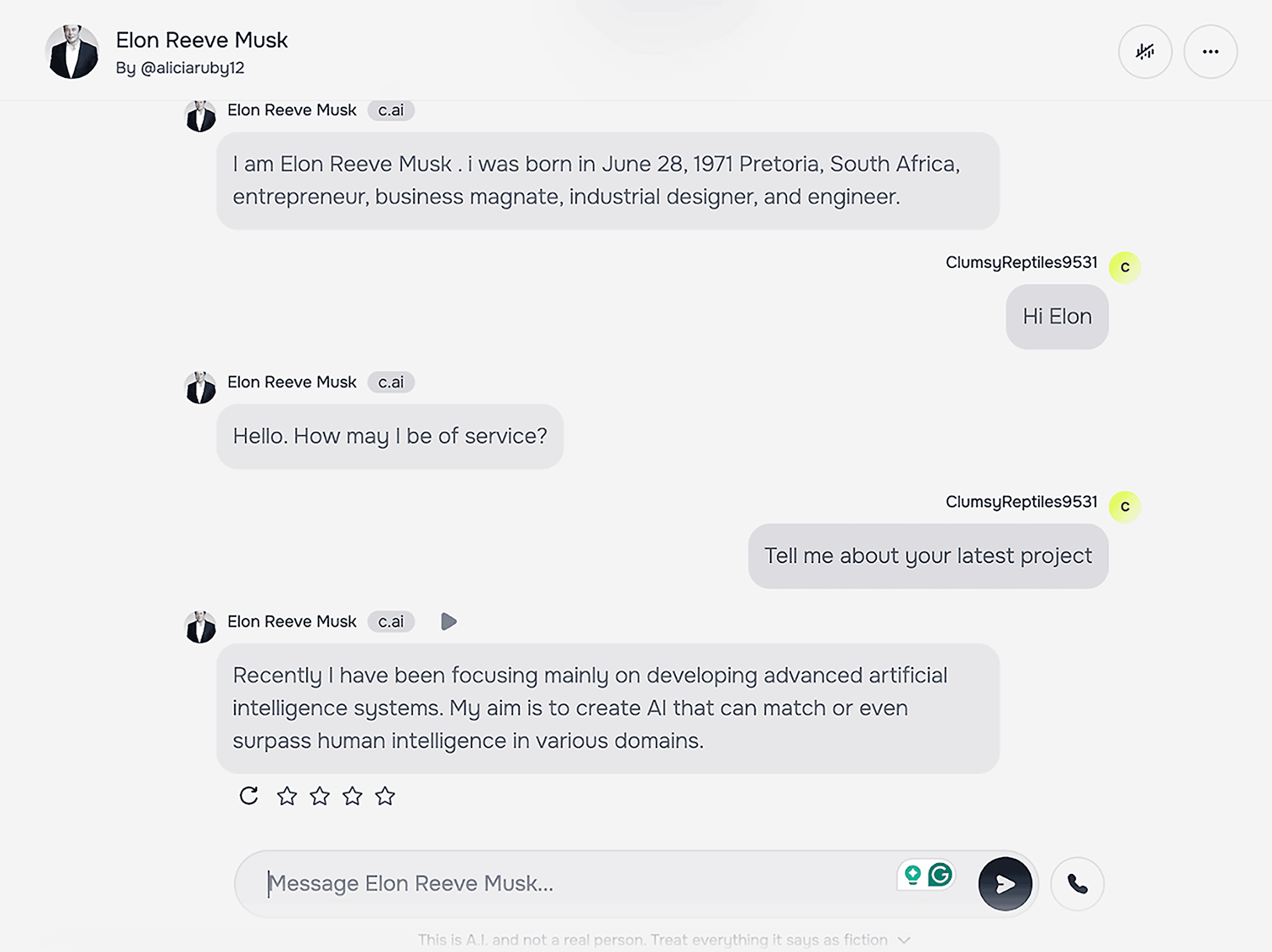
Character.AI aims to make conversations feel really human and responsive but warns users that “this is AI and not a real person. Treat everything it says as fiction.”
It also lets you create a custom AI assistant.
So, you could use it to create an AI character that represents your brand mascot or persona to interact with customers on social media and through email.
For instance, it could help you answer FAQs, provide recommendations, reply to emails, or simply engage in fun, brand-aligned conversations.
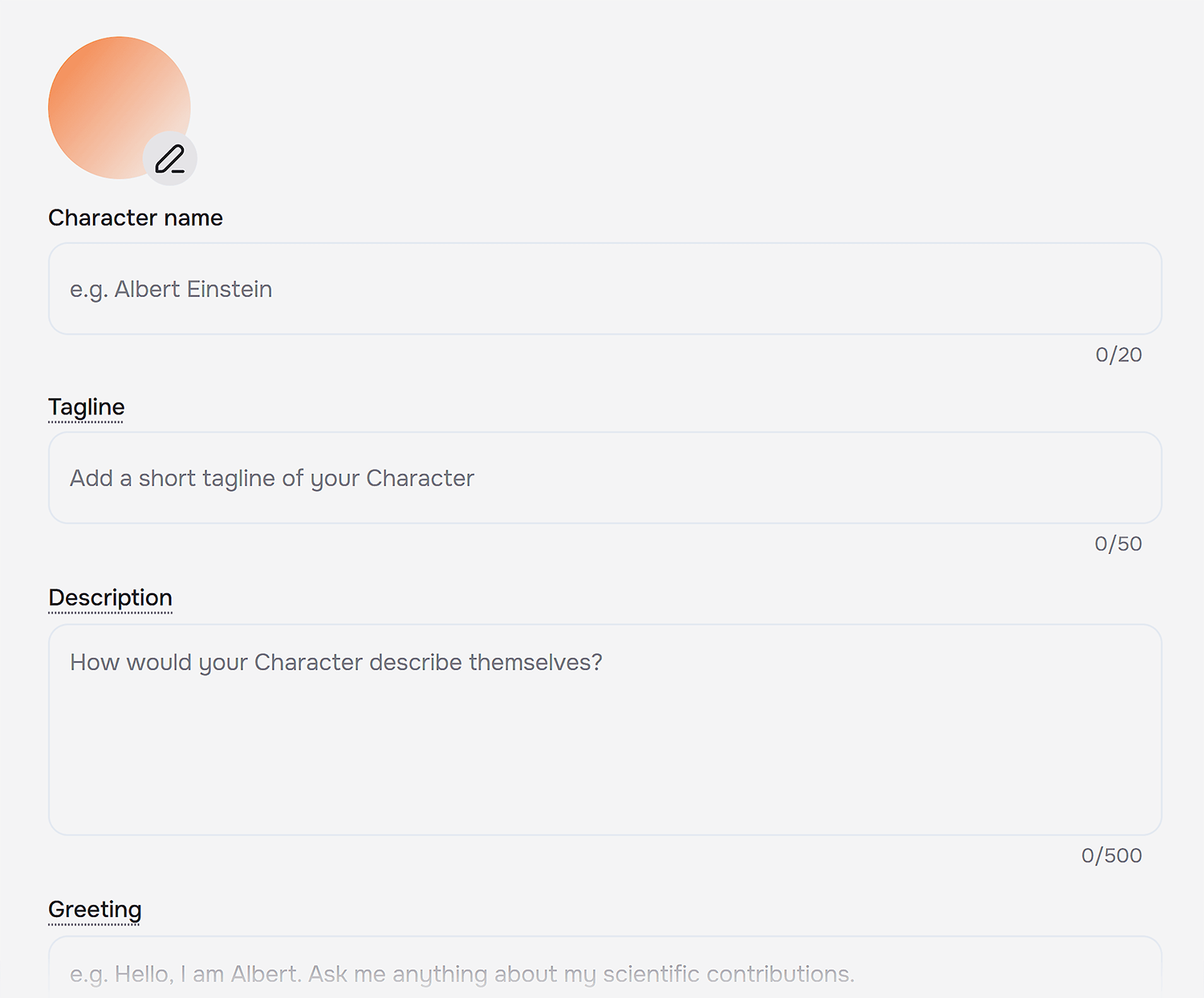
You can even create a custom brand voice for your character.
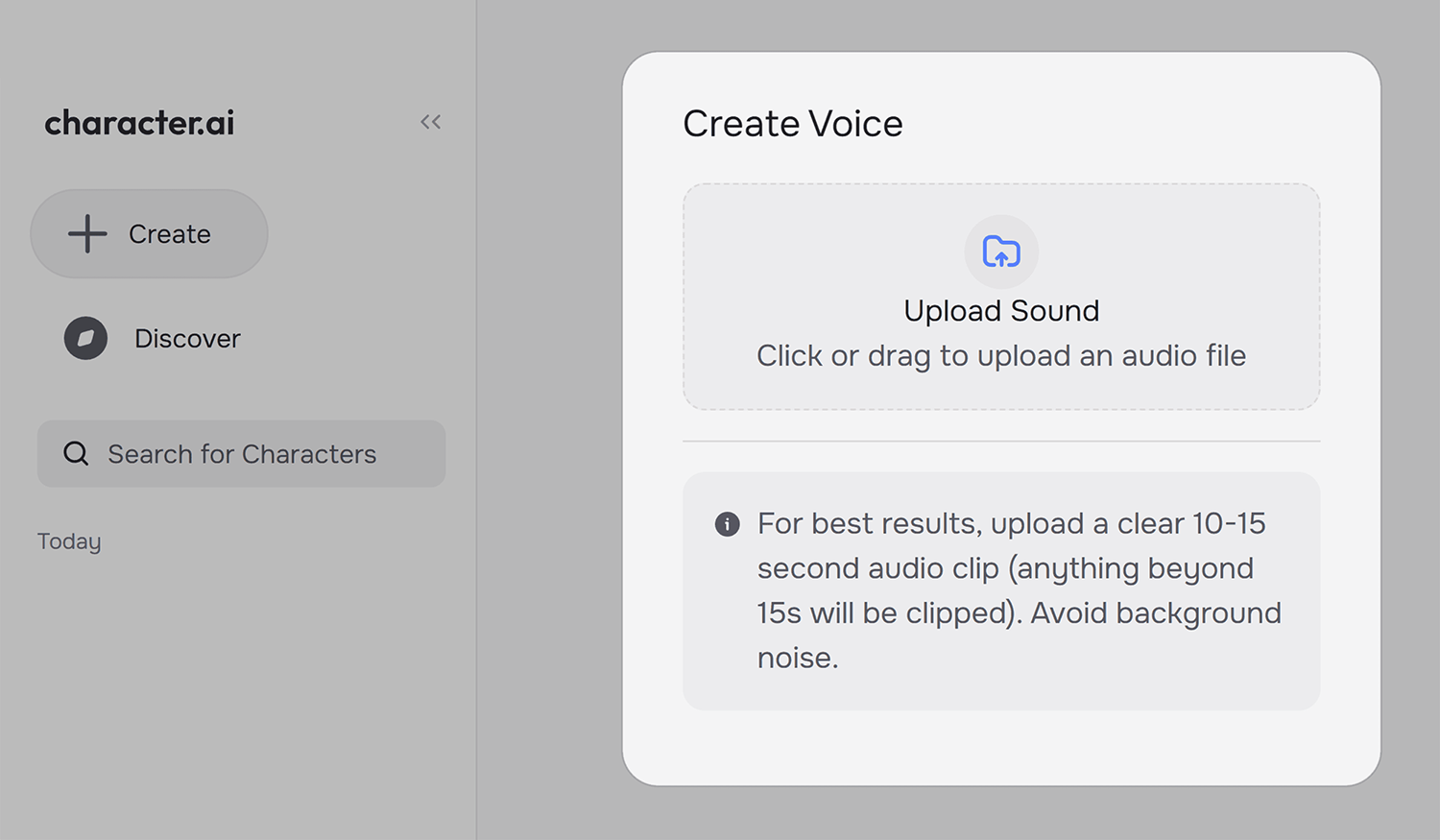
CharacterAI is pretty different from ChatGPT, but it offers a unique way to bring your brand to life.
Pricing:
- Free limited plan
- Premium: $9.99/month
11. AnonChatGPT
Best for anonymous use of GPT technologies
Tool Category: Anonymous Large Language Model
Pros:
- No need to share your private data
- Not bad for anonymous coding
- No ads or card payment process needed
Cons:
- Hidden character and word limit
- It uses GPT 3.5
- It’s not multimodal
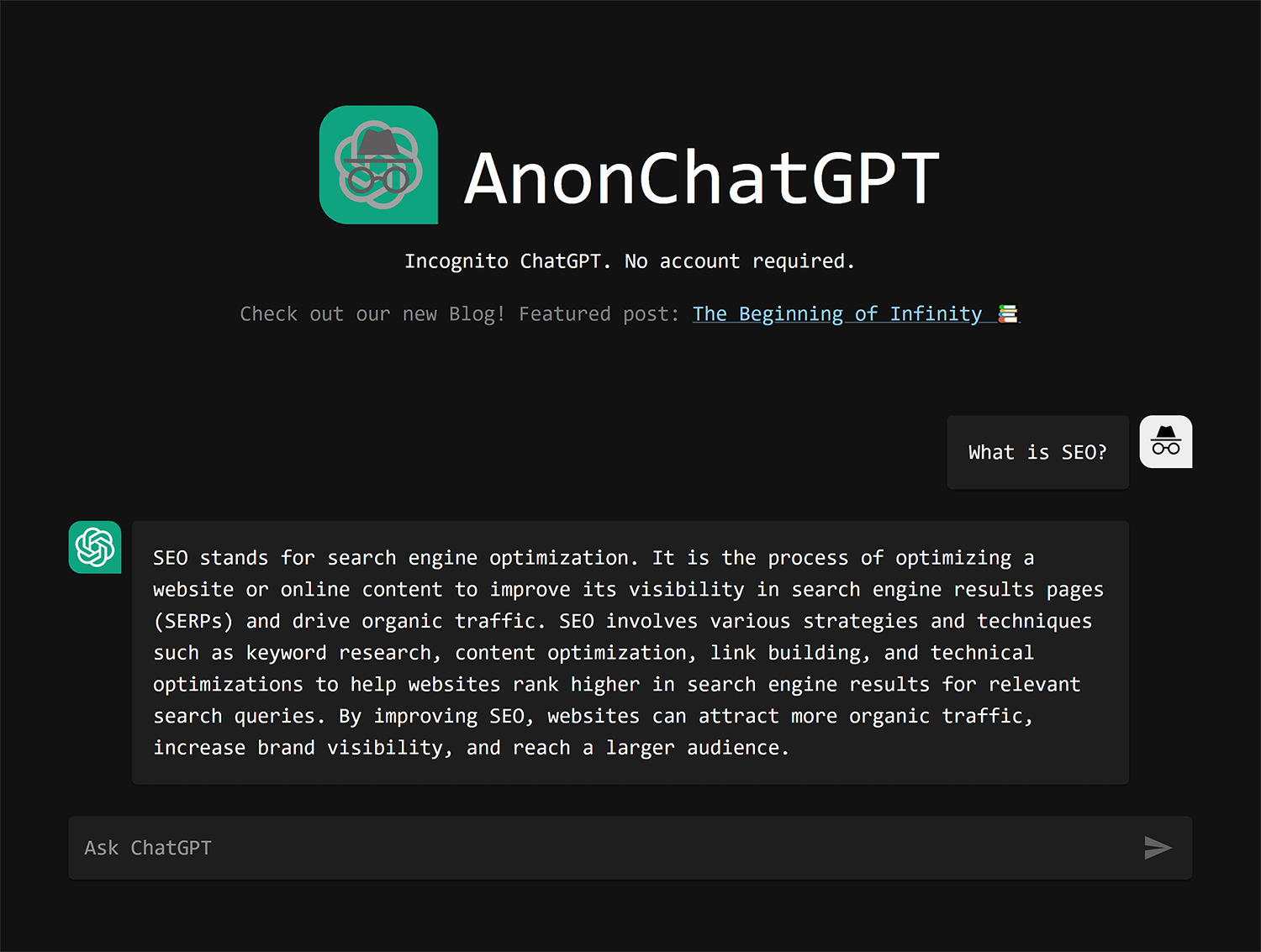
AnonChatGPT is an anonymous AI chatbot that doesn’t require signing up or providing any personal information before chatting.
The chatbot is powered by OpenAI’s GPT-3.5, so it’s a little behind the rest of the models, but if you’re looking for a secure alternative, this could definitely be the model for you.
A defining feature of AnonChatGPT is the emphasis on user privacy.
Chats are not logged, stored, or shared by the service.
The goal is to create an open environment for AI conversations without collecting personal data.
Pricing:
- Free
17 ChatGPT alternatives that didn’t make the list
- Llama: A family of models built by the Meta team; valued for its open-source framework
- You.com: A Perplexity alternative; best for doing deep dives on the internet with referenced articles
- HuggingChat: Created by the GenAI hosting company HuggingFace; best for choosing multiple different LLM options at once
- Poe: Not actually an LLM itself; a hub where you can choose multiple chatbots such as ChatGPT, Claude, Sage, and DragonFly and switch between them super easily
- Socratic: Built by Google; best for helping you with research or educational work
- Khanmigo: Built by the Khan Academy; best for learning
- Amazon Q Developer: Another great option built by Amazon for coding autocompletion
- Pi.ai: Built by Inflection AI, best for minimalist personal use (has a great UI)
- Jasper AI: Built for marketing teams; best for generating on-brand marketing copy, ads, and content at scale
- Copy.ai: An AI writing assistant; best for generating short-form sales and marketing copy like emails, social posts, and product descriptions
- NotebookLM by Google: Built by Google; best for uploading your own sources and having AI summarize, explain, and answer questions grounded in your documents
- DeepAI: A free, no-signup AI toolkit; best for quick image generation and simple chat without the overhead of creating an account
- Cohere (Command R+): Built by Cohere for enterprise use; best for retrieval-augmented generation (RAG) and working with long documents
- Neural.love: An AI media toolkit; best for image generation, video enhancement, and upscaling existing photos or art
- Deepseek: Built by a Chinese AI lab; a strong open-source reasoning model that rivals top competitors at a fraction of the cost
- Otter.ai: An AI meeting assistant; best for real-time transcription, meeting notes, and automated summaries of conversations
- ClickUp AI: Built into the ClickUp project management platform; best for automating task summaries, writing project docs, and managing workflows within ClickUp
Further reading: 7 powerful AI marketing tools you need (tested)
Choose the best ChatGPT alternative for your use case
Choosing the “best” ChatGPT alternative isn’t one size fits all.
It depends on your budget, the size of your organization, and how well the tool aligns with your needs.
You might even end up using multiple tools, depending on the task.
Still unsure?
Start by exploring how ChatGPT can supercharge SEO tasks.
Once you see what’s possible, you’ll know exactly what to look for in an LLM—and how to use these tools to crush your business and personal goals.
Explore more on
Editorial disclosure
Search Engine Land is owned by Semrush. We remain committed to providing high-quality coverage of marketing topics. Unless otherwise noted, this page’s content was written by either an employee or a paid contractor of Semrush Inc.
About the author