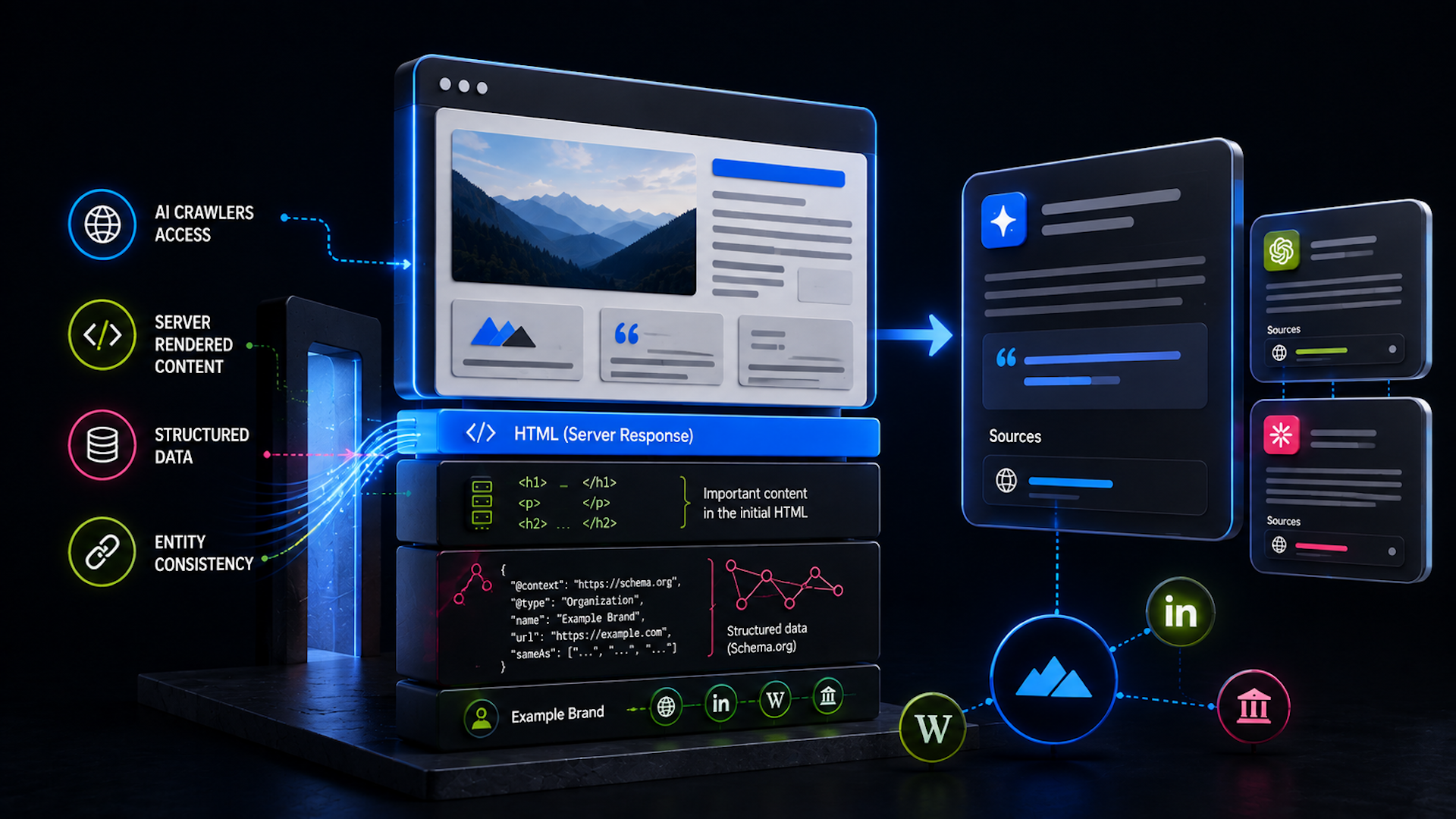
Tools and software to manage AI crawlers accessing your site

Managing AI crawler access goes much deeper than just clicking a toggle to allow or deny them access to your site. You need to control which bots are crawling your content, how they’re interacting with your site, and which parts of your site they can freely access.
The tools below will help you tackle the two main challenges of AI crawler regulation:
- Making your content easily crawlable for AI systems
- Blocking or limiting access to crawlers you’d rather keep out
We’ll look at the best tools for AI crawlability and SEO, JavaScript rendering, page load and site speed, and more.
The SEO toolkit you know, plus the AI visibility data you need.

AI crawlability and technical SEO tools
Before you start blocking or allowing specific crawlers, you need to know if they can even properly access your content. These tools help you identify technical issues that might prevent AI crawlers from understanding your site — issues like JavaScript rendering problems and slow load times that cause incomplete crawls.
Google Search Console
Google Search Console is one of the most valuable tools available for understanding crawler behavior, even if Googlebot isn’t technically an “AI crawler.”
Why?
Googlebot crawls content that can be used across traditional search results and AI-powered features like AI Overviews, making it a reliable proxy for how other AI systems might interact with your site.
The URL Inspection tool shows you exactly what Googlebot sees when it renders your pages.
Head to Search Console and input any URL from your site into the URL inspection bar:
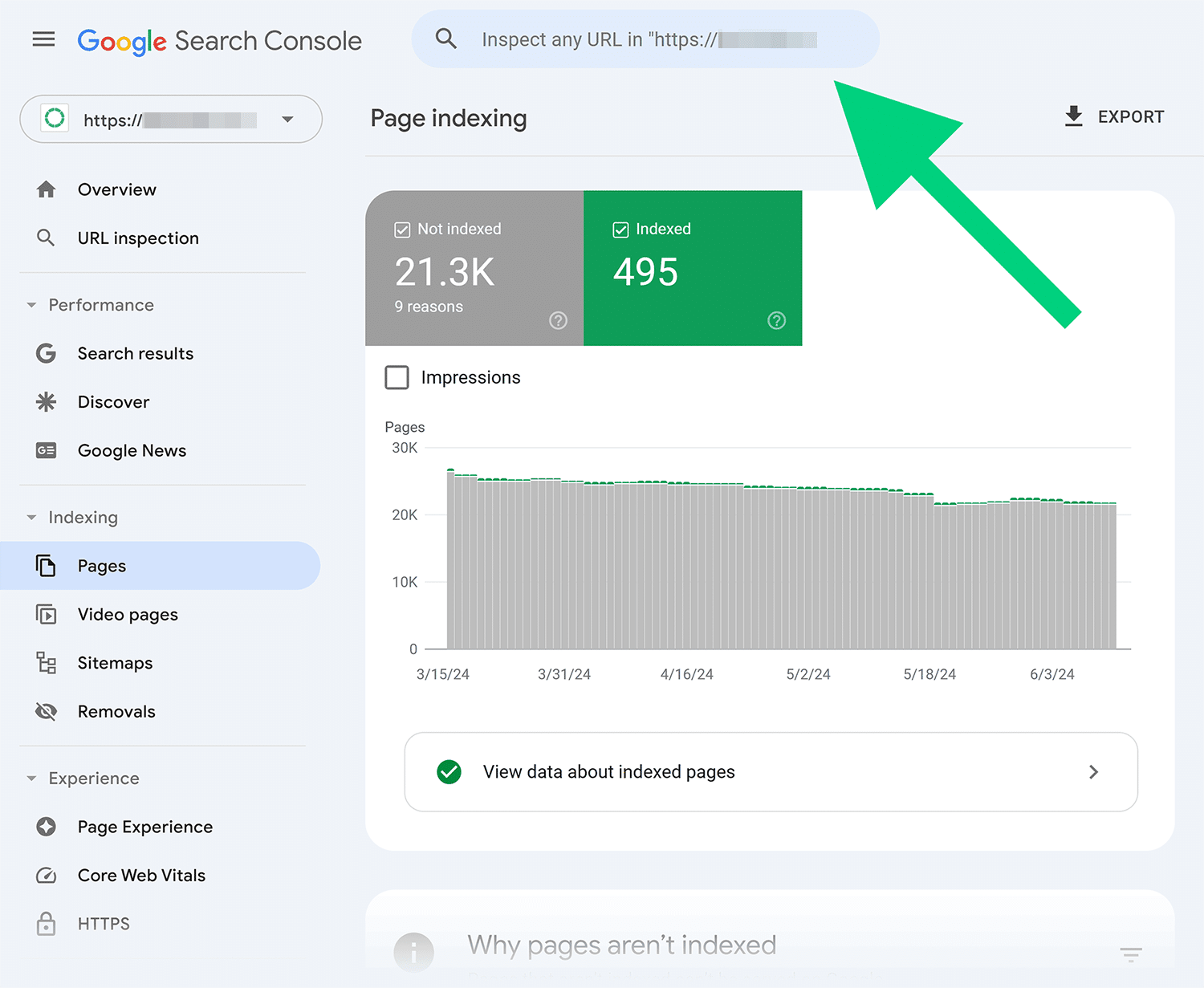
Once you hit “Enter,” you’ll get some details about the rendered HTML, which helps you spot content that might be hidden in JavaScript or blocked by your site’s configuration.
Pay attention to the “View Crawled Page” option in the inspection results:

This shows you three critical views: the crawled page (raw HTML), the screenshot of how Googlebot rendered it, and more info about the page resources. If there’s a significant difference between what you see in your browser and what Googlebot renders, AI crawlers are probably missing that content, too.
For ongoing monitoring, check the “Pages” report to identify pages that Googlebot couldn’t crawl:

Common issues like server errors, redirect chains, or blocked resources will appear in the Pages report:
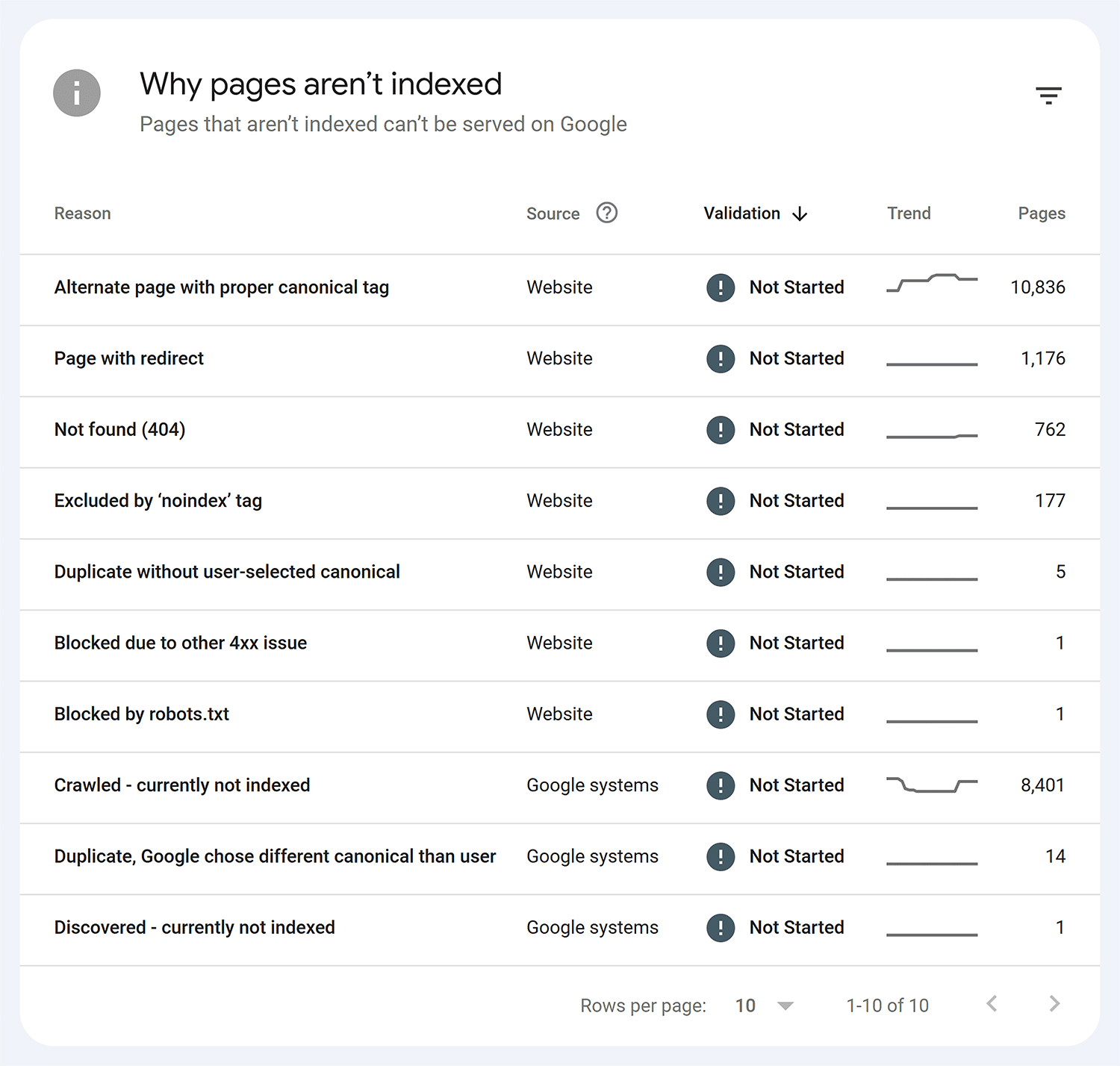
Since AI web crawlers often follow crawling patterns similar to traditional search bots, fixing these issues improves access for both.
Dig deeper: Indexability: Make sure search engines can actually find and rank you
Semrush Site Audit
Semrush’s Site Audit tool includes specific checks for AI crawler accessibility through its “AI Search Health” report.

This report analyzes your site’s technical foundation, examining structured data implementation, content accessibility, and rendering issues that could limit how well AI systems understand your content.
To run a site audit that includes AI search health, set up a new project in Site Audit and consider enabling JavaScript rendering in your crawl settings, if available on your plan:
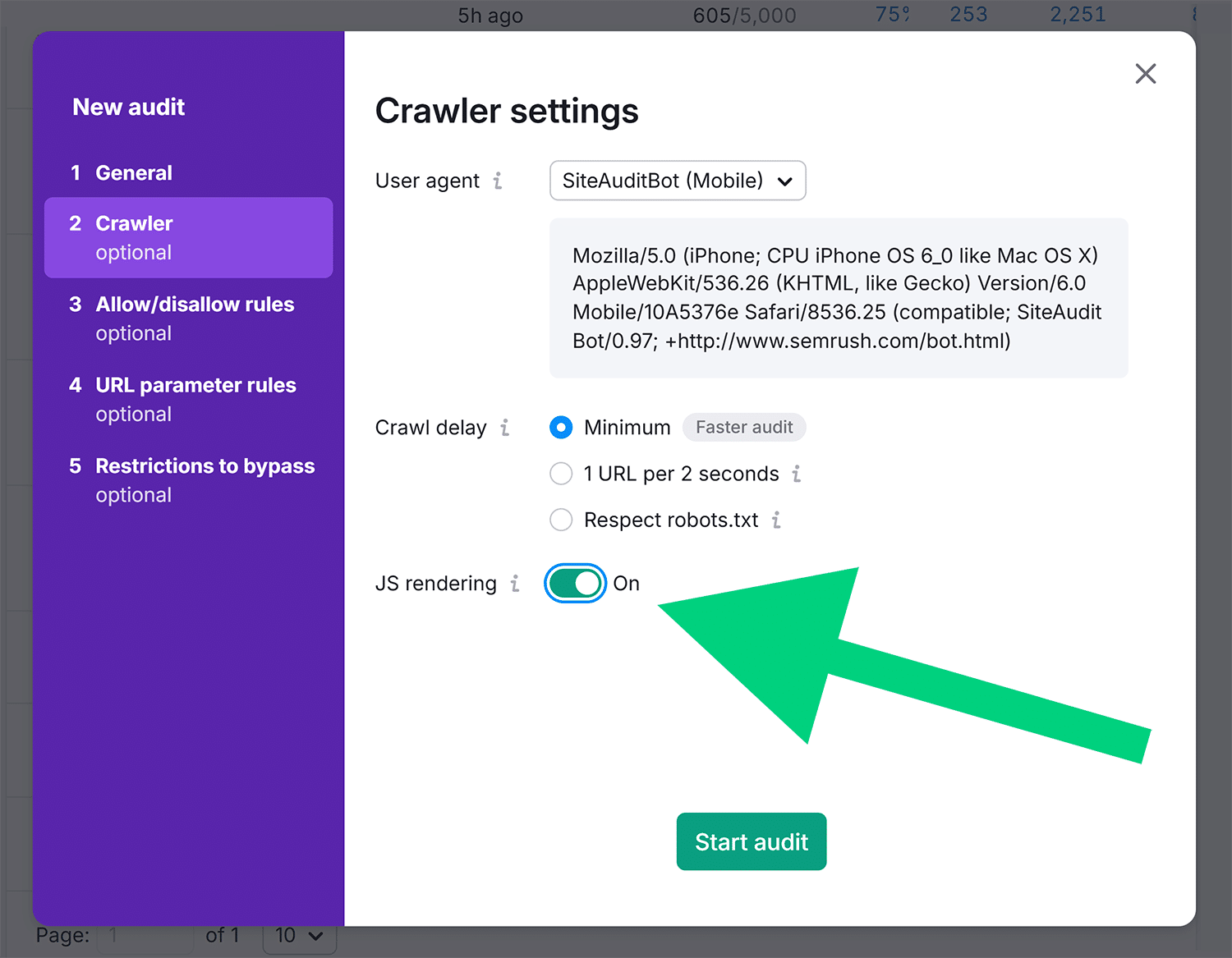
When “JS rendering” is enabled, the crawler uses the same Chromium rendering engine that Google uses, giving you a good sense of how well-resourced crawlers will see your content. When disabled, you’ll see what crawlers with limited JavaScript capabilities can access. This helps you decide whether you need to implement server-side rendering or dynamic rendering for better crawler compatibility.
Also in the crawler settings, you can select which user agent to crawl with, including AI-related user agents such as OAI-Search, which can approximate how OpenAI systems may crawl your site.
After running your audit, check the “AI Search Health” widget in your “Site Audit” dashboard. This score reflects how optimized your website is for AI search, based on factors including crawlability, structured data, internal linking, and site performance.

The dashboard also includes a “Blocked from AI Search” widget that shows which AI bots are currently blocked from accessing your content. Blocking these bots prevents your content from appearing in AI-driven answers, limiting your visibility in generative search.
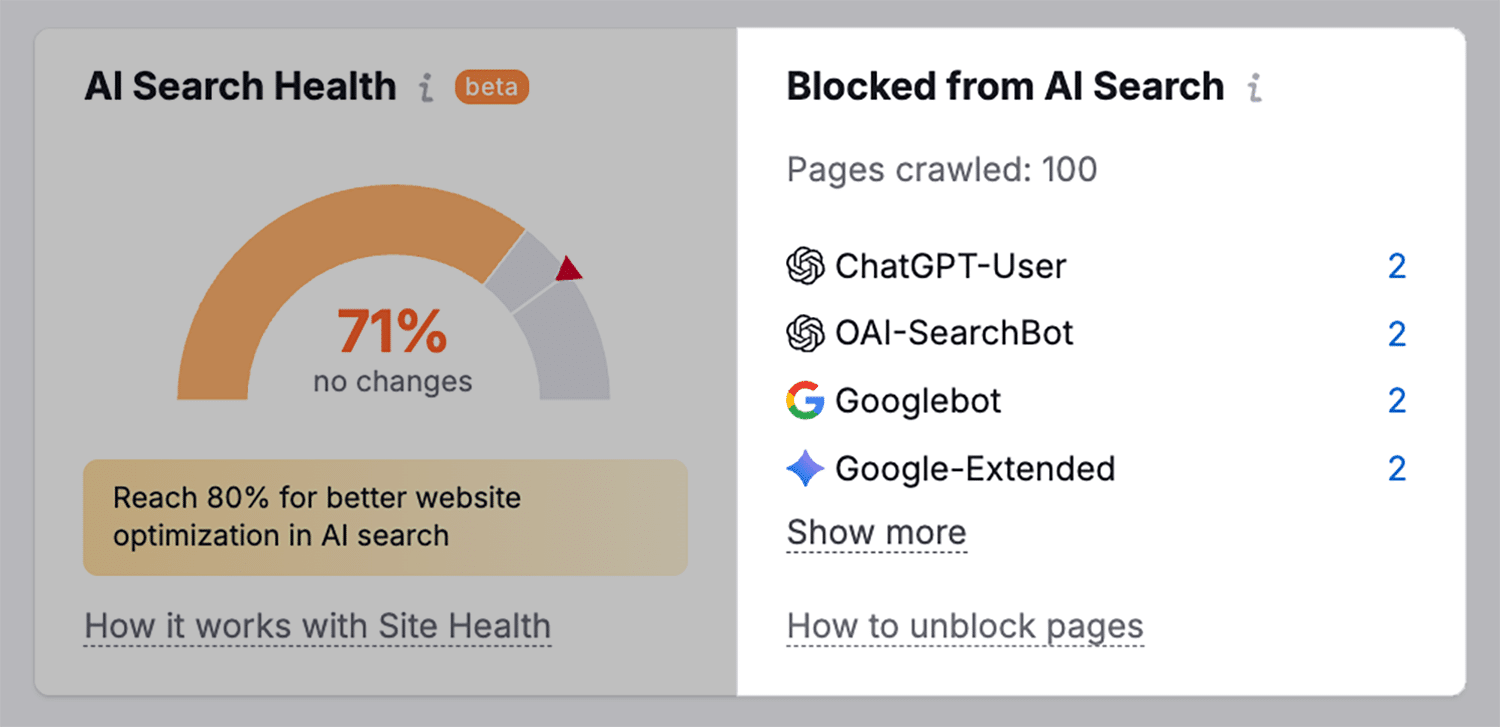
To see what technical issues might be limiting your LLM visibility, head to the “Issues” tab and then click “AI Search.”
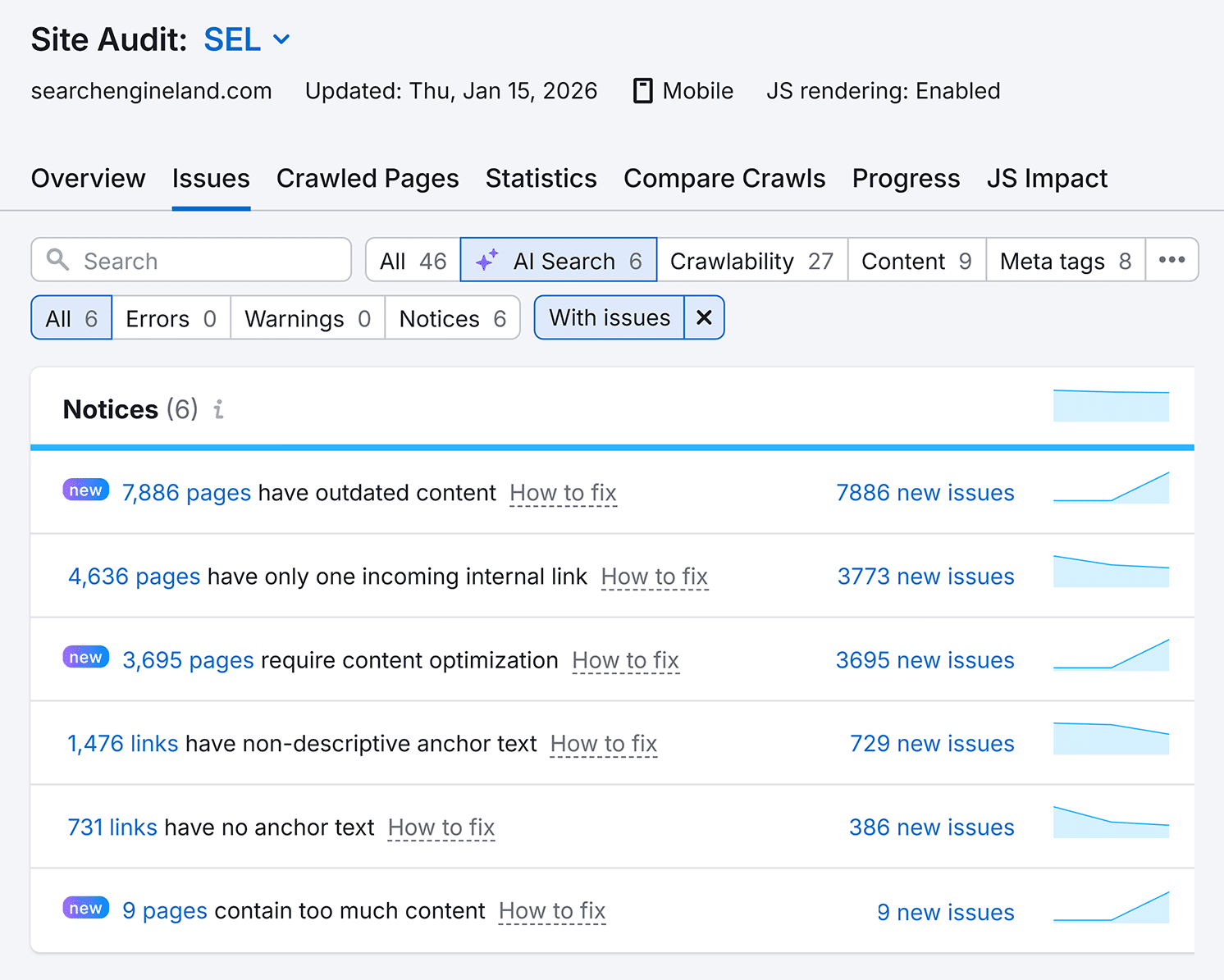
This tab highlights issues that could affect your rankings in AI engines, like links without anchor text, pages that need content optimization, pages without incoming internal links, and more.
Dig deeper: How to Perform a Complete SEO Audit in 17 Steps
Screaming Frog SEO Spider
Screaming Frog gives you granular control over how you test crawler access. One of its most powerful features is the ability to change the user-agent string, letting you crawl your site as if you were GPTBot, ClaudeBot, or any other AI crawler you want to test.
To crawl as a specific AI crawler, go to “Configuration” >“User-Agent.” You can then enter the user-agent string for crawlers like GPTBot or Claude-Web or choose from the “Preset User-Agents” dropdown:
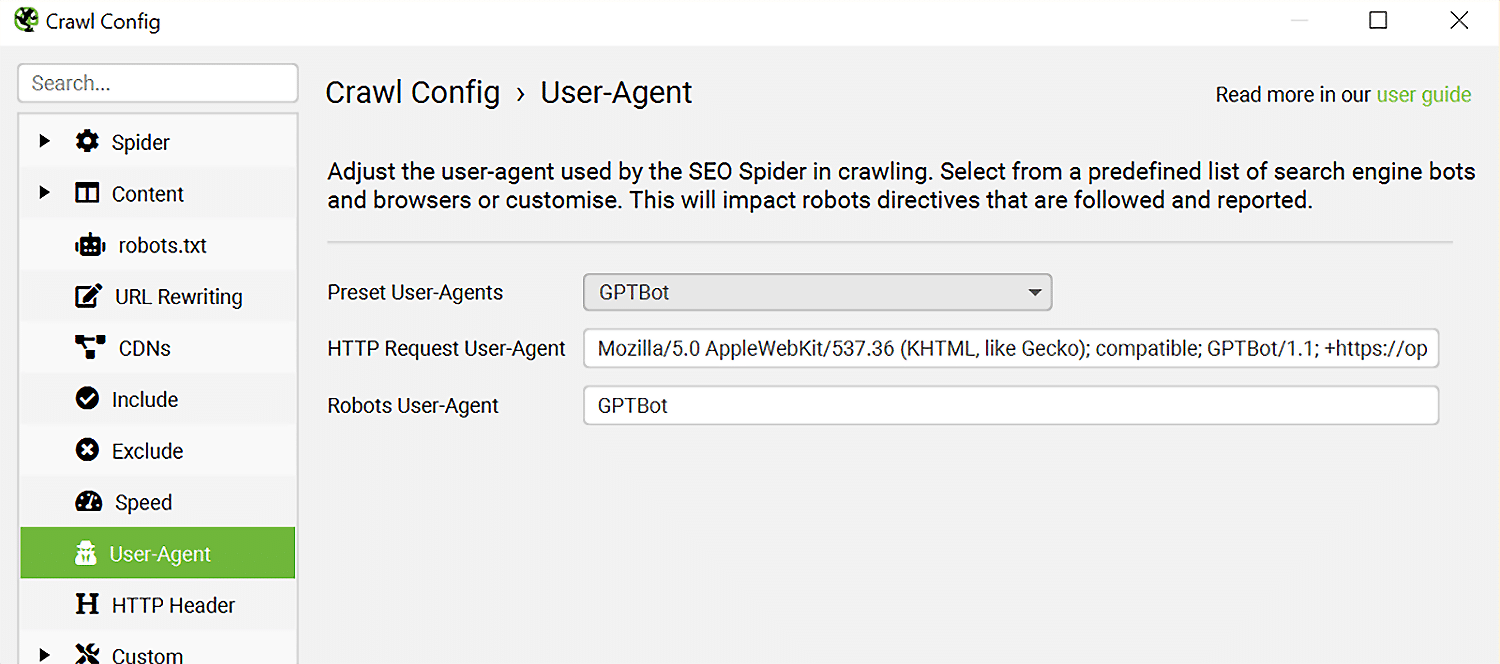
This will allow you to see exactly what content each crawler can access based on your robots.txt rules and server configuration.
Once you run your crawl, you’ll get detailed reports on response codes, blocked resources, and page load times. Look for patterns in your crawl — if certain sections of your site return 403 errors when you crawl as GPTBot but not as Googlebot, you’ve found a configuration issue that’s blocking AI crawlers.
Screaming Frog is also adept at identifying crawl-depth issues. AI crawlers often operate with more conservative crawl limits than Googlebot, so take note of how deep into your site structure they’ll need to go to reach all of your content.
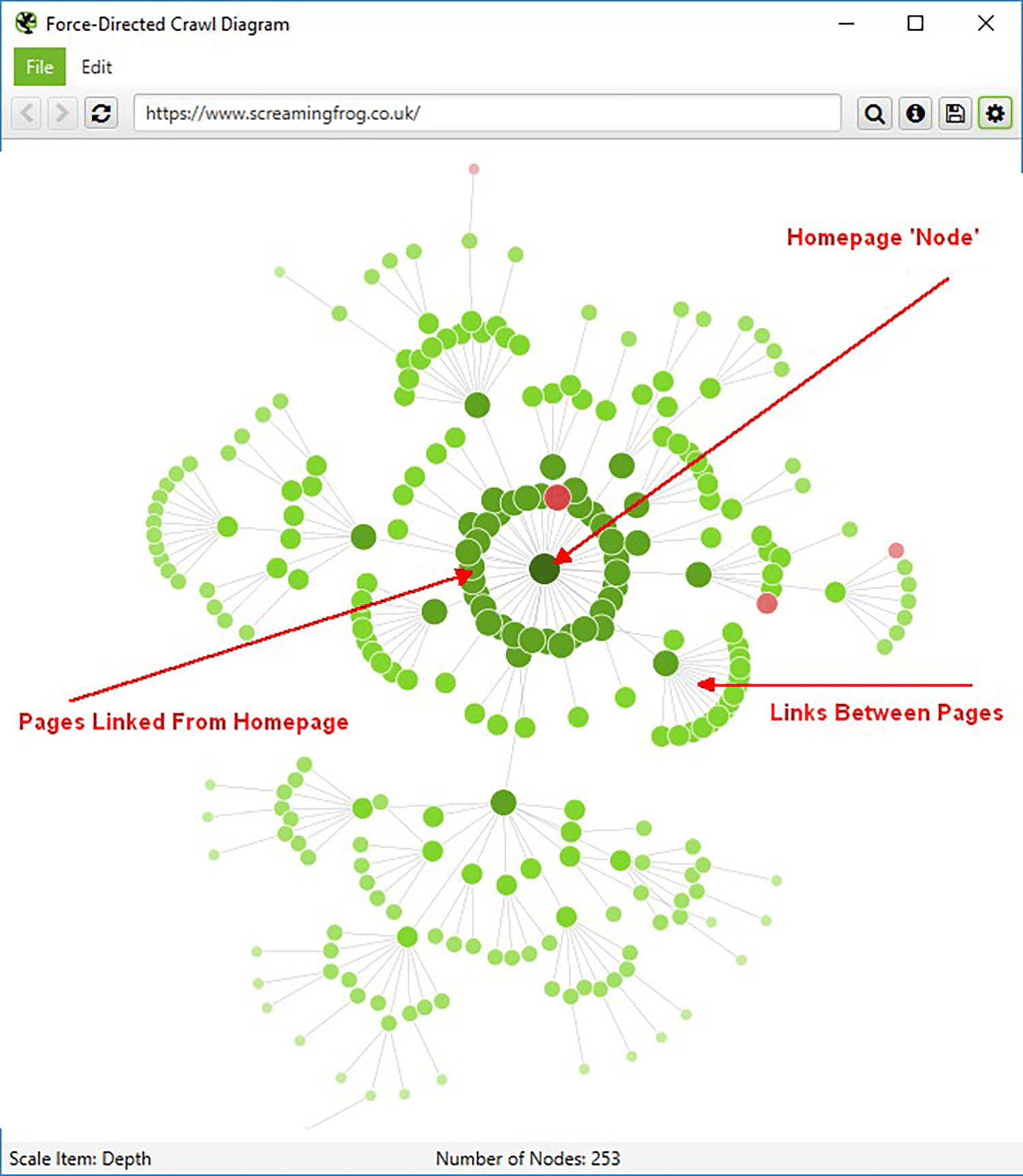
After crawling your site as an AI bot, head to “Visualizations” > “Force-Directed Crawl Diagram.”
This report shows how many clicks it takes to reach each page from your homepage, helping you identify important content that might be buried too deep for AI crawlers to discover efficiently.
AI Bot Access Testing Tool
This straightforward tool checks if known AI bots can successfully access your web pages. You can test up to 100 URLs at once, and the tool will verify three critical factors for each: whether your robots.txt file allows the bot, what HTTP status code the bot would receive, and whether the actual content is accessible.
To start, enter a URL (one per line) and click the “Test” button:
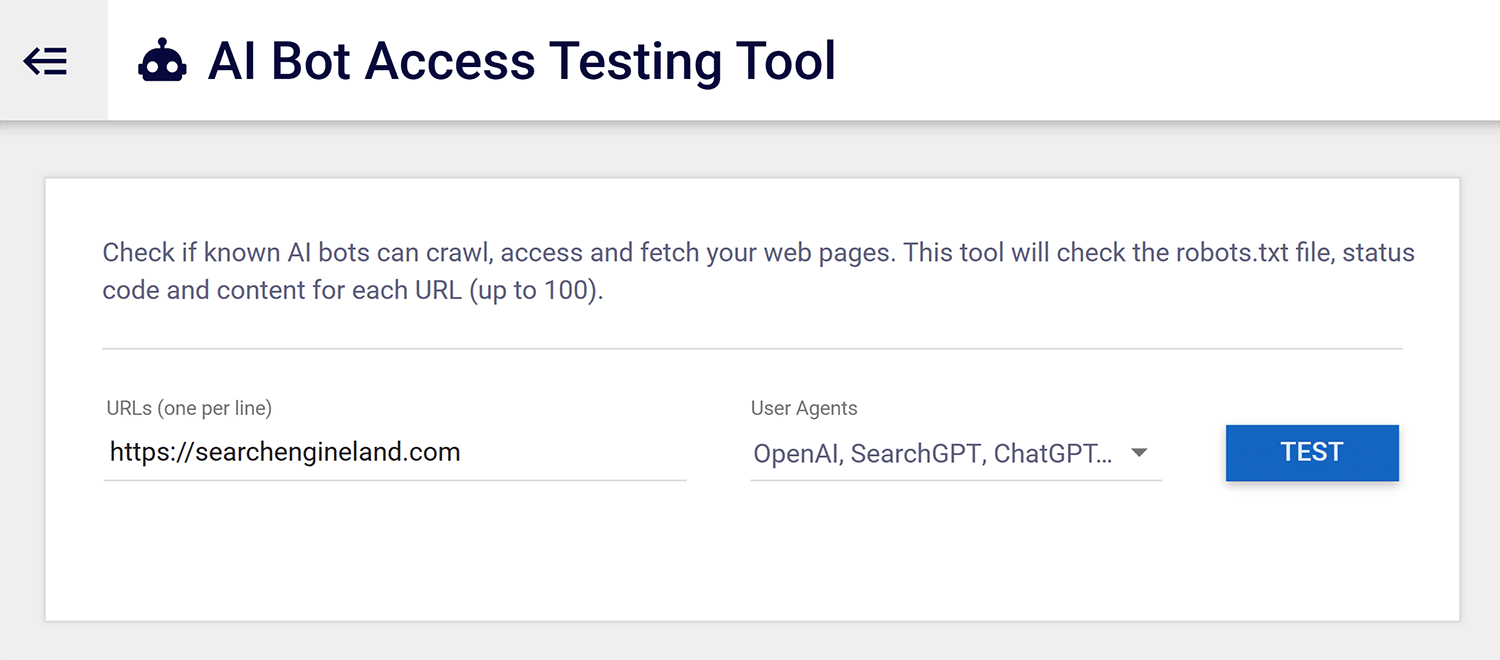
Note that you can also choose which bots to test by opening the dropdown:
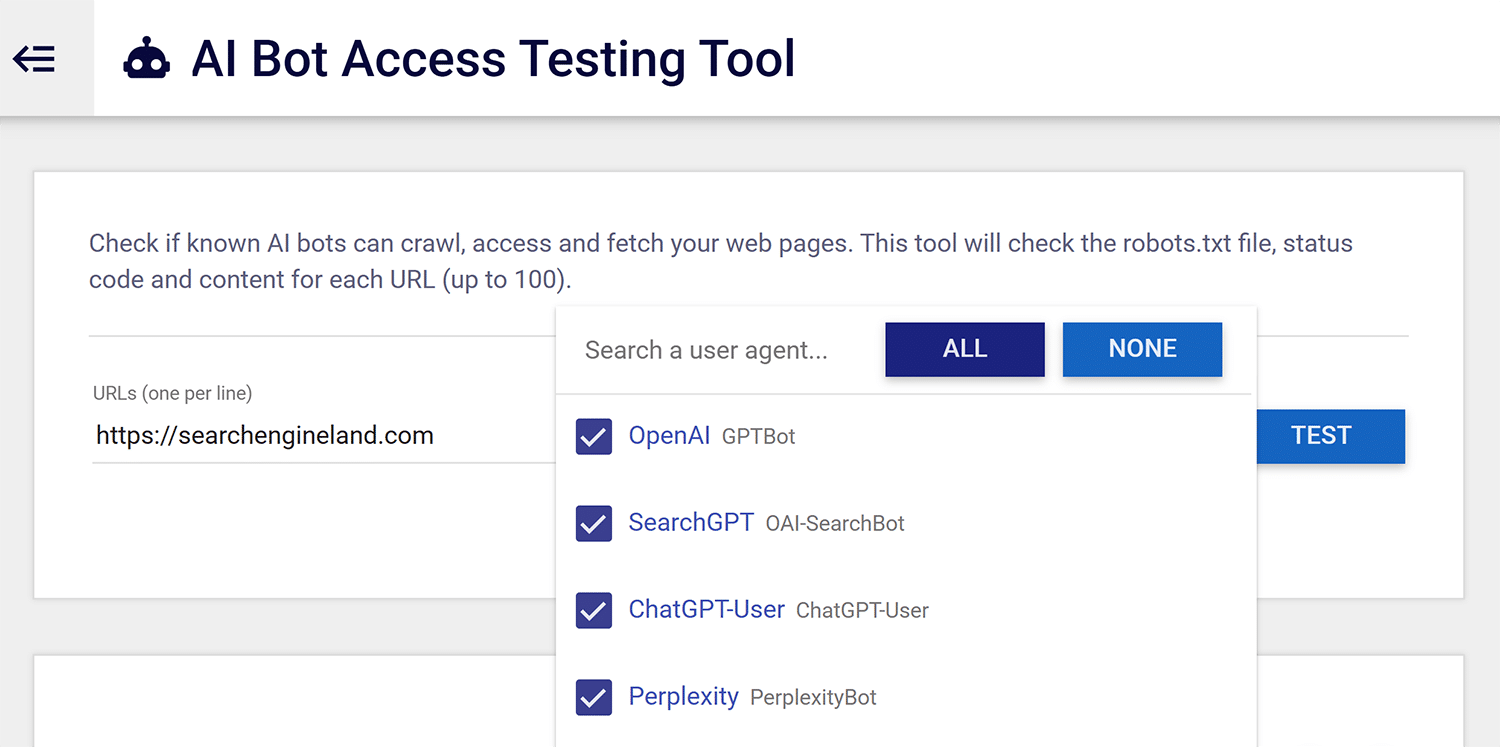
The tool tests against major AI crawlers including GPTBot, ClaudeBot, Google-Extended, and others. For each URL and bot combination, you’ll get a simple pass/fail result along with the specific reason for any failures.
To see more results, scroll to the right, download an .xlsx version, or send to Google Sheets:

This report is perfect for when you’re implementing new crawler policies. Rather than waiting to see if your changes worked, you can immediately verify that your robots.txt rules are correctly interpreted and that you haven’t accidentally blocked crawlers you meant to allow.
For additional guidance on making your site more accessible to all types of crawlers, see this comprehensive guide to crawlability.
JavaScript rendering analysis tools
JavaScript rendering creates one of the biggest gaps between what users see and what crawlers access. Modern websites often dynamically load content through JavaScript after the initial HTML loads — meaning browsers execute code to display the full page, while crawlers that don’t run JavaScript only see the bare HTML skeleton.
Many AI crawlers have limited JavaScript execution capabilities, which means content that appears fine in your browser might be completely invisible to the AI systems trying to index it.
These tools help you identify rendering issues and verify that crawlers receive fully-rendered content, regardless of their JavaScript capabilities.
Screaming Frog JavaScript rendering
Screaming Frog’s JavaScript rendering feature lets you crawl your site with JavaScript enabled, which you can then compare against a standard HTML-only crawl to identify content that only appears after JavaScript execution.
Enable this by going to “Configuration” > “Spider” > “Rendering” and then selecting “JavaScript.”
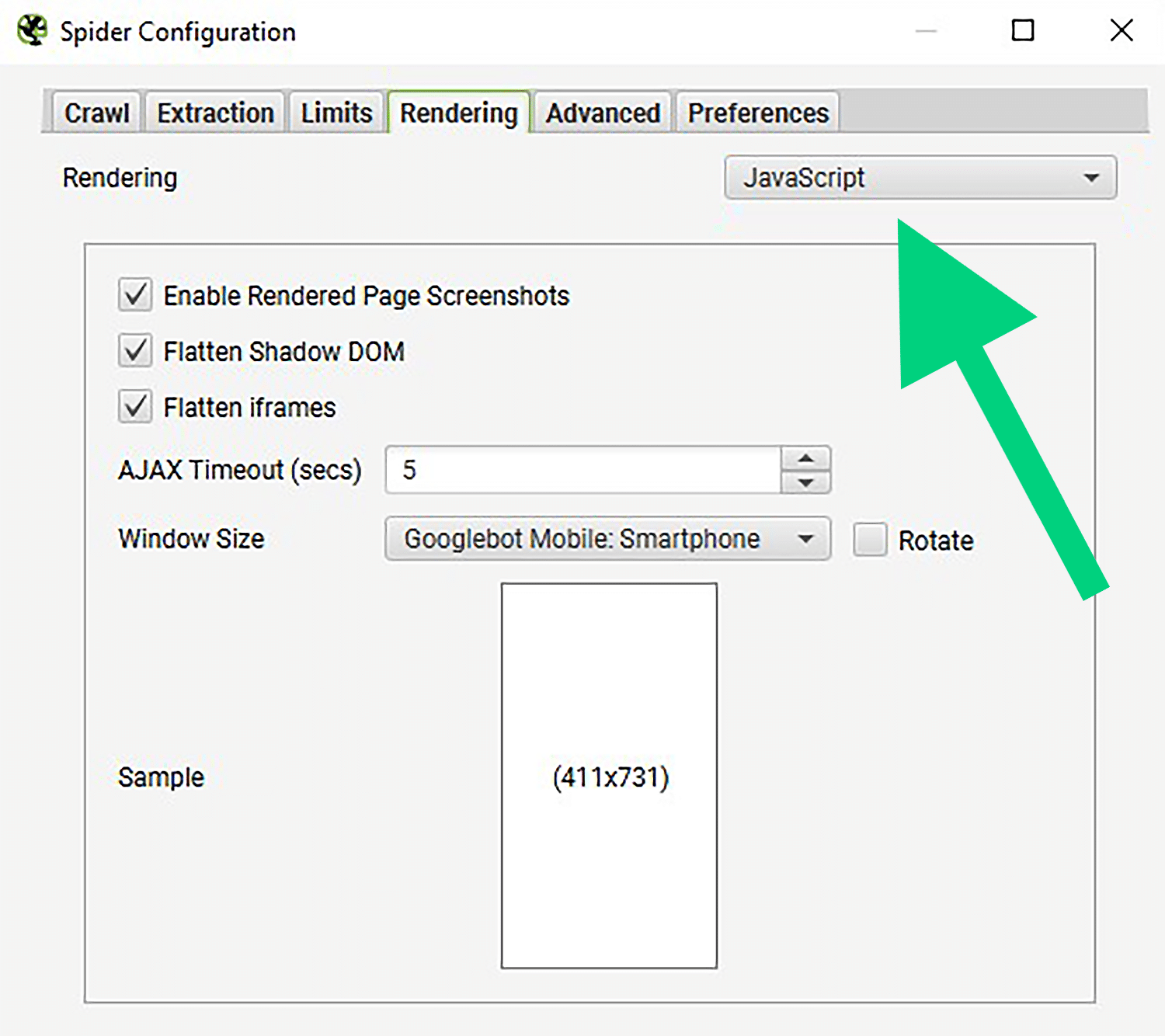
Once your crawl completes, use the “JavaScript” tab to filter pages where JavaScript significantly changed the content:
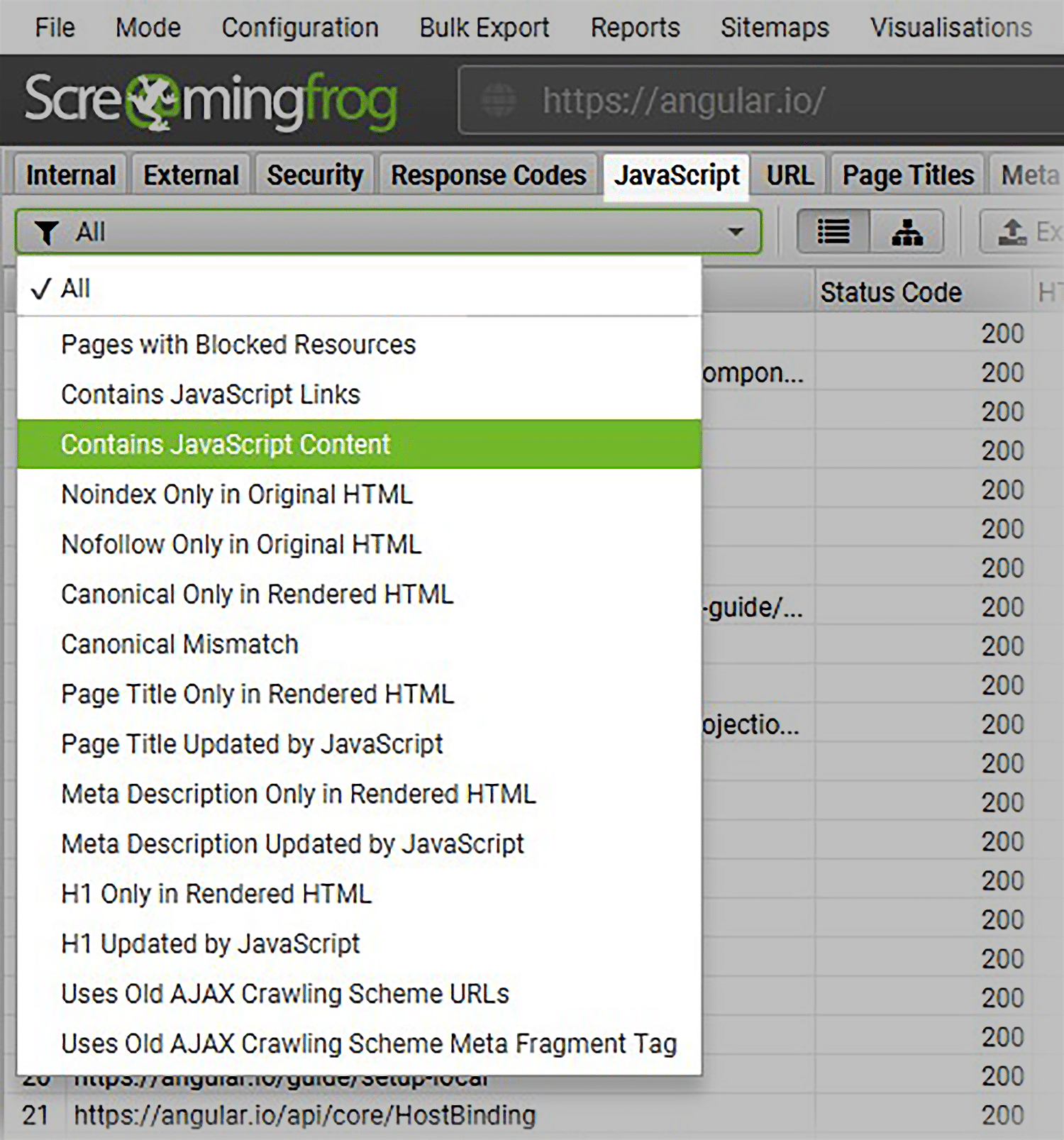
Use the different filters in the dropdown to find JavaScript dependencies and common issues.
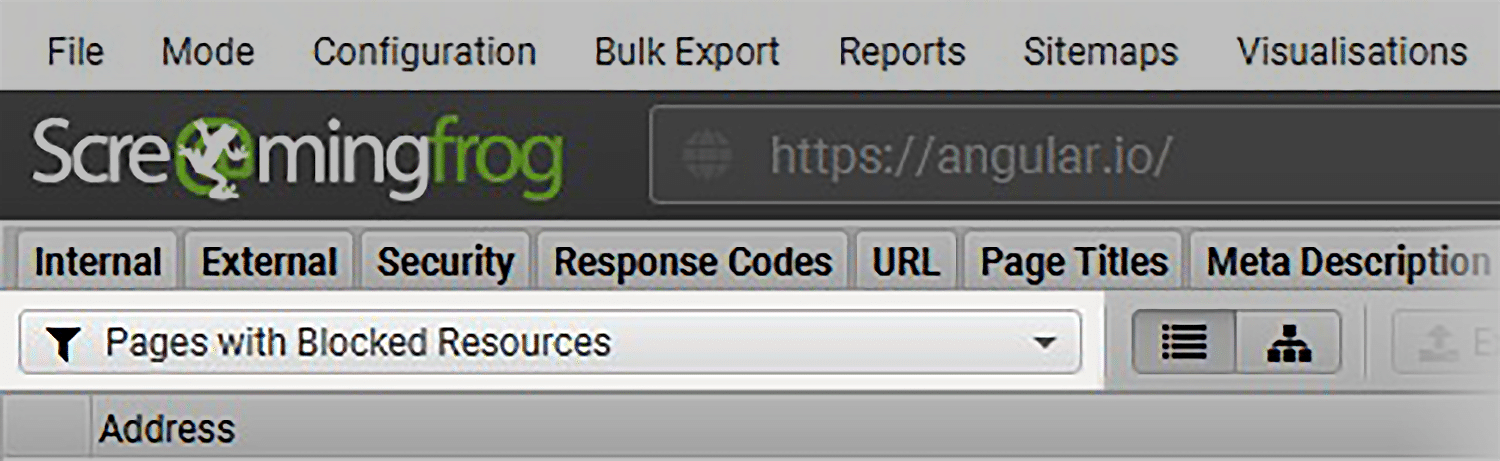
Make sure to check the “Pages with Blocked Resources” filter to identify any JavaScript, CSS, or images that are blocked:
Pre-rendering Testing Tool
The Pre-rendering Testing Tool checks whether your site serves different HTML depending on the user agent — such as showing pre-rendered HTML to bots while serving JavaScript-heavy pages to regular users.
The tool lets you select from various AI crawler user agents to test how your site responds to different bots, including user agents associated with these major AI platforms and crawlers:
- Googlebot
- Google-Extended
- OpenAI
- SearchGPT
- ChatGPT-User
- Perplexity
- Perplexity-User
- ClaudeBot
- Claude-User
- Claude-SearchBot
- Claude-Web
- Anthropic
- Gemini-Deep-Research
- ByteDance
- Applebot-Extended
- And more
It’s worth noting that some traditional search engine bots also crawl for AI results — Googlebot, for instance, is Google’s main crawler for traditional SEO, but it also crawls for AI Overviews even though it’s not typically called an “AI crawler.”
Use the Pre-rendering Testing Tool when:
- You’ve implemented dynamic or pre-rendered HTML for bots and want to verify it’s served properly
- You need to ensure bots receive fully rendered static HTML rather than client-side JavaScript
To use the tool, input a URL, choose your user agent(s), and click the “Test” button:

Fetch & Render
Fetch & Render is a tool that shows you the complete picture of how a search engine bot processes your page. You can see the raw HTML, the rendered output after JavaScript execution, and whether any resources failed to load.
To use the tool, input your URL, select your user agent from the available options, choose whether you want to obey robots.txt, and whether you want to render the page.
The tool displays a waterfall of resource loading, showing you which CSS files, JavaScript libraries, images, and other assets loaded successfully. If critical JavaScript files are blocked by robots.txt or fail to load due to server errors, you’ll see that reflected in the rendered output:
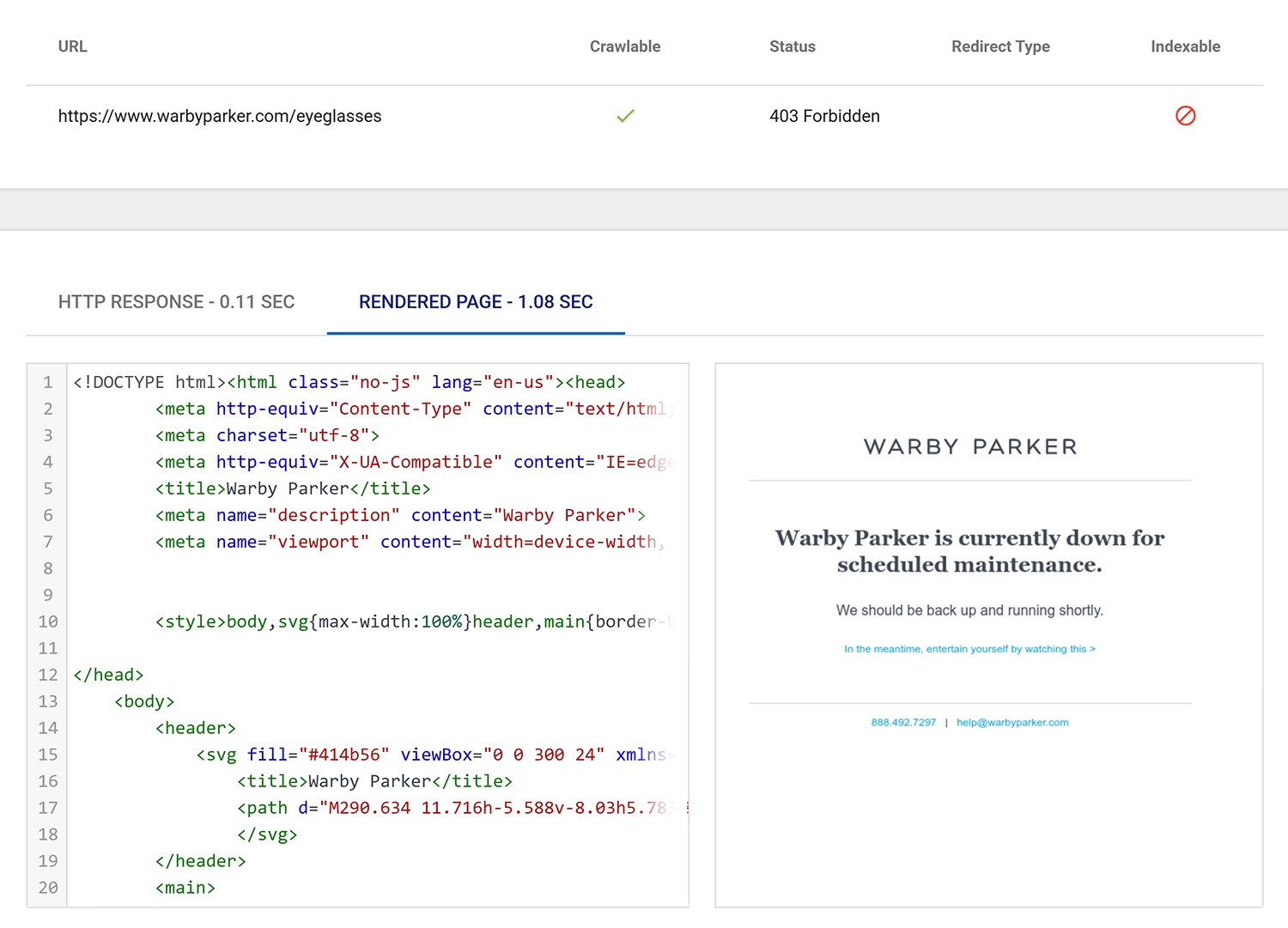
Use this tool when you suspect crawlers aren’t seeing key content. The side-by-side view of raw HTML versus rendered output immediately shows you what content appears only after JavaScript execution, helping you decide whether you need to implement rendering solutions for crawler compatibility.
Rendering Difference Engine
The Rendering Difference Engine Chrome extension provides a visual comparison of what users see versus what crawlers might see if they can’t render JavaScript. Install it and navigate to any page on your site, click on the extension, and open the “Difference” tab to find elements that only appear after JavaScript execution.
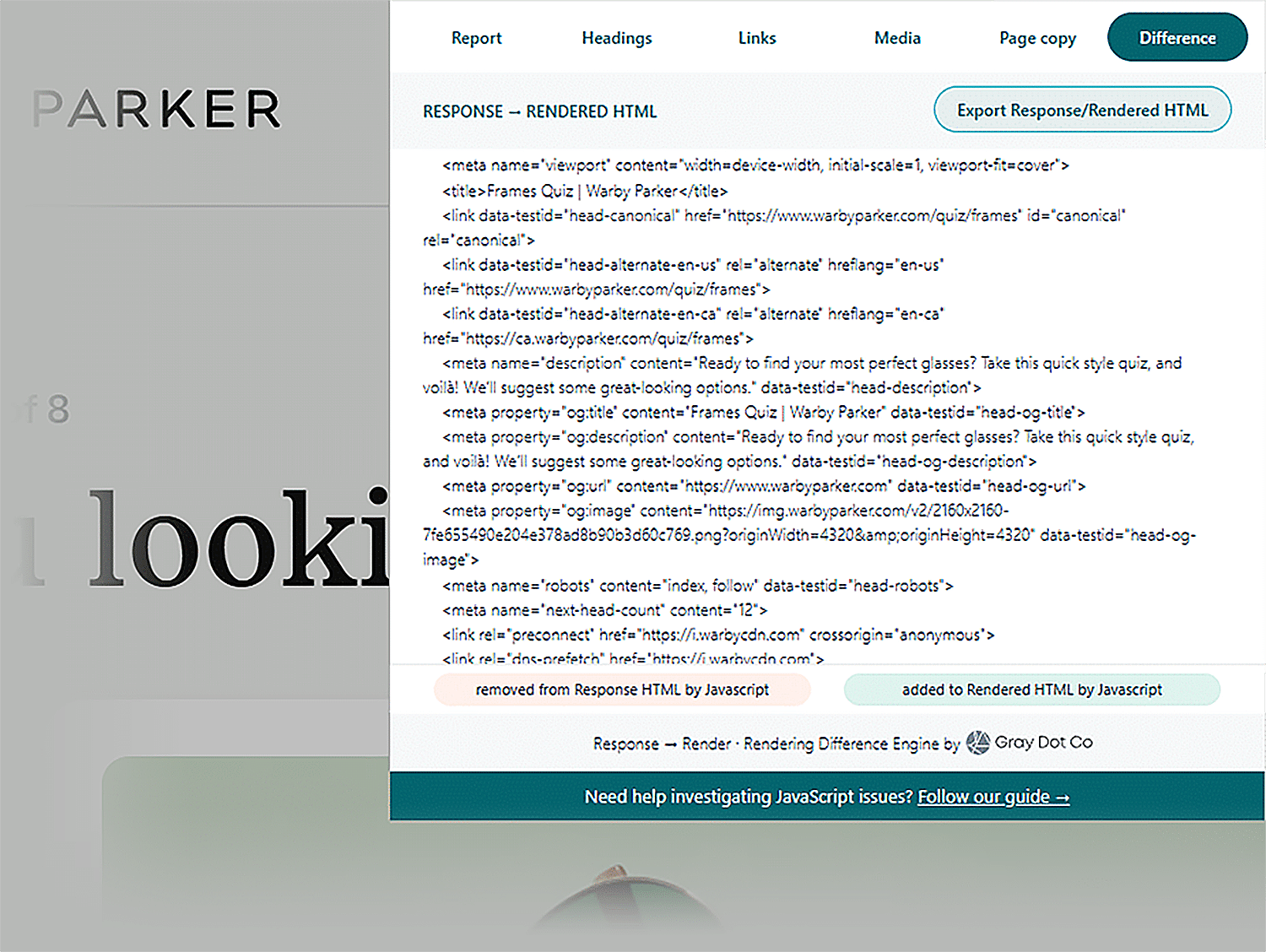
You can also click through the other tabs to see differences just in headings, links, media, and page copy.
This extension is also very useful during the development phase. As your team builds new features, you can instantly see if they’re being implemented in a crawler-accessible way or if they’ll require special handling for non-JavaScript crawlers.
Page load and site speed tools
Your site’s load speed directly impacts crawler access. When your pages load slowly, AI crawlers face several problems: They might not wait for all content to load before moving on, they could reduce their crawl rate to avoid overloading your server, or in extreme cases, they might skip your site entirely on future crawls.
These tools help you identify and fix speed issues that limit crawler access to your content.
WebPageTest
WebPageTest provides detailed performance analysis with support for custom user agents. This means you can test how quickly your pages load when accessed by specific AI crawlers.
Before getting started with WebPageTest, create a free account to access all its features:
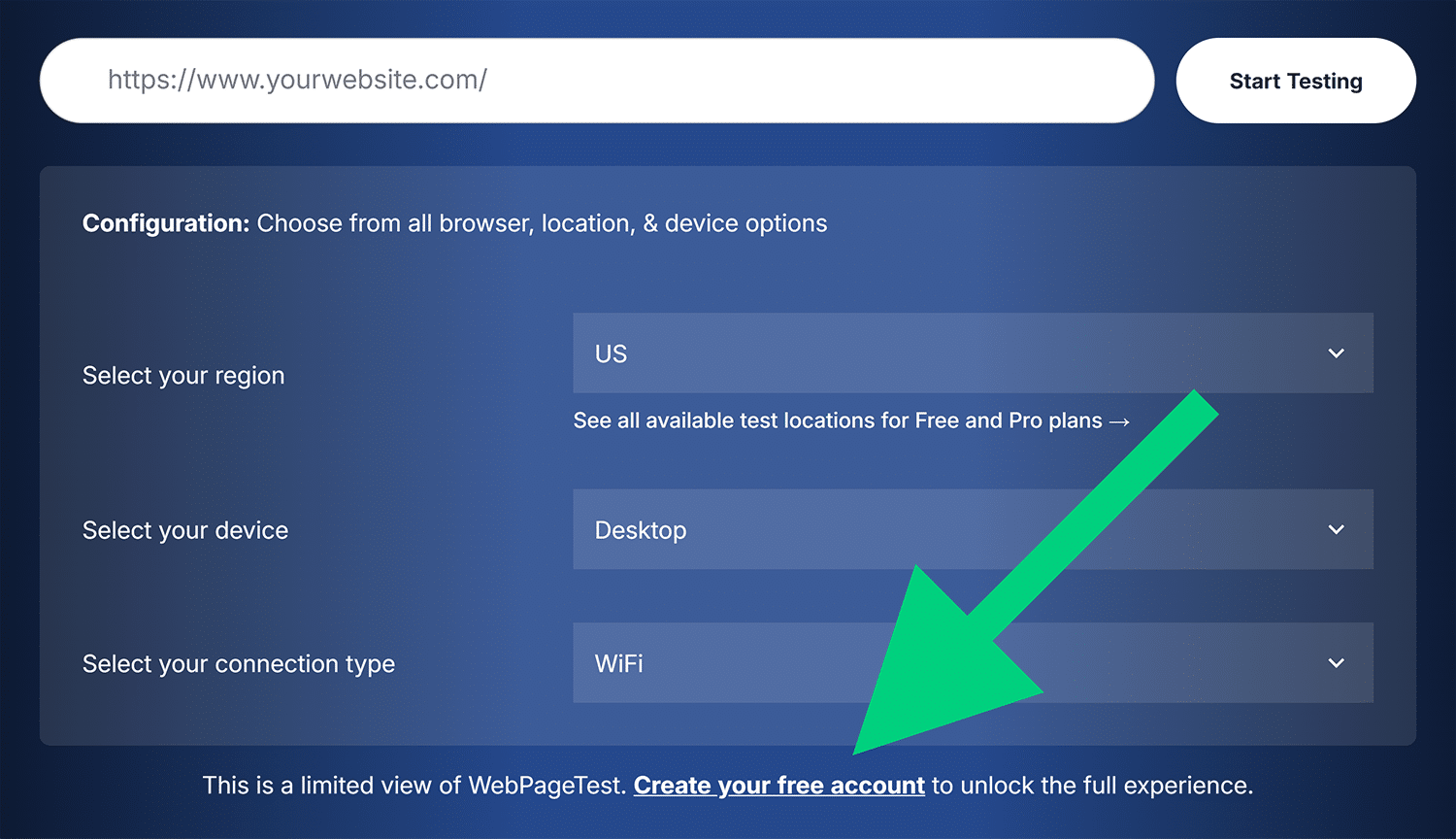
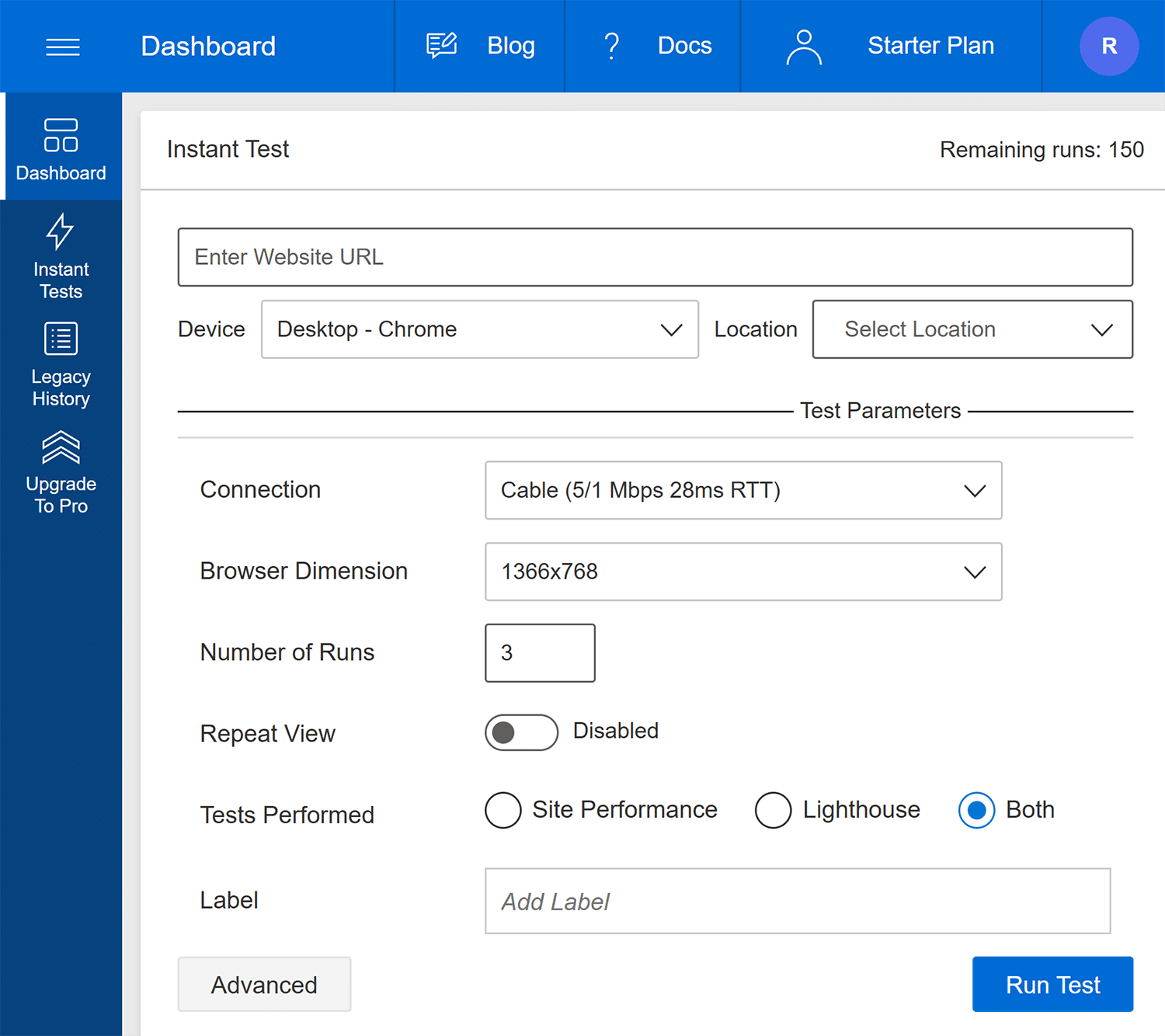
To run a test with a custom user agent from the “Dashboard,” click the “Advanced” button:
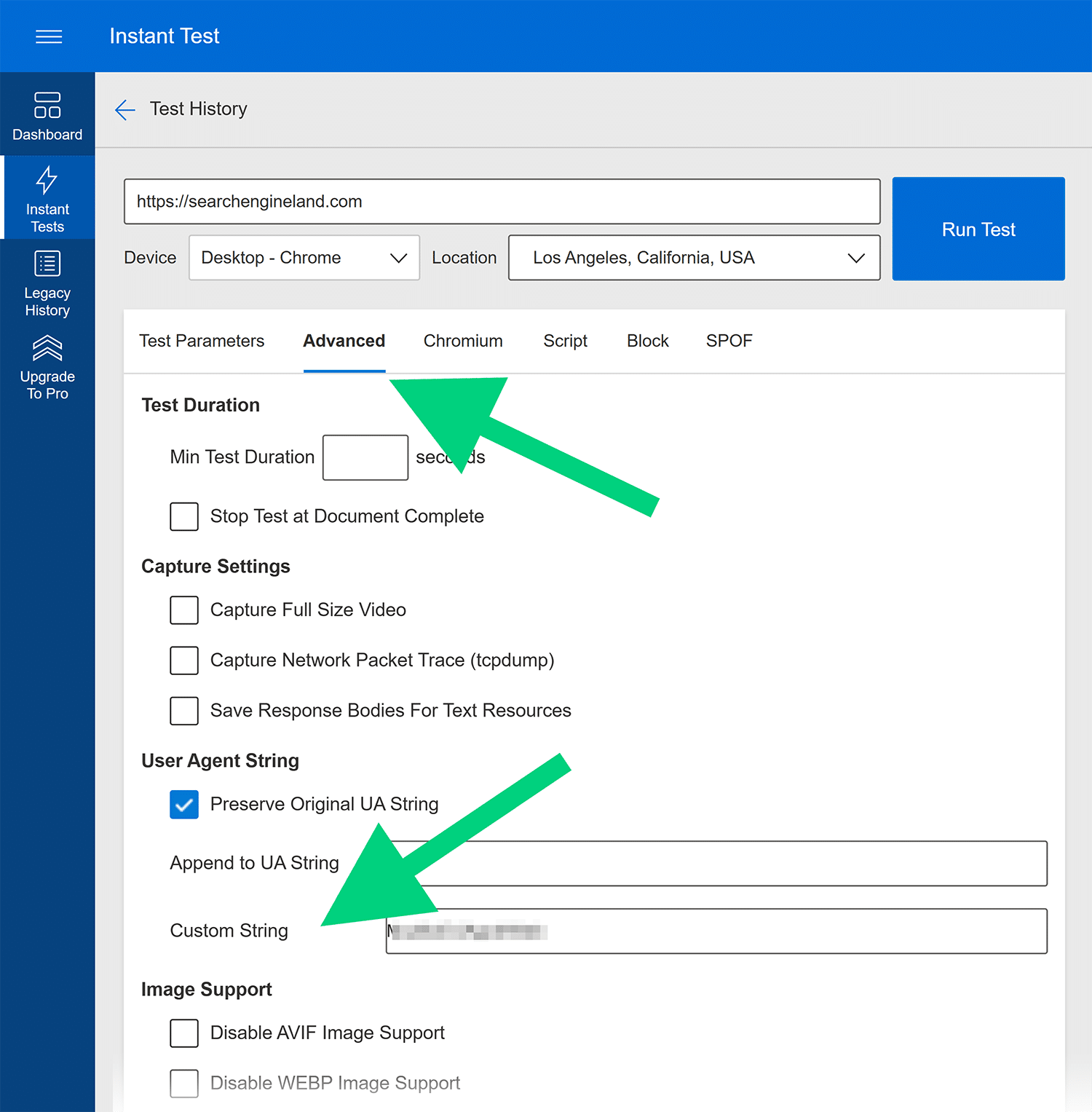
Now, in the “Advanced” tab, enter the user agent string for the crawler you want to test In the “Custom String” field. For example, for GPTBot, you’d enter:
Mozilla/5.0 AppleWebKit/537.36 (KHTML, like Gecko; compatible; GPTBot/1.0; +https://openai.com/gptbot)
Make sure to check the “Preserve Original UA String” checkbox to prevent WebPageTest from appending its PTST identifier to your custom string. This ensures you’re testing with the exact user agent that the real crawler uses.
Then, enter your website URL, select at least one location from the dropdown, and click “Run Test.”
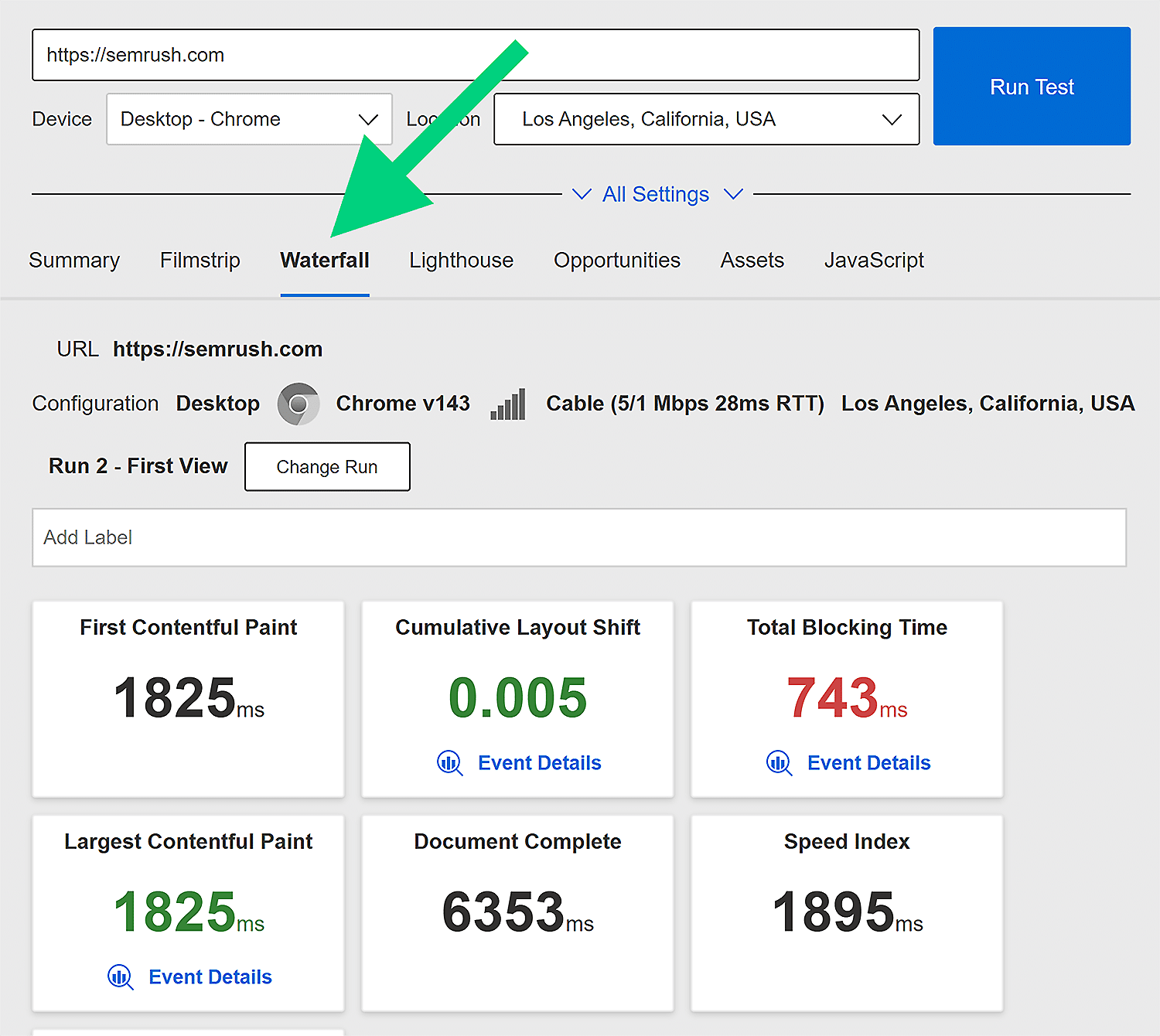
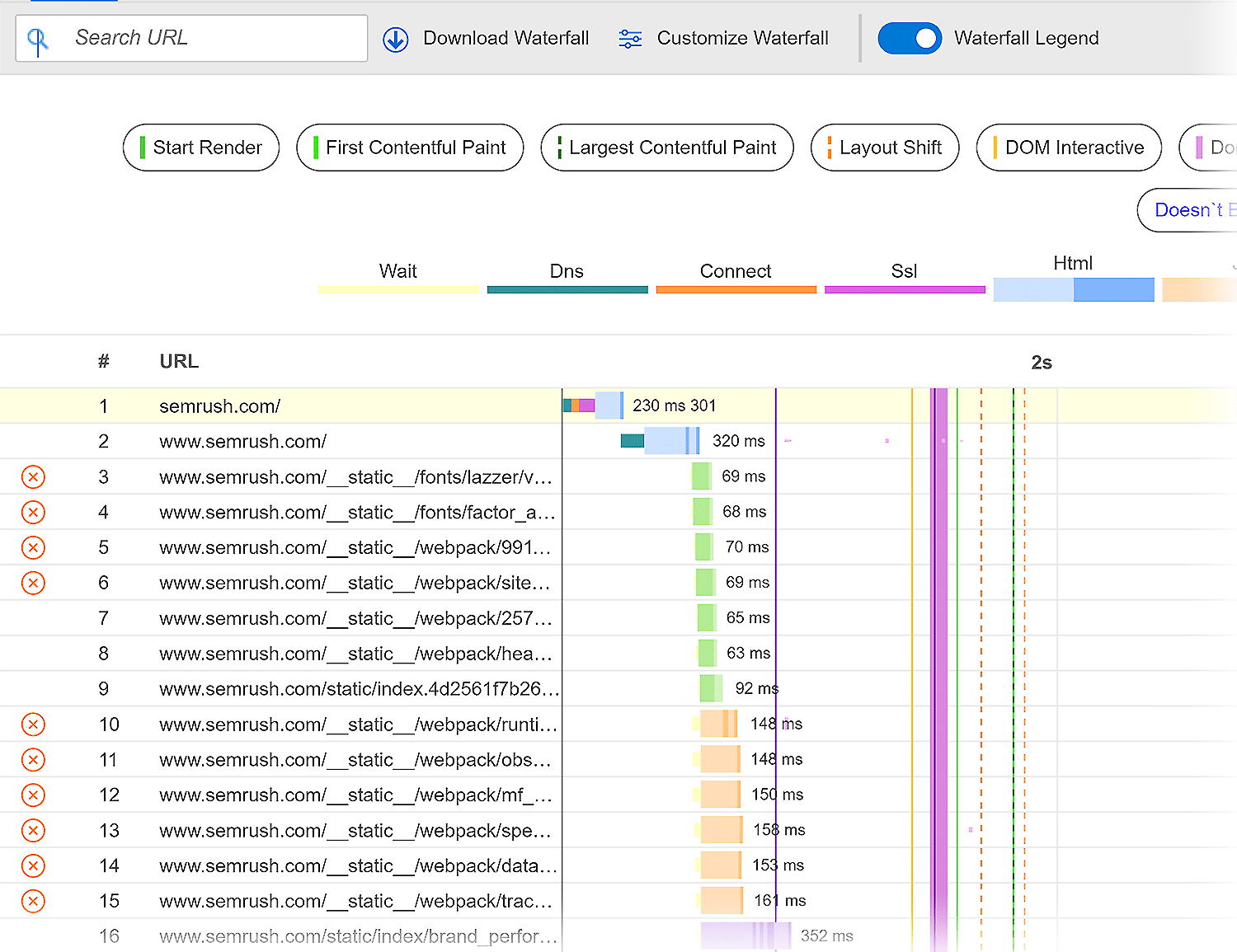
WebPageTest will then load your page using your chosen user agent and provide a complete report, including a waterfall chart (in the “Waterfall” tab) showing exact loading times for HTML, CSS, JavaScript, and images.
This chart shows you which files are slowing things down. If a large JavaScript bundle is blocking initial content delivery or delaying rendered output, for example, crawlers without JavaScript support might actually have faster access to your content than those that try to execute your scripts.
When testing how long resources take to load, however, testing on a page-by-page basis isn’t sustainable. Here are some batch tools that allow you to check more than one page at a time.
Screaming Frog with PageSpeed Insights API
Rather than testing pages one by one with a manual API call, Screaming Frog can connect to the PageSpeed Insights API to get Core Web Vitals and performance scores for every URL it crawls.
Set this up by going to “Configuration” >“API Access” >“PageSpeed Insights” in Screaming Frog and entering your API key. Once configured, Screaming Frog will fetch performance data as it crawls your site.
For a full tutorial on setting up this configuration, check out Screaming Frog’s guide.
The bulk reports will help you find patterns across your site. Go to the “PageSpeed” column in the report:
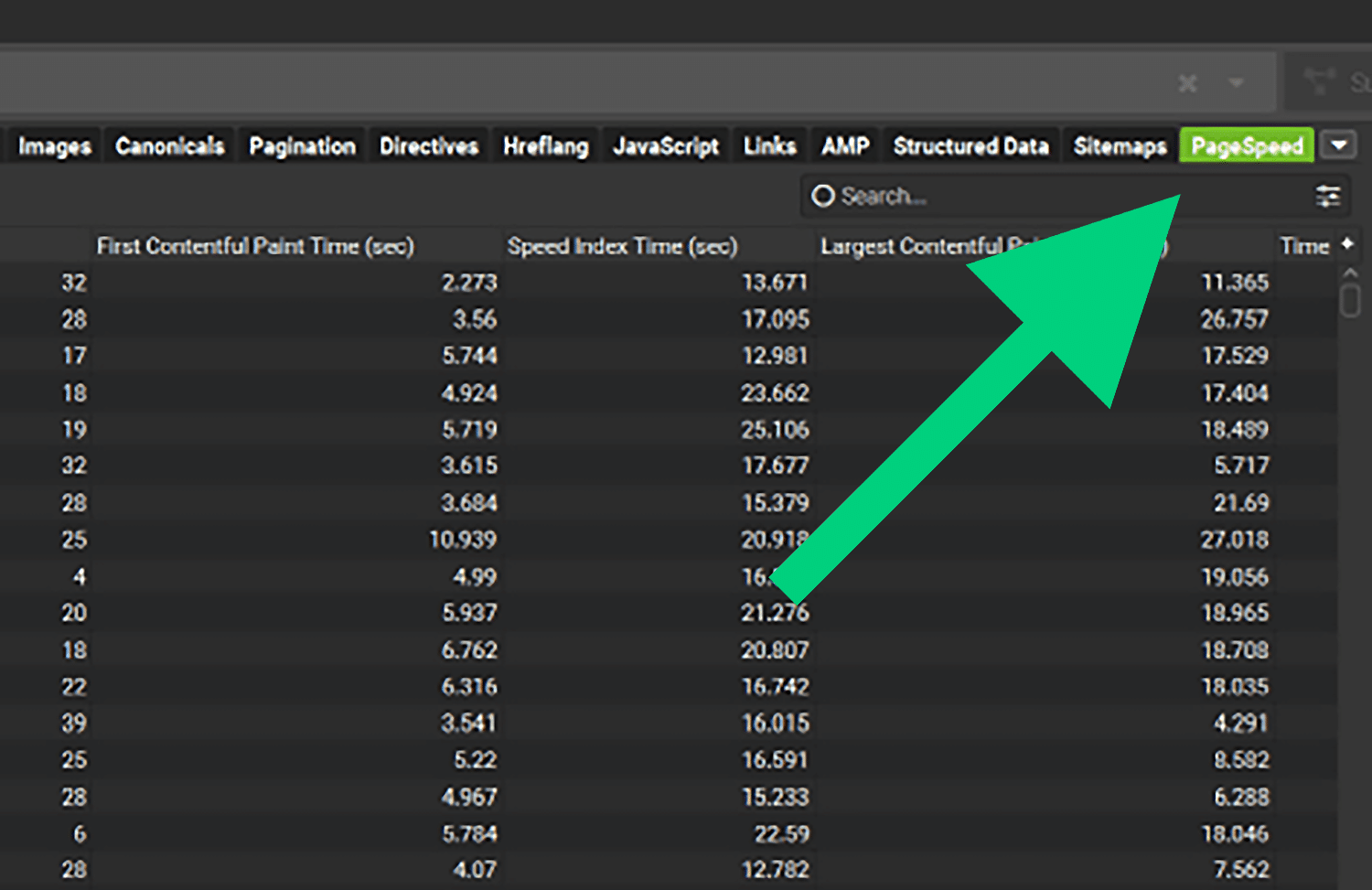
This report might help you discover that your blog posts load quickly but your Ecommerce product pages have poor largest contentful paint scores, for example. This helps you prioritize performance fixes where they’ll have the biggest impact on crawler access.
Bulk Page Speed Test
If you don’t want to spend time connecting an API to Screaming Frog, Bulk Page Speed Test provides a quicker alternative for batch testing, but with fewer features and less detailed data. Once you have the tool open, simply paste a URL into the “Crawl Website” tab and click the “Start Test” button.
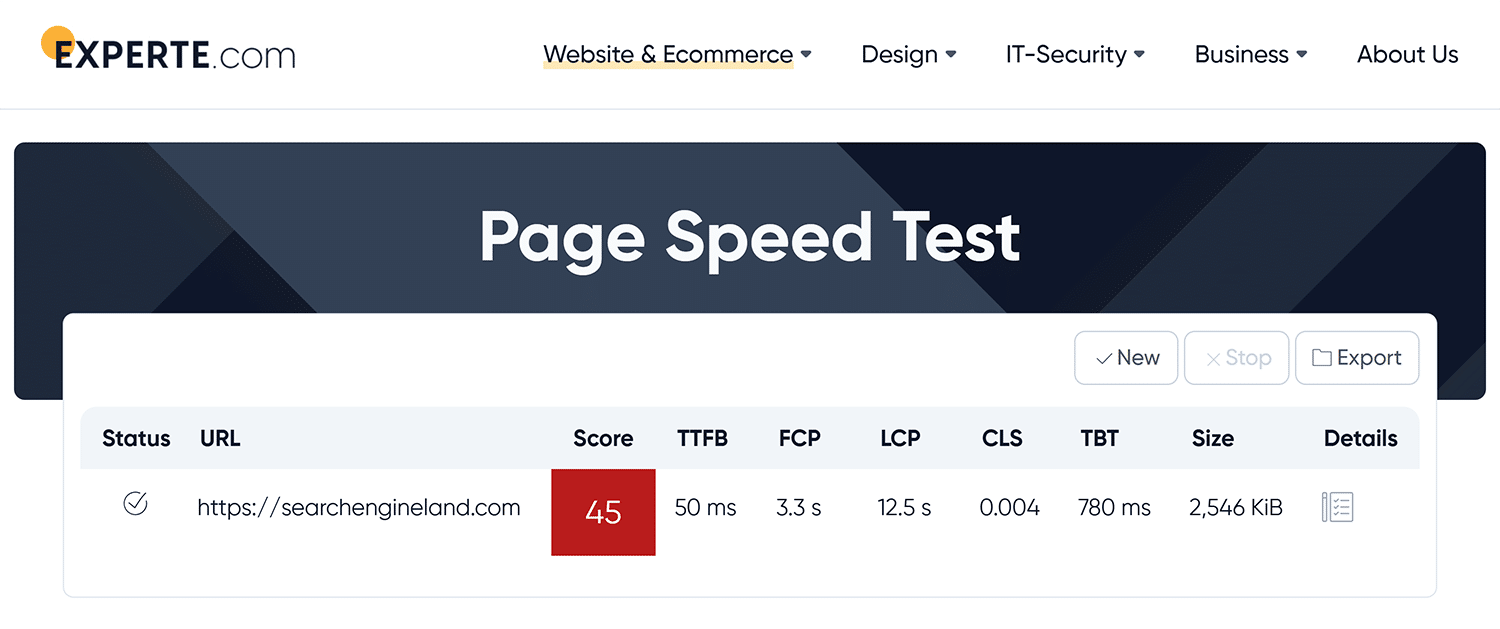
Or if you have a list of URLs, use the “URL-List” tab. You can check multiple URLs at once for Core Web Vitals and PageSpeed scores using this setup.
Batch Core Web Vitals Checker
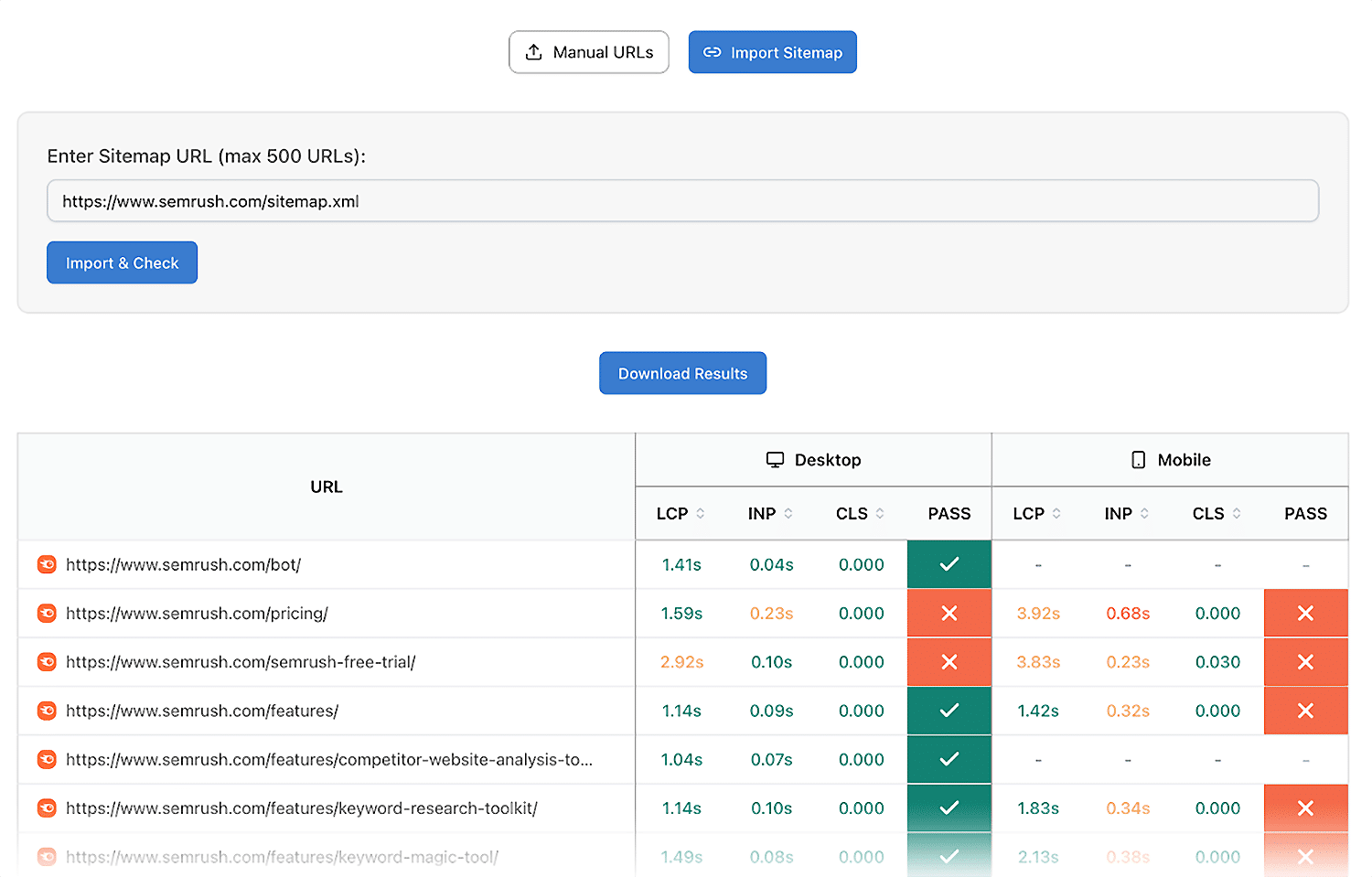
Batch Core Web Vitals Checker offers a streamlined way to test multiple URLs for Core Web Vitals metrics without the full feature set of Screaming Frog’s API integration. You can either enter URLs one by one or simply provide the URL for your site’s sitemap:
Semrush Site Performance and Core Web Vitals reports
Semrush’s Site Audit includes dedicated reports for site performance and Core Web Vitals. These reports analyze your entire site and identify pages with performance issues that could limit crawler access.
These reports do not simulate AI crawler user agents directly. Instead, they rely on Google-based performance metrics and Semrush’s own crawling, making them most useful for identifying speed issues that affect all crawlers, including Googlebot.
The Site Performance report breaks down issues by showing you top improvements you may want to implement. Slow server response times, large page sizes, and excessive number of requests, for example, all get flagged with specific recommendations for improvement.

The Core Web Vitals report focuses on the metrics Google uses for page experience: largest contentful paint, total blocking time, and cumulative layout shift. While these metrics were designed for user experience, they’re also good indicators of crawler accessibility — pages that load content quickly for users also load quickly for crawlers.
Structured data tools
Structured data helps both search engines and AI systems understand the context and meaning of your content. When you mark up your articles, products, or events with schema, you’re essentially providing a machine-readable summary that makes it easier for crawlers to understand your content.
Dig deeper: Schema markup: What it is, how to use it, & real-life examples
Schema Markup Validator
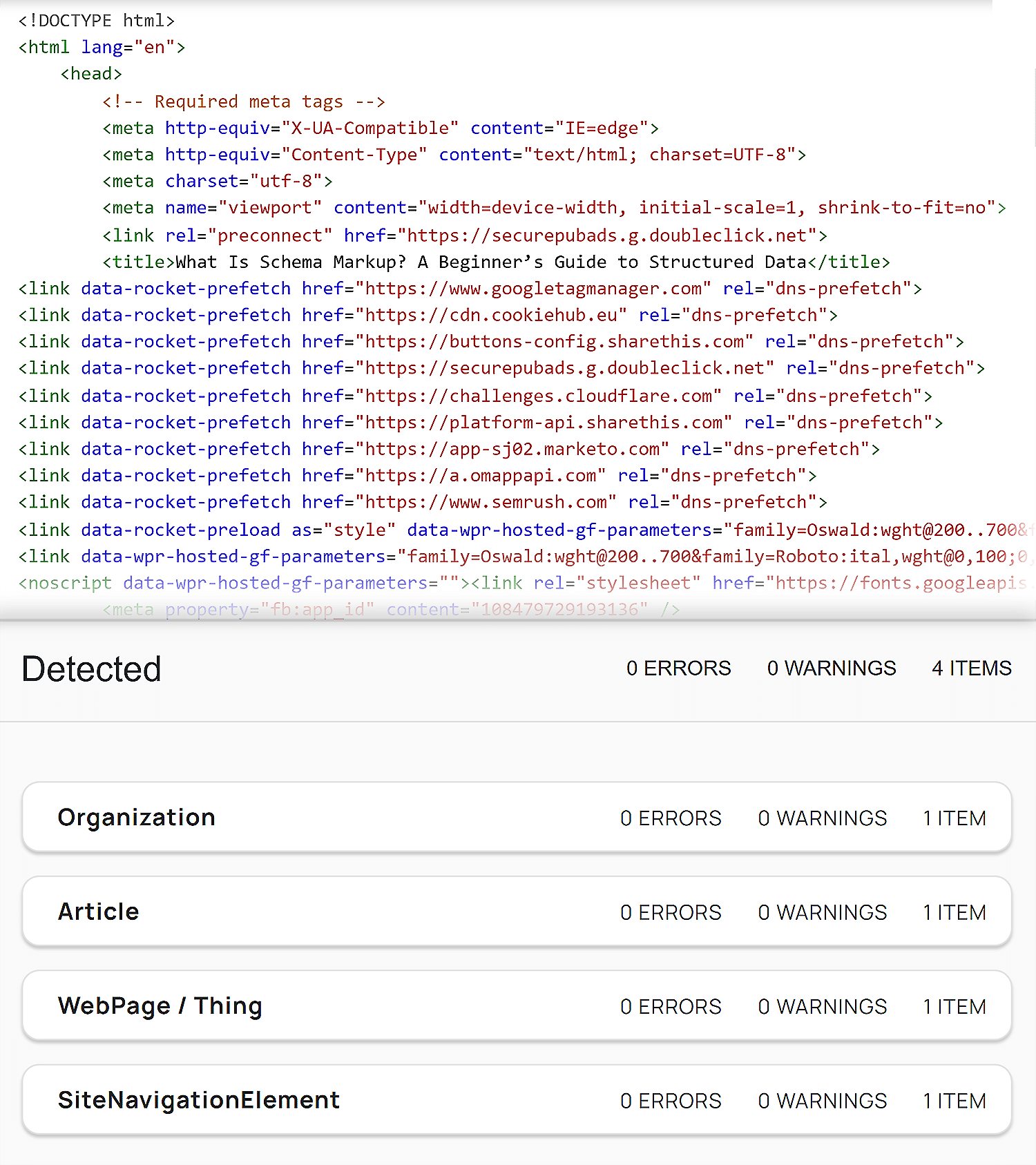
The Schema Markup Validator is the primary way to test your structured data implementation. Enter any URL or paste in your schema code snippet and the tool parses all the schema markup it finds.
The validator shows you exactly how your markup will be interpreted. You’ll see your organization structure, article metadata, product details, or whatever entities you’ve marked up, displayed in a clean hierarchy.
Google Search Console Enhancements reports
Google Search Console includes several reports that show how Googlebot interprets your structured data. As long as there’s structured data on your site, you’ll see each data type in your reports under the “Enhancements” heading:
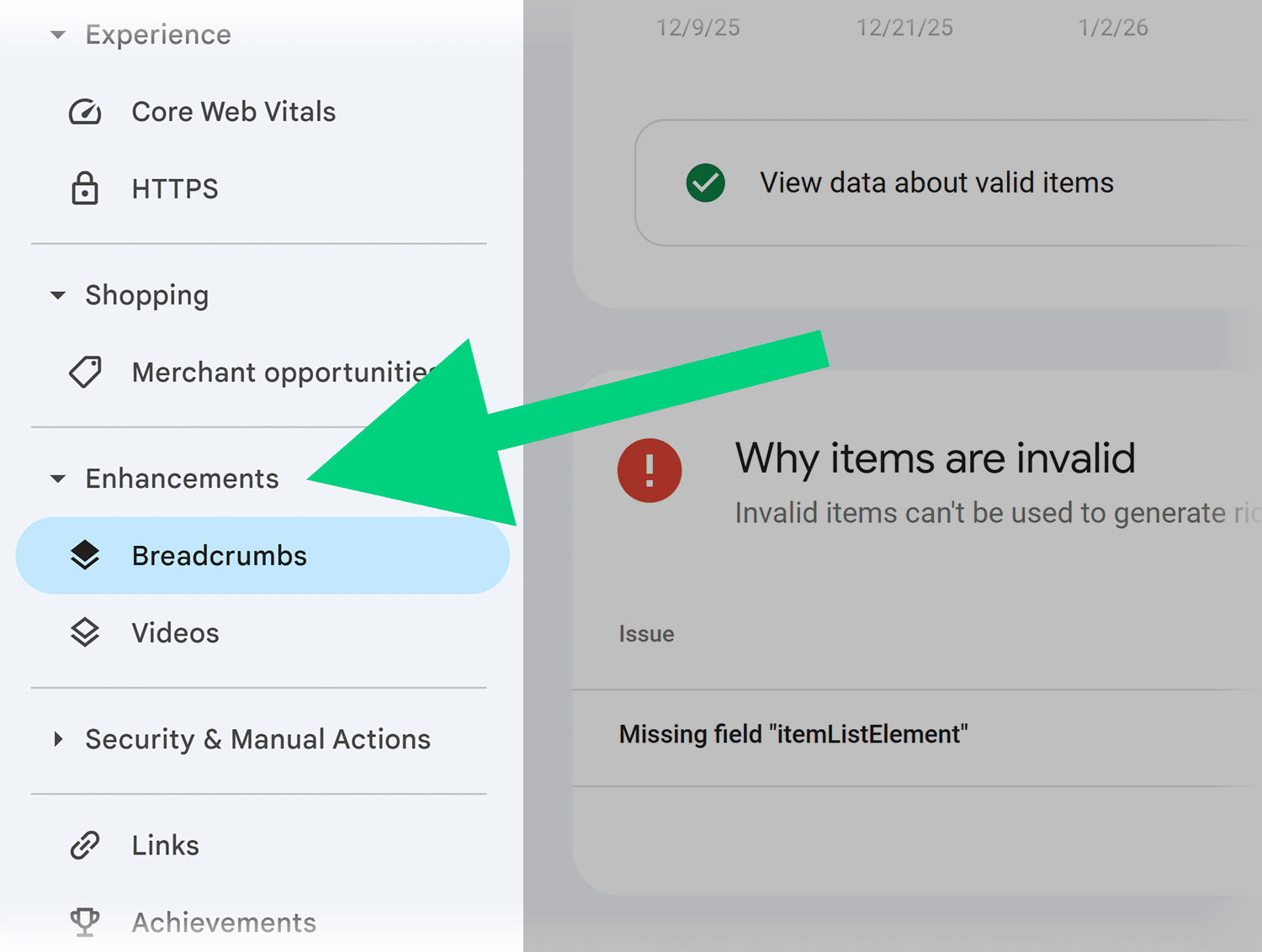
Since Googlebot crawls for both traditional search and AI Overviews, these reports give you insight into how well your markup is working.
The report shows you whether there are any errors in your structured data, plus how many pages contain each type.
Click into any specific issue to see affected URLs and examples. This makes it much easier to diagnose systematic problems — if all your articles are missing the “datePublished” property, for example, you know there’s an issue with your content management system or template.
Server and file log analysis tools
Understanding which AI crawlers actually visit your site requires looking at your server logs. These tools analyze your raw server data to show you exactly which crawlers accessed your content, when they visited, and what pages they requested.
This data is essential — you might have robots.txt rules allowing certain crawlers, but if they’re not actually visiting, those rules don’t matter. Conversely, you might discover crawlers accessing content that you thought was blocked.
Cloudflare Log Explorer
If you’re using Cloudflare’s paid plans, Log Explorer gives you detailed request and event logs for all traffic hitting your site. This includes HTTP requests, firewall events, and bot signals that help you understand crawler behavior.
The query interface lets you filter by specific user-agent strings, so you can search for requests from GPTBot, ClaudeBot, or any other crawler you’re interested in. You’ll see timestamps for each request, which pages were accessed, response codes, and whether any security rules triggered.
Plus, you can use Log Explorer to correlate crawler activity with other events. If you’re seeing high server load, you can check whether it coincides with aggressive crawling from specific AI bots, for example.
Note: Log Explorer provides visibility into crawler activity, but it does not manage, block, or enforce bot policies — you’re observing behavior with this tool, not controlling it.
Overall, Log Explorer is great for security teams, developers, site reliability engineers, and analysts to troubleshoot real events in your traffic.
Screaming Frog Log File Analyzer
Screaming Frog’s Log File Analyzer processes your server logs to identify crawler activity patterns. Upload your log files (most servers output these in standard formats like Apache or IIS logs), and the tool parses them to show crawler behavior.
The analyzer breaks down activity by crawler type, showing you how many requests came from Googlebot, GPTBot, various AI crawlers, and regular users. You can also see crawl frequency — whether crawlers visit daily, weekly, or sporadically.
Semrush Log File Analyzer
Semrush’s Log File Analyzer can be used alongside Semrush Site Audit data to provide additional context for crawler behavior. Upload your server logs, and the tool matches crawler activity against your site structure and page quality metrics.
The analyzer shows you which pages crawlers access most frequently and compares that to which pages you’d want them to prioritize. If low-value pages get heavily crawled while important content rarely gets visited, the tool flags this as an efficiency issue.
You can filter specifically by user agent to see AI bot versus traditional search bot behavior. This comparison often reveals interesting patterns, as AI crawlers might access different content types or follow different crawl paths than Googlebot.
Dig deeper: Log file analysis for SEO: Find crawl issues & fix them fast
Tools to give AI crawlers more context about your content
Beyond making your content technically accessible, you can actively help AI systems understand what your site offers. These specialized files can provide additional context about your site’s content and structure to AI systems that choose to reference them.
llms.txt generator tools
The llms.txt file format is a lightweight, emerging convention for providing AI systems with a high-level summary of your site’s content and structure. Think of it as a README file specifically for large language models.
However, it’s important to note that llms.txt is a community proposal with growing grassroots adoption but zero confirmed consumption by the major AI search and answer engines.
- Writesonic’s LLMs.txt Generator provides a simple interface to create your llms.txt file. Enter your site’s key information: what your site is about, main sections or content types, and any relevant context about your organization or purpose.
- LLMsTxt Generator Chrome Extension analyzes your existing site structure and suggests content for your llms.txt file. Just install the extension and navigate to your site. It will then scan your navigation, main content areas, and site structure to recommend what to include.
- Firecrawl’s LLMs.txt Generator offers open-source tools for turning websites into LLM-ready data, including support for generating llms.txt files as part of a broader content extraction and structuring workflow. Note: This tool is no longer being maintained as of June 30, 2025 and they refer users to a Github repo they can use instead.
- LLMs.txt Checker validates your llms.txt file against the commonly accepted conventions. It checks for proper Markdown formatting and elements like H1 titles and quote blocks, and it verifies that your file lists follow the correct structure with working hyperlinks.
- Rankability’s LLMS.txt Generator & Validator combines generation and validation in one place. You can create a new llms.txt file from scratch using their form builder, or you can simply paste in your domain URL to check an existing file for compliance and get improvement suggestions.
llms-full.txt generator and validation tools
While llms.txt provides a curated summary with links, llms-full.txt goes further by compiling your full site content into a single markdown file, streamlining data extraction for AI tools. The idea is that an AI tool can ingest everything at once rather than crawling page by page.
Like llms.txt, it’s part of the same community proposal, and no major AI search or answer engine has confirmed it reads the file.
- LLMs.txt and LLMs-Full.txt Generator WordPress Plugin automates the creation of both files for WordPress sites. The plugin analyzes your content structure — posts, pages, categories, and tags — and generates appropriate llms.txt and llms-full.txt files that reflect your site’s actual organization. The plugin updates these files automatically as you publish new content or restructure your site. This keeps your AI crawler guidance current without manual updates.
- LLMs.txt and LLMs-Full.txt Generator by Gushwork: Generates both llms.txt and llms-full.txt but make sure to check the llms-full.txt box.
- LLMs.txt Validator handles validation for both llms.txt and llms-full.txt formats. It checks that your files follow the correct syntax, include required elements, and are accessible at the proper URLs.
Tools to regulate and control AI crawler access
Now that you’ve made your content accessible and provided context, you need tools to actually control which crawlers can access what content. These tools help you implement access policies at scale.
Robots.txt generator and testing tools
Robots.txt remains the standard way to control crawler access. These tools help you create and test robots.txt files with specific rules for AI crawlers.
- SE Ranking’s Robots.txt Generator helps you create properly formatted robots.txt files. You can generate a file from scratch or use ready-made templates with common directives. Specify user-agent rules, set crawl directives for specific paths, and add your sitemap — the tool validates your syntax to prevent errors.
- Yoast SEO WordPress Plugin includes a robots.txt editor that lets you add custom rules directly through your WordPress dashboard. For AI crawler control, you can add specific rules to disallow bots in certain sections of your website. The plugin validates your syntax as you type, preventing formatting errors that could accidentally block all crawlers or fail to block the ones you intended.
- Rank Math WordPress Plugin offers similar functionality with a more visual interface. It includes pre-built templates for common crawler-blocking scenarios, including options specifically for AI crawlers.
- TechnicalSEO.com’s Robots.txt Validator and Testing Toollets you test how different crawlers interpret your robots.txt rules. You can choose an AI crawler as the user-agent (GPTBot, ClaudeBot, Google-Extended, etc.) and enter a URL to see whether that crawler would be allowed to access it.
- Rank Math’s Robots.txt Tester allows you to validate your robots.txt file and simulate how multiple user agents interpret it. Enter your URL, select a user agent to test (like GPTBot or Google-Extended), and the tool shows whether that bot is allowed or blocked. You can also edit rules directly in the tool’s code editor.
- Google Search Console Robots.txt Report shows you whether Google can process your robots.txt file correctly. While this is specific to Googlebot, many AI crawlers follow similar parsing rules, so if Google can interpret your file properly, other crawlers likely can, too. The tool also shows you the current robots.txt file Google sees for your site, which is useful for diagnosing caching issues. If you updated your robots.txt but crawlers still seem to follow the old rules, they might be using a cached version.
ai.txt generator and validation tools
The ai.txt format is strictly an academic proposal. No major AI company or crawler currently honors such a file, and real world adoption is nonexistent. Its purpose is to provide more granular control than robots.txt, letting you specify not just whether crawlers can access your content, but how they can use it.
- Spawning’s ai.txt Generator helps you generate an ai.txt file that expresses your preferences about AI training and usage of your site’s content. For example, you can indicate whether commercial AI tools should limit their use of your text, images, or videos.
- Tyler Hall Tech ai.txt Generator offers a simple interface focused on the most common ai.txt use cases. Choose whether to allow usage of your text, images, audio, and more, and the tool generates the appropriate ai.txt file.
- Web2Agents’ AI .txt Tool Kit helps you generate a combined set of file guidelines, including robots.txt and llms.txt, to express access and permission preferences for both traditional crawlers and emerging AI agents. The kit frames this guidance in “layers,” including SEO crawler rules, preferences for AI training bots, and conventions for AI browsing behaviors.
- Rank++’s AI.txt Generator crawls your website and analyzes your site structure and sitemap to create an ai.txt file that specifies AI crawler permissions, access policies, and content usage guidelines, helping guide how AI systems interact with your site.
How to block or limit AI crawlers at scale
Manual robots.txt management becomes increasingly more challenging as more AI crawlers emerge. These tools provide more scalable approaches to managing crawler access without constantly updating text files.
Tools to block AI crawler spam, scraping, and spoofing
The biggest challenge with AI crawler management is the bad actors that ignore your rules, spoof user agents, or aggressively scrape your content.
Cloudflare AI Crawl Control (requires a paid Cloudflare plan) provides centralized management for AI crawler access. Rather than editing text files, you use Cloudflare’s dashboard to set policies for each known AI crawler.
The interface shows you which AI services are accessing your content — GPTBot, ClaudeBot, Google-Extended, Perplexity crawler, and others. For each crawler, you can see how frequently it visits, whether it respects your robots.txt rules, and what content it accesses most.
You can then take action per crawler without touching your robots.txt file: allow access, block completely, or rate-limit requests.
The crawler-focused dashboard shows metrics specifically relevant to AI bot behavior: crawl frequency patterns, robots.txt compliance rates, and resource consumption by crawler. This helps you identify crawlers that are consuming disproportionate server resources compared to the value they provide.
Akamai Bot Manager is a full-featured bot detection and mitigation platform for all types of automated traffic. It uses behavioral analysis, device fingerprinting, and network reputation data to identify bots. It mitigates the bad ones while managing the ones you want visiting your site.
What distinguishes legitimate AI crawlers from malicious scrapers isn’t always obvious. Akamai’s system looks at patterns like request timing, navigation paths, and consistency with declared user agents to verify whether a crawler is who it claims to be.
The platform lets you set policies based on bot classification. Verified bots get normal access, suspicious traffic can be challenged or rate-limited, and malicious bots are blocked. While it manages AI crawlers as part of its broader bot ecosystem, its focus is on overall bot and automated traffic management rather than AI crawlers specifically.
DataDome Bot Protect detects and blocks malicious bot and AI traffic across websites, mobile apps, APIs, and more. The platform analyzes hundreds of signals to determine whether traffic is really from the declared crawler or a bad actor spoofing that identity.
This matters because a scraper could easily set its user agent to “GPTBot” and claim to be OpenAI’s crawler while actually being an unauthorized data collection operation. DataDome verifies crawler identity by checking factors like IP address ranges, request patterns, and network signatures that are hard to spoof, helping you distinguish legitimate crawlers from unauthorized web scraping operations.
The platform also handles MCP (Model Context Protocol) servers, which represent a newer way AI systems might interact with web content.
HUMAN Bot Detection and Mitigation provides visibility and control across known bots, crawlers, and AI systems. The platform maintains an updated database of AI crawler user-agents and associated IP ranges, making it easier to identify legitimate versus spoofed traffic.
You can set granular policies: allow certain AI crawlers during off-peak hours, rate-limit them during high traffic periods, or block them from specific content sections. The platform adapts policies in real time based on your server load and traffic patterns.
Dig deeper: For more on identifying and preventing crawler fraud, check out Googlebot fraud (Fake crawlers, bot abuse & how to protect your site).
AI bot and crawler traffic benchmarks
Understanding how your crawler traffic compares to industry norms helps you make informed decisions about which crawlers to allow or block.
Cloudflare’s AI Insights Report provides industry-focused benchmarks for AI bot traffic. You can see how crawler activity varies across different verticals. Media sites might see more AI search crawler activity, for example, while technical documentation sites might attract more training-focused crawlers.
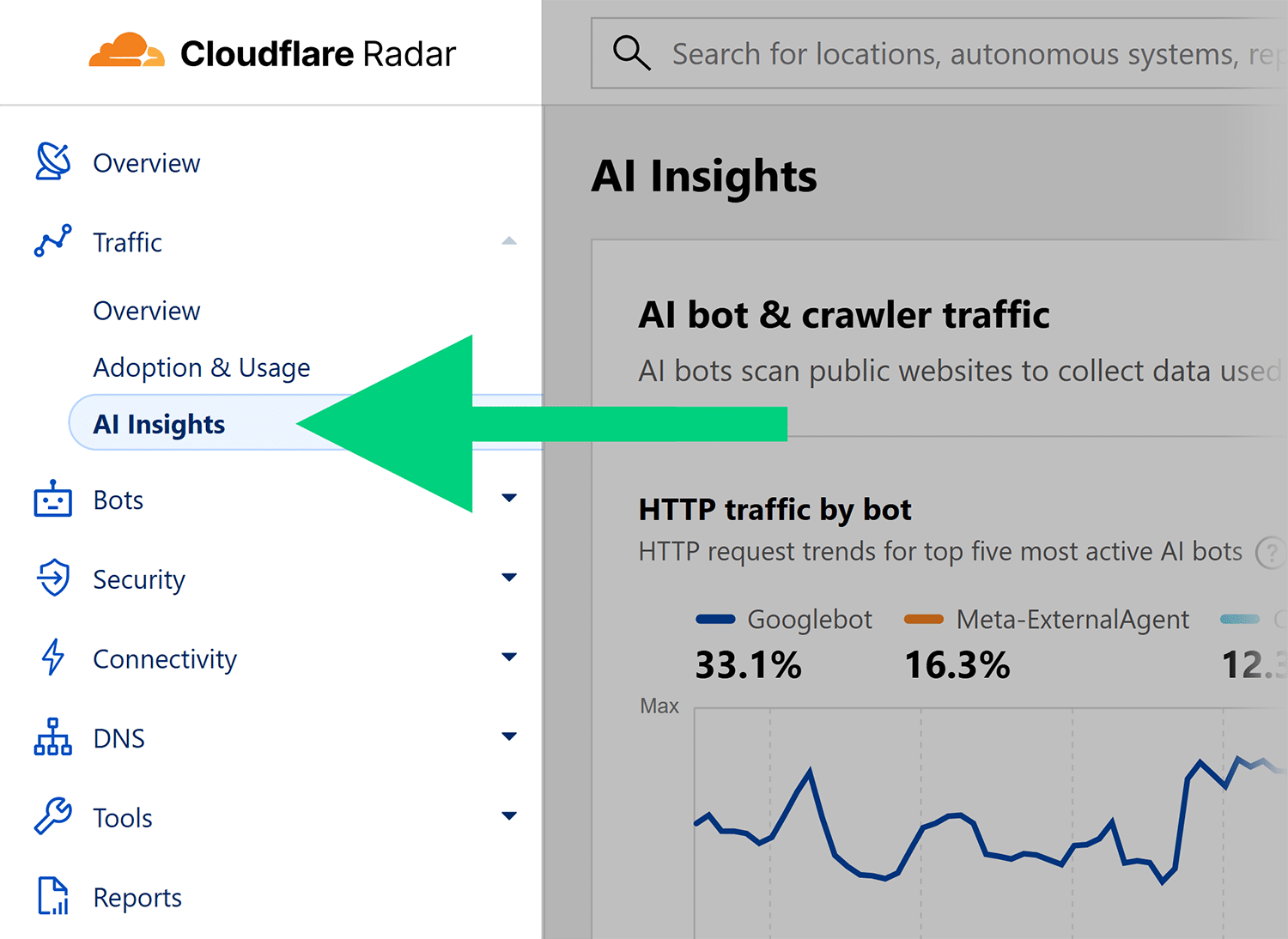
The report breaks down crawler purpose: training (crawlers collecting data to train models), search (crawlers gathering content for AI-powered search results), user action (crawlers accessing content in response to specific user requests), or undeclared (crawlers that don’t specify their purpose).
Also, the crawl-to-refer ratio report shows how often crawlers access web content versus how much traffic they send back to websites.
Dig deeper: For some ideas on how to use these industry benchmark reports, check out A deeper look at AI crawlers: breaking down traffic by purpose and industry.
The future of AI crawling: Will it be monetized?
The relationship between content creators and AI systems is evolving beyond simple allow/block decisions. Cloudflare’s experimental pay-per-crawl feature hints at a future where content access could be monetized at internet scale.
Currently in private beta, this feature lets content owners set pricing for AI crawler access. Instead of choosing between blocking crawlers entirely or allowing free access, you can require crawlers to pay for each request.
How does that work, exactly?
When an AI crawler requests your content, it either presents payment intent through request headers (and receives an HTTP 200 success response with your content) or receives an HTTP 402 Payment Required response along with pricing information.
Cloudflare acts as the merchant of record, handling payment processing and enforcement. The platform also provides the underlying technical infrastructure, so content owners don’t need to build custom payment systems or crawler authentication mechanisms.
The initiative raises interesting questions about content valuation in the AI era. If your site provides high-quality, unique content or web data that’s valuable for AI training or search results, should you be compensated for that access? The pay-per-crawl model suggests that eventually, market forces might determine what content is worth to AI systems.
This could definitely benefit publishers and content creators who have built valuable archives but struggle to monetize them as AI systems train on their content without compensation. Rather than blocking AI systems entirely and losing potential discoverability, they could allow paid access.
However, the model also creates challenges. Different AI crawlers might have different willingness to pay, potentially creating a system where only well-funded AI companies can access premium content.
And determining fair pricing remains complex — what’s reasonable compensation for a single page crawl?
Can AI crawlers access your site?
Managing AI crawler access requires understanding three interconnected pieces: whether crawlers can technically access your content, how to provide context that helps them understand it, and how to control which systems can crawl what content.
Track, optimize, and win in Google and AI search from one platform.
For deep visibility into AI crawler access and technical issues, consider using Semrush One for the Site Audit tool. The AI Search Health report specifically checks whether your site is optimized for AI crawler access, identifying issues that could limit how well AI systems can discover and understand your content.
And don’t miss the rest of our series on AI crawlers. If you missed it, review Part 1, What are AI crawlers and bots?, where we cover the basics of AI crawlers and how they work. Then read Part 2, How to optimize a website for AI crawlers and AI agents, where we discuss technical options and strategies for improving AI accessibility and visibility.
Explore more on
Editorial disclosure
Search Engine Land is owned by Semrush. We remain committed to providing high-quality coverage of marketing topics. Unless otherwise noted, this page’s content was written by either an employee or a paid contractor of Semrush Inc.
About the author