Google Business Profile products: 3 ways to productize your presence

Confused about the differences between Google Business Profile (GBP) products, in-store products, and Google Merchant Center? This article will cover all three options for productizing your presence across multiple Google interfaces.
Why does listing products on your Google business properties matter? Because showcasing your inventory brings customers a big step closer to making a transaction. It’s the difference between your GBP simply showing the public the physical locations of your stores and letting them know you have the merchandise they’re looking for.
Additionally, any product-oriented Google feature is currently of extra interest, as we’re in the early days of agentic search. AI agents can carry out tasks on behalf of humans, and this includes shopping. The more local brands promote their inventory online, the better prepared they’ll be for a possible agentic future.
What are GBP products?
GBP products are unique inventory items you can add directly to your listing. They appear within your listing in a section headed “Products,” and they can contain product images, descriptions, and pricing.
They are a free, eye-catching marketing asset that is especially suited to smaller businesses with inventory lacking traditional bar codes. For example, you might sell handmade pottery created by local artisans and not have bar codes on your products. GBP products are a great fit for your scenario, as businesses without bar codes can use this feature to create a digital shop window that lets customers see unique inventory. This gives potential customers the opportunity to browse your merchandise and be inspired to visit your premises.
Why GBP products matter
GBP products make your listing more transactional, bringing vital local visibility to your inventory. As Reputation Arm founder Claudia Tomina states:
“Google Maps mobile is aggressively pulling rich content directly into the main business overview. Physical products (not from [M]erchant [C]enter) are getting prime, highly visual real estate right on the mobile screen.”
Your business will be at a competitive advantage when your Google listings showcase inventory while other nearby businesses don’t.
How do you edit and manage GBP products?
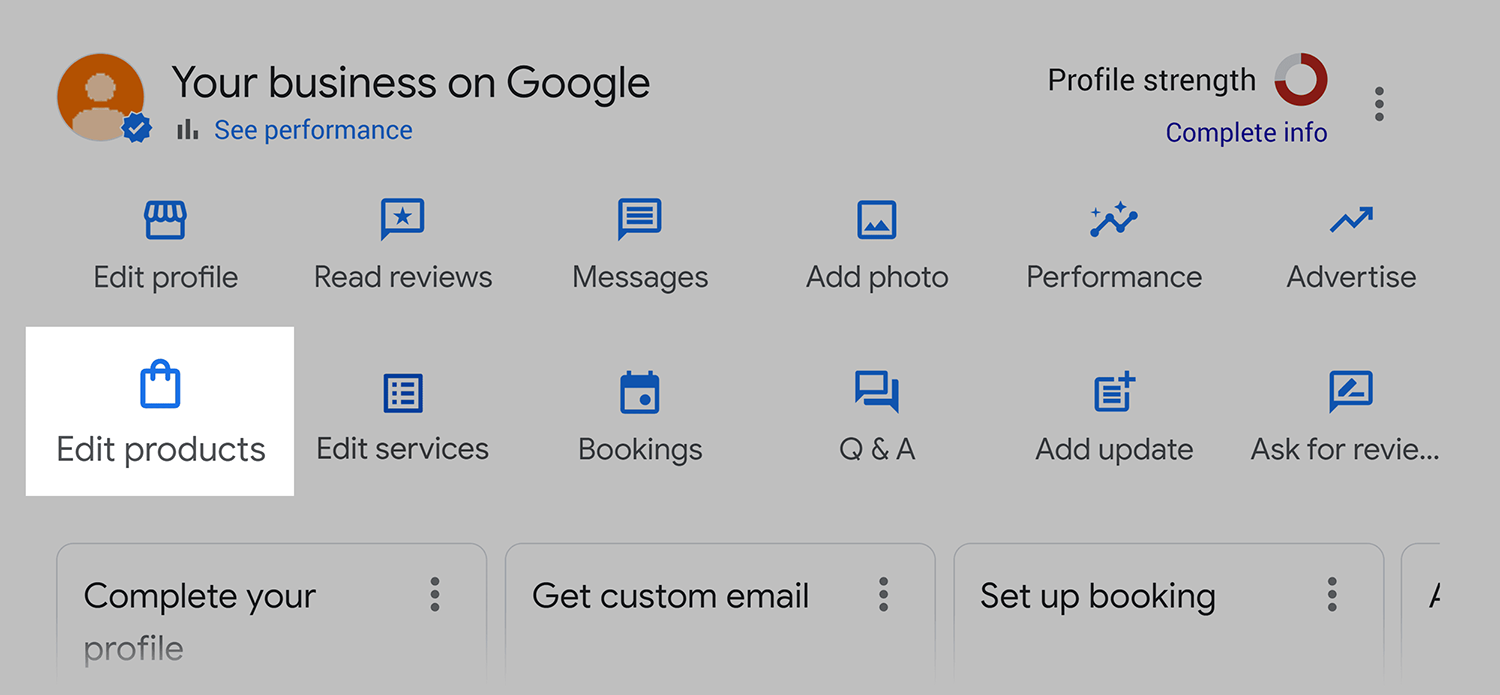
Edit your GBP products directly in the New Merchant Experience dashboard. Start by clicking on the “Edit products” tab:
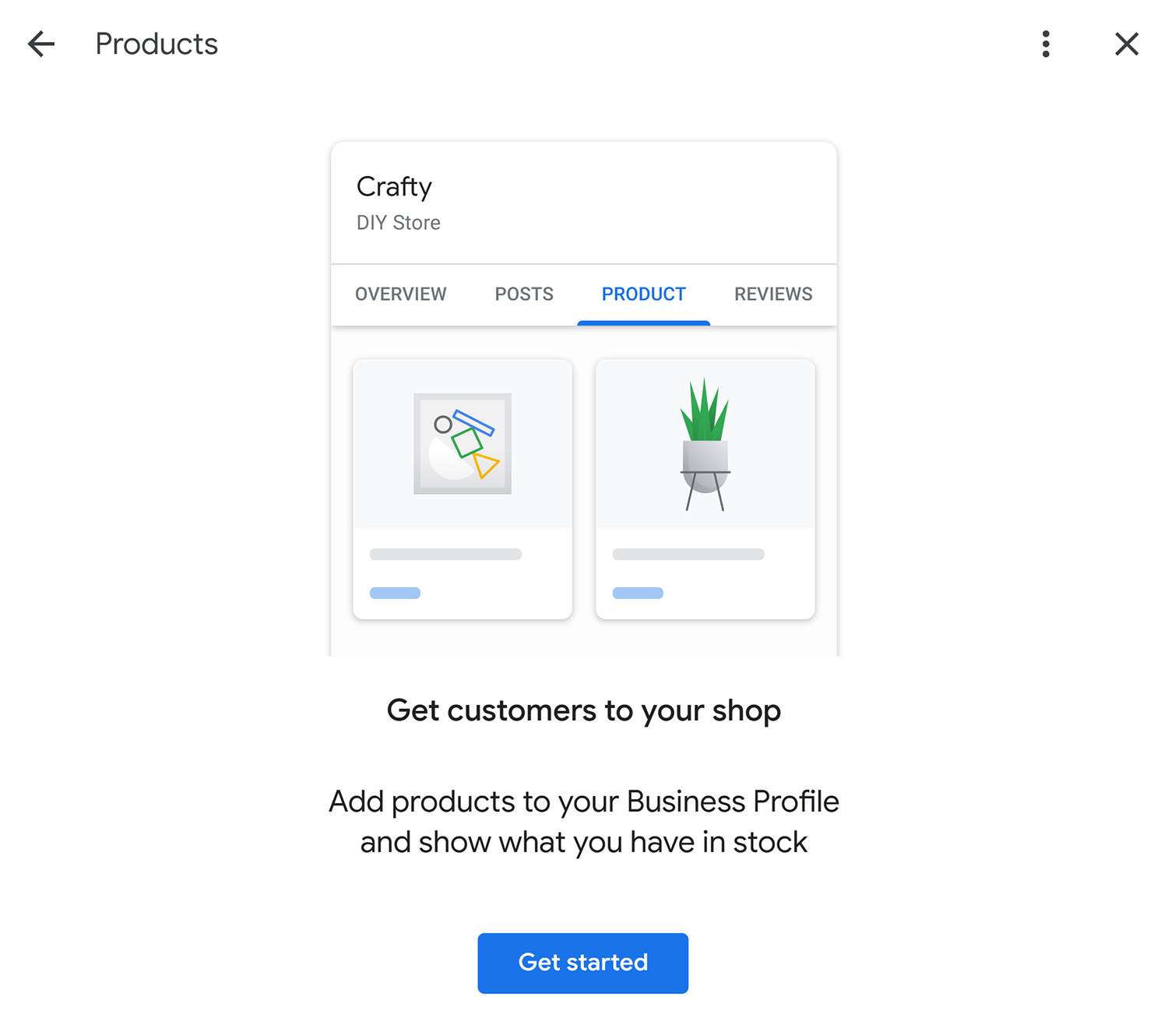
Next, click on “Get Started”:
You’ll be taken to this product editing screen:
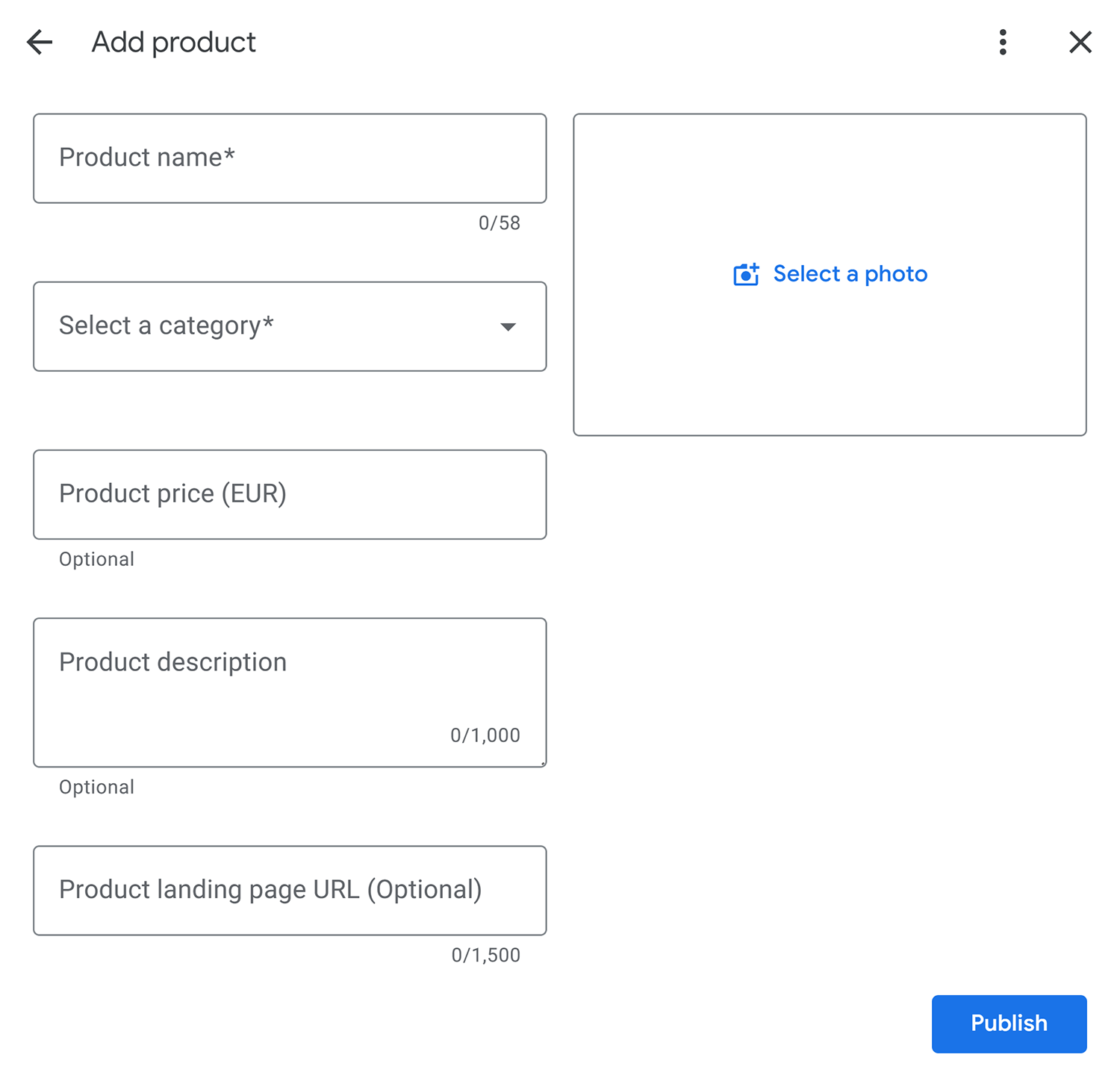
Here, you can:
- Add a product name
- Create an optional product category (e.g., you could have one category for “Clothing” and another category for “Cosmetics”)
- Add a price
- Write a product description of up to 1,000 characters
- Add the URL for the product landing page on your website
- Add a product photo
If you are a US-based merchant, Google offers additional image-editing capabilities with their generative AI tool: Product Studio. This tool can be used for scene generation in the product editor, making your product imagery more appealing through AI. This option is helpful for removing image backgrounds and selecting a universal background theme that makes your inventory look more professional and cohesive. Before using Product Studio, you must agree to Google’s Terms of Service.
Once you are satisfied with your GBP product listing, hit the “Publish” button.
Where do GBP products appear?
GBP products are displayed in a carousel on your Google Business Profile, which looks like this:

Customers can click the “View all” button to see all products added to your listings. An individual product listing looks like this:
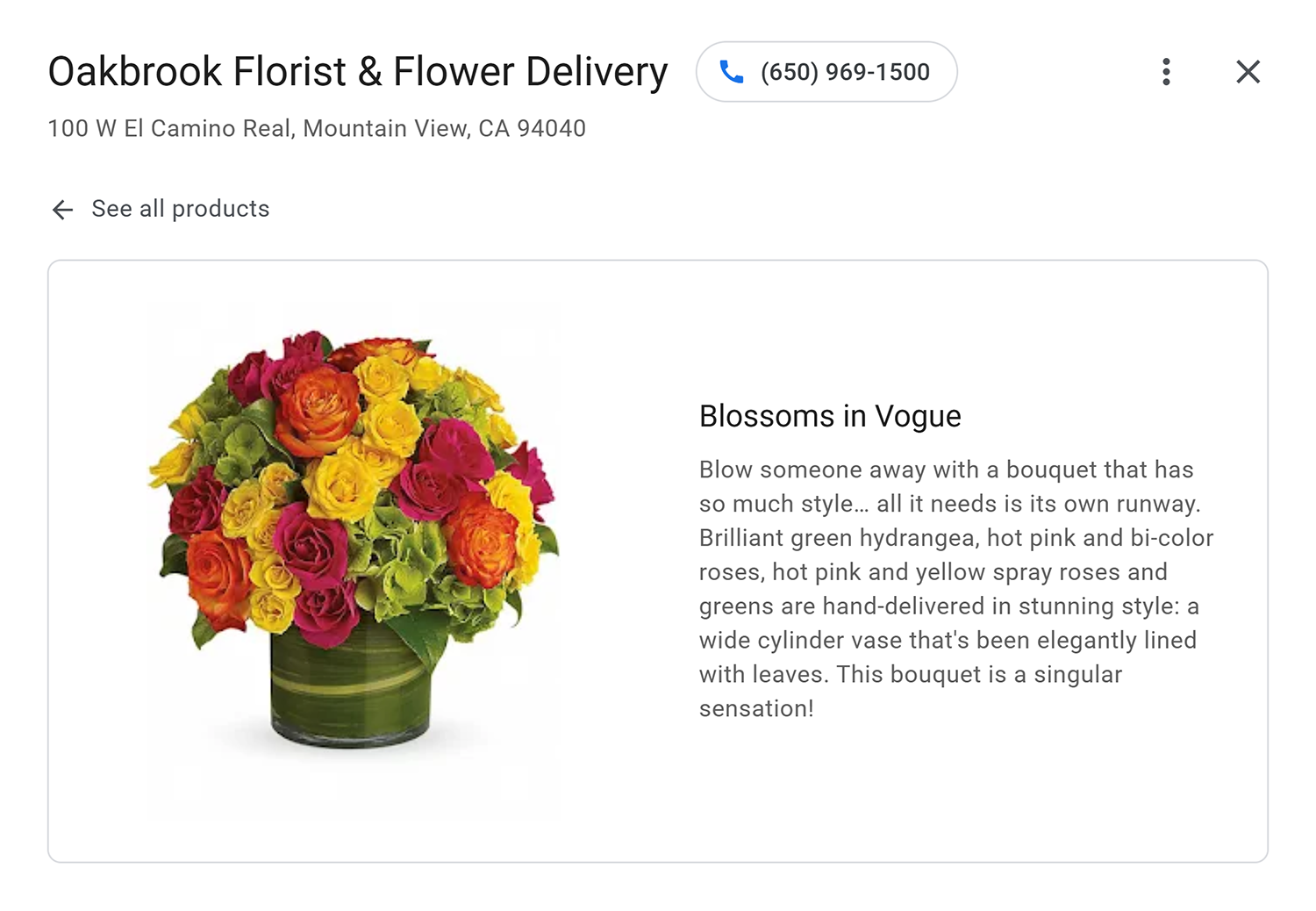
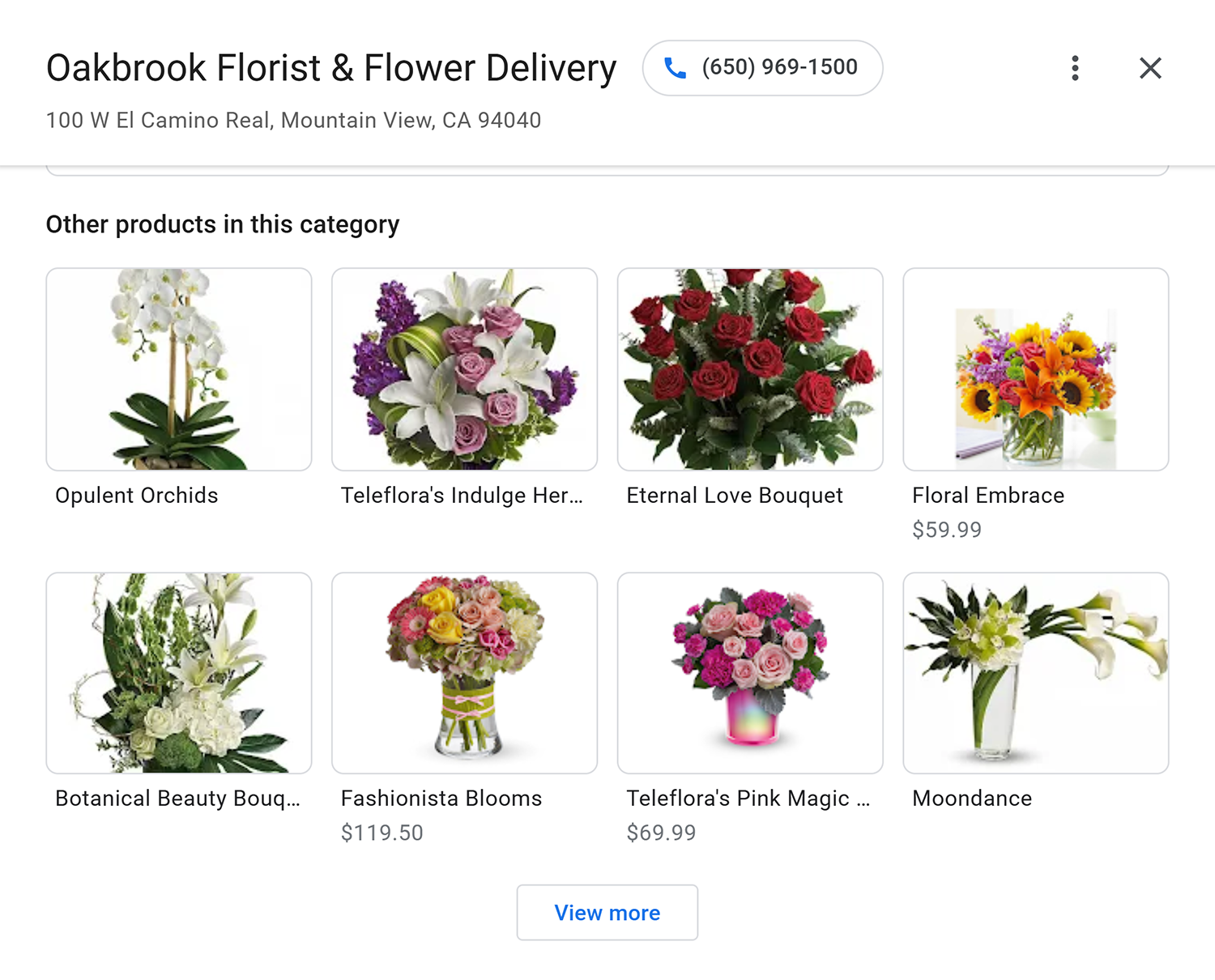
If you take the time to create product categories, the GBP products view will also show searchers other products in the same category, like this:
Eligibility requirements for adding GBP products
Google states the following regarding who is eligible to use their product editor:
“If you have a local store which sells physical goods, the product editor is suitable for you. You can also meet one or more of the following criteria:
- You don’t have a website where your customer can purchase your products online.
- Your products don’t have barcodes.
- You don’t have fresh data about stock availability.”
If your business model isn’t a good fit for the above criteria, Google suggests these alternative options for enhancing your GBP:
- “If you have a dining establishment, you can upload photos of your dishes with the menu editor.
- If you sell services, you can add the services you offer with the services editor. Learn how to add or edit your services.
- If you sell experiences, you can add your ticket and activity details. Learn how to manage your ticket and activity details.
- If you sell products with barcodes, you can connect your Point of Sale (POS) system to the Local Inventory app. Learn how to showcase in-store products.”
Google’s in-store products
This service was formerly known as “Pointy,” which was a third-party product Google had partnered with. In-store products are now fully owned by Google and are intended for brands that vend inventory with barcodes. As with GBP products, in-store products provide visibility for your inventory. They help customers browsing local search results see which products your brand has available for purchase.
How do you edit and manage in-store products?
Adding in-store products is free, but your operations must fall within one of these two scenarios, as described by Google:
- Using the Local Inventory app as your point-of-sale system: You can use the app to sync products available in your point-of-sale (POS) system to Google. It works with many POS systems, including Clover, Square, and Lightspeed. If the app isn’t available for your system, you can manually add a product. Check the list of compatible POS systems.
- Making use of in-store inventory from delivery partners: You can use product sources from delivery partners like Instacart, DoorDash, and Uber Eats. Your in-store inventory from those partners automatically appears on Google. You can opt out during the initial discovery period or unlink existing sources. Learn how to manage your product sources.
If your business experiences problems with the Local Inventory app, Google suggests using GBP products instead, as described above, to manually showcase your inventory.
You must also meet Google’s barcode requirements for in-store products to work properly for your business. Google states:
“If you create your own barcodes or labels, they don’t appear in our databases, so we can’t find images or descriptions for your products. Our database contains product info associated with manufacturer (UPC/EAN) barcodes.
If you produce your own barcode labels, you can add your products automatically. To add your products automatically:
- Place both the UPC/EAN and your barcode labels on the product.
- Scan both labels at the POS system.”
Where do in-store products appear?
In-store products show up directly within your Google Business Profile, like this:
They also appear within your Google Maps listing, like this:
When users click on a product or product category from these locations, they will be taken to a Google Shopping result, like this:
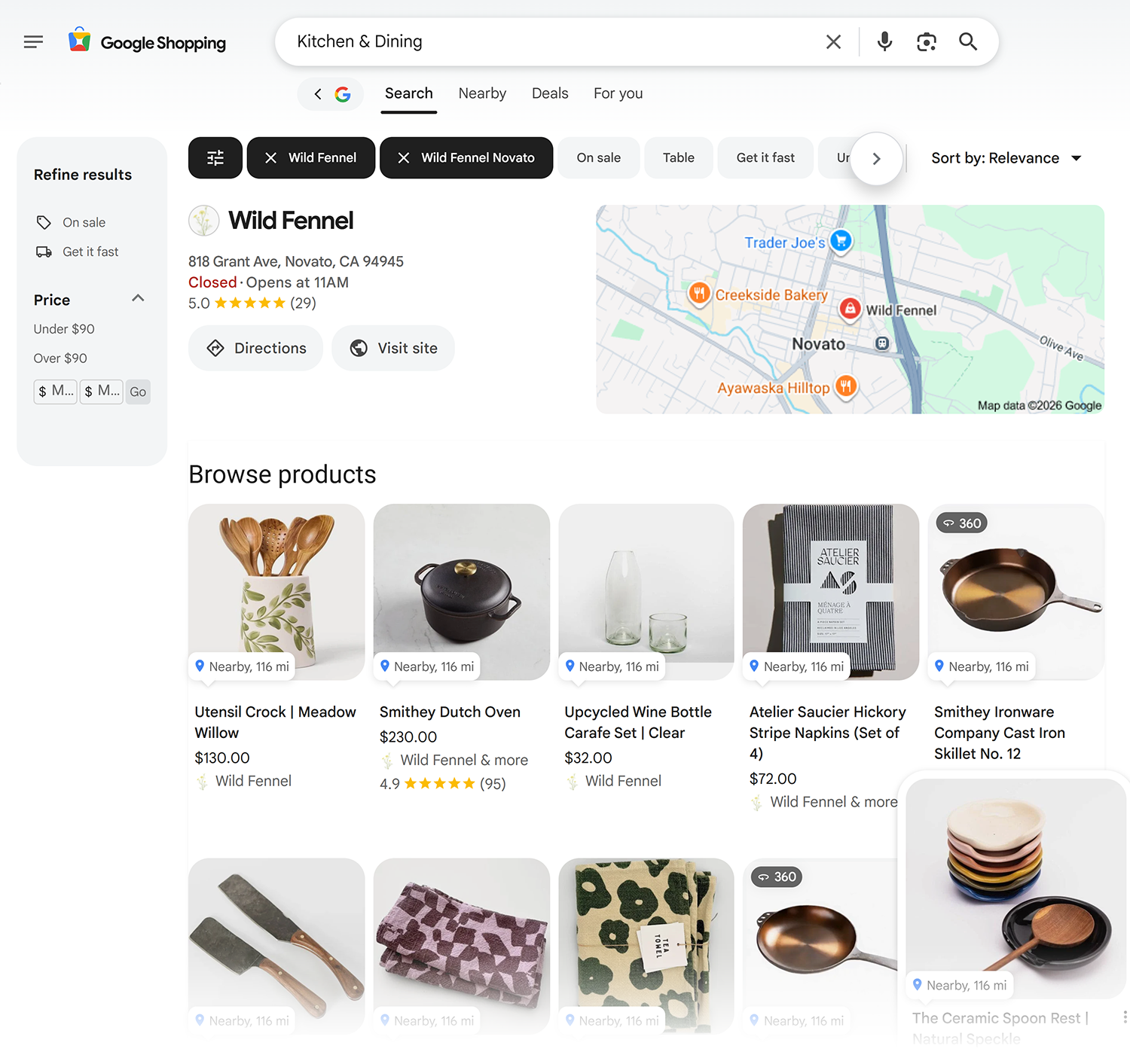
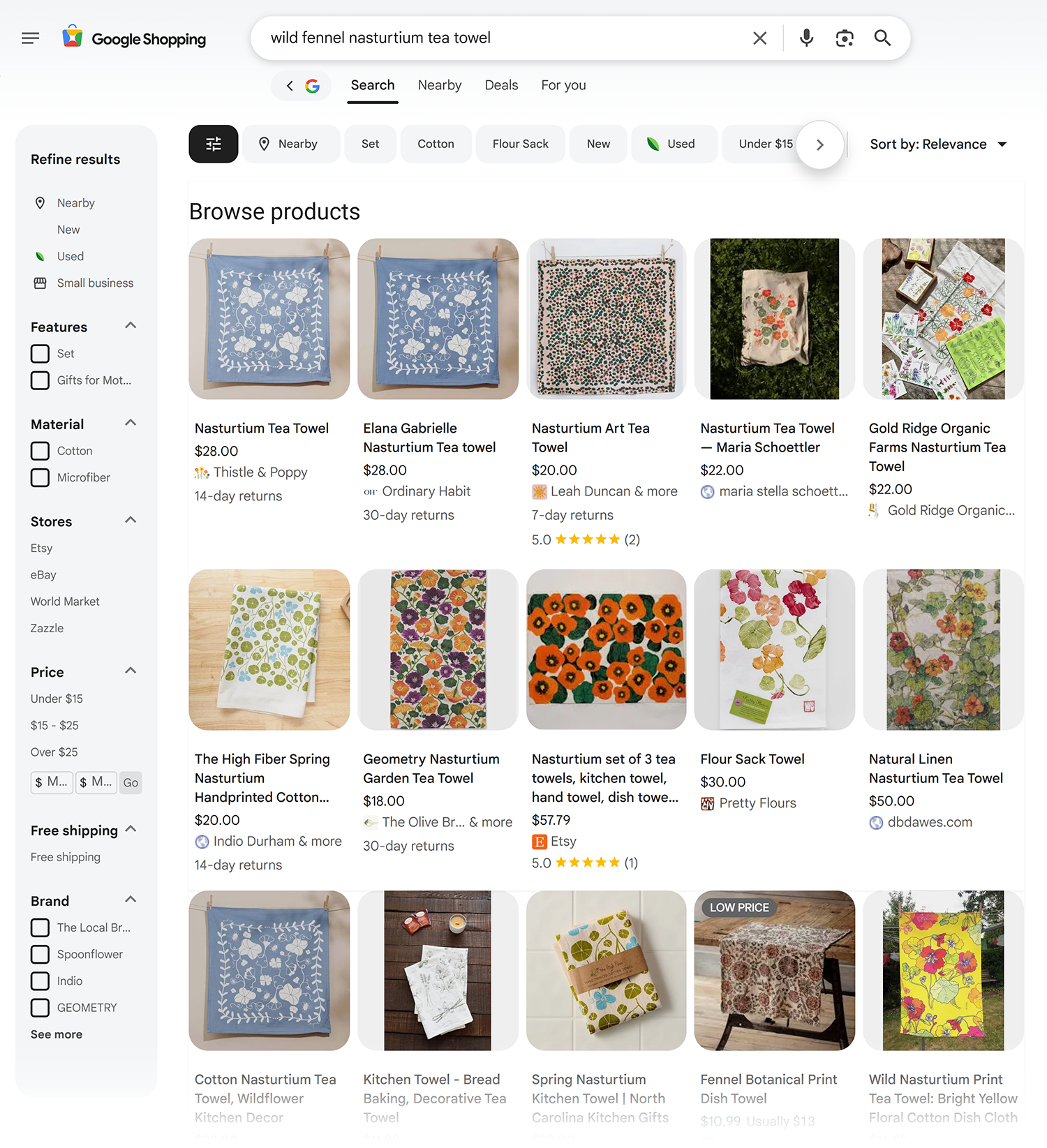
From there, clicking on an individual product will take the shopper to a view like this one, with more information about the product and store location; calls-to-action (CTA) such as visiting the site, calling the business, or asking for directions; and a link to the product landing page:

Finally, consumers can go directly to Google Shopping and find your brand if they are either searching for it by name or searching for a particular inventory item you carry. In the following screenshot, the “Browse products” section is displaying the in-store inventory added by this example business:
Eligibility requirements for adding in-store products
Not all merchants are eligible to use in-store products. Be sure your business meets the following eligibility criteria:
- Have a physical storefront where shoppers can buy your products
- Have a verified Google Business Profile that you’re signed into
- Sell products that have UPC/EAN/manufacturer barcodes
- Be in an eligible country or region (Ireland, UK, Australia, Canada, or the US)
- Sell products from an eligible store type
Pro tip: If you try to sign up but are redirected, sign in to the account associated with your Business Profile.
If your store type consists of selling inventory in prohibited and restricted categories, such as weapons and tobacco, you can still sign up for this feature, but Google will only display non-restricted items. They provide the example of a tobacco store selling other items, such as candles and lighters, which would be eligible for display.
How are in-store products different from GBP products and Merchant Center cost-free listings?
Google Business Profile products are the simplest option for showcasing inventory that lacks barcodes, providing new visibility for the merchandise on your listing. Google in-store products are a step up, highlighting barcode-based inventory on Google Business Profiles, Google Maps listings, and Google Shopping. Both of these options share the goal of driving traffic to local stores.
By contrast, Google Merchant Center cost-free listings are more ecommerce oriented, because they are available to brands with physical stores as well as to digital vendors. They also have the benefit of delivering broader visibility across Google search, Google Images, Google Lens, YouTube, Gemini, Google Shopping, and the “Products” section of Google Business Profiles.
Google Merchant Center cost-free listings
Google Merchant Center is a system with both free and paid options for promoting your inventory, with the paid side running through Google Ads campaigns such as Shopping and Performance Max, including local inventory ads. Google’s terminology for different aspects of this product can be confusing. Here are their definitions:
- Free listings are organic product listings on surfaces like Google search, Google Maps, YouTube, Google Shopping, Google Images, and Google Lens.
- Free local listings are organic product listings on local surfaces across Google search, Google Maps, the “Products” tab, and on Google Business Profiles. For example, “See what’s in store” allows customers to find which products are available at your stores when looking at a specific store location and when searching for a product. It will let them know if you have the item they’re searching for in stock. If you’re already using a Merchant Center account for free listings, paid campaigns, and local inventory data, you can activate free local listings from this account through a CSS provider of your choice.
Brands can participate in both programs, and Google Merchant Center listings can be connected to ecommerce platforms like Wix, Shopify, or WooCommerce to encourage transactions.
Google will determine your eligibility for inclusion in Google Merchant Center. Whether you run a local business selling inventory offline, an ecommerce brand selling inventory online, or a hybrid of these two models, you must begin by signing up for a Google Merchant Center account. Google will ask you a series of questions to determine your eligibility.

How do you edit and manage Google Merchant Center cost-free listings?
You have two options for adding products to Google Merchant Center:
Option 1: Upload a data source, such as a file or spreadsheet containing multiple inventory items
- In your Merchant Center account, go to “Products”
- Under “All products,” click “Add Products”
- Select “Add another product source”
- Then choose the type of source being added and follow the in-product guidance
Google offers this helpful video tutorial for adding a data source, enabling automatic updates to it, and connecting to an ecommerce system like Wix, WooCommerce, or Shopify:
Option 2: If you have a small inventory, you can add products manually, one at a time
- In your Merchant Center account, go to “Products”
- Under “All products,” click “Add Products”
- Select “Add products one-by-one”
- Fill in all the details and click “Save”
Google offers this additional help document showing how to edit a single product, edit products in bulk, and fix issues with products.
Where do Merchant Center free listings appear?
Google explains:
“With a free listing, the products you sell can appear at no cost on Google Search, Google Maps, Gemini, YouTube, the Shopping tab, Google Images, and Google Lens. Free listings for products help your product pages appear in search results, not other pages like homepages, shipping and return policies, or product category pages.
If your products are eligible for free listings, they may show in different places on Google, like Search, Images, Lens, YouTube, Gemini, the Shopping tab, and the products module on Business Profile.”
Your products can show up in displays like Google’s “Popular products” SERP feature:

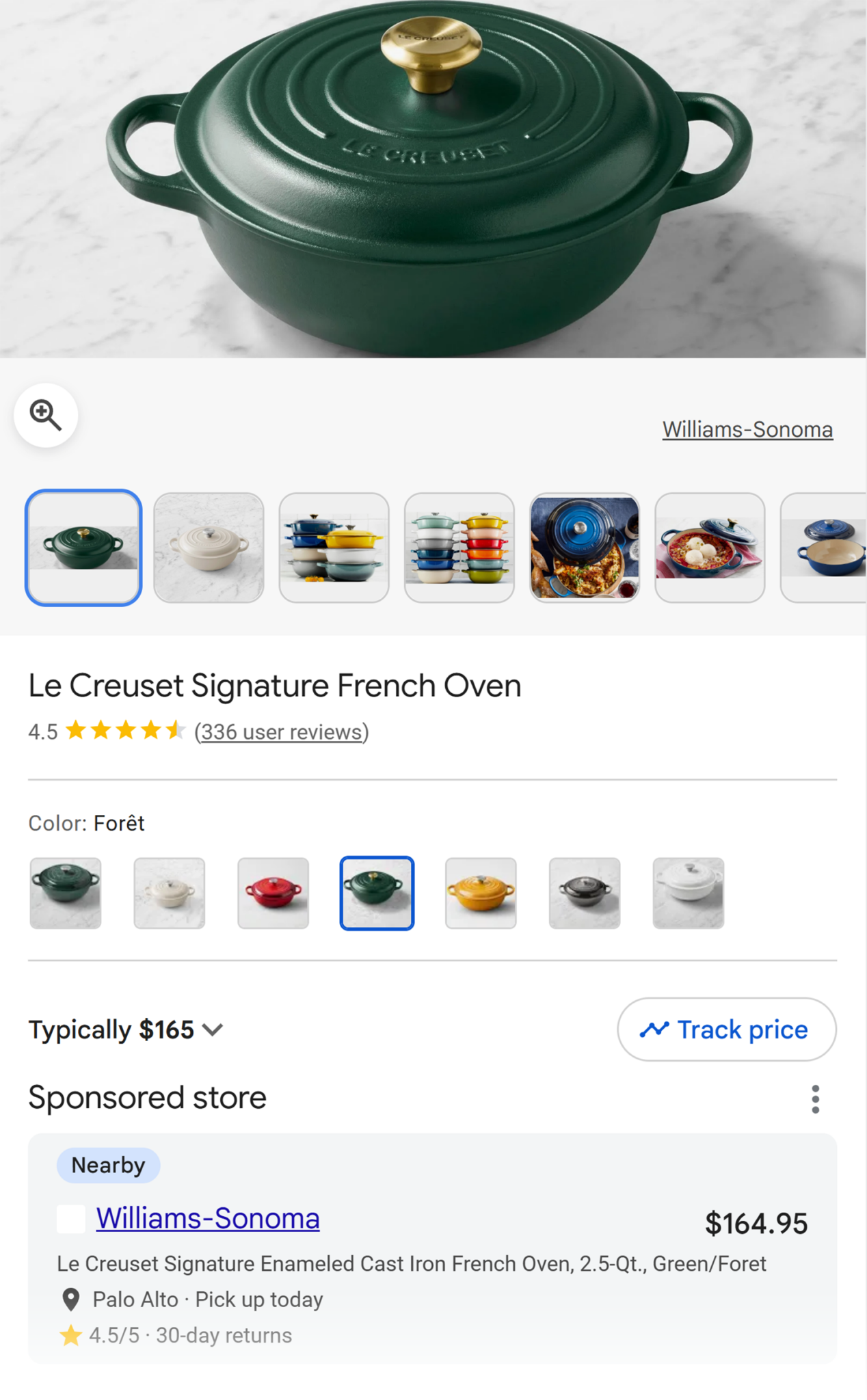
When clicked, an individual product listing takes the user to a display like this with a link to the product landing page and lots of information about the product:
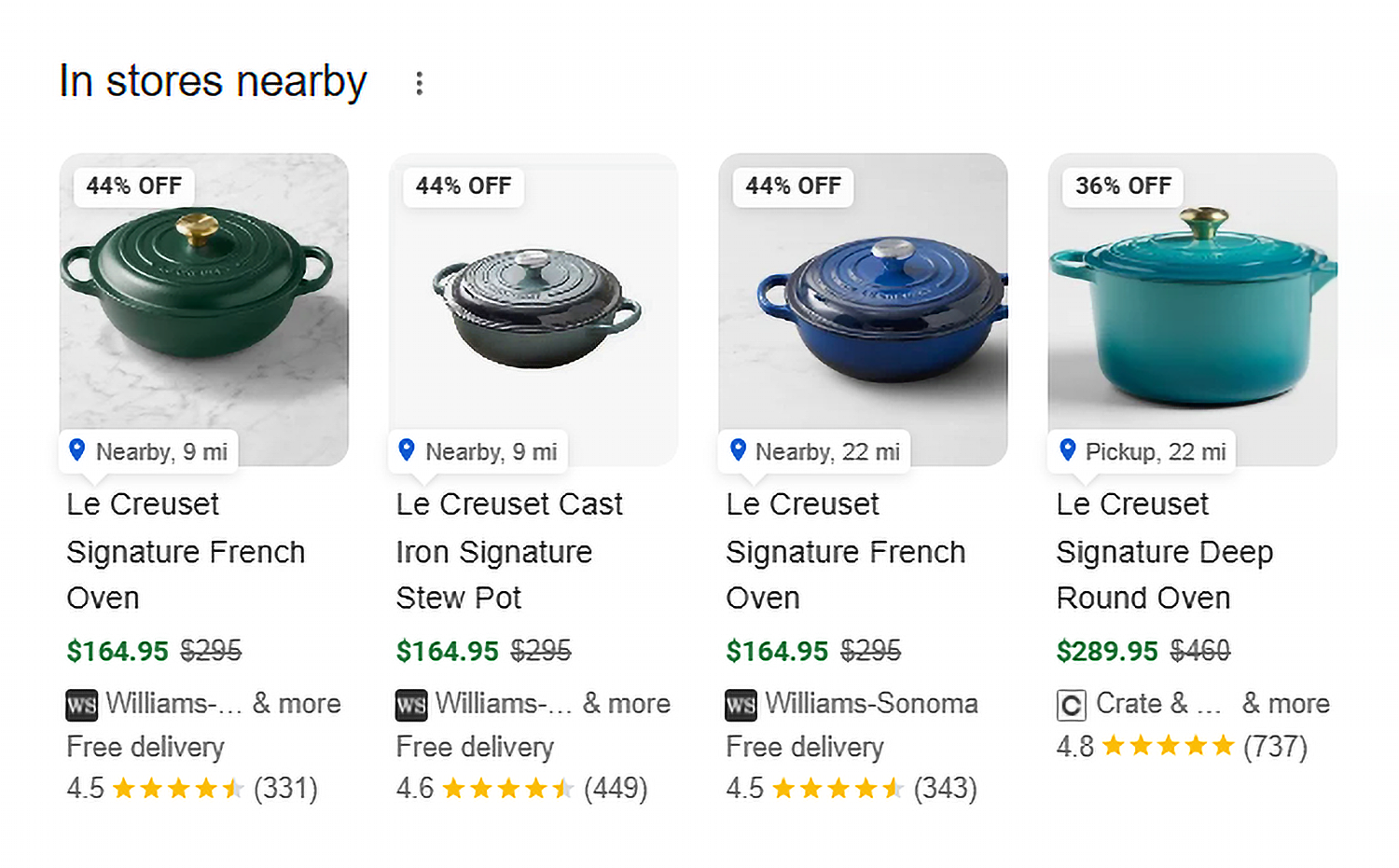
A similar SERP feature labeled “In stores nearby” functions the same way, but emphasizing the distance between the user and the merchant:
Eligibility requirements for adding Merchant Center free listings
Google’s requirements for inclusion in Merchant Center free listings are extensive. To participate, your brand must adhere to these four policies:
- Prohibited content policy: This excludes counterfeit products, dangerous products, products that enable dishonest behavior, inappropriate content, and other unsupported free listings content.
- Prohibited practices policy: This prohibits abuse of the free listings network via malicious content, unfair advantage and other bad practices, and misrepresentation (such as inaccurate portrayal of your inventory).
- Restricted content policy: This regulates adult content, substance-related content, copyrighted content, gambling content, healthcare content, and trademarks.
- Site requirements policy: This sets Google’s standards for editorial and professional requirements, prohibiting listing elements like misleading display URLs, gimmicky language, website landing pages under construction, sites with disabled browser back buttons, and sites not viewable in common browsers. This policy further outlines Google’s stance on irresponsible data collection and use.
Get the full text of all the policies here to ensure your brand can comply and participate in Google Merchant Center cost-free listings. In addition to adhering to these four policies, your brand must also meet these two requirements:
- Your website must display a “product returns” policy next to each of its products.
- You must set up shipping settings or add shipping costs using the shipping attribute [shipping] to product data.
Finally, Google notes that adherence to these standards will affect how your products show up across their interfaces.
- “The most important factor of a free listing is creating high-quality content that your audience will find valuable. Create content that is informative, engaging, and relevant to your audience.
- Use relevant keywords and phrases throughout your content so that it’ll be more likely to show up in search results. Follow our SEO guidelines to improve the visibility of your website on Google and to provide a good customer experience.
- If you work with a third-party platform to show, promote, or sell your products across Google, link your Merchant Center account with the third-party platform.
- If applicable, link your Merchant Center account to your existing Business Profile.
- Match your product data in Merchant Center with your online store to ensure customers view the same information, such as prices, across both.”
How are Google Merchant Center free listings different from GBP products and in-store products?
Google Merchant Center free listings appear across a broader array of Google interfaces than GBP products and in-store products. However, there is overlap between the three options, including Google Merchant Center free local listings powering the “Products” tab of Google Business Profiles.
Additionally, Google Merchant Center free listings can be used by ecommerce brands, whereas GBP products and in-store products are intended for local brands with a physical presence.
Product listing comparison table
| Name | Where to manage | Where products display | Other important notes |
| Google Business Profile products | Via the New Merchant Experience dashboard | In products carousels on Google Business Profiles | A great way to make your Google Business Profile more transactional and gain a competitive advantage if other nearby businesses aren’t using this feature |
| In-store products | Either via the Local Inventory app for your POS system, or through third-party delivery partners like Instacart, DoorDash, or Uber Eats | In search results and on your Business Profile on Google Search and Maps | This expands the visibility of your local business inventory across multiple Google interfaces |
| Merchant Center free listings | Via your Google Merchant Center account in the “Products” section | Google search, Google Maps, Gemini, YouTube, the Shopping tab, Google Images, Google Lens, and the products module on Business Profile | This is your most comprehensive option for bringing visibility to your inventory across the greatest number of Google interfaces |
Seize the moment with further learning
Every eligible local business has the option of experimenting with different levels of productization as part of its local SEO strategy, via Google’s GBP products, in-store products, and Merchant Center free listings. You could start small by adding your first few products to your Google Business Profile and then expand over time, or you can dive into the deep end with Google Merchant Center right from the start.
It’s important to understand that AI is training consumers to expect more from the internet. As searchers become accustomed to getting very fine details about local businesses from conversational AI like Google AI Mode, Ask Maps, and ChatGPT, it’s logical that they’ll want as much information as possible about local business inventory. This is the right moment to maximize the availability of such information via the programs you’ve learned about today.
To understand the importance of productization in the AI era, read “How AI is impacting local search and what tools to use to get ahead” for further learning.
Explore more on
Editorial disclosure
Search Engine Land is owned by Semrush. We remain committed to providing high-quality coverage of marketing topics. Unless otherwise noted, this page’s content was written by either an employee or a paid contractor of Semrush Inc.
About the author